Localdb sql server что это
Кроме полноценного MS SQL Server в версиях Developer или Express мы также можем установить облегченную легковесную версию SQL Server Express — движок LocalDB , который предназначен специально для целей разработки. Например, LocalDB может применяться для разработки программ на различных языках программирования для тестирования их работы с базой данных MS SQL Server, когда нет необходимости в большинстве возможностей стандартного MS SQL Server. И в этих условиях естественно проще установить небольшой легковесный движок, чем полноценный MS SQL Server.
Формально SQLLocalDB представляет компонент MS SQL Server Express, тем не менее есть несколько вариантов, как можно установить LocalDB.
Установка через программу усстановки SQL Server Express
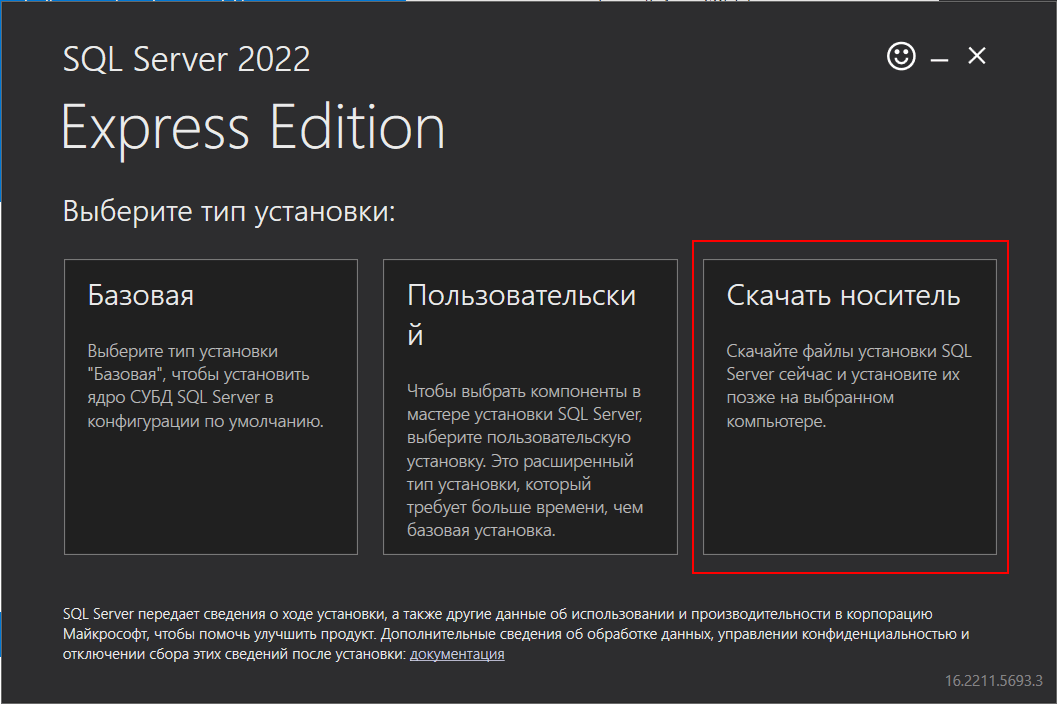
Первый вариант представляет установка LocalDB через программу усстановки SQL Server Express. Так, загрузим с адреса https://www.microsoft.com/en-us/sql-server/sql-server-downloads установщик для SQL Server Express. На стартовом экране установщика выберем пункт «Скачать носитель»:
Нам откроется окно для выбора компонентов для установки. Выберем на нем пункт LocalDB :
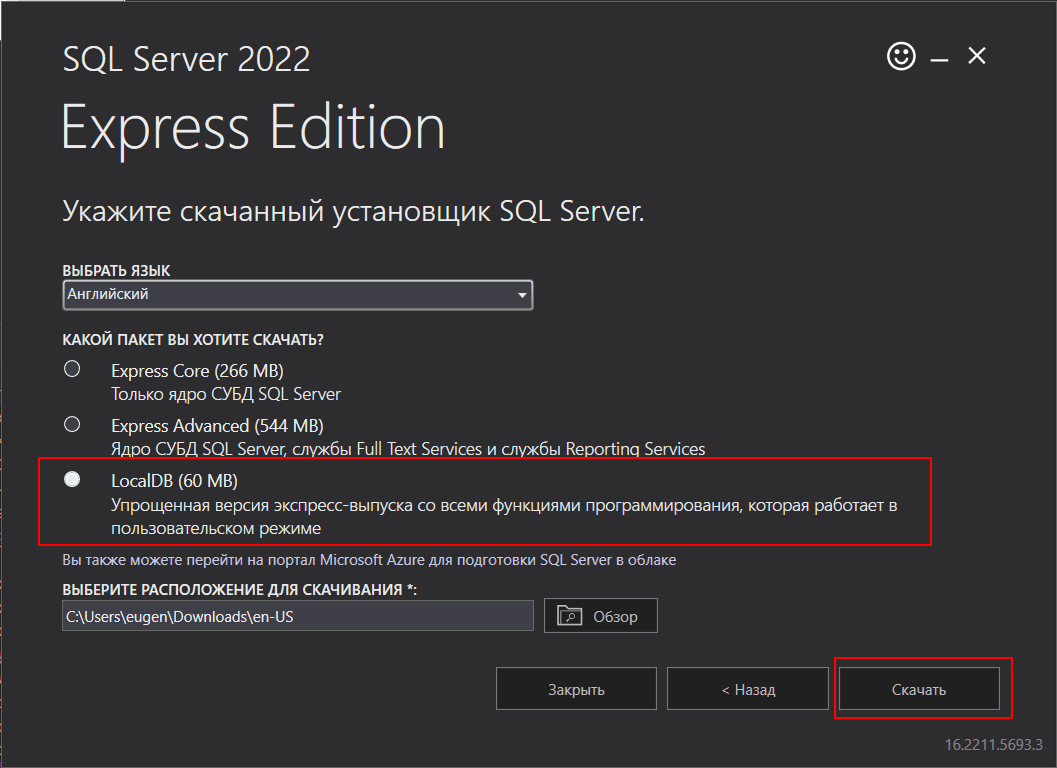
После нажатия на кнопку «Скачать» в указанную в окне папку будет загружен файл SqlLocalDB.msi . И после запуска этого файла будет установлен LocalDB.
Установка через мастер установки Visual Studio
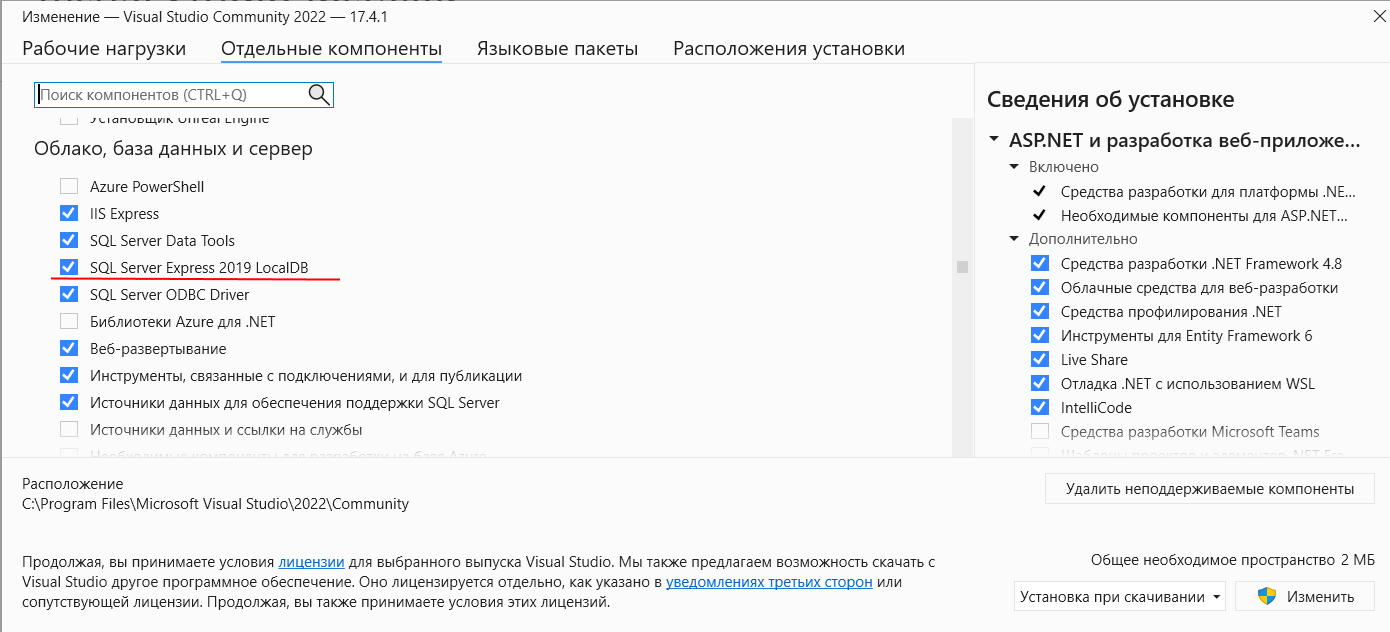
Если вы вдруг работаете с Visual Studio, в частности, с платформой ASP.NET, то вы можете установить LocalDB через программу установки Visual Studio. В частности, на вкладке «Отдельные компоненты» можно выбрать соответствующий пункт (конкретная версия LocalDB может отличаться):
Подключение к LocalDB
После установки LocalDB к этой версии SQL Server также можно подключиться из SQL Server Management Studio. Для этого при запуске программы в окне подключения к серверу в поле «Server name» в качестве имени сервера необходимо указать (localdb)\MSSQLLocalDB
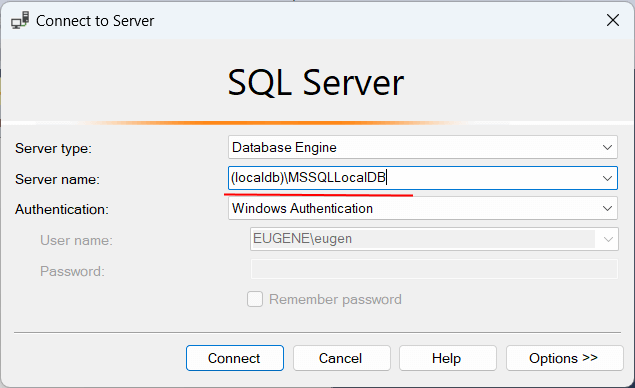
Если в этом поле выпадающий список не содержит «(localdb)\MSSQLLocalDB», однако LocalDB тем не менее был ранее установлен, то можно просто ввести в это поле «(localdb)\MSSQLLocalDB».
И после этого мы сможем работать с LocalDB в SQL Server Management Studio в рамках установленых для этого движка ограничений:
SQL localDB
LocalDB – это версия SQL Server, впервые представленная в составе SQL Server 2012 Express и предназначенная специально для разработчиков. Сервер SQL LocalDB инсталлируется совместно с установкой MS Visual Studio. Можно также установить локальный сервер в составе системы SQL Server Express. Sql LocalDB очень прост в установке, для управления данными использует T-SQL, такой же язык, как и полная версия SQL Server.
Sql LocalDB имеет низкие системные требования. Процессы локального сервера запускаются и останавливаются автоматически при необходимости. Через несколько минут после закрытия последнего подключения к локальному серверу процесс завершается. LocalDB может использоваться как встроенная база данных для небольших приложений.
Управление подключениями к серверу LocalDB можно осуществлять непосредственно из интегрированной среды программирования Visual Studio. Для этого используется инструментарий SQL Server Data Tools. Поддерживается создание, изменение, переименование и удаление таблиц, хранимых процедур, типов и функций.
Локальный сервер и инструменты работы с ним устанавливаются вместе со стандартной установкой MS Visual Studio, в ином случае это можно осуществить с помощью дополнительных настроек установщика Visual Studio Installer.
Примечание. Необходимо отметить, что описываемые процедуры создания, отсоединения, присоединения и удаления баз данных при работе с локальным сервером из среды программирования MS Visual Studio можно использовать с другими SQL серверами: SQL Server, SQL Server Express.
Создание базы данных в Обозревателе объектов SQL Server
Создать базу данных можно с помощью вкладки Visual Studio Обозреватель объектов SQL Server. Для этого необходимо открыть вкладку, выбрать объект (localdb)MSSQLLocalDB, в данном объекте выбрать папку Базы данных и щелкнуть по ней правой кнопкой мыши. В появившемся контекстном меню щелкнуть на пункт Добавить новую базу данных.
В диалоговом окне Создание базы данных ввести желаемое логическое имя базы. и подтвердить создание нажатием кнопки Ок. При необходимости можно указать место для сохранения создаваемой базы данных. После этих процедур в указанном месте появятся файлы с расширением *.ldf, *.mdf базы данных – база создана.
Логическое имя базы – это название базы данных в пределах её сервера данных, по которому приложение осуществляет запросы. Логическое имя не хранится внутри файла базы и его можно назначать при следующих подключениях любое другое, должно быть уникальным в пределах сервера. Имя базы присваивается InitialCatalog в строке подключения к серверу SQL LocalDB.
Создание базы данных SQL запросом
Создание базы данных можно осуществить SQL запросом, в окне редактора Transact-SQL. Создание базы скриптом требует некоторых знаний и навыков создания SQL скриптов, но это незначительное препятствие: хорошо изложенной документации по языку запросов SQL в интернете огромное количество.
Кроме того, ошибки поможет исправить интегрированная среда Visual Studio с её развитым отладочным режимом. После создания нескольких скриптов данный способ работы с базами данных покажется более удобным и рациональным.
Выбор сервера, на котором будет создана база данных происходит во вкладке Обозреватель объектов SQL Server: правой кнопкой мыши по названию сервера вызывается контекстное меню и далее нажатие на пункт меню Создать запрос. . Откроется окно редактора T-SQL скриптов, где можно писать скрипты для выбранного сервера.
SQL скрипт создания базы данных на выбранном сервере:
Отсоединение базы данных
Для определенных целей во время разработок требуется отсоединение базы данных от сервера LocalDB, например, для подключения к другому SQL серверу или переноса базы данных на другой компьютер. Отсоединение базы данных от сервера не удаляет файлы базы и их можно переносить, отсылать и подключать к любому SQL серверу.
Для отсоединения базы данных от локального сервера необходимо в списке баз правой кнопкой мыши щелкнуть по названию отсоединяемой базы и в контекстном меню выбрать пункт Отсоединить. При отсоединении базы данных она физически не удаляется с жесткого диска.
Отсоединение базы желательно производить без открытия решения или после закрытия решения приложения работы с данной базой данных. Иначе, после запросов записи к базе данных, отсоединить её указанным выше способом будет невозможно и возникнет исключение: «Cannot detach the database ‘DB444’ because it is currently in use». Возможно в таких случаях второе активное подключение блокирует операцию отсоединения, читайте ниже в абзаце Подключение существующей базы данных.
Примечание. Будьте осторожны при случайном выборе вместо Отсоединить – Удалить, база в таком случае удаляется физически с носителя информации компьютера и не перекидывается в корзину. Рекомендуется время от время делать копии рабочей базы данных.
Отсоединение базы данных SQL скриптом
Для отсоединения базы данных рекомендуется использовать готовую функцию SQL, называемую хранимой процедурой. Данные функции упрощает повторное использование ранее созданного SQL скрипта или нескольких объединенных инструкций для сервера баз данных.
Выбор сервера и вызов контекстного меню для создания запроса аналогично описанному и показанному анимацией в Создание базы данных SQL запросом.
Программный код скрипта SQL отсоединения базы данных, данный код вводится в окно редактора Transact-SQL:
Подключение существующей базы данных
К локальному SQL серверу можно подключить ранее отсоединённую базу или созданную в другой программе управления MS SQL базами данных.
Чтобы подключить существующую базу данных, находящуюся в какой-либо папке на компьютере необходимо в окне Обозреватель серверов щелкнуть мышью на ярлык Подключиться к базе данных. Либо щелкнуть правой мышью на заголовок Подключение данных. В появившемся контекстном меню щелкнуть на Добавить подключение.
В результате этих действий появится модальное окно ввода информации для подключения выбранного источника данных. Необходимо ввести путь к локальному серверу (localdb)MSSQLLocalDB (путь может быть отличаться от стандартного), выбрать Проверка подлинности Windows (или другой вид проверки, например, имя пользователя с паролем). В области Подключение к базе данных выбрать пункт Прикрепить файл базы данных. Далее указать путь к базе данных и ввести логическое имя базы. Если не указывать логическое имя, то названию базы присвоится строка пути до файла базы данных.
Имя подключаемого SQL локального сервера можно получить на вкладке Обозреватель объектов SQL серверов. При формальной попытке переименовать SQL сервер, в окошечке редактирования названия отобразиться название сервера. Либо правой кнопкой щелкнуть на названии сервера, вызвать его свойства и тогда название можно получить из строки подключения. Например, Data Source=(localdb)MSSQLLocalDB;… , (localdb)MSSQLLocalDB — и есть название сервера.
Подключения из вкладок Обозреватель серверов и Обозреватель объектов SQL Server это два активных подключения и в некоторых случаях они не позволяют выполнять операции с совместной базой данных, например, отсоединение. В таком случае можно закрыть подключение в окне Обозреватель серверов при помощи контекстного меню над именем базы. В случае отсоединения базы данных быстро восстановить подключение можно ярлыком Обновить либо из контекстного меню над именем подключенной базы. Такие активные подключения позволяют вам создавать объекты SQL в базе, читать и записывать данные.
Присоединение базы данных запросом на языке SQL
Существующую базу данных можно подключить к локальному серверу программным кодом на языке SQL. Во вкладке Обозреватель объектов SQL Server щелкнуть правой кнопкой мыши на строку с именем локального сервера и в контекстном меню нажать на команду Создать запрос. . Visual Studio откроет окно редактора Transact-SQL в котором можно создавать и редактировать SQL скрипты для выбранного сервера баз данных. Анимацию выбора сервера и вызова контекстного меню для создания запроса можно посмотреть в Создание базы данных SQL запросом.
Скрипт присоединения базы данных содержит обязательные данные: имя новой базы данных, полные пути к файлам базы данных, параметр FOR ATTACH (указывающий, что происходит присоединение существующей базы данных, но не создание новой).
SQL скрипт подключения существующей базы данных:
Удаление базы данных
Тестовые базы данных, дубликаты после работы с базами за ненужностью можно удалить с жесткого диска компьютера. Процесс удаления баз данных похож на отсоединение, но с важным отличием — файлы базы данных удаляются физически, без сохранения в корзине компьютера.
Чтобы случайно не удалить экземпляр-беловик базы данных настоятельно рекомендуется делать архивные копии файлов всех рабочих баз.
Для удаления базы данных необходимо вызвать контекстное меню правой кнопкой мыши на имени удаляемой базы. Выбрать пункт удалить, щелкнуть на данный пункт и в появившемся окошке нажать кнопку Ок.
По умолчанию галочка на Закрыть существующие соединения не ставится и если удаляемая база данных открыта в каком-либо подключении удалить её будет невозможно. Такие настройки по умолчанию уменьшают вероятность случайного удаления рабочей базы.
Для надёжного удаления подключенной базы данных предназначен пункт Закрыть существующие соединения. После неудачной попытки удаления необходимо заново вызвать модальное окно и поставить галочку на данный пункт. После этого база данных будет успешно удалена.
SQL скрипт удаления базы данных
Базу данных можно удалить SQL запросом, при этом база удаляется с сервера и физически удаляются файлы, принадлежащие данной базы. Удаление базы ответственная процедура поскольку восстановить её можно будет только из предварительно сделанной резервной копии. Перед удалением баз данных рекомендуется создавать резервные копии. Вызов окна редактора SQL запросов для выбранного сервера подробно описано выше, в Создание базы данных SQL запросом.
Скрипт SQL перед удалением может предварительно проверить существование данной базы на текущем сервере:
Строка подключения к LocalDB
Строку подключения можно увидеть при вызове окна свойств правой кнопкой на объект SQL Server в окне Обозреватель объектов SQL Server. Например:
Data Source=(localdb)MSSQLLocalDB; Integrated Security=True;Connect Timeout=30; Encrypt=False;TrustServerCertificate=False; ApplicationIntent=ReadWrite; MultiSubnetFailover=False
Из строки подключения можно получить путь подключения к серверу. В окне свойств можно увидеть местонахождение по умолчанию баз данных текущего SQL сервера и другие характеристики.
How to connect and use Microsoft SQL Server Express LocalDB

Microsoft SQL Server Express LocalDB is intended for developers, it is very easy to install and doesn’t require any complex configuration task to create an instance or to use the database. The Introduction on the installation of Local DB be found on “How to install Microsoft SQL Server Express LocalDB” article.
This article will show different ways of connecting to LocalDB and how to create and use an instance of LocalDB.
LocalDB runs on demand, which means that the LocalDB processes can start and be stopped automatically when needed. In practice, this will happen when a computer is started and there is no LocalDB process running. So, there are no resources dedicated to servicing a database server during one’s daily work routine. When an application that uses Microsoft SQL Server Express LocalDB is run and a connection is made to the database, the LocalDB process is started on the computer aka on-demand. When the last connection from the application is closed, after a short delay, then the LocalDB process ends.
Also, the attached database file name property can be used for the database connection string. In this way, the location of the database file can be controlled. The database file doesn’t have to be searched in some centralized SQL Server location, but it can be found in user’s Application Install folder. This means that the work is only being done with a database file, not with configuring and using a database server.
Once Microsoft SQL Server Express LocalDB is installed, using SqlLocalDB Utility can be seen as information about the LocalDB instances installed on the machine. By typing the SqlLocalDb info command and pressing the Enter key from the keyboard in the Command Prompt window, the following instances may be found:
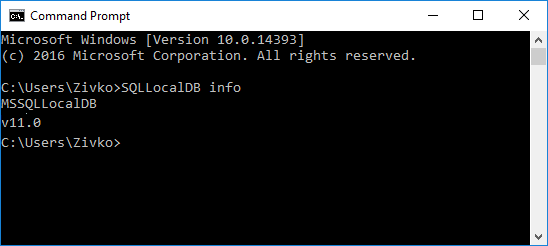
The v11.0 and MSSQLLocalDB instances are automatic Microsoft SQL Server Express LocalDB instances and come with installation of Microsoft SQL Server Express LocalDB.
Depending on which version of Microsoft SQL Server Express LocalDB is installed on the machine, the different automatic LocalDB instance will appear. For example, if only Microsoft SQL Server 2012 Express LocalDB is installed, when the available LocalDB instances on a machine using the SqlLocalDb info command are listed, the v11.0 LocalDB instance will appear. But, if Microsoft SQL Server 2014 Express LocalDB or a newer one is installed, the MSSQLLocalDB instance will appear as the automatic instance.
Naming conventions of the automatic v11. 0 LocalDB instance can be taken from this link and naming conventions for the automatic MSSQLLocalDB LocalDB instance can be found on this link.
To see the other details about instances, for example v11.0 instance, type the following command:
SQLLocalDB info v11.0
The result will be as follows:
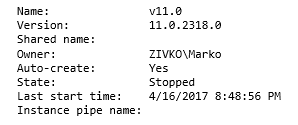
Name stands for the name of the LocalDB instance,
Version shows the full version of the LocalDB instance,
Shared name shares the instance using the specified shared name, when multiple users need to connect to a single instance of Microsoft SQL Server Express LocalDB.
Type the following command: SQLLocalDB share v11.0 Mare in the Command Prompt window and execute. In the Command Prompt window will show the following message:
Private LocalDB instance “v11.0” shared with the shared name: “Mare”.
Make sure that the Command Prompt window is running under the administrator privileges, otherwise the following message may occur:
Sharing of LocalDB instance “v11.0” with shared name “Mare” failed because
Administrator privileges are required in order to execute this operation.
Now, when the SQLLocalDB info v11.0 command is executed, the result will be this one:
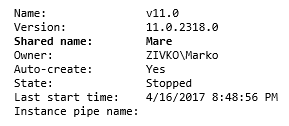
Owner shows the name of the Windows User (the owner of the LocalDB instance)
Auto-create indicates (shows) if LocalDB instance automatic is created or not. If the LocalDB instance is automatically created in the Auto-create section, Yes will appear. On the other hand, No will be shown.
Let’s create a new instance and demonstrate this. In the Command Prompt window, type the following command: SqlLocalDB create NewInstance and press the Enter key. The message will appear which indicates that the LocalDB instance is created:
LocalDB instance “NewInstance” created with version 13.0.2186.6.
Now, when the SqlLocalDB info NewInstance command is executed in the Auto-create section, No will be shown:
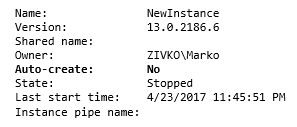
As it may be noticed, the version of the NewInstance LocalDB is different from the version of the v11.0 LocaDB instance. This happens, when on a machine, more than one version of Microsoft SQL Server Express LocalDB have been installed.
Now, when a new instance of LocalDB is created without specifying a version of Microsoft SQL Server Express LocalDB after a name of the LocalDB instance in the creating strings, by default, the higher version of the LocalDB will be used in creating the process of a new LocalDB instance.
Let’s create a new instance which will have the same version as the v11.0 LocalDB instance. Type the following command: SqlLocalDB create Test 11.0 in the Command Prompt window and press the Enter key. The following message will appear:
LocalDB instance “Test” created with version 11.0.2318.0.
Now, when the SqlLocalDB info Test command is executed, the result will be this one:
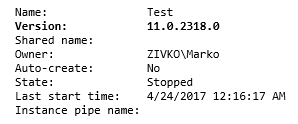
When creating a new LocalDB instance with the name which have two or more words speared by a space, for example Test instance, without putting them in the double quotation mark, the following message will appear:
Creation of LocalDB instance “Test” with version instance failed because of the following error
The parameter for the LocalDB Instance API method is incorrect. Consult the API documentation.
If executed the SQLLocalDB create “Test instance” command, the following message will appear in the Command Prompt window:
LocalDB instance “Test instance” created with version 11.0.
State shows a current state of a chosen LocalDB instance, if it is Running or it Stopped. To run, for example, the Test LocalDB instance, in the Command Prompt window, the following command should be typed: SqlLocalDB start Test. The result after starting the Test LocalDB instance is:
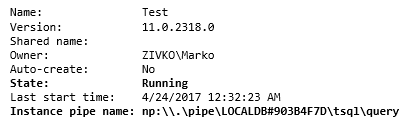
Now, the State is changed to “Running” and the Instance pipe name section has a value. This value (string) is used as the connection string to the Test LocalDB instance from another application.
Now, when an instance is created and started, it is not possible to do other things like creating databases and running queries since SqlLocalDb does not provide an interface to the engine by itself as it does not provide a means to interact with databases. Still, there are several other options to connect to and interact with SqlLocalDb instances.
For example, if the string from the Instance pipe name is pasted in the Server name field under the Connect to Server window of SQL Server Management Studio:
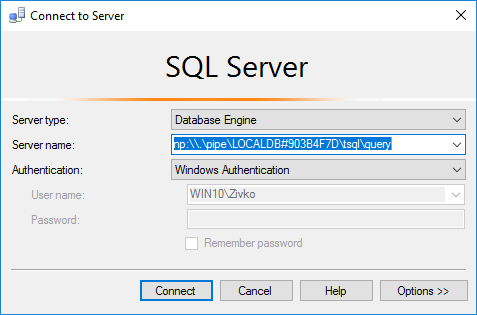
And the Connect button is pressed, the connection to the Test LocalDB instance will be established:
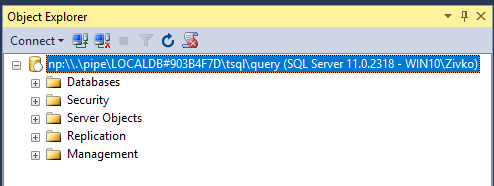
Now, when the connection is established, the same T-SQL code can be used in LocalDB as it is in SQL Server Express when creating databases, tables, stored procedures etc.
There are some restrictions related to LocalDB comparing to SQL Server Express, which can be seen here.
Another way to connect to the LocalDB instance is to type the (LocalDB)\ followed by the name of the LocalDB instance (v11.0) in the Server name combo box of the Connect to Server window and to click the Connect button:
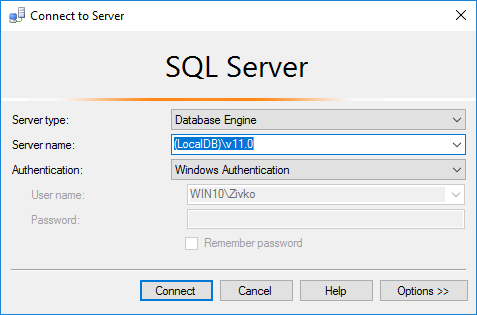
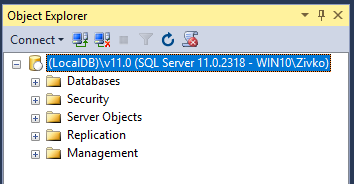
In the Object Explorer window, the result will be like this:
If in the Server name combo box of the Connect to Server window is entered (LocalDB)\ followed by a dot ((LocalDB)\.):
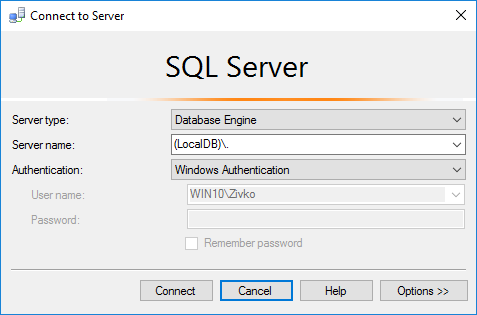
The connection will be established with the automatic (default) LocalDB instance:
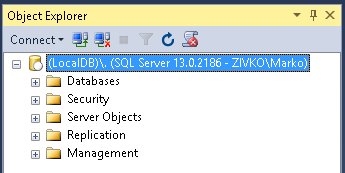
This type of connection to the automatic LocalDB instance refers to Microsoft SQL Server Express 2014 LocalDB or newer.
As it is mentioned in the text above, if more than one LocalDB versions are installed on the machine, the connection will be established with the automatic LocalDB instance with higher (latest) version.
Let’s delete that automatic LocalDB instance. In this situation, the MSSQLLocalDB instance is the one that should be deleted. In the Command Prompt window, the following command should be typed: SqlLocalDB delete MSSQLLocalDB. When the Enter key is pressed from the keyboard, the following message may occur:
Delete of LocalDB instance “MSSQLLocalDB” failed because of the following error:
Requested operation on LocalDB instance cannot be performed because specified instance is currently in use. Stop the instance and try again.
As the message says, the automatic MSSQLLocalDB instance is in use. In order to be deleted, first it should be stopped. Type the SqlLocalDB stop MSSQLLocaDB command in the Command Prompt window:
LocalDB instance “MSSQLLocalDB” stopped.
Now, repeat the SqlLocalDB delete MSSQLLocalDB command. This will successfully remove LocalDB instance from the machine:
LocalDB instance “MSSQLLocalDB” deleted.
Using sqlcmd, the connection with the LocalDB instance, can be established. From there, T-SQL command and various T-SQL queries can be used. In the Command Prompt window, navigate to the SqlLocalDB.exe: cd C:\Program Files\Microsoft SQL Server\110\Tools\Binn\
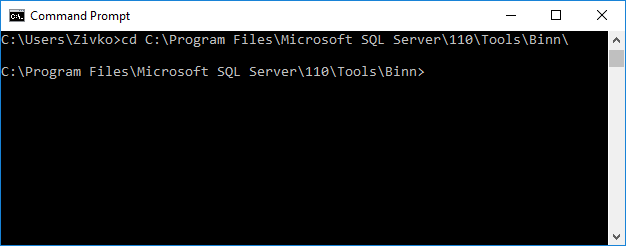
Also, type the following command: sqlcmd-S (localDB)\v11.0 in order to connect to v11.0 LocaDB instance.
When there is the connection to the v11.0 LocalDB instance, a database, a table, etc. can be created. Past the following query in the Command Prompt window:
Localdb SQLserver management studio | Explained
Today, let us focus on how we can configure the Localdb SQLserver management studio by our Support Techs. As part of our Server Management Services, we assist our customers with several SQL connections.
Localdb SQLserver management studio
LocalDB SQL Server Express installation copies a minimum set of files that is necessary to start the SQL Server Database Engine. An instance of LocalDB SQLserver management studio has organized by using the SqlLocalDB.exe utility.
Initially, when the LocalDB is installed, you can directly initiate a connection using a special connection string. Eventually while connecting the necessary SQL Server infrastructure it automatically create or gets started, also enabling the application to use the database without complex configuration tasks.

Install LocalDB
The LocalDB installation can be done through the installation wizard or by using the SqlLocalDB.msi program.
You can select LocalDB on the Feature Selection/Shared Features page during the installation process. Only one installation of the LocalDB binary files is managed for each major SQL Server Database Engine version. Multiple Database Engine processes will start and use the same binaries.
Description
The LocalDB setup program uses the SqlLocalDB.msi to install only the necessary files on the computer. Once installed, LocalDB will be an instance of SQL Server Express that will create and open SQL Server databases.
User database files will be stored where the user designates, basically in the C:\Users\ \Documents\ folder.
Automatic and named instances
LocalDB supports two kinds of instances i.e Automatic instances and named instances.
- Automatic instances of LocalDB are public. Created and managed automatically by the user and can used by any application. This feature manages easy application installation and migration. Automatic instances prevent name conflicts with named instances of LocalDB. The name for the automatic instance is known as “MSSQLLocalDB“.
- Named instances of LocalDB are private. In other words, this is verified in a single application that is responsible for creating and managing the instance. Named instances provide isolation and can improve performance by reducing resource contention with other database users. The sysname data type and can hold up to 128 characters. This can contain any Unicode characters that are legal within a filename.
Microsoft SQL Server LocalDB
Step 1. Check and create a LocalDB instance
Before connecting to your LocalDB instance with DataGrip, just make sure if your LocalDB instance is ready for a connection. To do this, you can simply locate SqllocalDB.exe and run the following command in a command prompt:
Next, create a LocalDB instance. To follow up on this, run the following command:
This creates an instance of LocalDB named DEVELOPMENT by using SQL Server binaries and starting the instance.
Now check the instance state by running the command:
Currently, the instance is running you can see it in the State field. Instead, if you have got the state as Stopped , then start the instance by running the following command in the terminal:
Step 2. Create the LocalDB connection
First Open data source properties, you can open these properties by using one of the following options:
- Navigate to File | Data Sources.
- Press Ctrl+Alt+Shift+S .
- In the Database Explorer (View | Tool Windows | Database Explorer), click the Data Source Properties icon.
Second From the Driver list, select Microsoft SQL Server LocalDB, and at the bottom of the data source settings area, click the Download missing driver files link.
Meanwhile, as you click the link DataGrip downloads drivers that will interact with the database. You can also specify your drivers for the data source if you do not want to download the provided drivers.
- Now from the Instance list, select the instance to connect (for example: DEVELOPMENT ).
- From the Authentication list, select the authentication type:
- User & Password – Login credentials
- Windows credentials: connect by using your Windows domain credentials. Requires to run DataGrip on Windows in the same domain as the Microsoft SQL Server database.
- Kerberos: connecting by using Kerberos authentication. This specifically requires a Kerberos server and authentication with kinit .
- No authentication: connect without authentication.
Finally, to ensure that the connection has the data source successfully created, click the Test Connection link. You will have Succeeded pop-up message, then click apply.
Conclusion
Microsoft Localdb SQLserver management studio installer is available in the installation media for all editions except for Express Core. You can also further install LocalDB through the Visual Studio Installer, as part of the Data Storage and Processing workload.
PREVENT YOUR SERVER FROM CRASHING!
Never again lose customers to poor server speed! Let us help you.
Our server experts will monitor & maintain your server 24/7 so that it remains lightning fast and secure.