How to Shrink SQL Server Database Files
You have a SQL Server database with a table that stores a lot of records. Occasionally, you want to dump some of the data in the table because you no longer need to keep the old data. For example, you only need to keep records for the last five years, but your database is holding records for the past twenty years. Anything older than five years needs to be dumped.
However, you noticed that when you dumped the old records which totaled 20GB, your file size on the hard drive did not change. Let’s say that the file size for the table was 60GB, and you remove 20GB of old records. You expect the file size to drop to 40GB, but instead it stays at 60GB.
This also holds true if you «truncate» the table, the file size will remain the same as it was before you truncated it.
Solution
When you create a database, you initially set a base size for the mdf and ldf files or you rely on the default values set by SQL Server. In either case, this is just a minimum starting point and that file size will grow with the addition of more data in the table(s). After deleting a large amount of data from the database, you notice the mdf and ldf file sizes remain the same as they were before deleting the data. This is due to SQL Server keeping that max file size as reserved space. If you absolutely must regain that reserved space, you can use SHRINKFILE and SHRINKDATABASE to get it back. Optionally, you can let SQL Server keep the reserved space for use when the amount of records again grows within the database.
Precautions
If you want to shrink the reserved space of the database after you delete data and the reserved space needs to be increased later as data is inserted again, then this procedure may create physical disk fragmentation and affect performance. Be sure to run a disk defragmentation afterwards.
Things to know:
- You cannot shrink a database that is currently being backed up nor can you backup a database that is currently in the shrink process.
- The database cannot be reduced to a size smaller than the minimum or original size of the database. For example, if a database was created with an initial size of 8MB but grew to 4GB, the smallest you can shrink the database to is the original size of 8MB.
- To use the SHRINK function, you must have either the «sysadmin» fixed server role or «db_owner» database role permission. A user with «read-only» permissions cannot use the «SHRINKFILE» or «SHRINKDATABASE» functions.
CAUTION:
- First and foremost, do not try this experiment on a production server. Always use a test server for this type of training / testing, even if you must build a new test server environment.
Building a Test Environment
In this sample, we will be creating a test database named «SampleDataBase» to work with.
Get Size of Databases
Before we start inserting data, we need to look at and document the file size for the «mdf» and «ldf» files for the database. This will provide us a baseline for comparison. We have a number of ways to accomplish this, I have listed two of them for your convenience.
Option 1 — Using T-SQL
Run this simple script to find out the initial or current size of the «SampleDataBase» file.
The results should look something like this, depending on your settings of minimum file size during the creation of the database.
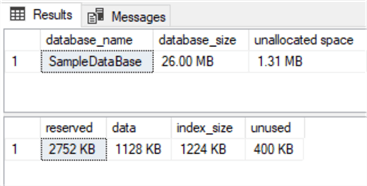
Option 2 — Using Windows File Manager (GUI)
Navigate to the folder that holds the «mdf» and «ldf» files and take a screen shot like in image 001 below. By default, this will be the folder path where SQL Server stores your data files. Depending on your specific configuration and version of SQL Server.
This is where it is on my machine: C:\Program Files\Microsoft SQL Server\MSSQL11.MSSQLSERVER1\MSSQL\DATA\
Or, if you put the files on a different drive during creation, simply navigate to the drive/folder where you put them. In the screenshot below, I have my data files on drive E:

Below is a screen shot of my hard-drives available space prior to inserting any data.
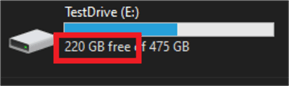
Now, let’s populate the table with ten million rows of data with random dates ranging from the year 2001 to 2021. I’m using ten million so there will be an obvious file size difference for your reference. Remember to make sure you have enough available drive space before starting this insert. Also, this process could take about 20 to 25 minutes, depending on your computer’s performance.
(Bonus: if you don’t already have a generic data generator in your arsenal, here’s a free version that you are welcome to use, modify and share.)
Now that we have ten million rows of generic data, let’s start working with it. First and foremost, let’s look at the file size of the «mdf» and «ldf» as well as the available space on the hard drive.

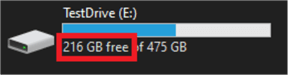
Notice the file size has grown from 4,096KB to over 4GB and the amount of available drive space has decreased from 220GB to 216GB, about 4GB as expected.
Make Some Database Changes
Now that we have our test bed of ten million rows of data, let’s assume that we want to remove anything older than five years. This is going to remove about eight million records from our database. Which will equate to approximately 3GB depending on how many rows were randomly created with dates older than five years. Remember, this is a «random» record generator so, every time you run the generator, you will get different results.
Here’s the script we will use to do that.
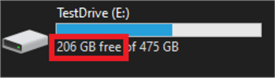
Looking back at the file sizes after deleting approximately eight million rows of data, we can see that the size of the mdf file has not changed. Conversely, the ldf file has grown tremendously. Remember, the log file is just as it seems, it logs all insert, update, delete, etc. transactions that have happened to the database. Our ldf file grew to this size because there were about eight million «delete» actions run on the Sales.Customers table in the database.

Notice also the available free space on the drive has decreased when we were expecting an increase. This is due primarily to the increased ldf file size and the size of the mdf file retaining at that peak reserved space.
Now that we have a scenario set in place, let’s start shrinking those file sizes to something a little closer to what they were in the beginning.
Shrink SQL Server Database
SQL Server offers a couple of ways you can shrink the database and file size. Like many things, this will boil down to personal preference. While some people prefer the GUI way of doing things, others will want to be more hands on and work in «terminal mode».
Option 1 — Using the GUI interface in SQL Server Management Studio
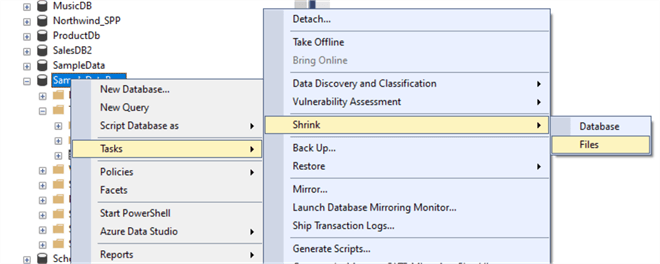
In the left pane where your databases are listed, right-click on the «SampleDataBase» and from the «Tasks» option select «Shrink» then «Files», as in the image below.
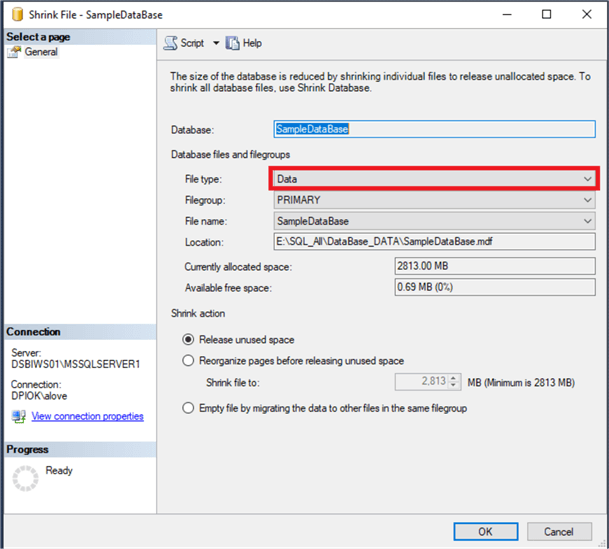
On the next dialog box, make sure the File type is set to «Data» to shrink the mdf file. Near the bottom of the dialog box you have three radio buttons with the options to Release unused space, Reorganize pages before releasing unused space or Empty file by migrating the data to other files in the same filegroup. If you’re not sure, just leave the default «Release unused space» selected.
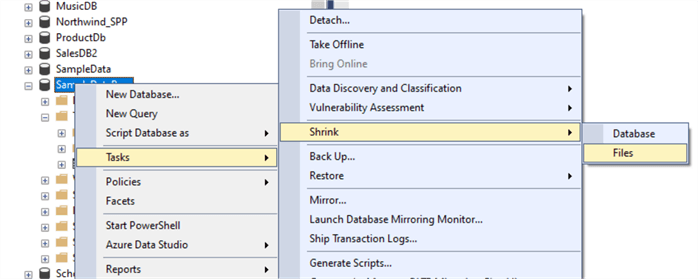
Once again, in the left pane where your databases are listed, right-click on the «SampleDataBase» and from the «Tasks» option select «Shrink» then «Files», as in the image below.
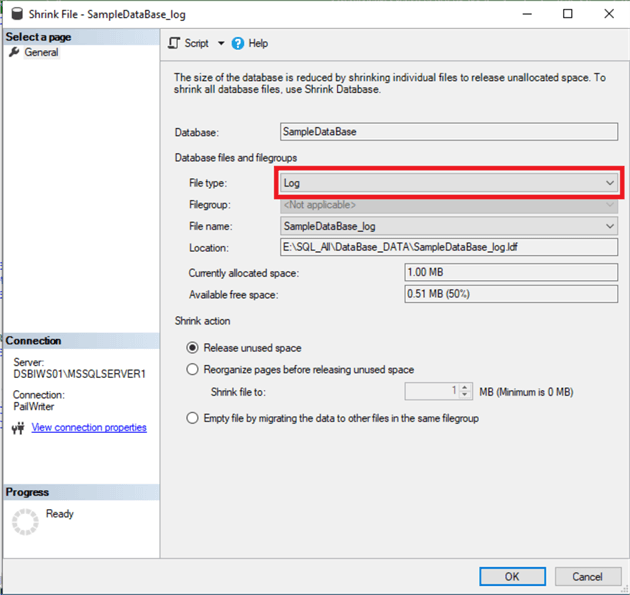
On the next dialog box, change the File Type to Log to shrink the Log file size. Near the bottom of the dialog box you have three radio buttons with the same options. If you’re not sure, just leave the default «Release unused space» selected.
Option 2 — Using T-SQL to shrink the file size
Optimally, the best option (in my opinion) is to use the T-SQL commands.
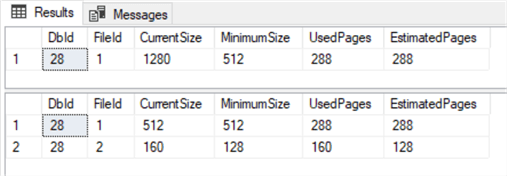
The results should look similar to the ones below.
Results: Your values may be different based on data removed.
Now, let’s go back and check our file sizes once more along with the available space on our hard drive.
The mdf file size should have reduced only slightly in size. Remember, although we removed approximately eight million rows of data, we did retain about two million rows and SQL is keeping some degree of reserve file space.

And looking at the hard drive’s available space, we should be back to about what we had prior to inserting the ten million rows of data, with the exception of the 4gb of reserved space.
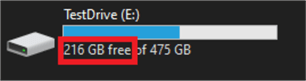
 Your numbers may not be exactly what you expected, but as long as they are close, then you know you have successfully completed the database «shrink» operation. Bear in mind, your computer may be adding data to one or more other databases as you perform these functions so your numbers will not be exact.
A Step Further
Okay, so you just must have that extra 3GB freed up on your drive that the mdf file is holding hostage. There is a way to do this with a few extra steps, but be very careful and follow these steps in the order they are laid out.
Create a new table to hold the remaining 2+ million records that you want to keep; we will call this table Sales.TempHold.
- Copy all the rows of data from Sales.Customers to Sales.TempHold
- Truncate the Sales.Customers table
- Run the shrinkfile commands on the mdf and ldf files
- Copy all the rows of data from Sales.TempHold back to Sales.Customers
- Truncate the table Sales.TempHold
- Drop the Sales.TempHold table
- Re-run the shrinkfile commands one last time.
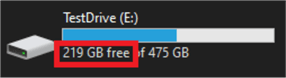
The images below show the new mdf file size, the ldf file size and the free space on the hard drive.
Notice, we still have 1GB used. That covers the 2.5 million or so rows of data that we retained.

Summary
As mentioned at the beginning of the article, this process will cause disk fragmentation. So, you really need to weigh your options and determine if this is right for you and your hardware. Shrinking the database to free up space on your drive might a viable solution in a desperate situation, but it is not something I would recommend putting on any kind of recurring schedule. If you know your database will regrow to that max size (or more) on a regular basis, then your best option would be to leave the reserved space as is.
If you really must free up some drive space, (like in this sample) use VARCHAR instead CHAR for your data types. This simple change fore the test we did makes a difference of three gigs of storage. So, plan your database and tables carefully before you create them.
In situations like the one in this article, it is always better to increase your drive size, as apposed to decreasing your data size.
Сжатие и дефрагментация базы данных в MySQL и MariaDB
 23.12.2019
 VyacheslavK
 Linux
Linux
 комментариев 9
В данной статье мы рассмотрим методики сжатия и дефрагментации таблиц и баз данных в MySQL/MariaDB, которые позволят вам сэкономить место на диске с БД.
В крупных проектах со временем базы данных разрастаются до огромных размеров и всегда возникает вопрос, как же с этим бороться. Есть несколько вариантов для решения подобной проблемы. Вы можете уменьшить количество данных в самой базе, путем удаления старой информации, разделить базу на несколько, увеличить объем дискового пространства на сервере или сжать таблицы.
Другой важный аспект функционирование БД – необходимость периодической дефрагментации таблиц и баз данных, что позволяет существенно ускорить их работу.
Сжатие и оптимизация БД с типом таблиц InnoDB
Файлы ibdata1 и ib_log
На многих проектах с таблицами InnoDB встречается проблема с огромными размерами файлов ibdata1 и ib_log. Причина в большинвсте случае связан с неправильными настройками сервера MySQL/MariaDB или архитектурой БД. Вся информация из таблиц InnoDB хранится в файле ibdata1, пространство которого не высвобождается само по себе. Я предпочитаю хранить данные таблиц в отдельных файлах ibd*. Для этого нужно в конфигурационном файле my.cnf добавить строку:
Если же ваш сервер уже настроен и у вас есть несколько рабочих БД с таблицами InnoDB, нужно выполнить следующее:
- Сделайте бэкап всех БД на своем сервере (кроме mysql и performance_schema). Дамп баз можно снять следующей командой: # mysqldump -u [username] –p[password] [database_name] > [dump_file.sql]
- После создания резервной копии БД остановите сервер mysql/mariadb;
- Измените настройки в файле my.cfg;
После выполнения этой процедуры, все таблицы InnoDB будут хранится в отдельных файлах и файл ibdata1 не будет расти в геометрической прогрессии.
Сжатие таблиц InnoDB
Вы можете сжимать таблицы с данными типа text/BLOB. Если у вас есть подобные таблицы, вы можете сэкономить довольном много дискового пространства.
У меня имеется БД innodb_test с таблицами, которые потенциально можно сжать и высвободить дисковое пространство. Перед всеми работами я настоятельно рекомендую выполнить резервное копирование всех ваших БД. Подключаемся к серверу mysql:
В консоли mysql авторизуемся в нужной БД:

Чтобы вывести список таблиц и их размер, используйте запрос:
SELECT table_name AS «Table»,
ROUND(((data_length + index_length) / 1024 / 1024), 2) AS «Size in (MB)»
FROM information_schema.TABLES
WHERE table_schema = «innodb_test»
ORDER BY (data_length + index_length) DESC;
Где innodb_test — это имя вашей БД.

Есть вероятность, что некоторые таблицы можно сжать. Возьмём для примера таблицу b_crm_event_relations. Выполните запрос:
mysql> ALTER TABLE b_crm_event_relations ROW_FORMAT=COMPRESSED;
После выполнения, можно увидеть что за счет сжатия размер таблицы уменьшился с 26 до 11 Мб.

Благодаря сжатию таблиц вы можете сэкономить много дискового пространства на сервере. Но при работе со сжатыми таблицами вырастет нагрузка на процессор. Сжатие в таблицах нужно использовать, если у вас нет проблем с процессорными ресурсами, но есть проблема с местом на диске.
Сжатие таблиц MyISAM в MySQL
Для сжатия таблиц формата Myisam, нужно использовать специальный запрос с консоли сервера, а не в консоли mysql. Чтобы сжать нужную таблицу выполните:
# myisampack -b /var/lib/mysql/test/modx_session
Где /var/lib/mysql/test/modx_session — путь до вашей таблицы. К сожалению, у меня не было раздутой БД и пришлось выполнять сжатие на небольших таблицах, но результат все равно виден (файл сжался с 25 до 18 Мб):
# du -sh modx_session.MYD
# myisampack -b /var/lib/mysql/test/modx_session
# du -sh modx_session.MYD
В запросе, мы указали ключ -b, при его добавлении, перед сжатием создается бэкап таблицы и помечается как OLD:
# ls -la modx_session.OLD
# du -sh modx_session.OLD

Оптимизация таблиц и баз данных в MySQL/MariaDB
Для отптимизации таблиц и базы данных рекомендуется выполнять дефрагментацию. Проверим, есть ли в базе данных таблицы, которые требуют дефрагментации.
Войдем в консоль MySQL, выберем нужную БД и выполним запрос:
select table_name, round(data_length/1024/1024) as data_length_mb, round(data_free/1024/1024) as data_free_mb from information_schema.tables where round(data_free/1024/1024) > 50 order by data_free_mb;
Таким образом мы выведем все таблицы, которые имеют минимум 50 Мб неиспользуемого пространства:
data_length_mb — общий размер таблицы
data_free_mb — неиспользуемое пространство таблицы
Эти таблицы мы можем дефрагментировать. Проверим занимаемое место на диске до:
# ls -lh /var/lib/mysql/innodb_test/ | grep b_
Чтобы оптимизировать эти таблицы, используйте следующую команду в консоли mysql:
# OPTIMIZE TABLE b_disk_deleted_log_v2, b_disk_object_path, b_crm_timeline_bind;
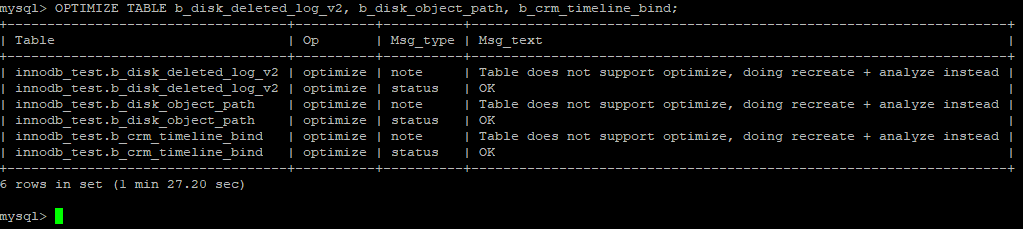
После успешной дефрагментации, у вас должен быть примерно такой вывод результата:
Как видите, data_free_mb теперь равен 0 и в целом размеры таблицы значительно уменьшились (в 3-4 раза).
Также можно выполнить дефрагментацию с помощью утилиты mysqlcheck из консоли сервера:
# mysqlcheck -o innodb_test b_workflow_file -u root -p innodb_test.b_workflow_file
Где innodb_test — это ваша БД
А b_workflow_file — имя нужной таблицы

Чтобы оптимизировать все таблицы нужной вам БД, запустите команду в консоли сервера:
# mysqlcheck -o innodb_test -u root -p
Где innodb_test — имя желаемой БД.
Или запустите оптимизацию всех БД на сервере:
# mysqlcheck -o —all-databases -u root -p
Если проверить размеры базы до и после оптимизации, то размер в целом уменьшился:
# mysqlcheck -o innodb_test -u root -p
Таким образом для экономии места на сервере, вы можете периодически оптимизировать и сжимать ваши таблицы и БД. Повторюсь, перед проведением любых работ по оптимизации, создавайте резервную копию БД.
 Предыдущая статья Следующая статья
Name already in use
sql-docs / docs / t-sql / database-console-commands / dbcc-shrinkdatabase-transact-sql.md
- Go to file T
- Go to line L
- Copy path
- Copy permalink
- Open with Desktop
- View raw
- Copy raw contents Copy raw contents
Copy raw contents
Copy raw contents
DBCC SHRINKDATABASE (Transact-SQL)
Shrinks the size of the data and log files in the specified database.
. image type=»icon» source=»../../includes/media/topic-link-icon.svg» border=»false». Transact-SQL syntax conventions
Syntax for SQL Server:
Syntax for Azure Synapse Analytics:
database_name | database_id | 0
The database name or ID to be shrunk. 0 specifies that the current database is used.
The percentage of free space that you want left in the database file after the database has been shrunk.
Moves assigned pages from the file’s end to unassigned pages in the front of the file. This action compacts the data within the file. target_percent is optional. [!INCLUDEssazuresynapse-md] doesn’t support this option.
The free space at the end of the file isn’t returned to the operating system, and the physical size of the file doesn’t change. As such, the database appears not to shrink when you specify NOTRUNCATE .
NOTRUNCATE is applicable only to data files. NOTRUNCATE doesn’t affect the log file.
Releases all free space at the end of the file to the operating system. Doesn’t move any pages inside the file. The data file shrinks only to the last assigned extent. Ignores target_percent if specified with TRUNCATEONLY . [!INCLUDEssazuresynapse-md] doesn’t support this option.
DBCC SHRINKDATABASE with the TRUNCATEONLY option affects the database transaction log file only. To truncate the data file, use DBCC SHRINKFILE instead. For more information, see DBCC SHRINKFILE.
Suppresses all informational messages that have severity levels from 0 through 10.
WAIT_AT_LOW_PRIORITY with shrink operations
Applies to: [!INCLUDEsssql22-md] and later versions, [!INCLUDEssSDSfull], [!INCLUDEssazuremi_md]
The wait at low priority feature reduces lock contention. For more information, see Understanding concurrency issues with DBCC SHRINKDATABASE.
This feature is similar to the WAIT_AT_LOW_PRIORITY with online index operations, with some differences.
- You cannot specify ABORT_AFTER_WAIT option NONE.
When a shrink command is executed in WAIT_AT_LOW_PRIORITY mode, new queries requiring schema stability (Sch-S) locks are not blocked by the waiting shrink operation until the shrink operation stops waiting and starts executing. The shrink operation will execute when it is able to obtain a schema modify lock (Sch-M) lock. If a new shrink operation in WAIT_AT_LOW_PRIORITY mode cannot obtain a lock due to a long-running query, the shrink operation will eventually timeout after 1 minute by default and will exit with no error.
If a new shrink operation in WAIT_AT_LOW_PRIORITY mode cannot obtain a lock due to a long-running query, the shrink operation will eventually timeout after 1 minute by default and will exit with no error. This will occur if the shrink operation cannot obtain the Sch-M lock due to concurrent query or queries holding Sch-S locks. When a timeout occurs, an error 49516 message will be sent to the SQL Server error log, for example: Msg 49516, Level 16, State 1, Line 134 Shrink timeout waiting to acquire schema modify lock in WLP mode to process IAM pageID 1:2865 on database ID 5 . At this point, you can simply retry the shrink operation in WAIT_AT_LOW_PRIORITY mode knowing that there would be no impact to the application.
ABORT_AFTER_WAIT = [ SELF | BLOCKERS ]
SELF is the default option. Exit the shrink database operation currently being executed without taking any action.
Kill all user transactions that block the shrink database operation so that the operation can continue. The BLOCKERS option requires the login to have ALTER ANY CONNECTION permission.
The following table describes the columns in the result set.
| Column name | Description |
|---|---|
| DbId | Database identification number of the file the [!INCLUDEssDE] tried to shrink. |
| FileId | File identification number of the file the [!INCLUDEssDE] tried to shrink. |
| CurrentSize | Number of 8-KB pages the file currently occupies. |
| MinimumSize | Number of 8-KB pages the file could occupy, at minimum. This value corresponds to the minimum size or originally created size of a file. |
| UsedPages | Number of 8-KB pages currently used by the file. |
| EstimatedPages | Number of 8-KB pages that the [!INCLUDEssDE] estimates the file could be shrunk down to. |
[!NOTE]
The [!INCLUDEssDE] does not display rows for those files not shrunk.
[!NOTE]
In Azure Synapse, running a shrink command is not recommended as this is an I/O intensive operation and can take your dedicated SQL pool (formerly SQL DW) offline. In addition, there will be costing implications to your data warehouse snapshots after running this command.
To shrink all data and log files for a specific database, execute the DBCC SHRINKDATABASE command. To shrink one data or log file at a time for a specific database, execute the DBCC SHRINKFILE command.
To view the current amount of free (unallocated) space in the database, run sp_spaceused.
DBCC SHRINKDATABASE operations can be stopped at any point in the process, and any completed work is kept.
The database can’t be smaller than the configured minimum size of the database. You specify the minimum size when the database is originally created. Or, the minimum size can be the last size explicitly set by using a file size changing operation. Operations like DBCC SHRINKFILE or ALTER DATABASE are examples of file-size changing operations.
Consider a database is originally created with a size of 10 MB in size. Then, it grows to 100 MB. The smallest the database can be reduced to is 10 MB, even if all the data in the database has been deleted.
Specify either the NOTRUNCATE option or the TRUNCATEONLY option when you run DBCC SHRINKDATABASE . If you don’t, the result is the same as if you run a DBCC SHRINKDATABASE operation with NOTRUNCATE followed by running a DBCC SHRINKDATABASE operation with TRUNCATEONLY .
The shrunk database doesn’t have to be in single user mode. Other users can be working in the database when it’s shrunk, including system databases.
You can’t shrink a database while the database is being backed up. Conversely, you can’t back up a database while a shrink operation on the database is in process.
When specified with WAIT_AT_LOW_PRIORITY, the shrink operation’s Sch-M lock request will wait with low priority when executing the command for 1 minute. If the operation is blocked for the duration, the specified ABORT_AFTER_WAIT action will be executed.
How DBCC SHRINKDATABASE works
DBCC SHRINKDATABASE shrinks data files on a per-file basis, but shrinks log files as if all the log files existed in one contiguous log pool. Files are always shrunk from the end.
Assume you have a couple of log files, a data file, and a database named mydb . The data and log files are 10 MB each and the data file contains 6 MB of data. The [!INCLUDEssDE] calculates a target size for each file. This value is the size to which the file is to be shrunk. When DBCC SHRINKDATABASE is specified with target_percent, the [!INCLUDEssDE] calculates target size to be the target_percent amount of space free in the file after shrinking.
For example, if you specify a target_percent of 25 for shrinking mydb , the [!INCLUDEssDE] calculates the target size for the data file to be 8 MB (6 MB of data plus 2 MB of free space). As such, the [!INCLUDEssDE] moves any data from the data file’s last 2 MB to any free space in the data file’s first 8 MB and then shrinks the file.
Assume the data file of mydb contains 7 MB of data. Specifying a target_percent of 30 allows for this data file to be shrunk to the free percentage of 30. However, specifying a target_percent of 40 doesn’t shrink the data file because not enough free space can be created in the current total size of the data file.
You can think of this issue another way: 40 percent wanted free space + 70 percent full data file (7 MB out of 10 MB) is more than 100 percent. Any target_percent greater than 30 won’t shrink the data file. It won’t shrink because the percentage free you want plus the current percentage that the data file occupies is over 100 percent.
For log files, the [!INCLUDEssDE] uses target_percent to calculate the target size for the whole log. That’s why target_percent is the amount of free space in the log after the shrink operation. Target size for the whole log is then translated to a target size for each log file.
DBCC SHRINKDATABASE tries to shrink each physical log file to its target size immediately. Let’s say no part of the logical log stays in the virtual logs beyond the target size of the log file. Then the file is successfully truncated and DBCC SHRINKDATABASE finishes without any messages. However, if part of the logical log stays in the virtual logs beyond the target size, the [!INCLUDEssDE] frees as much space as possible, and then issues an informational message. The message describes what actions are required to move the logical log out of the virtual logs at the end of the file. After the actions are run, DBCC SHRINKDATABASE can be used to free the remaining space.
A log file can only be shrunk to a virtual log file boundary. That’s why shrinking a log file to a size smaller than the size of a virtual log file might not be possible. It might not be possible even if it isn’t being used. The size of the virtual log file is chosen dynamically by the [!INCLUDEssDE] when log files are created or extended.
Understand concurrency issues with DBCC SHRINKDATABASE
The shrink database and shrink file commands can lead to concurrency issues, especially with active maintenance such as rebuilding indexes, or on busy OLTP environments. When your application executes queries against database tables, these queries will acquire and maintain a schema stability lock (Sch-S) until the queries complete their operations. When attempting to reclaim space during regular usage, shrink database and shrink file operations currently require a schema modify lock (Sch-M) when moving or deleting Index Allocation Map (IAM) pages, blocking the Sch-S locks needed by user queries. As a result, long-running queries will block a shrink operation until the queries complete. This means that any new queries requiring Sch-S locks are also queued behind the waiting shrink operation and will also be blocked, further exacerbating this concurrency issue. This can significantly impact application query performance and will also cause difficulties completing the necessary maintenance to shrink database files. Introduced in [!INCLUDEsssql22-md], the shrink wait at low priority (WLP) feature addresses this problem by taking a schema modify lock in WAIT_AT_LOW_PRIORITY mode. For more information, see WAIT_AT_LOW_PRIORITY with shrink operations.
For more information on Sch-S and Sch-M locks, see Transaction locking and row versioning guide.
Consider the following information when you plan to shrink a database:
- A shrink operation is most effective after an operation that creates unused space, such as a truncate table or a drop table operation.
- Most databases require some free space to be available for regular day-to-day operations. If you shrink a database file repeatedly and notice that the database size grows again, this indicates that the free space is required for regular operations. In these cases, repeatedly shrinking the database file is a wasted operation. Autogrow events necessary to grow the database file hinder performance.
- A shrink operation doesn’t preserve the fragmentation state of indexes in the database, and generally increases fragmentation to a degree. This result is another reason not to repeatedly shrink the database.
- Unless you have a specific requirement, don’t set the AUTO_SHRINK database option to ON.
It’s possible to block shrink operations by a transaction that is running under a row versioning-based isolation level. For example, a large delete operation running under a row versioning-based isolation level is in progress when a DBCC SHRINKDATABASE operation is executed. When this situation happens, the shrink operation will wait for the delete operation to complete before it shrinks the files. When the shrink operation waits, DBCC SHRINKFILE and DBCC SHRINKDATABASE operations print an informational message (5202 for SHRINKDATABASE and 5203 for SHRINKFILE ). This message prints to the [!INCLUDEssNoVersion] error log every five minutes in the first hour and then every upcoming hour. For example, if the error log contains the following error message:
This error means snapshot transactions that have timestamps older than 109 will block the shrink operation. That transaction is the last transaction that the shrink operation completed. It also indicates the transaction_sequence_num or first_snapshot_sequence_num columns in the sys.dm_tran_active_snapshot_database_transactions (Transact-SQL) dynamic management view contain a value of 15. The transaction_sequence_num or first_snapshot_sequence_num column in the view might contain a number that is less than the last transaction completed by a shrink operation (109). If so, the shrink operation will wait for those transactions to finish.
To resolve the problem, you can do one of the following tasks:
- End the transaction that is blocking the shrink operation.
- End the shrink operation. Any completed work is kept.
- Do nothing and allow the shrink operation to wait until the blocking transaction completes.
Requires membership in the sysadmin fixed server role or the db_owner fixed database role.
A. Shrink a database and specifying a percentage of free space
The following example reduces the size of the data and log files in the UserDB user database to allow for 10 percent free space in the database.
B. Truncate a database
The following example shrinks the data and log files in the AdventureWorks2022 sample database to the last assigned extent.
C. Shrink an Azure Synapse Analytics database
D. Shrink a database with WAIT_AT_LOW_PRIORITY
The following example attempts to reduce the size of the data and log files in the AdventureWorks2022 database to allow for 20% free space in the database. If a lock can’t be obtained within one minute, the shrink operation will abort.
How do I shrink my SQL Server Database?
I need to shrink this DB (and many others like this at various client locations).
I have found and deleted many 100’s of 1000’s of records which are considered unneeded: these records account for a large percentage of some of the main (largest) tables in the Database. Therefore it’s reasonable to assume much space should now be retrievable.
So now I need to shrink the DB to account for the missing records.
- I execute DBCC ShrinkDatabase(‘MyDB’) . No effect.
- I have tried the various shrink facilities provided in MSSMS. Still no effect.
- I have backed up the database and restored it. Still no effect.
Whatever procedure I eventually find needs to be replayable on a client machine with access to nothing other than OSql or similar.
16 Answers 16
This may seem bizarre, but it’s worked for me and I have written a C# program to automate this.
Step 1: Truncate the transaction log (Back up only the transaction log, turning on the option to remove inactive transactions)
Step 2: Run a database shrink, moving all the pages to the start of the files
Step 3: Truncate the transaction log again, as step 2 adds log entries
Step 4: Run a database shrink again.
My stripped down code, which uses the SQL DMO library, is as follows:
This is an old question, but I just happened upon it.
The really short and correct answer is already given and has the most votes. That is how you shrink a transaction log, and that was probably the OP’s problem. And when the transaction log has grown out of control, it often needs to be shrunk back, but care should be taken to prevent future situations of a log from growing out of control. This question on dba.se explains that. Basically — Don’t let it get that large in the first place through proper recovery model, transaction log maintenance, transaction management, etc.
But the bigger question in my mind when reading this question about shrinking the data file (or even the log file) is why? and what bad things happen when you try? It appears as though shrink operations were done. Now in this case it makes sense in a sense — because MSDE/Express editions are capped at max DB size. But the right answer may be to look at the right version for your needs. And if you stumble upon this question looking to shrink your production database and this isn’t the reason why you should ask yourself the why? question.
I don’t want someone searching the web for "how to shrink a database" coming across this and thinking it is a cool or acceptable thing to do.
Shrinking Data Files is a special task that should be reserved for special occasions. Consider that when you shrink a database, you are effectively fragmenting your indexes. Consider that when you shrink a database you are taking away the free space that a database may someday grow right back into — effectively wasting your time and incurring the performance hit of a shrink operation only to see the DB grow again.
I wrote about this concept in several blog posts about shrinking databases. This one called "Don’t touch that shrink button" comes to mind first. I talk about these concepts outlined here — but also the concept of "Right-Sizing" your database. It is far better to decide what your database size needs to be, plan for future growth, and allocate it to that amount. With Instant File Initialization available in SQL Server 2005 and beyond for data files, the cost of growth is lower — but I still prefer to have a proper initial application — and I’m far less scared of white space in a database than I am of shrinking in general with no thought first. 🙂