How to enable remote connections to SQL Server

So you have a VM or a remote server, that you have installed SQL Server, but you also want to connect to SQL Server using SQL Server Management Studio on your local system, but gives you this error.
This is because you haven’t configured it to allows inbound connections from firewall or from SQL Server itself, could be both.
Prerequisites
- Remote server/VM must have SQL Server Management Studio and SQL Server Configuration Manager Installed.
- Remote SQL Server must have a user that have read and write privileges (Here I’m using sa user)
All set, let’s start
Connect to the server/VM using Remote Desktop Connection and open up SQL Server Management Stdio on remote server, then connect to the SQL Server instance.
Now right click on the server and go to Properties.
On the Connections page under Remote server connections, make sure that the Allow remote connections to this server is checked.
Now open SQL Server Configuration Manager.
Visit Protocols for <instance name>, in my case Protocols for MSSQLSERVER under SQL Server Network Configuration node, go to TCP/IP and make sure the ‘Status’ is set to Enabled. If not, right click and select Enable.
After that, again right click and select Properties of TCP/IP protocol.
Goto IP Addresses tab and go down until you see IPALL section. Make sure the TCP Port is set to 1433. If not set it to 1433.
This warning will appear, so we need to restart the server. we can do it by using SQL Server Configuration manager.
Locate SQL Server under SQL Server Services, right click and select Restart.
Now lets configure the firewall.
Open up Windows Firewall.
Go to Inbound Rules and select New Rule.
Add the following rule. Follow images if unclear.
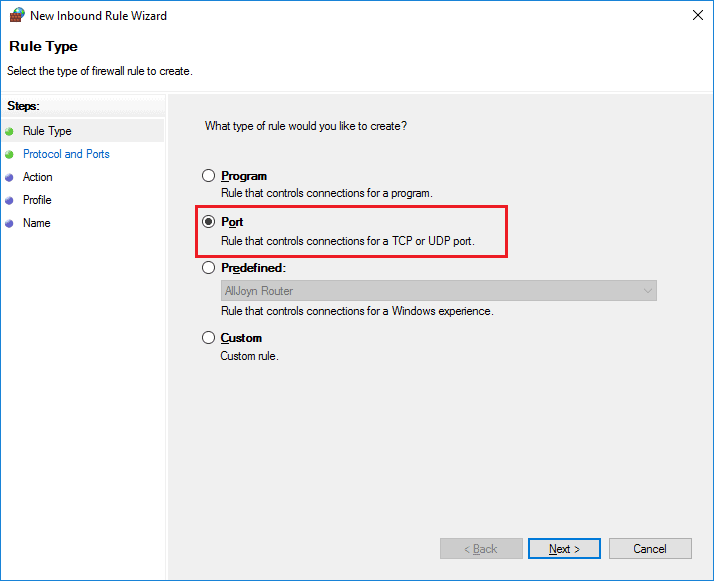
Rule Type: Port
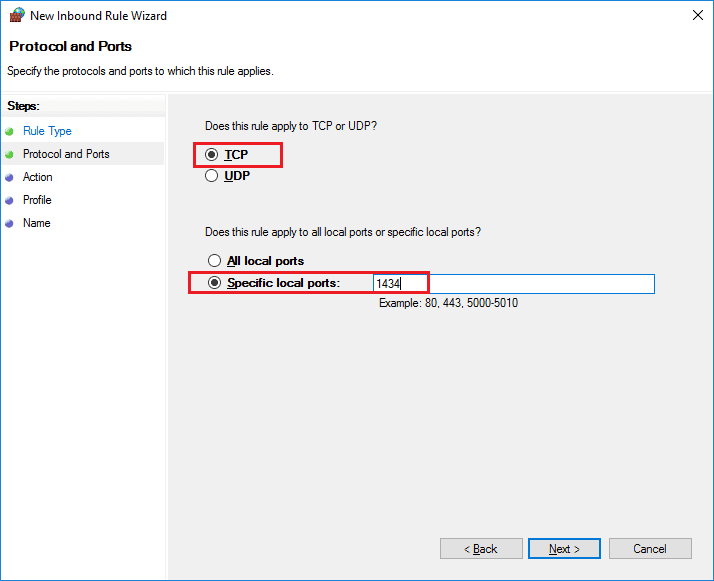
Protocol and Ports: TCP, 1433
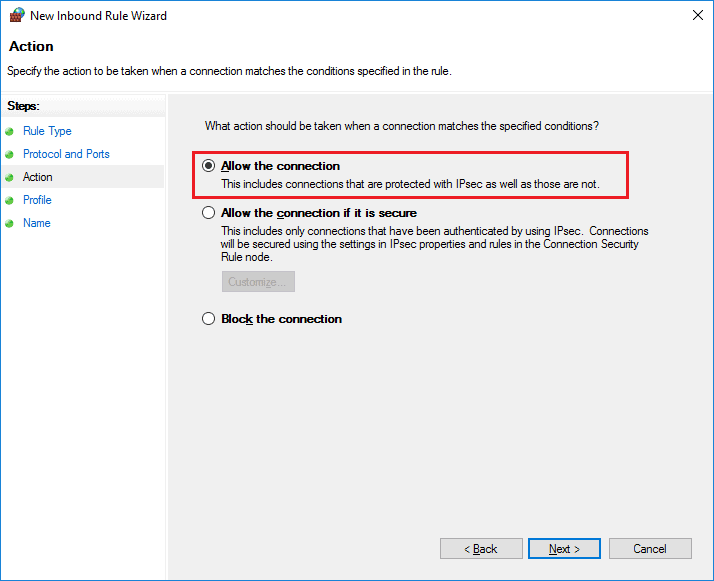
Action: Allow the connection
Profile: Domain, Private, Public
Name: SQLTCP1433
Click finish. We need to add another rule for UDP connections as well.
Rule Type: Port
Protocol and Ports: UDP, 1434
Action: Allow the connection
Profile: Domain, Private, Public
Name: SQLUDP1434
Let’ make SQL Server and SQL Server Browser accessible through firewall.
Rule Type: Program
Program: C:\Program Files\Microsoft SQL Server\<Server version>.<Instance name>\MSSQL\Binn\sqlservr.exe
e.g. C:\Program Files\Microsoft SQL Server\MSSQL14.MSSQLSERVER\MSSQL\Binn
Action: Allow the connection
Profile: Domain, Private, Public
Name: SQLSERVER
Setting up Management Studio for remote SQL Server
Most of us, developers, love to write SQL code on our local machines not only because they’re executed faster, but also because we have a lot more control over the data as it is used only by us and is not team dependent. This was the case in my team until recently when the policy has changed and the new policy requires us to develop using a centralized database that was being hosted on one of the on-premise servers rather than using local SQL Servers for each individual developers.
There are both advantages and disadvantages to this approach. You can free up some space and RAM from your local machine by disabling the SQL Server Services, which can be an advantage for some. However, you’d need to connect to the server now and write queries keeping in mind that other developers are also using the same database. So, one should be aware of making any changes to the data.
The important steps to allow remote connections to an instance can be divided into the following parts, which are discussed in detail below.
- Allowing Remote Connections
- Add Remote User to the database
- Configuring the SQL Server Instance
- Configuring Windows Firewall
- Fetch the Connection Details
- Connecting to the remote machine
This article describes the steps on how to configure remote access on a SQL Server instance and connect to it from a developer’s machine using SSMS.
Connect to a Remote SQL Server
In order to be able to connect to the remote database, we need to configure it to allow remote machines to connect to it.
Allowing Remote Connections
- Right-click the on the SQL Server instance name and select Properties.
- Select Connections on the left-hand pane.
- Under Remote Server Connections, check the box against «Allow remote connections to this server«.
- Leave the default value for the Remote query timeout to 600.
- Click OK.
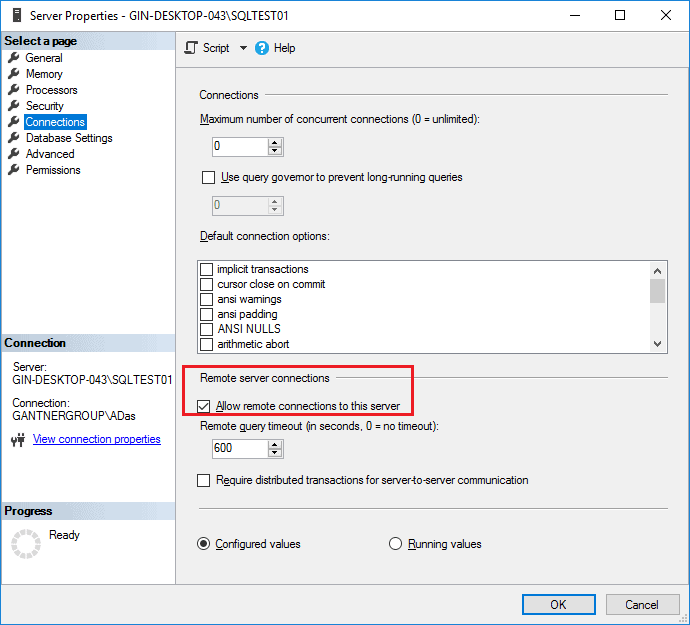
The SQL Server is not configured to be able to allow remote machines to connect to this instance.
Add a Remote User to the database
Once the SQL Server is configured, we need to allow decide users should be able to connect and access the database objects. This is done by creating a SQL Login and then assigning specific database roles to those users.
In this case, since all the machines are in the same domain, we will proceed with the Windows Authentication mode.
- Connect to the SQL Server instance as a server admin.
- Expand Security and right-click on Logins.
- Select New Login.
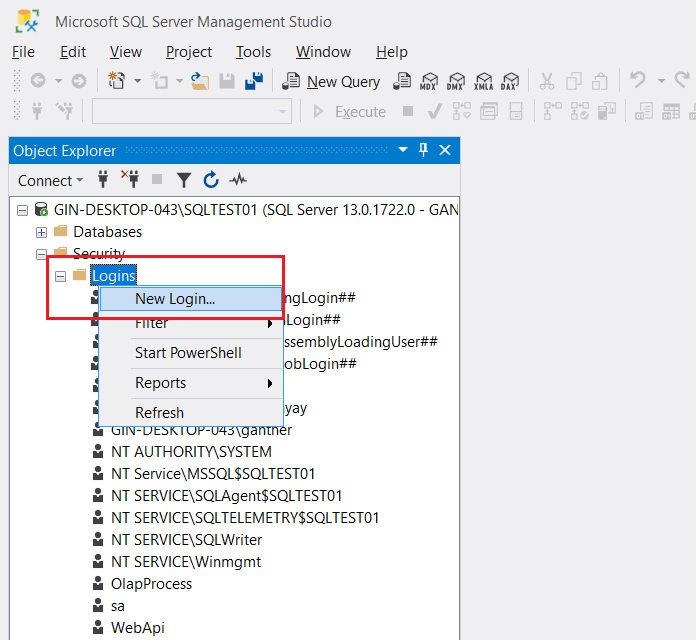
- The Login — New dialog box appears.
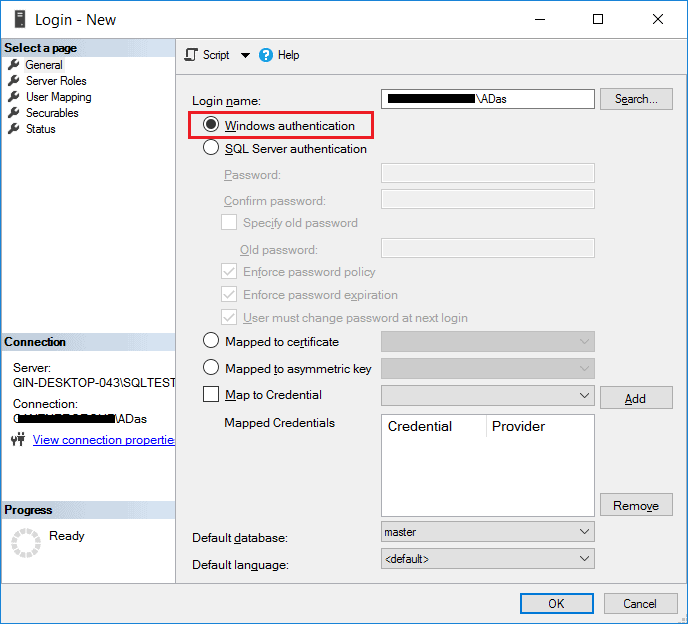
- On the General page, click Search.
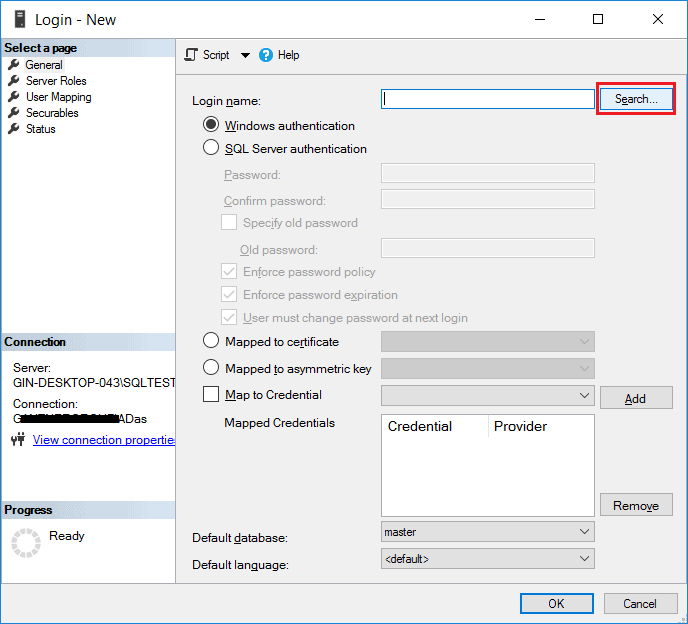
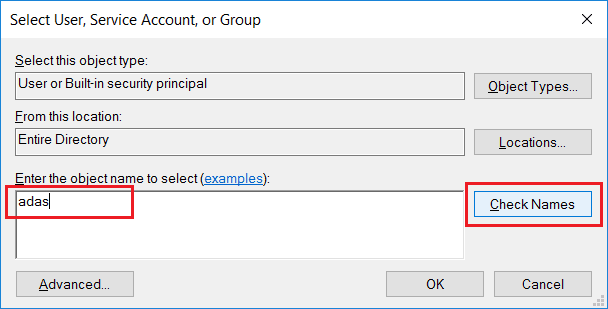
- The Search User, Service Account or Group dialog box appears.
- Type the username in the object name text box and click Check Names.
- This should automatically fetch the user details if there are any users with the same username.

- Keep authentication mode as Windows Authentication.
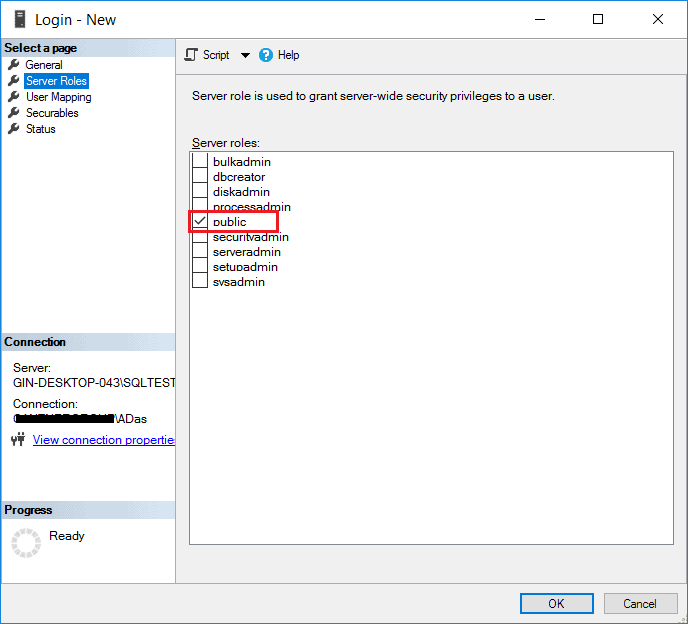
- Now, select Server Roles on the left-hand Page and select the checkbox against Public.
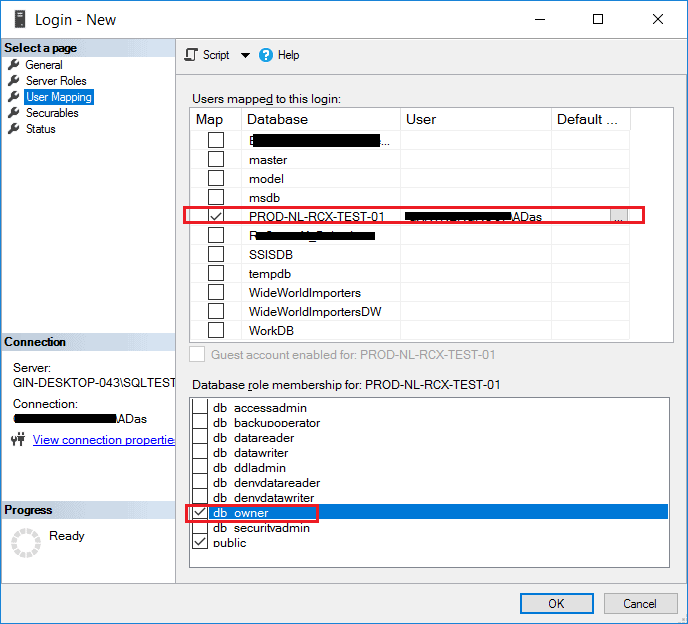
- Navigate to User Mappings, and select the database on which the user needs access to.
- We can assign any specific role as security demands. In this case, I’m assigning as db_owner.
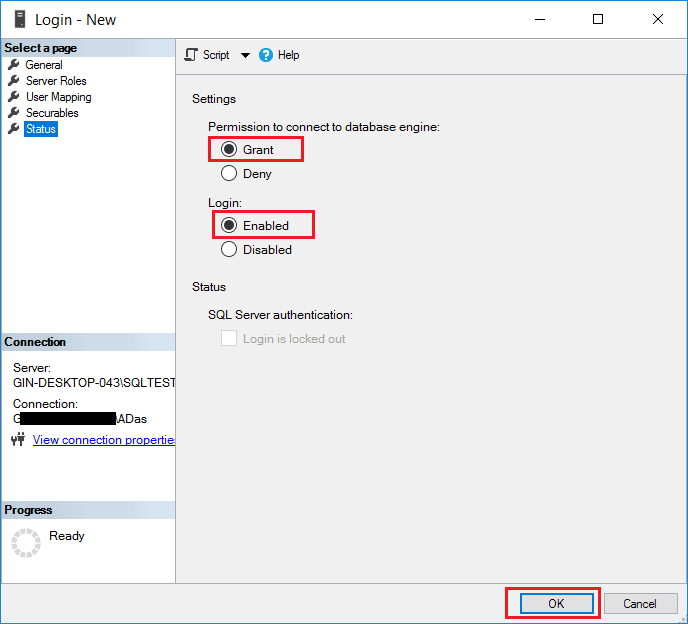
- On the Status page, select Permission as Grant and Login as Enabled and click OK.
- The new login will be visible under the logins in the SQL Server Object Explorer.
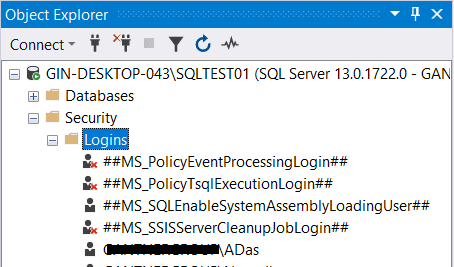
Configuring the SQL Server Instance
Now that the database instance is configured for remote connections, we need to allow remote traffic to be allowed on the server. This can be done by following the steps below:
- Select SQL Server 2016 Configuration Manager from the Start.
- Navigate to Protocols for <<YOUR SERVER NAME>> under SQL Server Network Configuration on the left-hand pane.
- Make sure that the TCP/IP Protocol Name is Enabled.
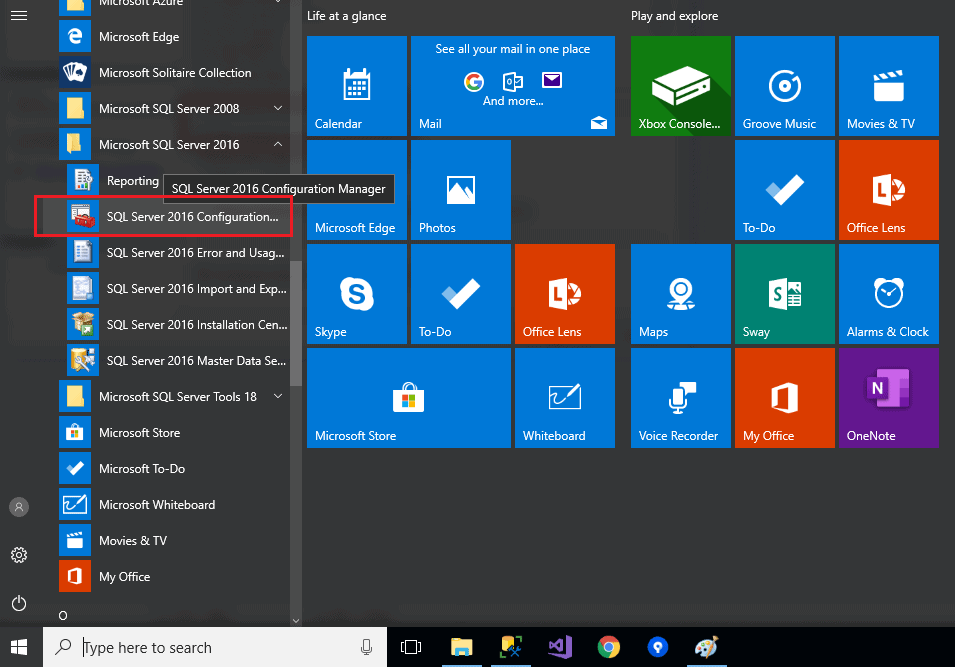
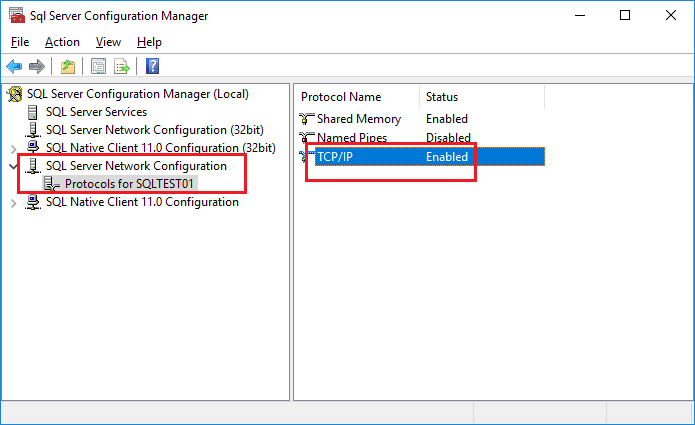
Once the TCP/IP Protocol is Enabled, we need to configure the port on which the SQL Server will allow inbound traffic.
- Right-click on TCP/IP Protocol Name and select the Property option.
- Navigate to the IP Addresses tab and scroll down to the section named «IPAII«.
- If the TCP Dynamic Ports is set to 0 (indicates the Database Engine is listening on dynamic ports), then remove the 0 and set it to blank.
- Update the value for TCP Port to 1434. This is the default port that is being used by the SQL Server Database Engine and click OK.
- A warning might be displayed which will prompt to restart the service.
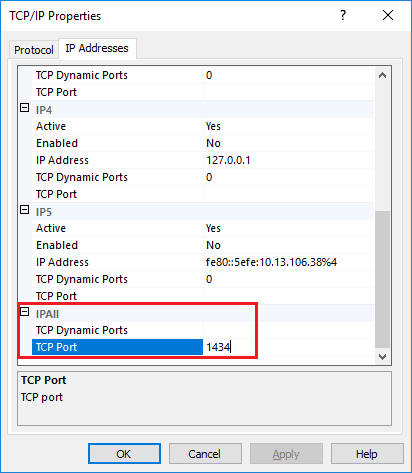
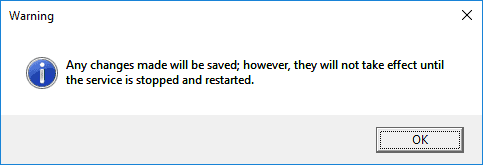
Now that the IP Ports are configured, we need to restart the SQL Server service, which will run the Database Engine on the ports as specified earlier.
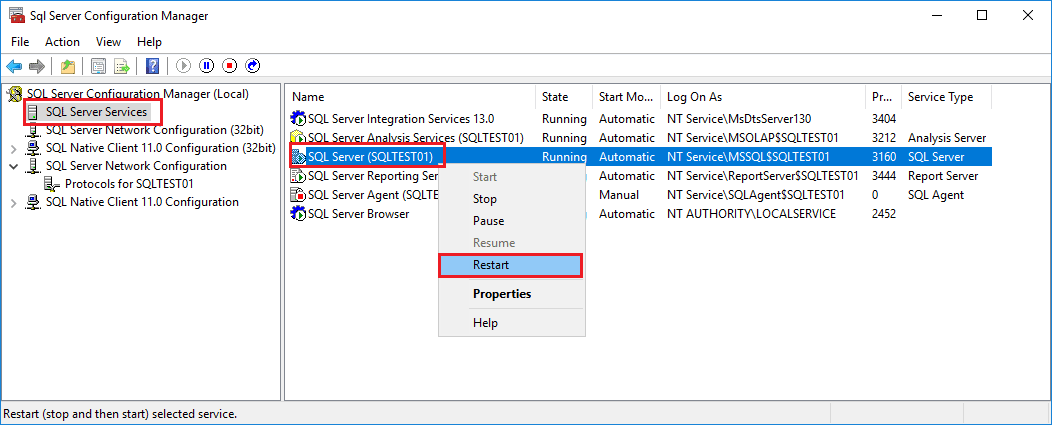
- Select SQL Server Services.
- On the right-hand panel, right-click the SQL Server (Instance Name) and select Restart.
- The service will be restarted.
Configuring Windows Firewall
Once the database instance is configured to accept remote connections, we need to add an exception in the Windows Firewall for the port (1434) to allow TCP/IP traffic on this port.
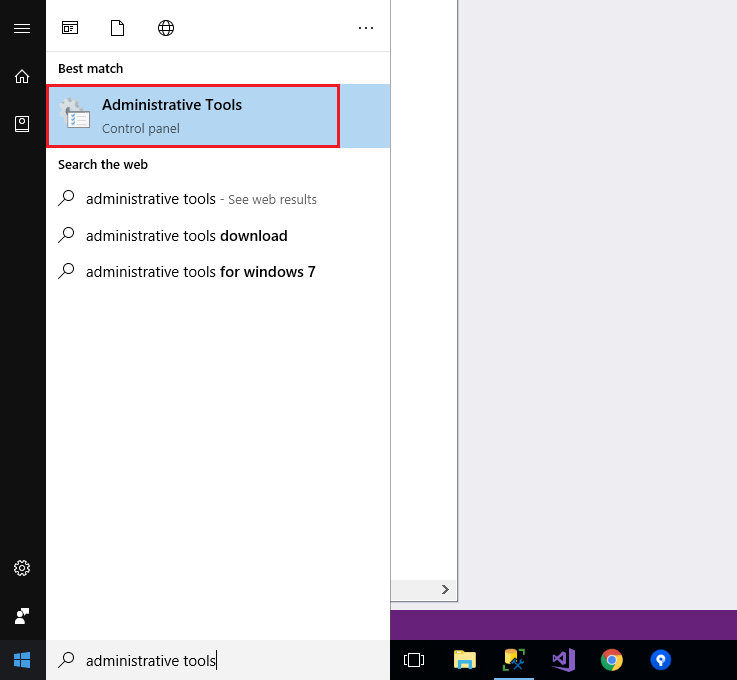
- Click Start and select Administrative Tools.
- In the Administrative Tools window, double-click Windows Firewall with Advanced Security.
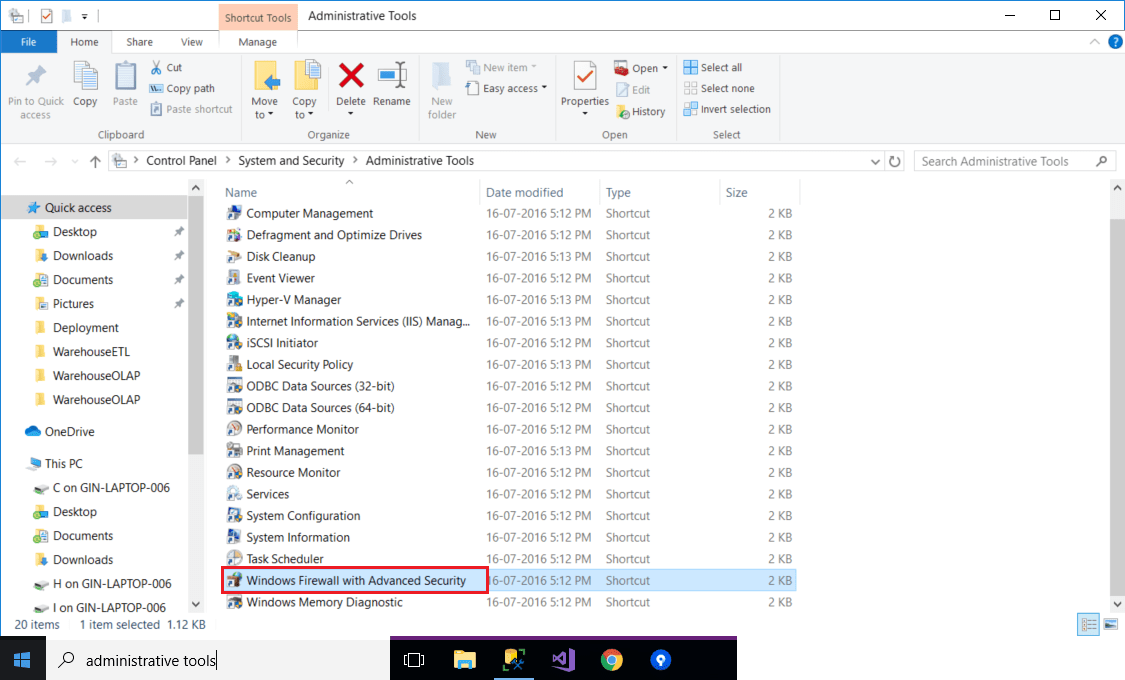
- The Windows Firewall with Advanced Security window opens.
- Click Inbound Rules on the left-hand panel.
- On the right-hand panel, click New Rule under Actions.
- The New Inbound Rule Wizards starts.
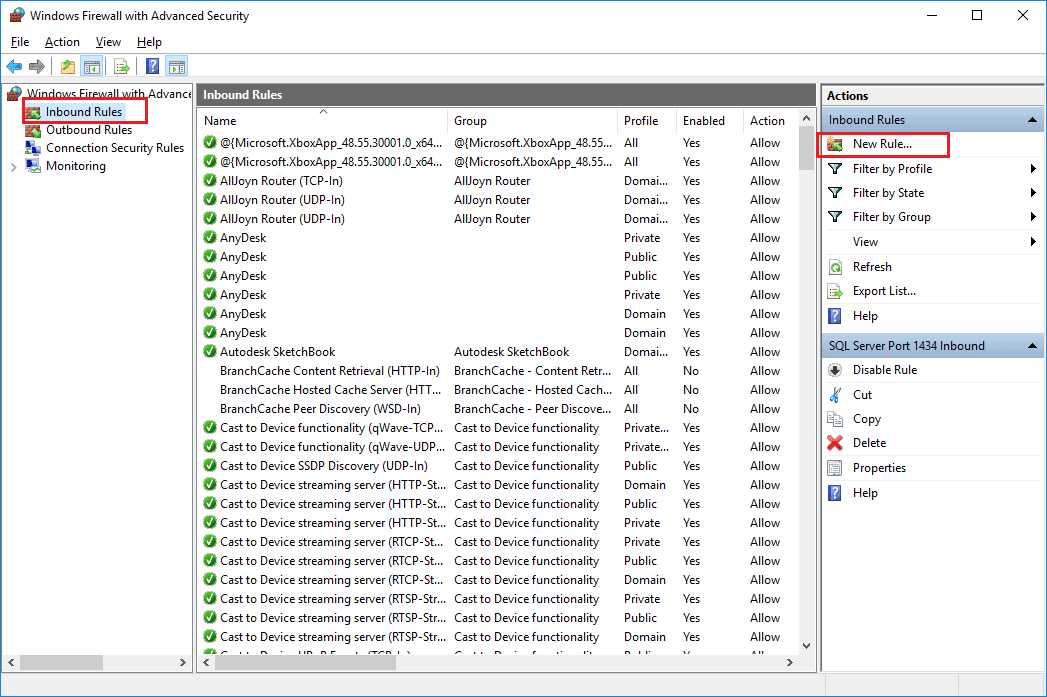
- Select the Port option under Rule Type and then click on Next.
- Under Protocols and Ports, select TCP and Specified local ports as «1434» (since we want to allow traffic on this port).
- Click Next.
- Select Allow the connection under Action and click on Next.
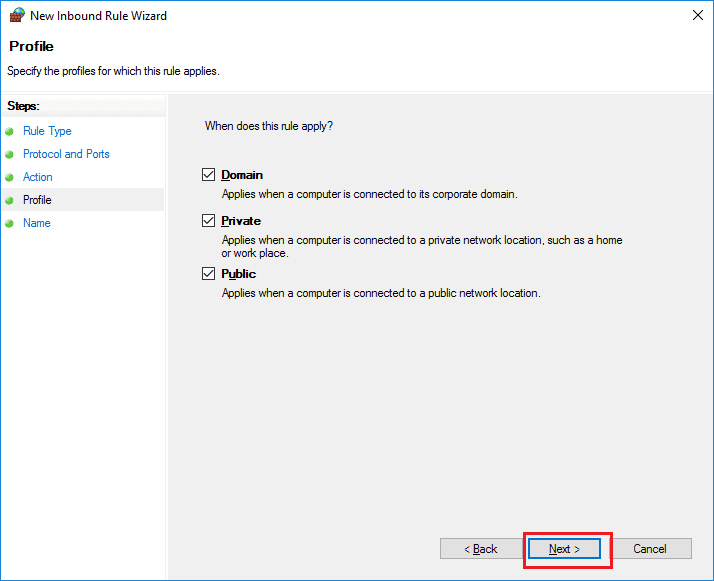
- Select all the three options under Profile (This depends on whom do you want to allow access to the database instance).
- Click Next.
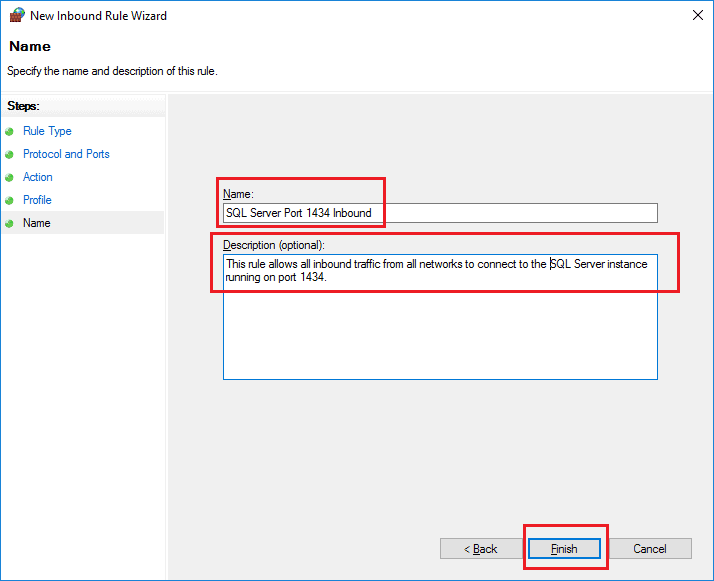
- The final step is to provide a Name to this new rule.
- The Description is not mandatory, so you may choose not to fill it in.
- Finally, click Finish.
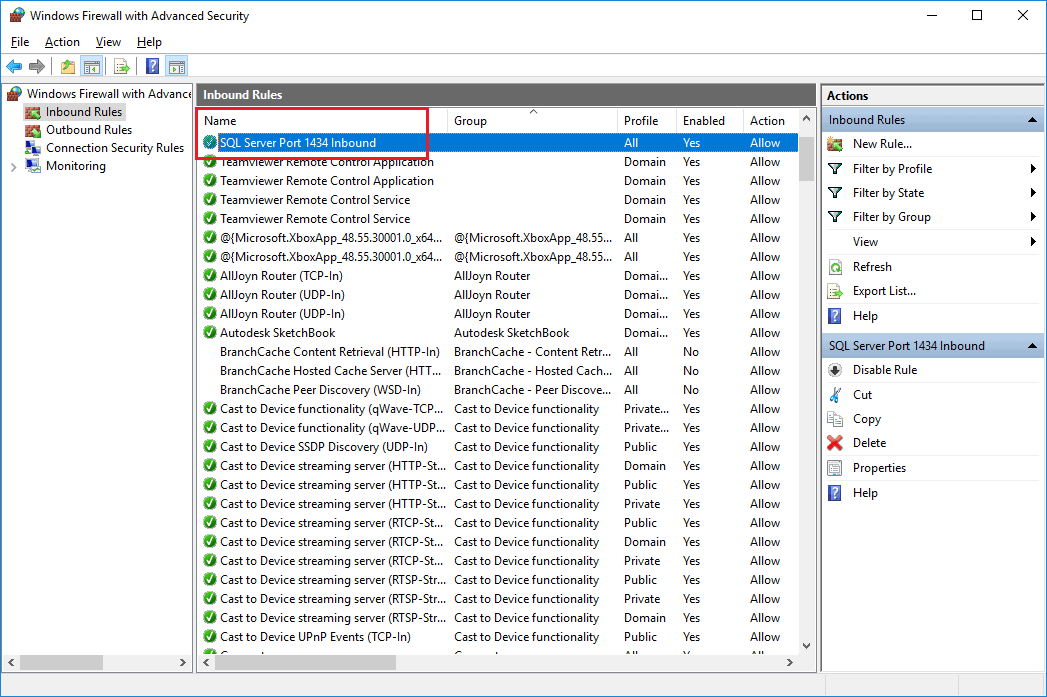
- The new rule should now be visible in the Inbound Rules section.
Fetch the Connection Details
Now that everything has been set up properly to allow inbound traffic over the firewall, we are ready to connect to this machine from any other machine in the network. For this, we need to get the correct IP Address of the machine and the Instance Name of the database (only in case of a named instance).
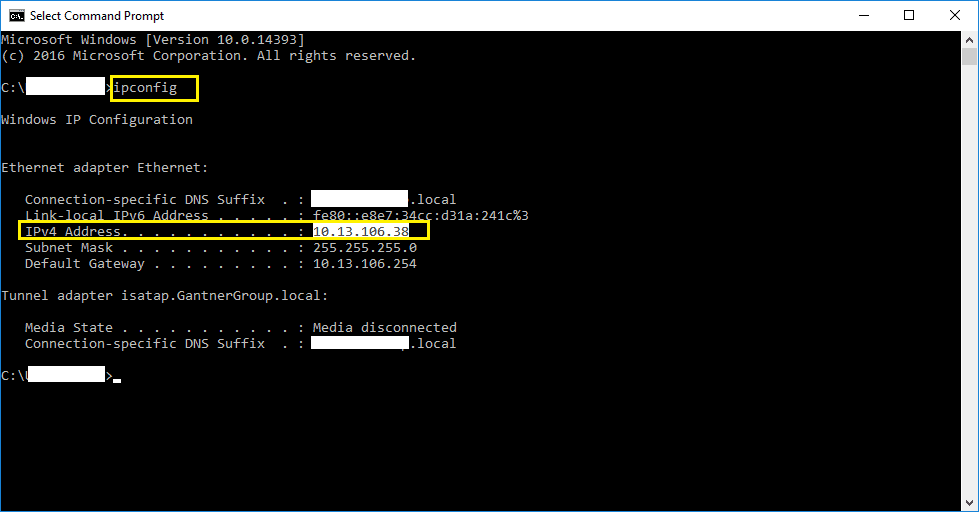
- Open Command Prompt and type ipconfig.
- Copy the IPv4 Address. In this case, it is «10.13.106.38«.
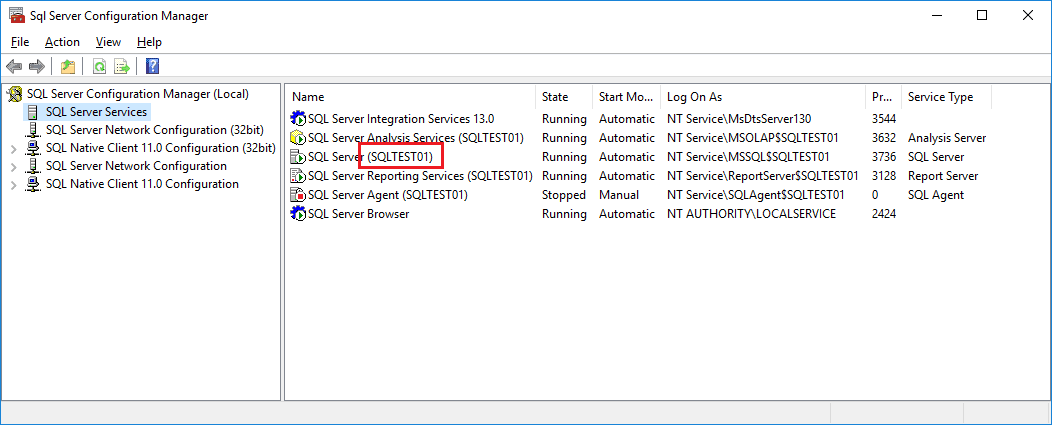
- Also, open SQL Server Configuration Manager.
- Select SQL Server Services on the left-hand panel and copy the name of the instance of the database. This is only required in case the database is running on a named instance.
- In this case, the name of the instance is SQLTEST01.
Connecting to the remote machine
Once the remote server is configured, now we should be able to connect to the SQL Database Instance from any other PCs.
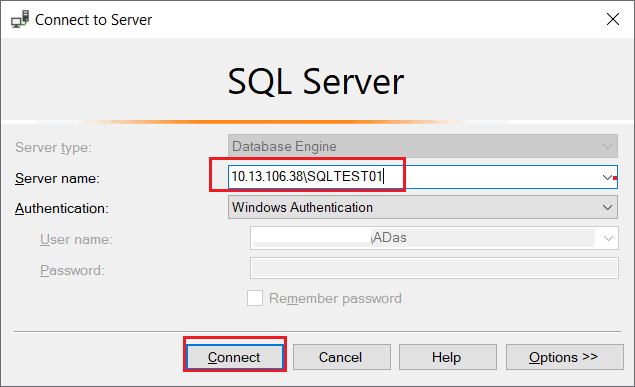
- Open SQL Server Management Studio.
- Provide the Server name in the format <<REMOTE MACHINE IP>>\<<INSTANCE NAME>>.
- In this case, it is 10.13.106.38\SQLTEST01.
- Since I’m in the same domain as the remote server, I’d be using Windows Authentication.
- Click Connect.
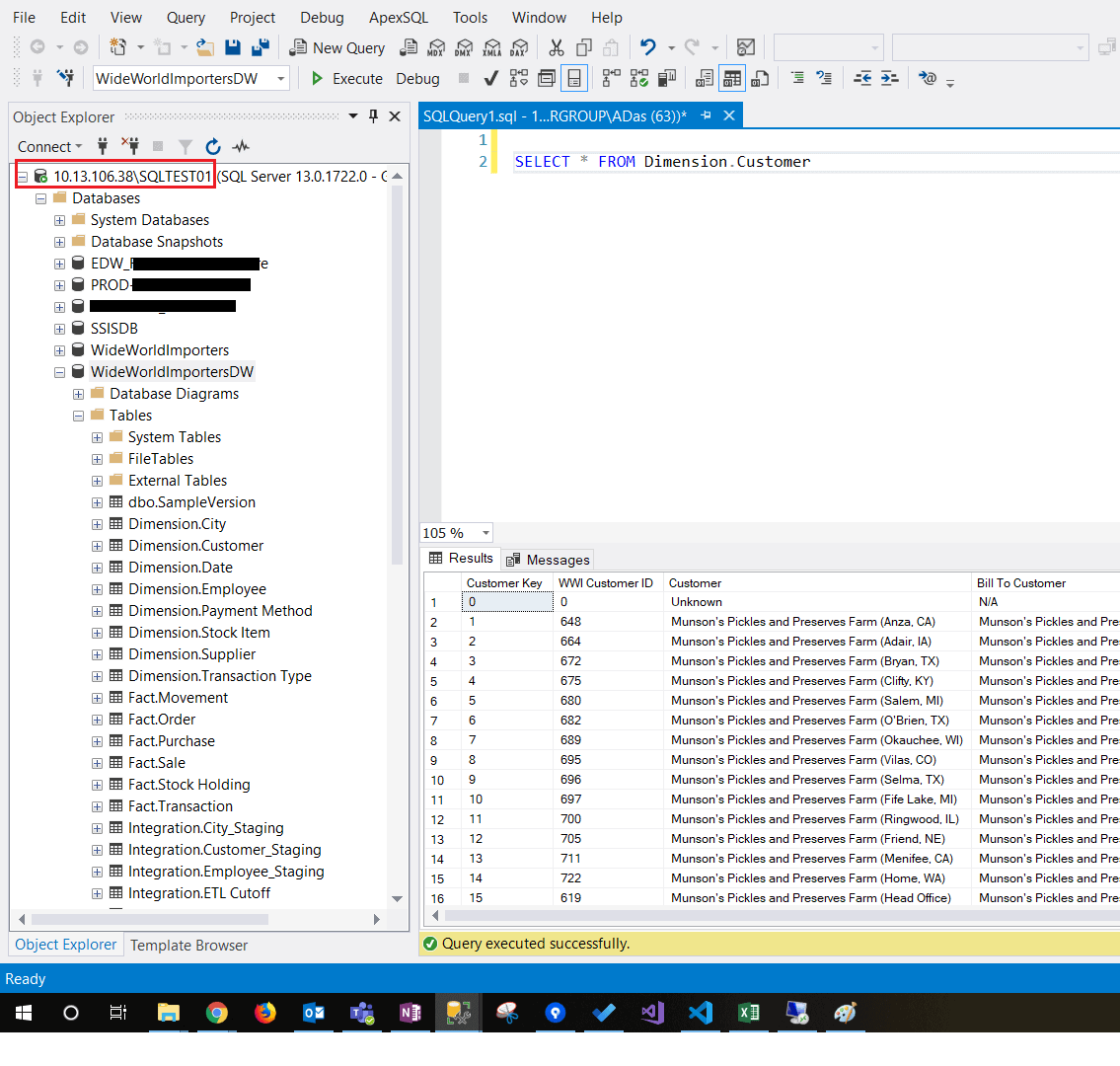
- The remote database instance should be now accessible from the local machines.
- Now you should be able to browse all the databases that the user has been granted access with.
Take Away
This article describes how to set up a remote server to allow other users to connect to a named instance of the SQL Server Database Engine.
Connect to the SQL Server
Summary: in this tutorial, you will learn how to connect to SQL Server from the SQL Server Management Studio and execute a query.
Connect to the SQL Server using SSMS
To connect to the SQL Server using the Microsoft SQL Server Management Studio, you use these steps:
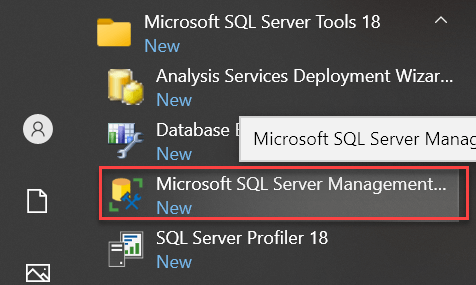
First, launch the Microsoft SQL Server Management Studio from the Start menu:
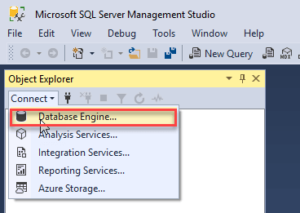
Next, from the Connect menu under the Object Explorer, choose the Database Engine…
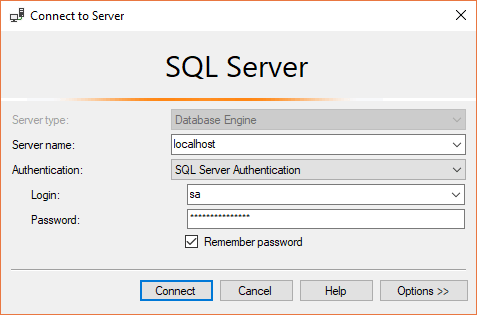
Then, enter the information for the Server name (localhost), Authentication (SQL Server Authentication), and password for the sa user and click the Connect button to connect to the SQL Server. Note that you should use the sa user and password that you entered during the installation.
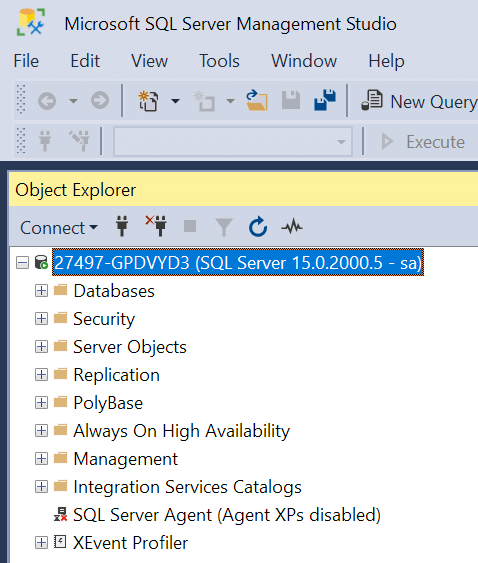
If the connection is established successfully, then you will see the following Object Explorer panel:
Execute a query
To execute a query you follow these steps:
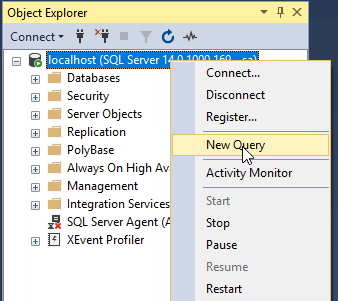
First, right-click on the localhost (SQL Server …) node and choose the New Query menu item:
Second, enter the following query in the Editor
This query returns the version of the SQL Server.
Third, click the Execute button:
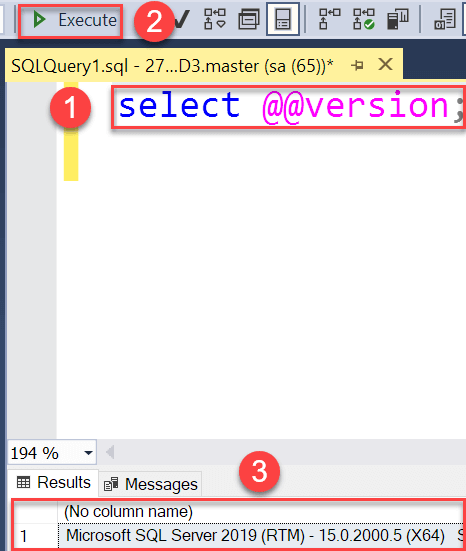
The Results window shows the version of the SQL Server as shown in the above screenshot. A quick way to execute a query is to press the F5 keyboard shortcut.
Now, you should know how to connect to a SQL Server and execute a query from the SSMS.
SQL Server connection strings
Microsoft SqlClient Data Provider for SQL Server
Standard Security
Trusted Connection
Connection to a SQL Server instance
The server/instance name syntax used in the server option is the same for all SQL Server connection strings.
Server = myServerName\myInstanceName; Database = myDataBase; User Id = myUsername; Password = myPassword;
Using a non-standard port
If your SQL Server listens on a non-default port you can specify that using the servername,xxxx syntax (note the comma, it’s not a colon).
Server = myServerName,myPortNumber; Database = myDataBase; User Id = myUsername; Password = myPassword;
The default SQL Server port is 1433 and there is no need to specify that in the connection string.
Connect via an IP address
DBMSSOCN=TCP/IP is how to use TCP/IP instead of Named Pipes. At the end of the Data Source is the port to use. 1433 is the default port for SQL Server. Read more here.
Enable MARS
Attach a database file on connect to a local SQL Server Express instance
Why is the Database parameter needed? If the named database have already been attached, SQL Server does not reattach it. It uses the attached database as the default for the connection.
Attach a database file, located in the data directory, on connect to a local SQL Server Express instance
Why is the Database parameter needed? If the named database have already been attached, SQL Server does not reattach it. It uses the attached database as the default for the connection.
User Instance on local SQL Server Express
The User Instance feature is deprecated with SQL Server 2012, use the SQL Server Express LocalDB feature instead.
LocalDB automatic instance
The first connection to LocalDB will create and start the instance, this takes some time and might cause a connection timeout failure. If this happens, wait a bit and connect again.
LocalDB automatic instance with specific data file
LocalDB named instance
To create a named instance, use the SqlLocalDB.exe program. Example SqlLocalDB.exe create MyInstance and SqlLocalDB.exe start MyInstance
Server = (localdb)\MyInstance; Integrated Security = true;
LocalDB named instance via the named pipes pipe name
The Server=(localdb) syntax is not supported by .NET framework versions before 4.0.2. However the named pipes connection will work to connect pre 4.0.2 applications to LocalDB instances.
Executing SqlLocalDB.exe info MyInstance will get you (along with other info) the instance pipe name such as «np:\\.\pipe\LOCALDB#F365A78E\tsql\query».
LocalDB shared instance
Both automatic and named instances of LocalDB can be shared.
Server = (localdb)\.\MyInstanceShare; Integrated Security = true;
Use SqlLocalDB.exe to share or unshare an instance. For example execute SqlLocalDB.exe share «MyInstance» «MyInstanceShare» to share an instance.
Database mirroring
If you connect with ADO.NET or the SQL Native Client to a database that is being mirrored, your application can take advantage of the drivers ability to automatically redirect connections when a database mirroring failover occurs. You must specify the initial principal server and database in the connection string and the failover partner server.
Data Source = myServerAddress; Failover Partner = myMirrorServerAddress; Initial Catalog = myDataBase; Integrated Security = True;
There is ofcourse many other ways to write the connection string using database mirroring, this is just one example pointing out the failover functionality. You can combine this with the other connection strings options available.
Asynchronous processing
A connection to SQL Server that allows for the issuing of async requests through ADO.NET objects.
Server = myServerAddress; Database = myDataBase; Integrated Security = True; Asynchronous Processing = True;
Using an User Instance on a local SQL Server Express instance
The User Instance functionality creates a new SQL Server instance on the fly during connect. This works only on a local SQL Server instance and only when connecting using windows authentication over local named pipes. The purpose is to be able to create a full rights SQL Server instance to a user with limited administrative rights on the computer.
Data Source = .\SQLExpress; Integrated Security = true; AttachDbFilename = C:\MyFolder\MyDataFile.mdf; User Instance = true;
To use the User Instance functionality you need to enable it on the SQL Server. This is done by executing the following command: sp_configure ‘user instances enabled’, ‘1’. To disable the functionality execute sp_configure ‘user instances enabled’, ‘0’.
Specifying packet size
By default, the Microsoft .NET Framework Data Provider for SQL Server sets the network packet size to 8192 bytes. This might however not be optimal, try to set this value to 4096 instead. The default value of 8192 might cause Failed to reserve contiguous memory errors as well, read more here.
Always Encrypted
This one is available in .NET Core (as opposed to System.Data.SqlClient).
Always Encrypted with secure enclaves
This one is available in .NET Core (as opposed to System.Data.SqlClient).
.NET Framework Data Provider for SQL Server
Standard Security
Trusted Connection
Connection to a SQL Server instance
The server/instance name syntax used in the server option is the same for all SQL Server connection strings.
Server = myServerName\myInstanceName; Database = myDataBase; User Id = myUsername; Password = myPassword;
Using a non-standard port
If your SQL Server listens on a non-default port you can specify that using the servername,xxxx syntax (note the comma, it’s not a colon).
Server = myServerName,myPortNumber; Database = myDataBase; User Id = myUsername; Password = myPassword;
The default SQL Server port is 1433 and there is no need to specify that in the connection string.
Trusted Connection from a CE device
A Windows CE device is most often not authenticated and logged in to a domain but it is possible to use SSPI or trusted connection and authentication from a CE device using this connection string.
Data Source = myServerAddress; Initial Catalog = myDataBase; Integrated Security = SSPI; User ID = myDomain\myUsername; Password = myPassword;
Note that this will only work on a CE device.
Connect via an IP address
DBMSSOCN=TCP/IP is how to use TCP/IP instead of Named Pipes. At the end of the Data Source is the port to use. 1433 is the default port for SQL Server. Read more here.
Enable MARS
Attach a database file on connect to a local SQL Server Express instance
Why is the Database parameter needed? If the named database have already been attached, SQL Server does not reattach it. It uses the attached database as the default for the connection.
Attach a database file, located in the data directory, on connect to a local SQL Server Express instance
Why is the Database parameter needed? If the named database have already been attached, SQL Server does not reattach it. It uses the attached database as the default for the connection.
User Instance on local SQL Server Express
The User Instance feature is deprecated with SQL Server 2012, use the SQL Server Express LocalDB feature instead.
LocalDB automatic instance
The first connection to LocalDB will create and start the instance, this takes some time and might cause a connection timeout failure. If this happens, wait a bit and connect again.
LocalDB automatic instance with specific data file
LocalDB named instance
To create a named instance, use the SqlLocalDB.exe program. Example SqlLocalDB.exe create MyInstance and SqlLocalDB.exe start MyInstance
Server = (localdb)\MyInstance; Integrated Security = true;
LocalDB named instance via the named pipes pipe name
The Server=(localdb) syntax is not supported by .NET framework versions before 4.0.2. However the named pipes connection will work to connect pre 4.0.2 applications to LocalDB instances.
Executing SqlLocalDB.exe info MyInstance will get you (along with other info) the instance pipe name such as «np:\\.\pipe\LOCALDB#F365A78E\tsql\query».
LocalDB shared instance
Both automatic and named instances of LocalDB can be shared.
Server = (localdb)\.\MyInstanceShare; Integrated Security = true;
Use SqlLocalDB.exe to share or unshare an instance. For example execute SqlLocalDB.exe share «MyInstance» «MyInstanceShare» to share an instance.
Database mirroring
If you connect with ADO.NET or the SQL Native Client to a database that is being mirrored, your application can take advantage of the drivers ability to automatically redirect connections when a database mirroring failover occurs. You must specify the initial principal server and database in the connection string and the failover partner server.
Data Source = myServerAddress; Failover Partner = myMirrorServerAddress; Initial Catalog = myDataBase; Integrated Security = True;
There is ofcourse many other ways to write the connection string using database mirroring, this is just one example pointing out the failover functionality. You can combine this with the other connection strings options available.
Asynchronous processing
A connection to SQL Server that allows for the issuing of async requests through ADO.NET objects.
Server = myServerAddress; Database = myDataBase; Integrated Security = True; Asynchronous Processing = True;
Using an User Instance on a local SQL Server Express instance
The User Instance functionality creates a new SQL Server instance on the fly during connect. This works only on a local SQL Server instance and only when connecting using windows authentication over local named pipes. The purpose is to be able to create a full rights SQL Server instance to a user with limited administrative rights on the computer.
Data Source = .\SQLExpress; Integrated Security = true; AttachDbFilename = C:\MyFolder\MyDataFile.mdf; User Instance = true;
To use the User Instance functionality you need to enable it on the SQL Server. This is done by executing the following command: sp_configure ‘user instances enabled’, ‘1’. To disable the functionality execute sp_configure ‘user instances enabled’, ‘0’.
Specifying packet size
By default, the Microsoft .NET Framework Data Provider for SQL Server sets the network packet size to 8192 bytes. This might however not be optimal, try to set this value to 4096 instead. The default value of 8192 might cause Failed to reserve contiguous memory errors as well, read more here.
Always Encrypted
Always Encrypted in System.Data.SqlClient is available only for .NET Framework, not .NET Core. To use Always Encrypted in .NET Core switch to Microsoft.Data.SqlClient (NuGet-package).
Always Encrypted with secure enclaves
Always Encrypted in System.Data.SqlClient is available only for .NET Framework, not .NET Core. To use Always Encrypted in .NET Core switch to Microsoft.Data.SqlClient (NuGet-package).
Microsoft OLE DB Driver for SQL Server
Standard security
ADO to map new data types
For ADO to correctly map SQL Server new datatypes, i.e. XML, UDT, varchar(max), nvarchar(max), and varbinary(max), include DataTypeCompatibility=80; in the connection string. If you are not using ADO this is not necessary.
Provider = MSOLEDBSQL; DataTypeCompatibility = 80; Server = myServerAddress; Database = myDataBase; UID = myUsername; PWD = myPassword;
Trusted connection
Equivalent key-value pair: «Integrated Security=SSPI» equals «Trusted_Connection=yes»
Connecting to an SQL Server instance
The syntax of specifying the server instance in the value of the server key is the same for all connection strings for SQL Server.
Provider = MSOLEDBSQL; Server = myServerName\theInstanceName; Database = myDataBase; Trusted_Connection = yes;
Using a non-standard port
If your SQL Server listens on a non-default port you can specify that using the servername,xxxx syntax (note the comma, it’s not a colon).
Provider = MSOLEDBSQL; Server = myServerName,myPortNumber; Database = myDataBase; UID = myUsername; PWD = myPassword;
The default SQL Server port is 1433 and there is no need to specify that in the connection string.
Enable MARS
Encrypt data sent over network
Attach a database file on connect to a local SQL Server Express instance
Why is the Database parameter needed? If the named database have already been attached, SQL Server does not reattach it. It uses the attached database as the default for the connection.
Database mirroring
If you connect with ADO.NET or the SQL Native Client to a database that is being mirrored, your application can take advantage of the drivers ability to automatically redirect connections when a database mirroring failover occurs. You must specify the initial principal server and database in the connection string and the failover partner server.
Provider = MSOLEDBSQL; Data Source = myServerAddress; Failover Partner = myMirrorServerAddress; Initial Catalog = myDataBase; Integrated Security = True;
There is ofcourse many other ways to write the connection string using database mirroring, this is just one example pointing out the failover functionality. You can combine this with the other connection strings options available.
Availability group and failover cluster
Enable fast failover for Always On Availability Groups and Failover Cluster Instances. TCP is the only supported protocol. Also set an explicit timeout as these scenarios might require more time.
Provider = MSOLEDBSQL; Server = tcp:AvailabilityGroupListenerDnsName,1433; MultiSubnetFailover = Yes; Database = MyDB; Integrated Security = SSPI; Connect Timeout = 30;
MultiSubnetFailover will perform retries in parallell and do it faster than default TCP retransmit intervals. This can not be combined with mirroring, e.g. Failover_Partner=mirrorServer.
Read-Only application intent
Use a read workload when connecting. Enforces read only at connection time, and also for USE database statements.
Provider = MSOLEDBSQL; Server = tcp:AvailabilityGroupListenerDnsName,1433; MultiSubnetFailover = Yes; ApplicationIntent = ReadOnly; Database = MyDB; Integrated Security = SSPI; Connect Timeout = 30;
The result of using ApplicationIntent depends on database configuration. See read-only routing. The default for ApplicationIntent is ReadWrite.
Read-Only routing
You can either use an availability group listener for Server OR the read-only instance name to enforce a specific read-only instance.
Provider = MSOLEDBSQL; Server = aKnownReadOnlyInstance; MultiSubnetFailover = Yes; ApplicationIntent = ReadOnly; Database = MyDB; Integrated Security = SSPI; Connect Timeout = 30;
An availability group must enable read-only routing for this to work.
SQL Server Native Client 11.0 OLE DB Provider
Standard security
Are you using SQL Server 2012 Express? Don’t miss the server name syntax Servername\SQLEXPRESS where you substitute Servername with the name of the computer where the SQL Server 2012 Express installation resides.
Trusted connection
Equivalent key-value pair: «Integrated Security=SSPI» equals «Trusted_Connection=yes»
Connecting to an SQL Server instance
The syntax of specifying the server instance in the value of the server key is the same for all connection strings for SQL Server.
Provider = SQLNCLI11; Server = myServerName\theInstanceName; Database = myDataBase; Trusted_Connection = yes;
Using a non-standard port
If your SQL Server listens on a non-default port you can specify that using the servername,xxxx syntax (note the comma, it’s not a colon).
Provider = SQLNCLI11; Server = myServerName,myPortNumber; Database = myDataBase; Uid = myUsername; Pwd = myPassword;
The default SQL Server port is 1433 and there is no need to specify that in the connection string.
Prompt for username and password
This one is a bit tricky. First you need to set the connection object’s Prompt property to adPromptAlways. Then use the connection string to connect to the database.
Enable MARS
Encrypt data sent over network
Attach a database file on connect to a local SQL Server Express instance
Why is the Database parameter needed? If the named database have already been attached, SQL Server does not reattach it. It uses the attached database as the default for the connection.
Attach a database file, located in the data directory, on connect to a local SQL Server Express instance
Why is the Database parameter needed? If the named database have already been attached, SQL Server does not reattach it. It uses the attached database as the default for the connection.
Database mirroring
If you connect with ADO.NET or the SQL Native Client to a database that is being mirrored, your application can take advantage of the drivers ability to automatically redirect connections when a database mirroring failover occurs. You must specify the initial principal server and database in the connection string and the failover partner server.
Provider = SQLNCLI11; Data Source = myServerAddress; Failover Partner = myMirrorServerAddress; Initial Catalog = myDataBase; Integrated Security = True;
There is ofcourse many other ways to write the connection string using database mirroring, this is just one example pointing out the failover functionality. You can combine this with the other connection strings options available.
SQL Server Native Client 10.0 OLE DB Provider
Standard security
Are you using SQL Server 2008 Express? Don’t miss the server name syntax Servername\SQLEXPRESS where you substitute Servername with the name of the computer where the SQL Server 2008 Express installation resides.
Trusted connection
Equivalent key-value pair: «Integrated Security=SSPI» equals «Trusted_Connection=yes»
Connecting to an SQL Server instance
The syntax of specifying the server instance in the value of the server key is the same for all connection strings for SQL Server.
Provider = SQLNCLI10; Server = myServerName\theInstanceName; Database = myDataBase; Trusted_Connection = yes;
Using a non-standard port
If your SQL Server listens on a non-default port you can specify that using the servername,xxxx syntax (note the comma, it’s not a colon).
Provider = SQLNCLI10; Server = myServerName,myPortNumber; Database = myDataBase; Uid = myUsername; Pwd = myPassword;
The default SQL Server port is 1433 and there is no need to specify that in the connection string.
Prompt for username and password
This one is a bit tricky. First you need to set the connection object’s Prompt property to adPromptAlways. Then use the connection string to connect to the database.
Enable MARS
Encrypt data sent over network
Attach a database file on connect to a local SQL Server Express instance
Why is the Database parameter needed? If the named database have already been attached, SQL Server does not reattach it. It uses the attached database as the default for the connection.
Attach a database file, located in the data directory, on connect to a local SQL Server Express instance
Why is the Database parameter needed? If the named database have already been attached, SQL Server does not reattach it. It uses the attached database as the default for the connection.
Database mirroring
If you connect with ADO.NET or the SQL Native Client to a database that is being mirrored, your application can take advantage of the drivers ability to automatically redirect connections when a database mirroring failover occurs. You must specify the initial principal server and database in the connection string and the failover partner server.
Provider = SQLNCLI10; Data Source = myServerAddress; Failover Partner = myMirrorServerAddress; Initial Catalog = myDataBase; Integrated Security = True;
There is ofcourse many other ways to write the connection string using database mirroring, this is just one example pointing out the failover functionality. You can combine this with the other connection strings options available.
SQL Native Client 9.0 OLE DB Provider
Standard security
Are you using SQL Server 2005 Express? Don’t miss the server name syntax Servername\SQLEXPRESS where you substitute Servername with the name of the computer where the SQL Server 2005 Express installation resides.
Trusted connection
Equivalent key-value pair: «Integrated Security=SSPI» equals «Trusted_Connection=yes»
Connecting to an SQL Server instance
The syntax of specifying the server instance in the value of the server key is the same for all connection strings for SQL Server.
Provider = SQLNCLI; Server = myServerName\theInstanceName; Database = myDataBase; Trusted_Connection = yes;
Using a non-standard port
If your SQL Server listens on a non-default port you can specify that using the servername,xxxx syntax (note the comma, it’s not a colon).
Provider = SQLNCLI; Server = myServerName,myPortNumber; Database = myDataBase; Uid = myUsername; Pwd = myPassword;
The default SQL Server port is 1433 and there is no need to specify that in the connection string.
Prompt for username and password
This one is a bit tricky. First you need to set the connection object’s Prompt property to adPromptAlways. Then use the connection string to connect to the database.
Enable MARS
Encrypt data sent over network
Attach a database file on connect to a local SQL Server Express instance
Why is the Database parameter needed? If the named database have already been attached, SQL Server does not reattach it. It uses the attached database as the default for the connection.
Attach a database file, located in the data directory, on connect to a local SQL Server Express instance
Why is the Database parameter needed? If the named database have already been attached, SQL Server does not reattach it. It uses the attached database as the default for the connection.
Database mirroring
If you connect with ADO.NET or the SQL Native Client to a database that is being mirrored, your application can take advantage of the drivers ability to automatically redirect connections when a database mirroring failover occurs. You must specify the initial principal server and database in the connection string and the failover partner server.
Provider = SQLNCLI; Data Source = myServerAddress; Failover Partner = myMirrorServerAddress; Initial Catalog = myDataBase; Integrated Security = True;
There is ofcourse many other ways to write the connection string using database mirroring, this is just one example pointing out the failover functionality. You can combine this with the other connection strings options available.
Microsoft OLE DB Provider for SQL Server
Standard Security
Trusted connection
Use serverName\instanceName as Data Source to use a specific SQL Server instance. Please note that the multiple SQL Server instances feature is available only from SQL Server version 2000 and not in any previous versions.
Connecting to an SQL Server instance
The syntax of specifying the server instance in the value of the server key is the same for all connection strings for SQL Server.
Provider = sqloledb; Data Source = myServerName\theInstanceName; Initial Catalog = myDataBase; Integrated Security = SSPI;
Using a non-standard port
If your SQL Server listens on a non-default port you can specify that using the servername,xxxx syntax (note the comma, it’s not a colon).
Provider = sqloledb; Server = myServerName,myPortNumber; Database = myDataBase; User Id = myUsername; Password = myPassword;
The default SQL Server port is 1433 and there is no need to specify that in the connection string.
Prompt for username and password
This one is a bit tricky. First set the connection object’s Provider property to «sqloledb». Thereafter set the connection object’s Prompt property to adPromptAlways. Then use the connection string to connect to the database.
oConn.Provider = «sqloledb»
oConn.Properties(«Prompt») = adPromptAlways
oConn.Open «Data Source=myServerAddress;Initial Catalog=myDataBase;»
Connect via an IP address
DBMSSOCN=TCP/IP. This is how to use TCP/IP instead of Named Pipes. At the end of the Data Source is the port to use. 1433 is the default port for SQL Server. Read more in the article How to define which network protocol to use.
Disable connection pooling
This one is usefull when receving errors «sp_setapprole was not invoked correctly.» (7.0) or «General network error. Check your network documentation» (2000) when connecting using an application role enabled connection. Application pooling (or OLE DB resource pooling) is on by default. Disabling it can help on this error.
Provider = sqloledb; Data Source = myServerAddress; Initial Catalog = myDataBase; User ID = myUsername; Password = myPassword; OLE DB Services = -2;
.NET Framework Data Provider for OLE DB
Use an OLE DB provider from .NET
See the respective OLEDB provider’s connection strings options. The .net OleDbConnection will just pass on the connection string to the specified OLEDB provider. Read more here.
Microsoft ODBC Driver 17 for SQL Server
Standard security
Using SQL Server Express? The server name syntax is ServerName\SQLEXPRESS where you substitute ServerName with the name of the server where SQL Server Express is running.
Trusted Connection
Equivalent key-value pair: «Integrated Security=SSPI» equals «Trusted_Connection=yes»
Connecting to an SQL Server instance
The syntax of specifying the server instance in the value of the server key is the same for all connection strings for SQL Server.
Driver =
Using a non-standard port
If your SQL Server listens on a non-default port you can specify that using the servername,xxxx syntax (note the comma, it’s not a colon).
Driver =
The default SQL Server port is 1433 and there is no need to specify that in the connection string.
Enable MARS
Encrypt data sent over network
Attach a database file on connect to a local SQL Server Express instance
Why is the Database parameter needed? If the named database have already been attached, SQL Server does not reattach it. It uses the attached database as the default for the connection.
Database mirroring
If you connect to a database that is being mirrored, your application can take advantage of the drivers ability to automatically redirect connections when a database mirroring failover occurs. You must specify the initial principal server and database in the connection string and the failover partner server.
Driver =
This one is working only on Windows, not on macOS or Linux. There is ofcourse many other ways to write the connection string using database mirroring, this is just one example pointing out the failover functionality. You can combine this with the other connection strings options available.
Please note if you are using TCP/IP (using the network library parameter) and database mirroring, including port number in the address (formed as servername,portnumber) for both the main server and the failover partner can solve some reported issues.
Microsoft ODBC Driver 13 for SQL Server
Standard security
Using SQL Server Express? The server name syntax is ServerName\SQLEXPRESS where you substitute ServerName with the name of the server where SQL Server Express is running.
Trusted Connection
Equivalent key-value pair: «Integrated Security=SSPI» equals «Trusted_Connection=yes»
Connecting to an SQL Server instance
The syntax of specifying the server instance in the value of the server key is the same for all connection strings for SQL Server.
Driver =
Using a non-standard port
If your SQL Server listens on a non-default port you can specify that using the servername,xxxx syntax (note the comma, it’s not a colon).
Driver =
The default SQL Server port is 1433 and there is no need to specify that in the connection string.
Enable MARS
Encrypt data sent over network
Attach a database file on connect to a local SQL Server Express instance
Why is the Database parameter needed? If the named database have already been attached, SQL Server does not reattach it. It uses the attached database as the default for the connection.
Database mirroring
If you connect to a database that is being mirrored, your application can take advantage of the drivers ability to automatically redirect connections when a database mirroring failover occurs. You must specify the initial principal server and database in the connection string and the failover partner server.
Driver =
This one is working only on Windows, not on macOS or Linux. There is ofcourse many other ways to write the connection string using database mirroring, this is just one example pointing out the failover functionality. You can combine this with the other connection strings options available.
Please note if you are using TCP/IP (using the network library parameter) and database mirroring, including port number in the address (formed as servername,portnumber) for both the main server and the failover partner can solve some reported issues.
Microsoft ODBC Driver 11 for SQL Server
Standard security
Using SQL Server Express? The server name syntax is ServerName\SQLEXPRESS where you substitute ServerName with the name of the server where SQL Server Express is running.
Trusted Connection
Equivalent key-value pair: «Integrated Security=SSPI» equals «Trusted_Connection=yes»
Connecting to an SQL Server instance
The syntax of specifying the server instance in the value of the server key is the same for all connection strings for SQL Server.
Driver =
Using a non-standard port
If your SQL Server listens on a non-default port you can specify that using the servername,xxxx syntax (note the comma, it’s not a colon).
Driver =
The default SQL Server port is 1433 and there is no need to specify that in the connection string.
Enable MARS
Encrypt data sent over network
Attach a database file on connect to a local SQL Server Express instance
Why is the Database parameter needed? If the named database have already been attached, SQL Server does not reattach it. It uses the attached database as the default for the connection.
Database mirroring
If you connect to a database that is being mirrored, your application can take advantage of the drivers ability to automatically redirect connections when a database mirroring failover occurs. You must specify the initial principal server and database in the connection string and the failover partner server.
Driver =
This one is working only on Windows, not on macOS or Linux. There is ofcourse many other ways to write the connection string using database mirroring, this is just one example pointing out the failover functionality. You can combine this with the other connection strings options available.
Please note if you are using TCP/IP (using the network library parameter) and database mirroring, including port number in the address (formed as servername,portnumber) for both the main server and the failover partner can solve some reported issues.
SQL Server Native Client 11.0 ODBC Driver
Standard security
Are you using SQL Server 2012 Express? Don’t miss the server name syntax Servername\SQLEXPRESS where you substitute Servername with the name of the computer where the SQL Server 2012 Express installation resides.
Trusted Connection
Equivalent key-value pair: «Integrated Security=SSPI» equals «Trusted_Connection=yes»
Connecting to an SQL Server instance
The syntax of specifying the server instance in the value of the server key is the same for all connection strings for SQL Server.
Driver =
Using a non-standard port
If your SQL Server listens on a non-default port you can specify that using the servername,xxxx syntax (note the comma, it’s not a colon).
Driver =
The default SQL Server port is 1433 and there is no need to specify that in the connection string.
Prompt for username and password
This one is a bit tricky. First you need to set the connection object’s Prompt property to adPromptAlways. Then use the connection string to connect to the database.
Enable MARS
Encrypt data sent over network
Attach a database file on connect to a local SQL Server Express instance
Why is the Database parameter needed? If the named database have already been attached, SQL Server does not reattach it. It uses the attached database as the default for the connection.
Attach a database file, located in the data directory, on connect to a local SQL Server Express instance
Why is the Database parameter needed? If the named database have already been attached, SQL Server does not reattach it. It uses the attached database as the default for the connection.
Database mirroring
If you connect with ADO.NET or the SQL Native Client to a database that is being mirrored, your application can take advantage of the drivers ability to automatically redirect connections when a database mirroring failover occurs. You must specify the initial principal server and database in the connection string and the failover partner server.
Driver =
There is ofcourse many other ways to write the connection string using database mirroring, this is just one example pointing out the failover functionality. You can combine this with the other connection strings options available.
Please note if you are using TCP/IP (using the network library parameter) and database mirroring, including port number in the address (formed as servername,portnumber) for both the main server and the failover partner can solve some reported issues.
SQL Server Native Client 10.0 ODBC Driver
Standard security
Are you using SQL Server 2008 Express? Don’t miss the server name syntax Servername\SQLEXPRESS where you substitute Servername with the name of the computer where the SQL Server 2008 Express installation resides.
Trusted Connection
Equivalent key-value pair: «Integrated Security=SSPI» equals «Trusted_Connection=yes»
Connecting to an SQL Server instance
The syntax of specifying the server instance in the value of the server key is the same for all connection strings for SQL Server.
Driver =
Using a non-standard port
If your SQL Server listens on a non-default port you can specify that using the servername,xxxx syntax (note the comma, it’s not a colon).
Driver =
The default SQL Server port is 1433 and there is no need to specify that in the connection string.
Prompt for username and password
This one is a bit tricky. First you need to set the connection object’s Prompt property to adPromptAlways. Then use the connection string to connect to the database.
Enable MARS
Encrypt data sent over network
Attach a database file on connect to a local SQL Server Express instance
Why is the Database parameter needed? If the named database have already been attached, SQL Server does not reattach it. It uses the attached database as the default for the connection.
Attach a database file, located in the data directory, on connect to a local SQL Server Express instance
Why is the Database parameter needed? If the named database have already been attached, SQL Server does not reattach it. It uses the attached database as the default for the connection.
Database mirroring
If you connect with ADO.NET or the SQL Native Client to a database that is being mirrored, your application can take advantage of the drivers ability to automatically redirect connections when a database mirroring failover occurs. You must specify the initial principal server and database in the connection string and the failover partner server.
Driver =
There is ofcourse many other ways to write the connection string using database mirroring, this is just one example pointing out the failover functionality. You can combine this with the other connection strings options available.
Please note if you are using TCP/IP (using the network library parameter) and database mirroring, including port number in the address (formed as servername,portnumber) for both the main server and the failover partner can solve some reported issues.
SQL Native Client 9.0 ODBC Driver
Standard security
Are you using SQL Server 2005 Express? Don’t miss the server name syntax Servername\SQLEXPRESS where you substitute Servername with the name of the computer where the SQL Server 2005 Express installation resides.
Trusted Connection
Equivalent key-value pair: «Integrated Security=SSPI» equals «Trusted_Connection=yes»
Connecting to an SQL Server instance
The syntax of specifying the server instance in the value of the server key is the same for all connection strings for SQL Server.
Driver =
Using a non-standard port
If your SQL Server listens on a non-default port you can specify that using the servername,xxxx syntax (note the comma, it’s not a colon).
Driver =
The default SQL Server port is 1433 and there is no need to specify that in the connection string.
Prompt for username and password
This one is a bit tricky. First you need to set the connection object’s Prompt property to adPromptAlways. Then use the connection string to connect to the database.
Enable MARS
Encrypt data sent over network
Attach a database file on connect to a local SQL Server Express instance
Why is the Database parameter needed? If the named database have already been attached, SQL Server does not reattach it. It uses the attached database as the default for the connection.
Attach a database file, located in the data directory, on connect to a local SQL Server Express instance
Why is the Database parameter needed? If the named database have already been attached, SQL Server does not reattach it. It uses the attached database as the default for the connection.
Database mirroring
If you connect with ADO.NET or the SQL Native Client to a database that is being mirrored, your application can take advantage of the drivers ability to automatically redirect connections when a database mirroring failover occurs. You must specify the initial principal server and database in the connection string and the failover partner server.
Driver =
There is ofcourse many other ways to write the connection string using database mirroring, this is just one example pointing out the failover functionality. You can combine this with the other connection strings options available.
Please note if you are using TCP/IP (using the network library parameter) and database mirroring, including port number in the address (formed as servername,portnumber) for both the main server and the failover partner can solve some reported issues.
Microsoft SQL Server ODBC Driver
Standard Security
Trusted connection
Using a non-standard port
If your SQL Server listens on a non-default port you can specify that using the servername,xxxx syntax (note the comma, it’s not a colon).
Driver =
The default SQL Server port is 1433 and there is no need to specify that in the connection string.
Prompt for username and password
This one is a bit tricky. First you need to set the connection object’s Prompt property to adPromptAlways. Then use the connection string to connect to the database.
.NET Framework Data Provider for ODBC
Use an ODBC driver from .NET
See the respective ODBC driver’s connection strings options. The .net OdbcConnection will just pass on the connection string to the specified ODBC driver. Read more here.
SQLXML 4.0 OLEDB Provider
With Microsoft OLE DB Driver for SQL Server (MSOLEDBSQL)
The DataTypeCompatibility=80 is important for the XML types to be recognised by ADO.
Provider = SQLXMLOLEDB.4.0; Data Provider = MSOLEDBSQL; DataTypeCompatibility = 80; Data Source = myServerAddress; Initial Catalog = myDataBase; User Id = myUsername; Password = myPassword;
See also the other options available for MSOLEDBSQL connection strings.
Using SQL Server Native Client provider 11 (SQLNCLI11)
Using SQL Server Native Client provider 10 (SQLNCLI10)
Using SQL Server Native Client provider (SQLNCLI)
SQLXML 3.0 OLEDB Provider
Using SQL Server Ole Db
The SQLXML version 3.0 restricts the data provider to SQLOLEDB only.
Provider = SQLXMLOLEDB.3.0; Data Provider = SQLOLEDB; Data Source = myServerAddress; Initial Catalog = myDataBase; User Id = myUsername; Password = myPassword;
Context Connection
Context Connection
Connecting to «self» from within your CLR stored prodedure/function. The context connection lets you execute Transact-SQL statements in the same context (connection) that your code was invoked in the first place.