Epson L3210 Printer & Scanner Driver Installer (Free Download)
Ink tank printers are a preference for many users these days, especially the ones who want to print high volumes of documents and images at their homes. Epson is a pioneer in this field and the Epson L3210 all-in-one is one such printer. This color inkjet printer is bundled with ink tank technology, which means it can deliver good quality prints at a very cheap price. This printer supports only USB connectivity, which means at any given time you can connect it with only one computer. Go to the download section below.
Although this printer doesn’t support auto duplex printing, its compact design, impressive print speed and remarkable quality makes it a good printing machine. However, to get the best performance for this Epson EcoTank printer, you must install it using its genuine Epson printer and scanner drivers.
In this driver download guide, we are providing the Epson L3210 driver download links for Windows, Mac and Linux operating systems. All the drivers you will get from this page are genuine Epson printers and scanner drivers. Therefore, all the drivers you will download from here are fully compatible with their respective operating systems. Also, if you have any questions regarding the installation process of these drivers, then we have shared their detailed installation guide below, which you can study to install your driver without any problems.
Steps to Download Epson EcoTank L3210 Driver
In the OS list given below you will find all the operating systems supported by this Epson all-in-one. Follow the download steps given below to download your Epson driver file.
- Go through our list of OS and locate the operating system version where you want to install your Epson printer.
- Click on the download link associated with your chosen OS version to begin the download of your Epson L3210 driver setup file.
Driver Download Links
- Epson L3210 driver for Windows XP (32bit) – Download (8.41 MB)
- Epson L3210 driver for Windows XP (64bit) – Download (9.1 MB)
- Epson L3210 driver for Windows Vista (32bit) – Printer Driver / Scanner Driver
- Epson L3210 driver for Windows Vista (64bit) – Printer Driver / Scanner Driver
- Epson L3210 driver for Windows 7 (32bit) – Printer Driver / Scanner Driver
- Epson L3210 driver for Windows 7 (64bit) – Printer Driver / Scanner Driver
- Epson L3210 driver for Windows 8, 8.1 (32bit) – Printer Driver / Scanner Driver
- Epson L3210 driver for Windows 8, 8.1 (64bit) – Printer Driver / Scanner Driver
- Epson L3210 driver for Windows 10 (32bit) – Printer Driver / Scanner Driver
- Epson L3210 driver for Windows 10 (64bit) – Printer Driver / Scanner Driver
- Epson L3210 driver for Windows 11 (32bit/64bit) – Printer Driver / Scanner Driver
- Epson L3210 driver for Windows Server 2003 (32bit) – Download (8.41 MB)
- Epson L3210 driver for Windows Server 2003 (64bit) – Download (9.1 MB)
- Epson L3210 driver for Windows Server 2008 (32bit) – Download (8.41 MB)
- Epson L3210 driver for Windows Server 2008 (64bit) – Download (9.1 MB)
- Epson L3210 driver for Server 2012, 2016, 2019, 2022 (64bit) – Download (9.1 MB)
- Epson L3210 driver for Mac OS 11.x to 12.x – Printer Driver/Scanner Driver
- Epson L3210 driver for Mac OS 10.10 to 10.15 – Printer Driver/Scanner Driver
- Epson L3210 driver for Mac OS 10.6 to 10.9 – Printer Driver/Scanner Driver
- Epson L3210 driver for Linux and Ubuntu – Download
Download the driver directly from the Epson EcoTankL3210 official website.
Firmware Download Links
- Epson L3210 Firmware Updater for Windows – Download (5.14 MB)
- Epson L3210 Firmware Updater for Mac – Download (9.51 MB)
Software Download Links
- Epson L3210 Software Updater for Windows – Download (6.10 MB)
- Epson L3210 Software Updater for Mac – Download (4.59 MB)
How to Install Epson EcoTank L3210 Driver
Many users have doubts regarding the proper installation procedure of their printer drivers. If these doubts are not resolved, then the proper installation of their printer driver is not possible. Therefore, to help them, we are providing on this page the detailed installation guides for the Epson driver package and the Epson INF driver. Study the guide related to your driver type, then follow its installation instructions in the order as they have been mentioned in the installation guide. This will help you install your driver properly without making any mistakes.
1) Install Epson L3210 Printer Using Driver Package
In this installation guide you will learn about the installation procedure for the Epson L3210 driver package. We have provided an image file for each installation steps so that you can follow them without any confusion. Although the installation steps have been given for the Windows 10 OS, you can follow the same steps for all the versions of the Windows operating system.
- Run the printer driver file downloaded from this page and click on the ‘Yes’ button to begin the installation process.
- Wait for the driver files to extract on your computer.
- Select the ‘Epson L3210’ printer in the list and click on the ‘OK’ button. Please, make sure that the options ‘Set as default printer’ and ‘Automatically update software’ are selected. This will ensure that your printer will become the new default printer and its software will be up-to-date all the times.
- Select your preferred language and click on the ‘OK’ button to continue.
- Click on the ‘Agree’ option to accept the license agreement, then click on the ‘OK’ button to proceed with the driver installation process.
- Wait for the installer program to install the printer driver on your computer.
- Now, connect your Epson printer with your computer by using the USB cable and switch on your printer, then follow the on-screen instructions to complete the driver installation process.
That’s it, you have successfully installed the full feature Epson L3210 driver on your computer and your Epson printer is now ready to print, scan and copy documents.
2) Install Epson L3210 Printer Using INF Driver
If you want to install this Epson printer using the Epson L3210 basic driver, then you must read the installation guide given below. Our guide explains in simple steps the right method to install the Epson L3210 INF driver on a Windows computer. Study the guide carefully and follow its instructions in the correct order for the proper installation of your Epson printer driver.
The EPSON L3210 is a great printer for those who need to print documents with high-quality resolutions. It is also very good at scanning and copying documents, which makes it an all-in-one machine.
This printer has a lot of features that make it stand out from other models. For example, it has an EcoTank, which means that you will never have to buy ink cartridges again, as you can just refill them when they run out.
It also has a driver for both Windows and Mac OS systems, so there’s no need to worry about compatibility issues.
Ink Cartridge Details
The ink for this Epson inkjet printer is available in Black (C13T00V198), Cyan (C13T00V298), Magenta (C13T00V398) and Yellow (C13T00V498) ink bottles. The Black ink bottle has 65 ml of ink volume which can print up to 4500 pages. While the Cyan, Magenta and Yellow ink bottles have 65 ml ink per bottle and can print nearly 7500 pages per bottle.
Как сбросить настройки принтера l3210 в 2023

Как сбросить настройки принтера Epson без кнопки сброса
Как сбросить настройки принтера epson l3210 вручную «Удерживая розовую кнопку, одновременно нажмите кнопку питания. Это приведет к включению принтера, и зеленый индикатор (индикатор питания) также начнет мигать. Как только зеленый индикатор перестанет мигать, отпустите розовую кнопку. Теперь вы увидите постоянный или мигающий светодиодный индикатор на розовой кнопке.
Где находится кнопка сброса на принтере Epson
Как сбросить настройки epson l3210 вручную «Обычно она находится на верхней правой стороне принтера рядом с любым экраном цифрового дисплея, который может быть у принтера, и там же находится кнопка, используемая для включения и выключения компьютера. Найдите кнопку с надписью Pause/Reset в ряду кнопок на панели управления. «.
Как сбросить настройки принтера Epson ET 2803
Как сбросить настройки принтера Epson Ecotank «Вы можете выбрать, какие настройки сбросить или сбросить их все. При необходимости нажмите кнопку «Домой». Выберите Настройки и нажмите кнопку OK. Выберите Восстановить настройки по умолчанию и нажмите кнопку OK. Выберите одну из этих опций и нажмите кнопку OK: Нажмите кнопку OK, чтобы сбросить выбранные настройки.
Как принудительно сбросить настройки принтера
Как вручную сбросить настройки принтера Epson «Как сбросить настройки принтера Выключите принтер, затем отсоедините шнур питания от принтера и от стены. Подождите минуту, затем снова подключите принтер. Принтер перезагрузится и включится. Подождите, пока картриджи отцентрируются, а затем попробуйте печатать снова.
Как вручную перезагрузить принтер Epson
Как сбросить настройки принтера epson l3210 вручную Для сброса настроек принтера Epson на заводские: Выключите принтер. Нажмите и удерживайте кнопку сброса на задней панели принтера (обычно она расположена справа от порта Ethernet). Включите принтер, удерживая кнопку сброса. Подождите, пока не появится сообщение о том, что принтер сбрасывает настройки. .
Что произойдет, если я сброшу настройки принтера на заводские
Как сбросить настройки принтера Epson без кнопки сброса Сброс настроек к заводским вернет настройки принтера к тем, которые были, когда он только вышел из коробки. .
Где находится кнопка сброса в Epson L3110
Как сбросить настройки принтера Epson Ecotank » Узнайте, как сбросить настройки EPSON L3110 на заводские. На первом этапе выключите EPSON L3110, удерживая кнопку питания. Затем нажмите и удерживайте кнопку состояния сети. Затем кнопку питания, пока индикатор Wi-Fi и индикатор Wi-Fi Direct не начнут мигать попеременно. На следующем этапе отпустите обе кнопки. . «.
Есть ли у картриджей Epson кнопка сброса
Где находится кнопка сброса на принтере Epson «Извлеките один из ваших картриджей из принтера и переверните его, чтобы увидеть сторону микрочипа. Найдите кнопку сброса на картридже Epson. Обычно она расположена над металлическими контактами прямо в центре. Обратите внимание, что кнопка очень маленькая и почти незаметная, поэтому не пропустите ее!».
Epson L3210 Driver

The Epson L3210 Driver supports a multifunctional printer capable of printing, scanning, and copying documents at an excellent performance level. In addition, it supports print-on-demand thermal inkjet technology and a piezoelectric component. Meanwhile, the supported printer language includes ESCP/R and the ESC/P Raster.
Epson L3210 Printer Driver Downloads
Driver for Windows
| Filename | Size | Download |
| Drivers and Utilities Combo Package Installer for Windows.exe (Recommended) | 9.22 MB | Download |
| Printer Driver for Windows 32 bit.exe | 28.65 MB | Download |
| Printer Driver for Windows 64 bit.exe | 33.75 MB | Download |
| Scanner Driver and Epson Scan 2 Utility for Windows.exe | 61.64 MB | Download |
| Remote Print Driver for Windows 32 bit.exe | 8.42 MB | Download |
| Remote Print Driver for Windows 64 bit.exe | 9.09 MB | Download |
This combo package installer contains the following items:
- Printer Driver
- Scanner Driver and Epson Scan 2 Utility
- Epson Photo+
- Scan OCR Component
- Epson ScanSmart
- Software Updater
Driver for Mac OS
| Filename | Size | Download |
| Drivers and Utilities Combo Package Installer for mac OS.dmg | 13.26 MB | Download |
| Printer Driver for mac OS.dmg | 56.81 MB | Download |
| Scanner Driver and Epson Scan 2 Utility for mac OS.dmg | 26.60 MB | Download |
| Remote Print Driver for mac OS.dmg | 27.51 MB | Download |
This combo package installer obtains the following items:
- Printer Driver
- Scanner Driver and Epson Scan 2 Utility
- Epson Photo+
- Scan 2 OCR Component
- Epson ScanSmart
- Software Updater
Specifications
The nozzle configuration in this machine involves 180 nozzles for black printing and 59 for each color. The compatible color selections include cyan, magenta, and yellow. The device can also produce an optimum print resolution of 5760 x 1440 dots per inch (dpi). However, this machine cannot carry out simplex printing and not duplex printing.
The print speed of Epson L3210 depends mainly on the print mode and the paper size in use. For instance, when printing on a 10 x 15 cm photo paper, the average print rate is 69 seconds per photo for bordered printing. However, borderless printing with the same paper size has a rate of 90 seconds per photo. A4 paper can print 33.0 pages per minute (ppm) for black documents and 15.0 ppm for color documents in the draft mode.
On the other hand, when the printer works at the ISO 24734 standard mode, the print rate f 10.0 images per minute for black and 5.0 ipm for color documents. The first page out time for the ready way of this machine is about 10 seconds while that of color is 16 seconds. Epson L3210 Driver supports up to 20 copies from one original document when copying.
Also, the copy resolution is about 600 x 600 dpi when using A4 and letter-sized paper. As for scanning, the machine has a flatbed color image scanner (CIS) with an optical resolution of 600 x 1200 dpi. Besides, the maximum scan area cannot exceed 216 x 297 mm. Download Epson L3210 driver from Epson Website
Epson L3210 Driver Free Windows & Mac
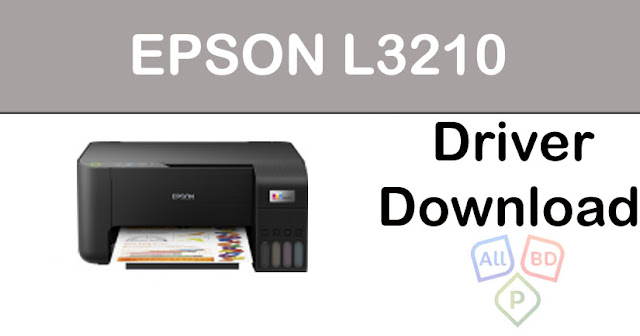
Epson L3210 Driver For Windows, Mac And Linux. Epson Printer Drivers to easily Install. The Epson L3210 printer driver from this website. All you have to do is the driver and install from our website. How to use it Diver and set it up on your computer or laptop. Then follow our website to and printer driver setup very easily.
Nowadays, Epson EcoTank L3210 All-in-One Ink Tank is a popular printer. This printer is originally from the Philippines. The Printer Using by Print, Scan and Copy . Maximum paper size A4 legal, Latter B5, A5, B6, and A6 paper printing in the printer user. This printer regulation 5760 * 1440 dpi. Fast time new printer using by print 4,500 for black Or 7,500 pages for colour. printer Connectivity by USB 2.0.
The Epson L3210 Print Speed by document 20 sec, photo print 70 sec only A4 size paper used. Scan copy Speed 10sec colour, 16sec black and regulation scan copy 600 x 600 dpi, the printer duplex no print. Nozzle Configuration 180 x 1 Black, 59 x 1 per colour cyan, magenta, yellow. The Printer enjoy 1 year warranty ann paper print 30,000 page.
Epson L3210 Driver
Epson l3210 driver download 64bit or 32bit very simple. Your printer driver Epson L3210 to match the windows your device or computer is using. Epson l3210 printer driver for mac OS and setup possessing . The Epson software, use the which is supplied with your printer. Follow these steps to without difficulty set up your Epson L3210 printer to your Mac device.
The Epson L3210 scanner Driver The first issue you want to do to Using the Epson L3210 Scanner Driver. You can driver and use it for Windows 11/10/8/7 ( 64/32 Bit). The driver file via clicking on the Epson L3210 Scanner Driver link.