Скачать Дискорд на Мак ос
Одна из операционных систем, в которой поддерживается Discord — Mac OS. Ниже рассмотрим, как скачать программу для устройства на этом ПО, какие трудности могут возникнуть в процессе установки, и что делать для их решения.
Как скачать Discord на Mac OS
Лучший способ скачать Дискорд на Мак ОС — сделать это с официального сайта. При этом сразу убедитесь, что ПК или ноутбук соответствует требованиям разработчиков ПО. Минимальные характеристики:
- ОЗУ — от 256 МБ;
- CPU — от 1,2 ГГц;
- жесткий диск — от 182 Мб;
- звуковая карта.
Если компьютер или ноутбук соответствует заявленным требованиям, можно переходить к скачиванию программы. Сделайте следующие шаги:
- Перейдите по ссылке discordapp.com/download.
- Жмите на кнопку загрузки приложения для Mac OS.
- Дождитесь окончания загрузки.
- Запустите предложенный файл.
- После открытия мастера установки переместите Discord в перечень приложений.
 После выполнения указанных выше действий файл Discord появляется в доке. С этого момента его можно запускать и использовать приложение в обычном режим.
Как видно, процесс загрузки немного отличается от Виндовс, но трудностей возникнуть не должно. После завершения процесса, как правило, появляется окно с информацией о безопасности. В таком случае необходимо нажать на кнопку Открыть.
На этом работа по загрузке Discord на Mac OS завершена. Дальнейшие настройки можно делать по такому же принципу, как в ситуации с Windows.
Проблемы с установкой, и способы их решения
Установка программы Дискорд на Мак ОС не всегда проходит гладко. Нередко бывают ситуации, когда в процессе инсталляции появляется ошибка, а в дальнейшем могут возникнуть трудности с обновлением. Рассмотрим каждую из проблем отдельно.
Ошибка в установке
Распространенная проблема, когда пользователь скачал Discord для Mac OS, но во время установки появилась надпись Installation has failed Discord. Причин может быть несколько:
- На ноутбуке или ПК действуют процессы, предотвращающие скачивание Дискорд и не позволяющие установить программу.
- Антивирус или брандмауэр блокирует инсталляцию.
- Старые файлы с прошлой версии не дают загрузить новое программное обеспечение на Mac OS.
- Дискорд поврежден или имеет ошибки.
- Имеет место несовместимость ПО компьютера / ноутбука и приложения.
В приведенных выше случаях проблему с установкой Discord на Mac OS можно исправить своими силами. Рассмотрим, как это сделать правильно.
Удалите лишние файлы и перезагрузите софт
Одна из причин, почему не удается установить Дискорд на Мак ОС — наличие устаревших файлов на ПК. В таких обстоятельствах удалите лишние файлы и загрузите софт заново.
Алгоритм действий такой:
- найдите файл AppData и уберите Discord из папок Roaming и Local;
- перезагрузите компьютер или ноутбук.
После очистки снова скачайте файл Дискорд для Mac OS с официального сайта и выполните установку с нуля. 
Войдите с правами администратора
Если указанные шаги не дали результата, установите права администратора по пути %LocalAppData%/Discord/последняя версия ПО. Перед входом в софт убедитесь, что другие приложения Дискорд (в том числе веб-версия) закрыты.
Дополнительные шаги
Если рассмотренные шаги не позволили решить проблему с установкой Discord на Mac OS, могут потребоваться дополнительные шаги. Выделим основные:
- Временно выключите антивирусное ПО.
- Убедитесь в совместимости приложения и ПК.
- Закройте лишние процессы и снова попробуйте установить программу.
- Выключите брандмауэр.
- Почистите кэш.
Как правило, приведенные этапы позволяют решить проблему без обращения в поддержку.
Проблемы с обновлением
Распространенная ситуация, когда после при обновлении появляется сообщение Discord update failed. Причиной может быть наличие на ПК или ноутбуке с Mac OS старых файлов, которые необходимо удалить. Алгоритм действий такой:
- Очистите устройство с Mac OS от остатков программы по принципу, который рассмотрен выше.
- Для удаления приложения и лишних «хвостов» на MacOS используйте специальные программы.
Выполнение указанных мер и установка Discord на чистую оболочку Мак ОС, как правило, проходит без проблем.
Итоги
Следуя рассмотренным выше правилам, скачать Дискорд и установить его на ПК или ноутбук с Mac OS вряд ли возникнут трудности. Если в процессе установки возникают сбои, их можно решить путем удаления старых файлов и загрузки приложения с нуля. При этом помните, что скачивать программу лучше с официального сайта во избежание заражения устройства вирусами. Если решить проблему своими силами не удается, всегда можно обратиться в службу поддержки с описанием возникшей ситуации.
Как убрать ошибку Update Failed при обновлении Discord?
Программа Discord стала одной из самых популярных в период карантина. Ранее ее часто использовали геймеры для того, чтобы комфортно общаться онлайн с большим количеством людей. Сегодня программу применяют для различных конференций и рабочих моментов. Не удивительно, что в интернете начало появляться все больше и больше жалоб на ошибки. Одной из самых распространенных проблем Discord является сбой Update Failed, с которым сталкивается практически каждый пользователь. Происходит это при попытке обновить программу для онлайн общения. Эту ошибку можно исправить самостоятельно, выполнив простые действия.
Как исправить ошибку Update Failed в Discord
Способов есть несколько, необходимо постепенно использовать все возможные решения проблемы. Ведь достоверную причину возникновения данной ошибки обновления именно у вас, назвать никто не сможет, это можете определить только вы.
Проверка статуса серверов Discord
Перед тем как предпринимать некие серьезные действия по решению проблемы, нужно убедиться, что она произошла именно на вашей стороне. Прежде всего, необходимо убедиться в том, что сервера Discord работают стабильно и хорошо. Перейдите на страницу https://discordstatus.com/ и удостоверьтесь в том, что все полоски или большая часть из них зеленые. Если есть много желтых или же красных, то это и может вызывать ошибку обновления, ждите восстановления нормальной работы серверов.
Перезагрузка компьютера
Это уже успело стать мемом в интернете, когда администраторы технической поддержки рекомендуют перезагрузить компьютер для решения проблемы. Но здесь это действительно работает. Во время перезагрузки вся память компьютера будет очищена, что может восстановить нормальную работу Discord. Также рекомендуется при этом и заново подключить роутер, который также может быть причиной проблем с обновлением. На эту простую процедуру вы потратите меньше минуты, но она может решить этот сбой.
Переименование файла обновления Discord
Суть данного решения заключается в том, что первоначальный файл обновления был загружен с ошибкой, поэтому его установка не может быть выполнена. Если пользователь переименует архив обновления, то Discord создаст новый уже целостным, что может решить проблему. Срабатывает такое решение только в 10% случаев, но все же это может стать причиной устранения сбоя. Для переименования файла выполните следующее:
- Полностью закройте Discord.
- Зайдите в Диспетчер задач (командой Ctrl+Shift+Esc), найдите процесс Discord и остановите его.
- Откройте окно «Выполнить» зажав кнопки Windows Key+R.
- Введите в строку команду «%localappdata%» и найдите папку «Discord».
- В этой папке есть файл с названием «Update.exe».
- Переименуйте его, например в «Update0.exe».
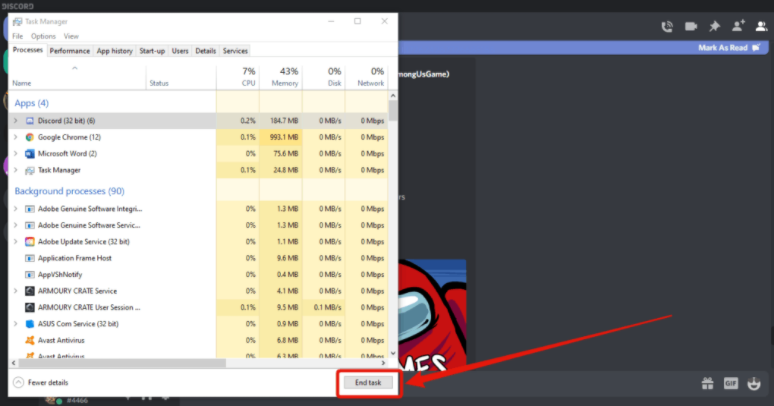
После таких действий можно попробовать запустить Discord и проверить, как теперь работает обновление. Программа создаст новый файл обновления, а он уже станет функционировать нормально. Если вес работает, архив, который вы переименовали, можно полностью удалить.
Запуск Discord от имени администратора
Проблема с обновлениями может возникать из-за того, что приложение не имеет достаточных прав в системе. Брандмауэр попросту блокирует доступ к серверам и возникает такой сбой, или же у Discord нет права на работу с системными файлами. Чтобы решить эту проблему, выполните следующее:
- Откройте окно «Выполнить» зажав кнопки Windows Key+R.
- Введите в строку команду «%localappdata%» и найдите папку «Discord».
- Найдите файл «Discord.exe» и кликните по нему правой кнопкой мыши.
- Выберите «Запуск от имени администратора».
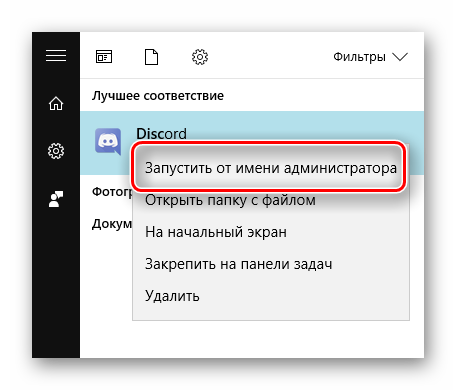
Теперь Discord будет запущен с максимальными правами и доступом к системным файлам. После включения проверьте то, как работает обновление и исчезла ли проблема.
Переустановка Discord
Полное удаление программы и ее повторная установка может стать отличным решением проблемы с обновлением. Вы уже загрузите новую версию приложения и обновлять ее не придется. Для удаления Discord выполните следующее:
- Перейдите в диспетчер задач и остановите процесс Discord.
- Откройте окно «Выполнить» зажав кнопки Windows Key+R.
- Введите команду «appwiz.cpl».
- Найдите в списке Discord и удалите программу.
- Скачайте новый файл установки с официального сайта.
- Установите Discord следуя простым инструкциям на мониторе.
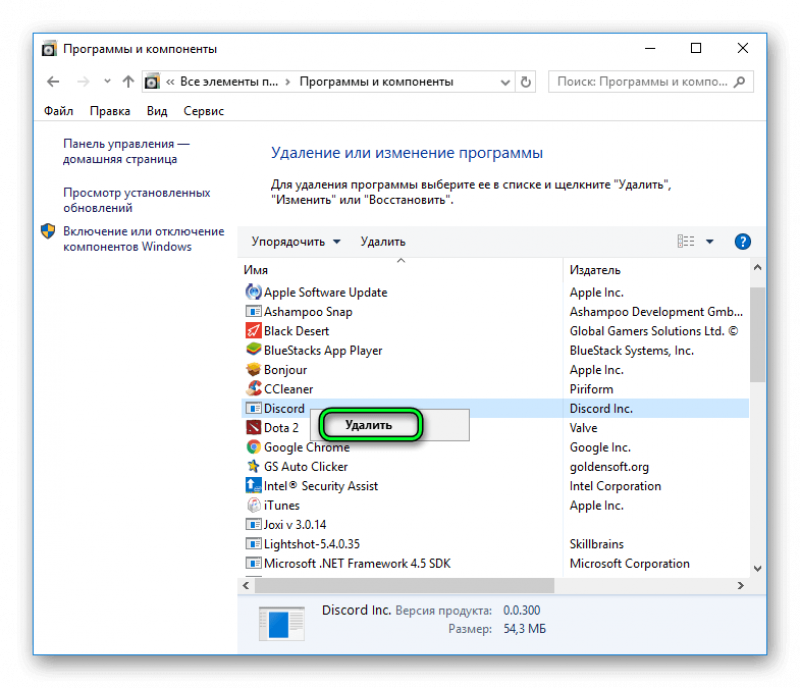
В большинстве случаев этот способ позволяет быстро решить проблему с обновлением, но иногда ошибка остается. Поэтому следует перейти к более сложному и эффективному решению.
Удаление папки Discord
Полное удаление папки из системы позволит очистить память от остаточных файлов программы, которая работает с ошибками. После деинсталяции нужно будет заново установить приложение, чтобы решить проблемы, связанные с ней. Для удаления папки выполните следующее:
- Откройте окно «Выполнить» зажав кнопки Windows Key+R.
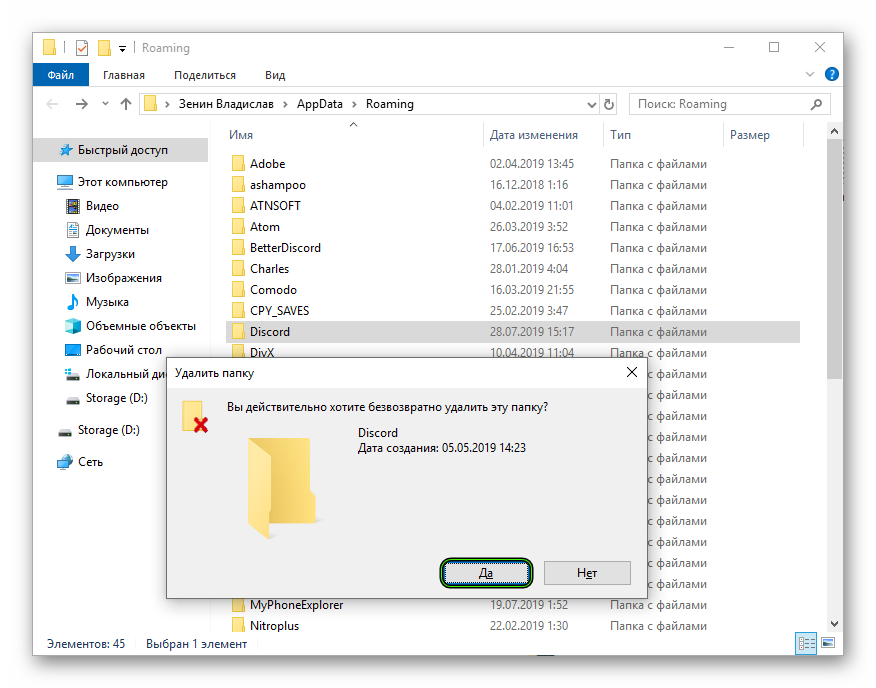
- Введите в строку команду «%localappdata%» и найдите папку «Discord».
- Если папка не отображается, то вверху перейдите на вкладку «Вид» и установите галочку напротив «Скрытые файлы».
- Удалите папку Discord.
- Установите новый Discord, который вы скачали с официального сайта.
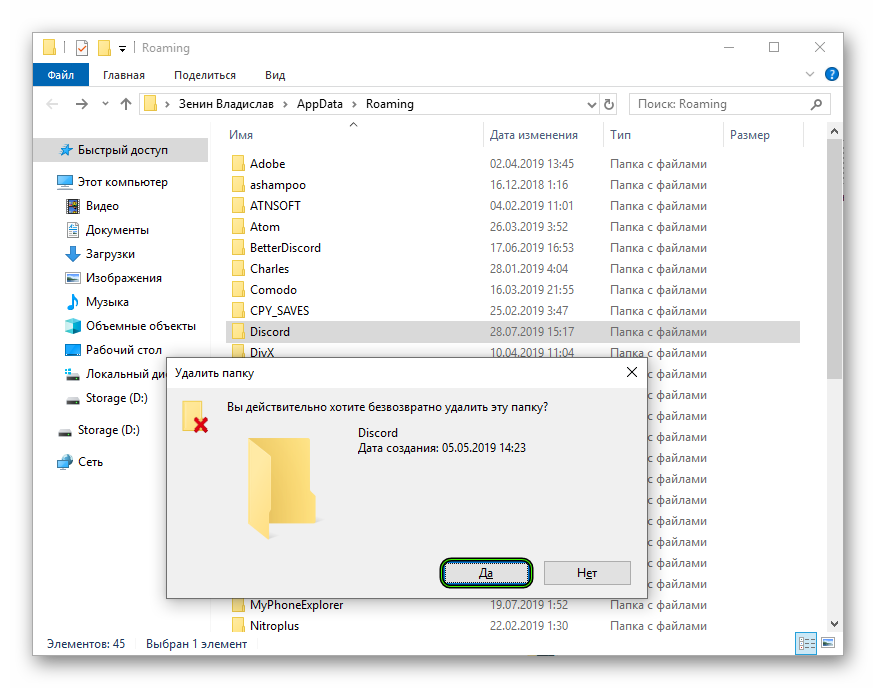
После этого можно запускать Discord и проверять, как работает функция обновления и нет ли пресловутой ошибки. Если проблема снова есть, переходим к следующему решению.
Отключение защитника Windows и антивируса
Часто проблема может возникать из-за чрезмерного внимания антивирусного ПО к Discord. При попытке обновления программа пытается обратиться на свои сервера и загрузить файлы на компьютер, что может показаться подозрительным. Вы можете временно отключить «Защитник Windows» и антивирусное ПО, если оно у вас было ранее установлено. После того как вы выключили защиту и обновили свой Discord, ее нужно включить обратно, для гарантий безопасности.
Отключение VPN
Если вы используете защищенное соединение VPN, то это может стать причиной возникновения проблем с обновлением Discord. Для отключения такого соединения, выполните следующее:
- откройте окно «Выполнить» зажав кнопки Windows Key+R;
- введите в строку команду «inetcpl.cpl» и нажмите Enter;
- в окне интернет-соединения перейдите на вкладку «Подключение»;
- далее выберите «Настройки локальной сети»;
- проверьте если ли флажок на «Использовать прокси-сервер для локальной сети», снимите его;
- нажмите «Ок» и «Применить», чтобы сохранить изменения.
Запустите Discord и убедитесь в том, что обновление работает нормально и проблема была решена. Если вам далее необходимо использовать защищенное соединение, то поставьте флажок обратно.
Обратитесь в службу поддержки Discord
Если после всех выполненных действий ошибка обновления имеет место быть, необходимо обращаться в поддержку. Проблема может быть на стороне сервера и только специалисты смогут разобраться в ней. Техническая поддержка Discord работает очень хорошо, поэтому вам быстро помогут решить неполадки.
Discord Update Failed? – Here’s How To Fix It Under 5 Minutes!

Discord is software that does not need any introduction. It is a VoIP that was released in May 2015. It features a decent amount of features for communication.
Users communicate each other with voice calls, video calls, and text messaging in “servers,” which are a collection of chat rooms.
Discord is popular among the gaming community as well as anime communities.
The software has over 250million registered uses, with over a 100million people online every month. The software rose to popularity during the COVID pandemic.
Due to the sudden rise in the popularity, many users were often unable to connect with the servers and faced many other issues that prevented them from using the software on their computers or phones.
One of the issues that frustrated players was the “Discord Update Failed” error.
Despite having a strong and fast internet connection, many people often face this error when they tried to update the application.
There are many causes for this issue, like poor internet connection, file corruption during download, the issue with windows, antivirus issue, and many other possible reasons.
In this guide, we will be discussing the popular workarounds to resolve this issue.
How To Fix Discord Update Failed Error
The devs behind Discord are pretty active as they keep rolling out new features once in a while. The software is not that old, considering its release in 2015. There are some reliable workarounds that can fix the update failed error in no time.
We have also included other fixes that you can try to fix the error, which are not as popular but might just do the trick. Without wasting any time, let’s get to the guide.
#1 – Disable Third-Party Antivirus & Windows Defender
Antivirus software or the Windows Defender sometimes blocks files of some programs due to them detecting those files as potential virus threats. Discord needs many permissions to run on the system. The antivirus software can treat them as potential viral threats and can delete the core files.
They can also block the internet access of other software, which does not let them download any updates or even establish a connection to the main server. The solution to this problem lies in disabling these antivirus programs and then trying to update Discord.
You can go to your respective antivirus software’s settings and disable it for some time, after disabling, close and reopen Discord to see if it starts to update or is still unable to update.
How to disable Windows Defender
If you do not have any type of antivirus software installed on your system, you can try to disable Windows Defender. Here is how you can do that:
- Press the Start button on the taskbar and select “Settings”.

- After opening the “Settings”, find and open “Update & Security”.

- Select “Windows Security” and then select “Virus & threat protection”.

- A new window will appear. From the new window, select “Virus & threat protection” find and select “Manage settings”.

- Now turn off the “Real-time protection” and select Yes from the Windows prompt. Windows Defender will be disabled.

- Close the windows when done.
#2 – Run Discord As Administrator
This fix is the most popular and has resolved the update failed issues for many users worldwide. This fix might sound insignificant, but running programs with administrator privilege does wonders in many cases, and this problem is no different.
There are many applications with some operations that require administrator privileges to continue running. Discord requires many permissions to run and access the internet on the system. Running the program as an admin might be worth a shot!
If you do not know how to run Discord or any other program as an admin, here is what you need to do:

- Go to your desktop and find the Discord shortcut.
- Right-click the shortcut and select “Run as administrator”.
- Select “Yes” from the Windows prompt.
Now see if the issue has been resolved on not. Many times this simple workaround will get the job done. If your problem gets fixed with this solution, that is great. If not, there might be other issues that are not letting the app update.
Keep following the workarounds mentioned in the guide until your issue has been resolved.
#3 – Rename Your Discord Updater
This is a very technical fix that requires the person to find the downloaded update file and rename it to check the issue. Locating the update file is very simple and can be done in a couple of steps.
The update file can be located in two different ways. One way includes the hard way to go to the local app data. Usually, the directory for the local app data is:
Example: C:\Users\UserName\AppData\Local
Fortunately, with the help of the Windows Run utility, we can open the local app data folder in mere seconds. Here is how you can find the Discord updater via the Windows Run utility:
- From your keyboard, press “Win + R” to open the “Run” utility. This can also be done by pressing the Start button on the taskbar and searching for “Run”
- In the Utility, type the following without quotation: “%localappdata%” and press “OK”.

- This will open a folder that will contain files of other software installed onto your system. From the files, find and open the folder.
- After opening the folder, find and rename the “Update.exe” file to anything.

- Try updating Discord after renaming the updater.
#4 – Disable VPN
If you have any VPN software installed, there is a very high chance that it might be messing with the update. As the server to which the VPN is connected might be refusing to establish a connection with the Discord server. It could be the main root of the issue.
If you are using a VPN via an application, disabling VPN is easy and straightforward. Just opening the software and turn-off the connection will do the job. Or even closing the software from the system tray or from the task manager is enough.
You can also disable VPN via Windows Control Panel settings. If you are not aware of the procedure, here is how you can disable VPN via Windows Control Panel settings:
- From the taskbar, search for Control Panel in the Cortana search bar.

- After opening Control Panel, find and select “Network and Sharing Center”.

- A new window will pop out. From the new window, find and left-click “Change adapter settings”.

- From the new window, a list of adapters and VPN will appear. Select the relative VPN and delete it.
- Restart your system if necessary.
- Start discord again to check if the issue has been resolved.
#5 – Install The Update To A Different Folder
The next task that we can do to fix the update error is by moving the update folder to a new location. The update folder can be located in two different ways. One way includes the long way, i.e., to go to the local app data folder located in the Users folder.
Usually, the directory for the local app data is:
Example: C:\Users\UserName\AppData\Local
The local app data folder can also be located in a few seconds by the Windows Run utility. Here is how you can find the folder:
- From your keyboard, press “Win + R” to open the “Run” utility. This can also be done by pressing the Start button on the taskbar and searching for “Run”
- In the Utility, type the following without quotation: “%localappdata%” and press “OK”.

- This will open a folder that will contain files of other software installed onto your system. In the local app data folder, right-click and create a new folder. Name it to your choice.

- After creating the new folder, find the “Discord” folder in the list of folders.
- Right-click the “Discord” and select “Cut” or just press “Ctrl + X” from your keyboard.

- Open the new folder that you created in step 3. In the new folder, right-click and select “Paste” or press “Ctrl + V” from your keyboard.

- This will move the Discord folder to a new location without changing the original directory of local app data.
- Try updating Discord now to check if the issue is resolved or does it still persists.
#6 – Check To See If Discord Is Down
Due to the high amount of concurrent users, Discord servers sometimes get down. It is relatively new software, and due to its developers being active, new features are added to the software every once in a while.
Other reasons include server maintenance. Discord is used more frequently and for longer durations, unlike other software, due to it being a VoIP program that is used by millions of users worldwide.
There is a high chance of issues happening on Discord’s side like maintenance, for instance, due to which the connection is facing issues between your system and Discord. It is hard to tell whether there is a Discord outrage or is it down just for you.
Discord has a website that shows all details of the Discord backend server statuses. It shows issues that are faced by users from around the world. You can use the website to tell if Discord is down or is there any issue with your system.
You can head over to the following website to check the current status of Discord.
The website also lists all other incidents that have made the service slow or unresponsive to other users.
You can also use Twitter to check if Discord is down or not. With the help of the #DiscordDown hashtag. While you are on Twitter, you can also follow Discord’s official Twitter account to see if the application is down due to maintenance or some other issues.
#7 – Uninstall & Reinstall Discord
If you have tried every single fix from this guide and the internet but are still unable to update Discord, there is still one last fix that you can try. Use this fix as a last resort only. The last fixes, as the title says, is to uninstall and reinstall Discord again.
One way to remove Discord is from Windows Add or remove program utility. You will need to:
- From the Cortana search bar, search for “Add or remove programs”.

- A new window will pop out that will contain all of the installed programs on your system. From the list, find and select “Discord.” Press “Uninstall.”

- Press “Uninstall” again, and it will remove the program from your system.
- Open your browser and type “www.discord.com” from the main page. Press the “Download” button to download the latest setup of Discord.
- After the download completes, open the setup and follow on-screen instructions to install Discord again on your system.
- After installation, check if Discord is opening on your system.
This should resolve the update issue if every other workaround failed. If not, then the Discord servers must be down or facing an issue worldwide.
My Final Verdict:
Discord is a great VoIP application released for Mac, Windows, Linux, Android, and iOS. It is by far the best application for VoIP communications and has more than 250 million users worldwide.
The developers behind the applications are very active, and they keep adding new stuff to the app. Which sometimes causes issues for some people. The app does not display any errors or issues quite often. When it does, there is one issue that is nothing but a nightmare to a person who uses Discord quite often.
The prominent issue is the Discord failed to update. It can be caused by many reasons. Most of the time, it can be fixed by running the application as an administrator. Sometimes the issue still remains despite running it as an admin.
Many popular workarounds can resolve this issue in no time. If all of them fail, there is always a fix as a last resort. The last resort is none other than uninstalling and reinstalling the application on the system.
Frequently Asked Questions
Question 1: How do I fix the Discord update failure?
There are many reasons which can cause the Discord update failed issue. Many popular workarounds can resolve this issue.
Out of these fixes, the most popular is running Discord as an administrator or by renaming the Discord updater, which is located in the local app data folder.
Question 2: How do I fix the discord update failed Mac?
If you are using Discord on a Mac and facing the update failed issue, the most popular workaround is by restarting your Mac system.
If you still face the issue, try uninstalling and reinstalling Discord on your system. You can also try restarting the updater couple of times to see if the issue is resolved or not.
Question 3: How to fix the discord update failed loop?
The simplest solution to this issue is by running Discord as an administrator. For that, head over to your desktop and find the Discord app icon.
Right-click the icon and select “Run as administrator”. This fix has resolved the update failed loop issue for many users around the world.
Question 4:
Unfortunately, Discord does not have an option that will stop the application from updating automatically. In the future, however, the developers might add a feature for opt-out of auto-updating new app versions.
The application was released not so long ago and is relatively new. The devs are also quite active. The application gets updated quite often due to the new number of features being added to the app.
For more info regarding other Discord problems, I am covering all types of Discord guides here.
9 Ways to FIX Discord Update Failed Loop
Launched Discord, and all you see is the Discord Logo Rotating Endlessly with an error message Discord Update Failed? Mac? Windows? Or even on your Phone?
And it’s pretty normal to be confused about Why is Discord not Updating? As it feels like Discord is stuck checking for updates forever.
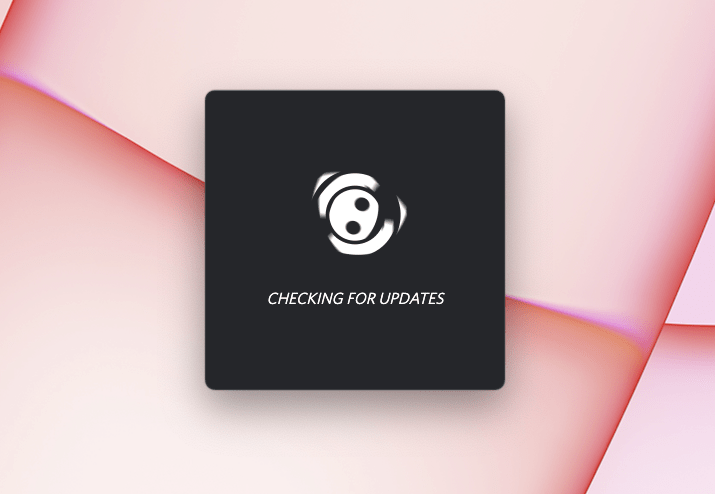
But, No need to worry as the backbone of this issue is the Discord installer/update as there’s a bug in the update which causes this issue. It feels like Discord is stuck checking for updates forever where the Discord Icon keeps on spinning and reports a failed update
Why is my Discord stuck on checking for Updates?
There are 3 reasons that can cause Discord stuck on Updating, and it Keeps on Updating Forever. Here are some potential quick solutions that can be causing the discord downloading update 1 of 1 stuck Mac/Windows issue.
- Software Glitch: Restart your Device to fix the Discord Update Loop Failed Error. Windows OS /macOS tends to have some glitches sometimes with the software that can be sorted with a restart.
- Network Glitch: Additionally, reboot your Wifi or connect to a better network.
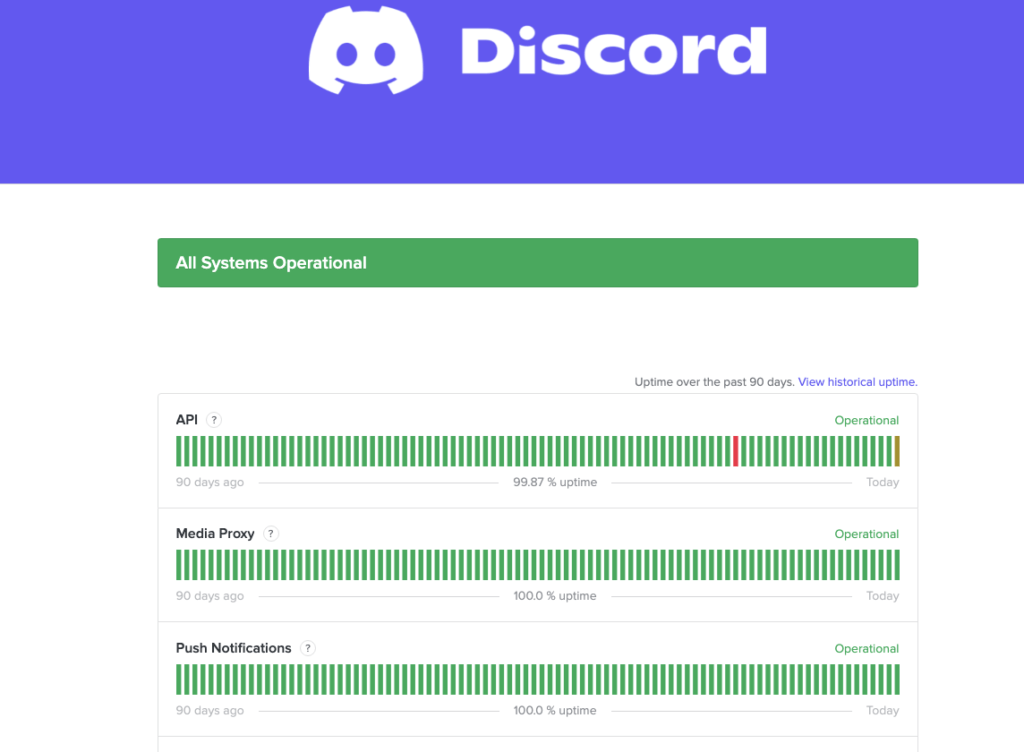
- Check Discord Server Status: Sometimes the issue lies in the server as too many visitors make the servers overloaded leading to the Discord update failed loop PC. So, you need to check for Discord status:
- Go to Discord Status’s official website
- Now you will be able to see the issues for the past 24 hours and you will be able to know if the server is down or not.
- Moreover, you will be able to report the issue from there too.
Discord downloading update 1 of 1 stuck Mac [5 Fixes]
Here are 5 reasons that have worked for a majority of the users to fix Discord stuck on downloading update 1 of 1 Mac screen.
Solution 1A. Clearing Discord Cache on Mac
Old/redundant cache glitches with the new update file and you have to remove it so Discord can fetch the new file from its server.
Here’s a short video we created followed by a step-by-step picture guide to clear the cache on macOS.
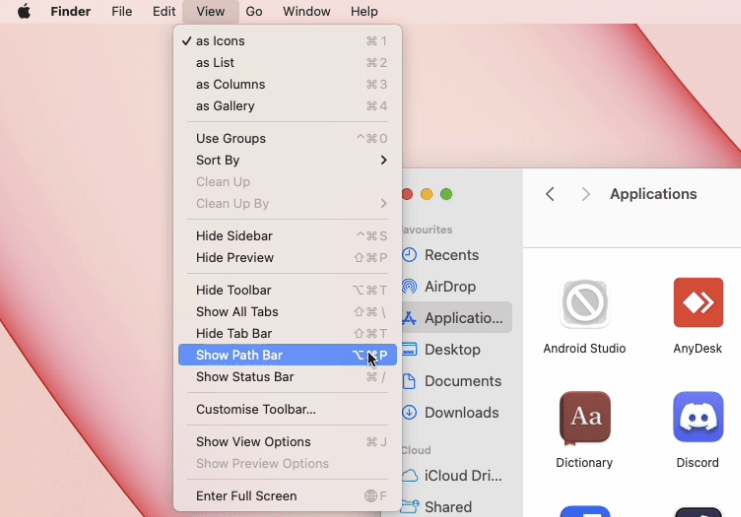
- Open Spotlight by pressing “Cmd” + “Space” Key
- Type Finder and Go to Finder
- At the top right of your Finder’s Menu Bar, you need to click on View and click on Show Path BarFinder’s Menu Bar, you need to click on View and click on Show Path Bar
- A path should be visible at the bottom of your Finder’s Window
- Click on Macintosh HD
- Next, you need to click the user you are currently logged
- Now you need to view Hidden files because the default settings won’t allow you to view the files we want to access.
To view hidden files on macOS, all you need to do is press “Cmd” + “Shift” + “.“ - Go to Library
- Then Find Caches
- Locate Discord Cache named com.hnc.Discord and com.hnc.Discord.Shipit
- Move it to Bin
- Empty Bin by right-clicking on the Bin icon in your dock and clicking on Empty Bin.
- Restart and check if the error exists.
If the above solution didn’t help getting rid of downloading update 1 of 1 discord screen, then completely reinstalling Discord might be useful.
Solution 2A: Reinstalling Discord on your Mac
If clearing the cache and the rest of the quick fixes didn’t help you, we need to give a fresh install.
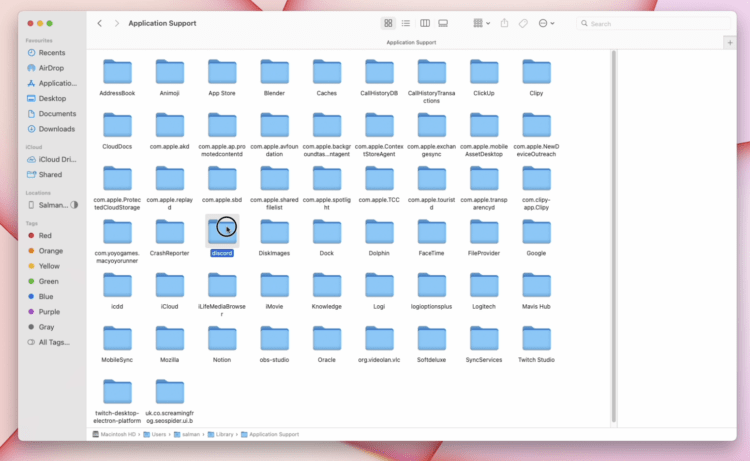
- To ensure Discord is not already running, Close Discord by using ⌘+Q or selecting the Quit option from the dock
- Sometimes, Discord Remains running, so we need to ensure it is closed. Go to Mac’s Activity Monitor and close all discord activities. (Use Spotlight or Siri to launch Activity Monitor)
- Now that all Discord processes/activities are closed, we can delete the discord data on your machine so that any sort of cache glitch is removed and the new installation isn’t influenced by older data.
- We need to clear the cache as we did in the previous solution and Delete the following folder:
- /Library/Application Support/Discord
- Go to your User Folder who installed Discord, and then show in the hidden files, you will locate the Application Support Folder
- Delete the Discord Folder and empty the bin.
- Restart your Mac..
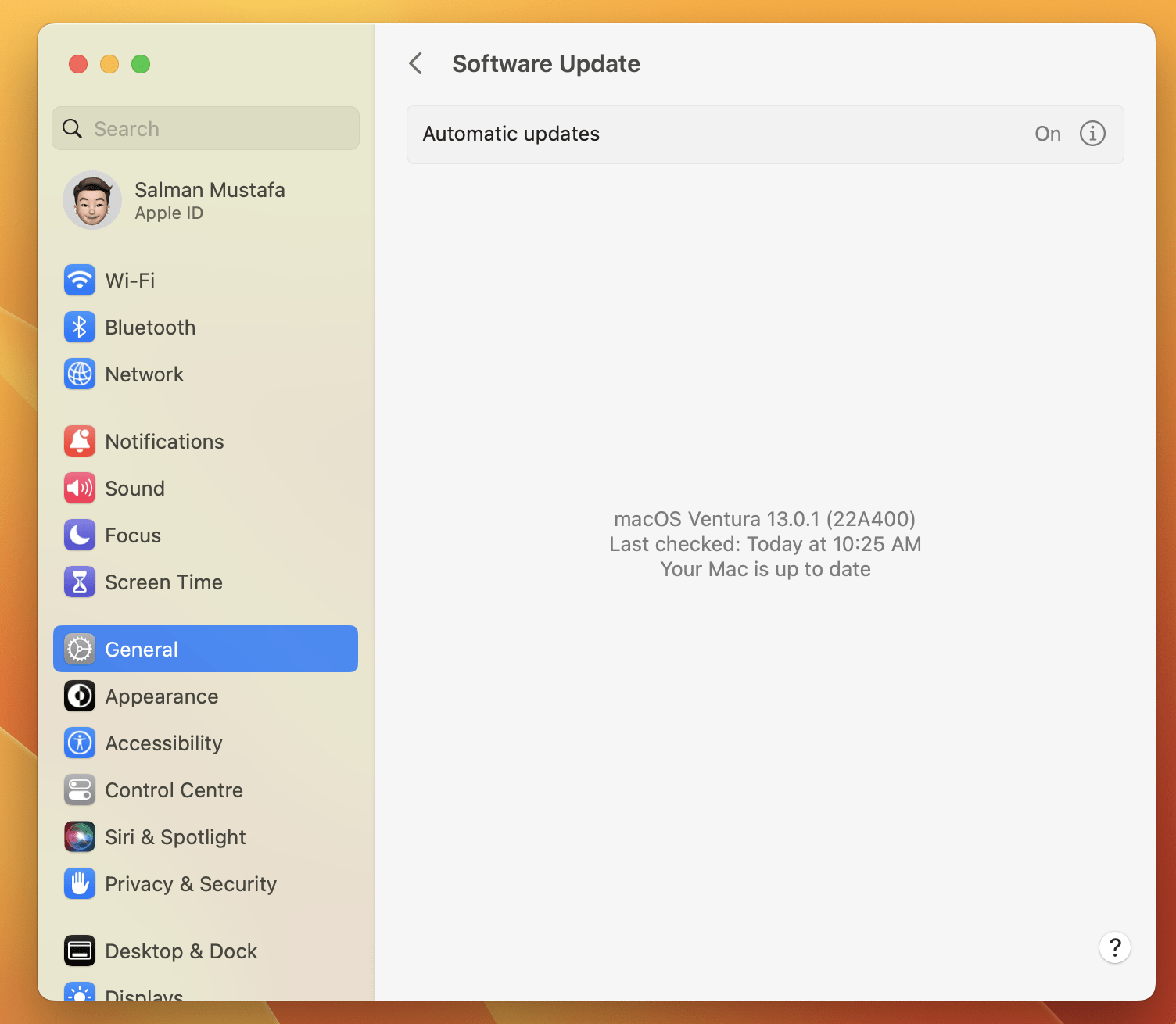
Solution 3A: Outdated macOS needs an Update
As mentioned before, macOS versions older than 10.11 are not supported and it’s always a good idea to have the latest version as softwares are most optimized for the latest operating systems with minimum bugs.
- Open Spotlight by pressing “Cmd” + “Space” Key
- Type “System Settings” to go to Settings
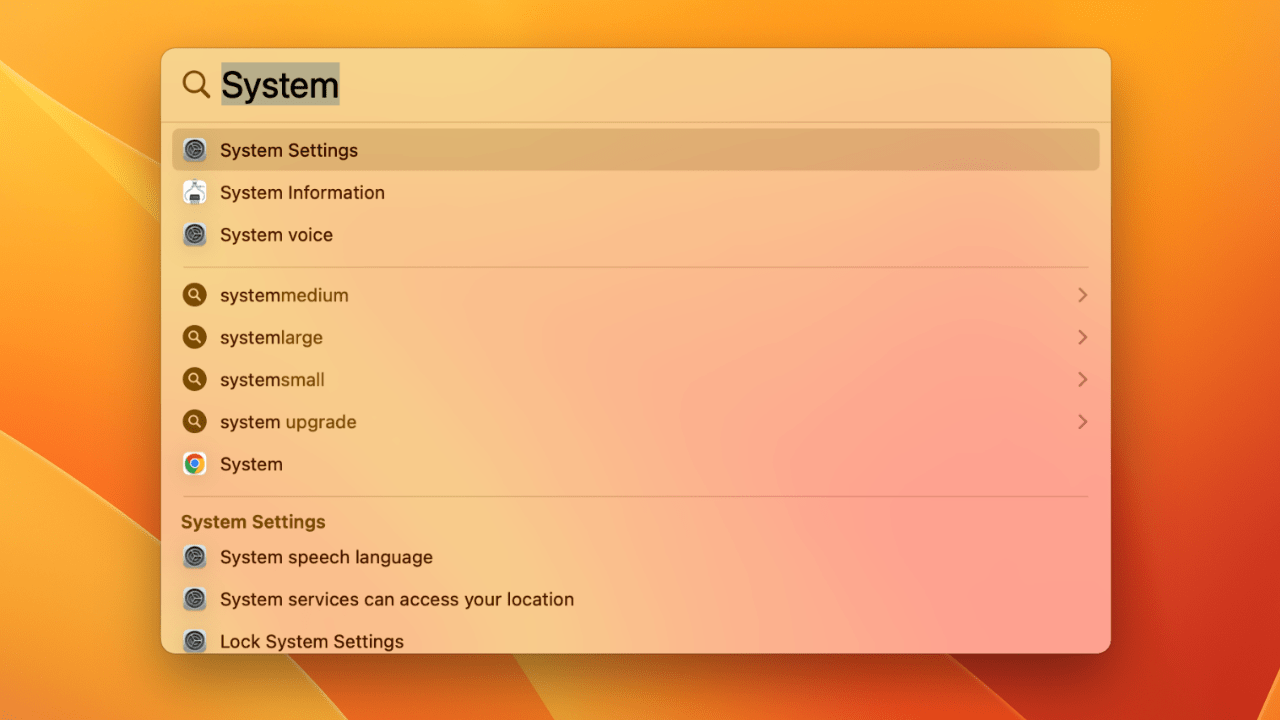
- In the left sidebar, go to “General“
- Go to Software Update
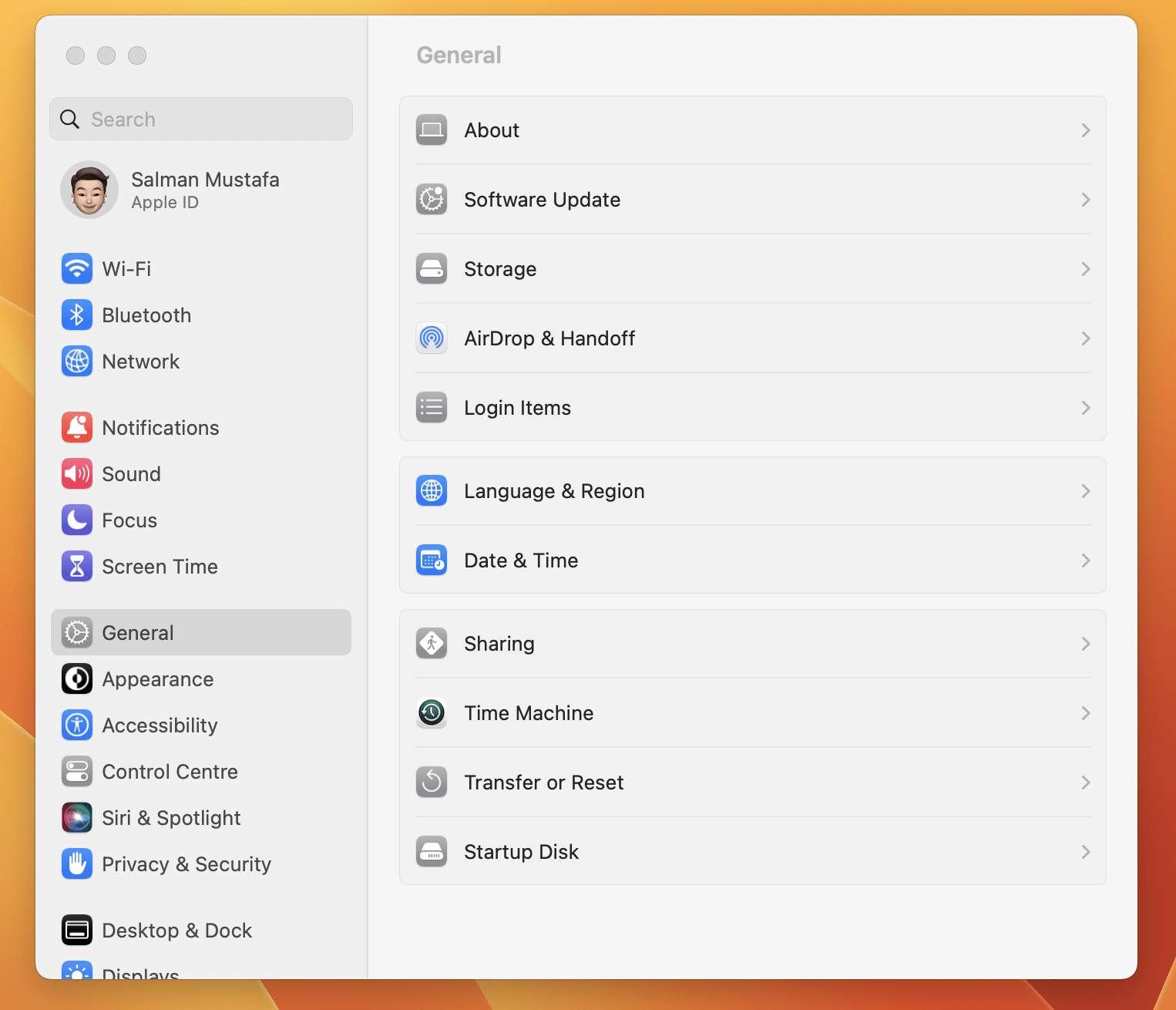
- The system will check for updates and if you get any, it’s recommended to get to the newer version. For now, my system is up to date as shown, so, I won’t be needing an update.
Solution 4A: Open Discord From Terminal [Reddittor’s Solution]
A user of macOS Monterey fixed the infinite update failed loop of Discord with a different type of fix.
This is a workaround that has worked for many users and as it launches directly from the terminal beside the macOS shortcut that could have gotten buggy for some reason.
Here’s how to launch Discord from Terminal on macOS 13 (Ventura):
- Open Spotlight by pressing “Cmd” + “Space” Key
- Type “Applications” to go to all the Applications installed
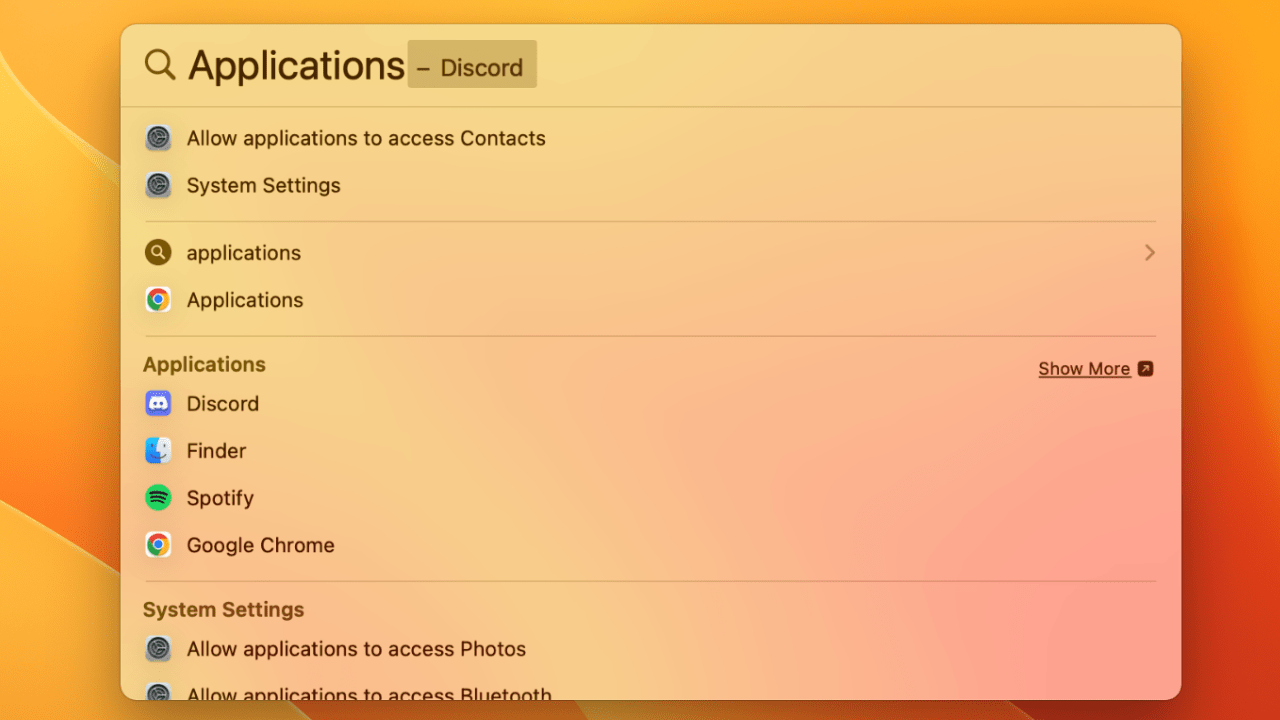
- Now Right-click on Discord and click on the second option “Show Package Contents“
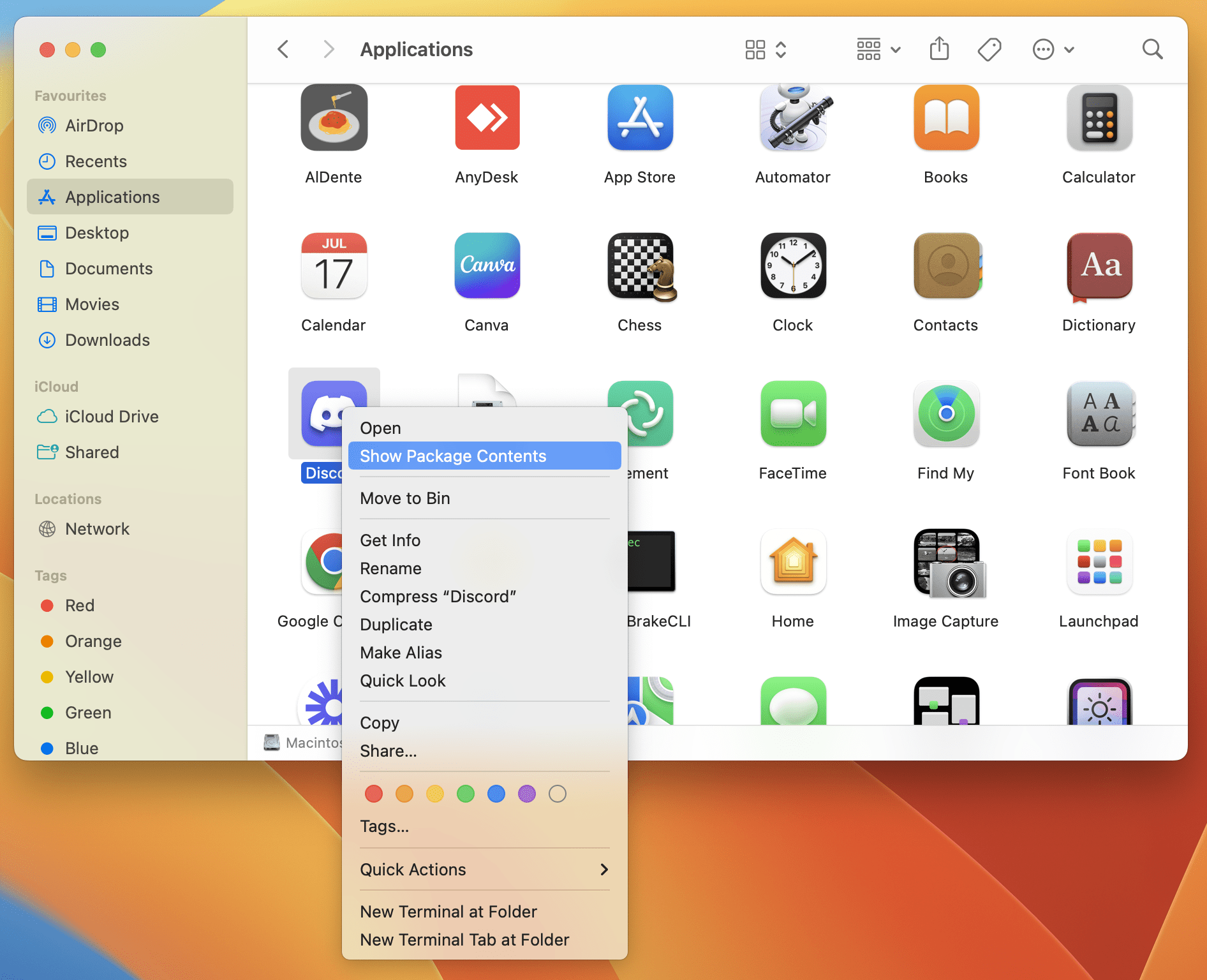
- This will show the Content Folder of Discord. Click on it.
- Select MacOS folder
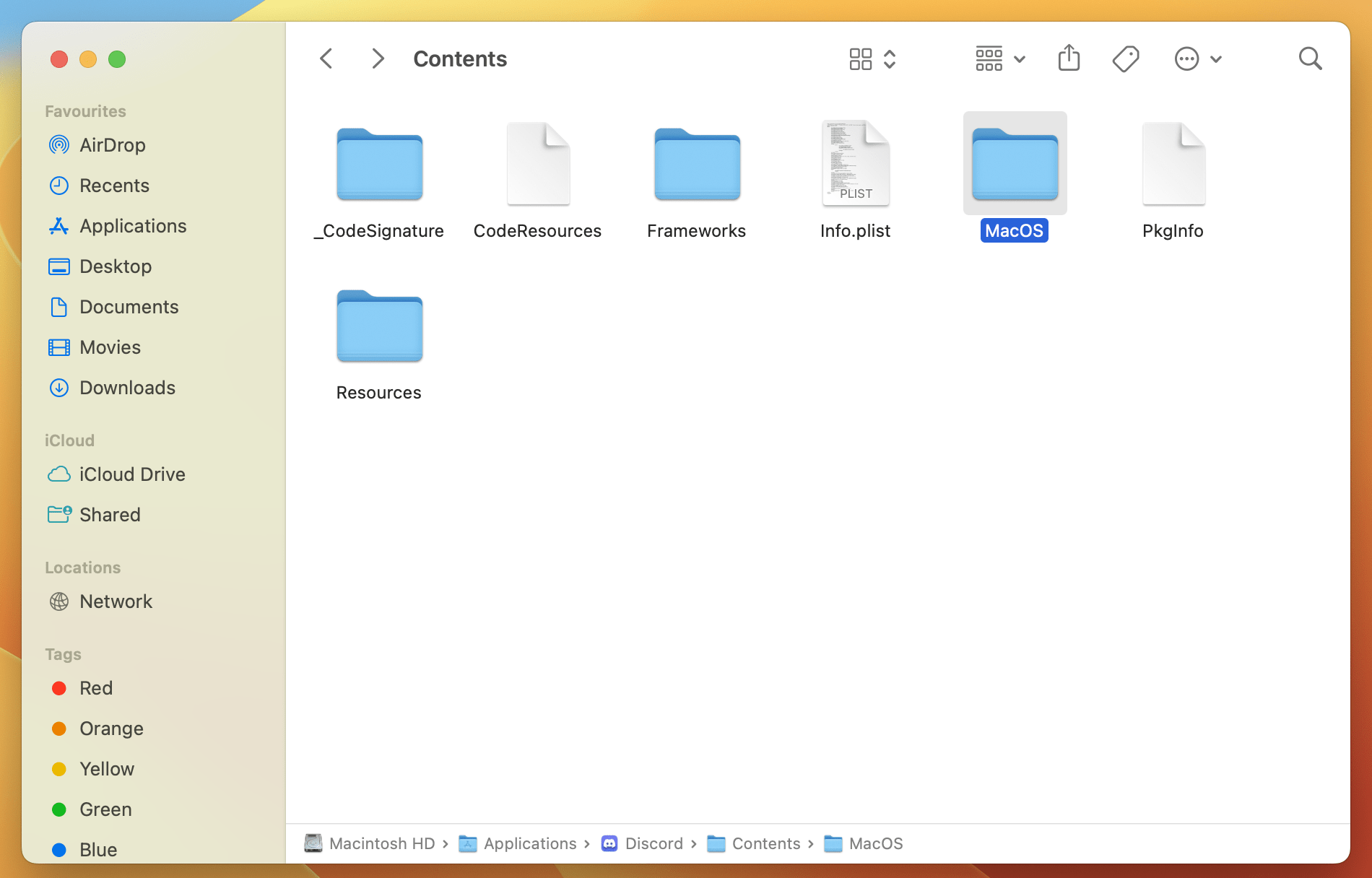
- And finally, the Discord file will appear. Clicking on it will open the terminal as this launches Discord from the terminal. Wait for a moment and Discord should launch as shown in the image.
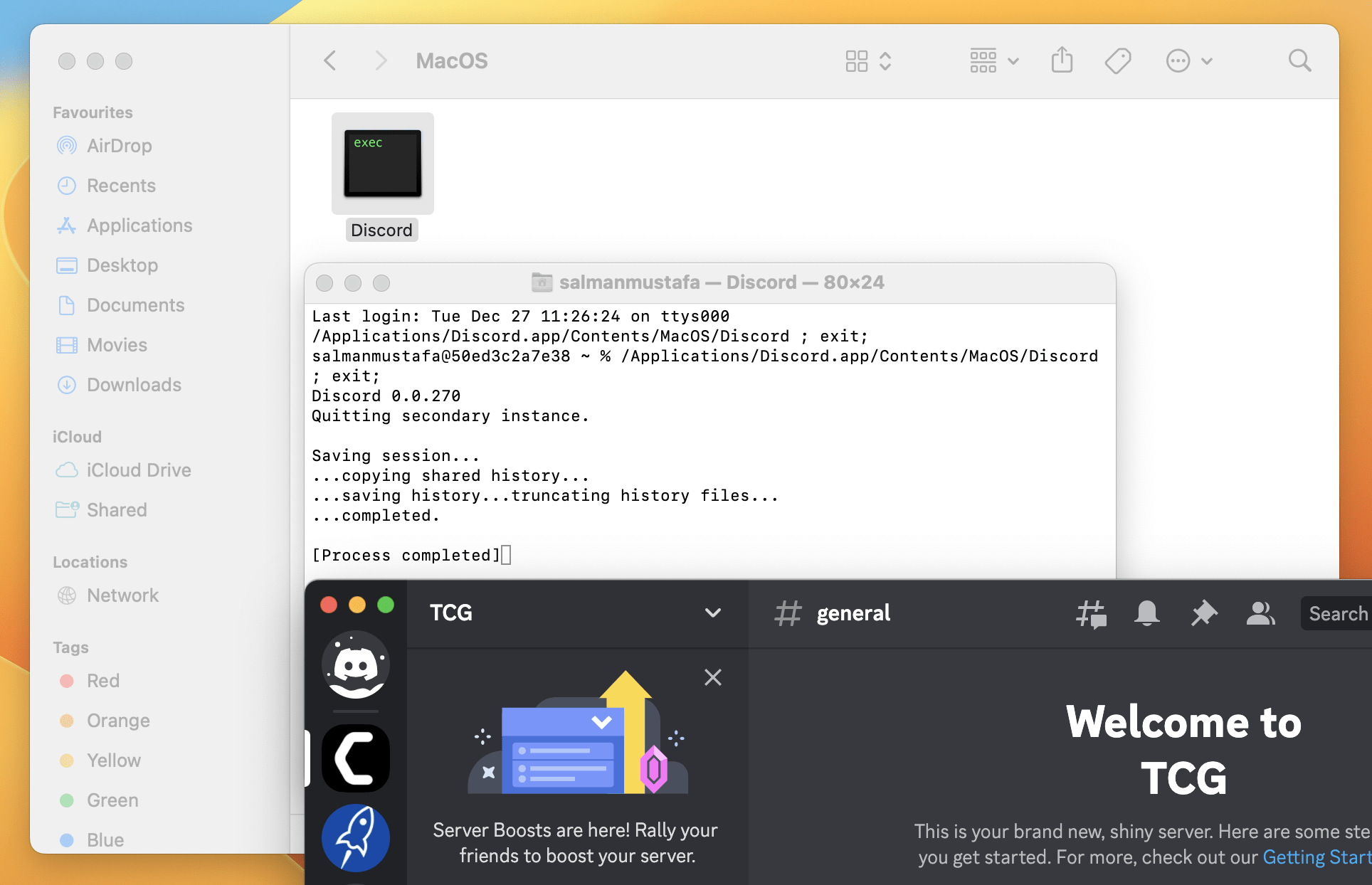
If this workaround doesn’t fix your discord stuck on downloading update mac issues, let’s try diagnosing your network.
Solution 5A: Diagnosing Network Issues
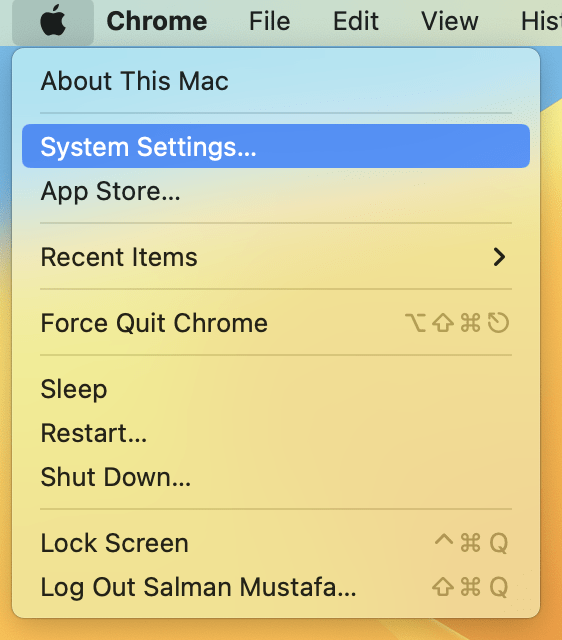
- Open System Settings from the Apple menu
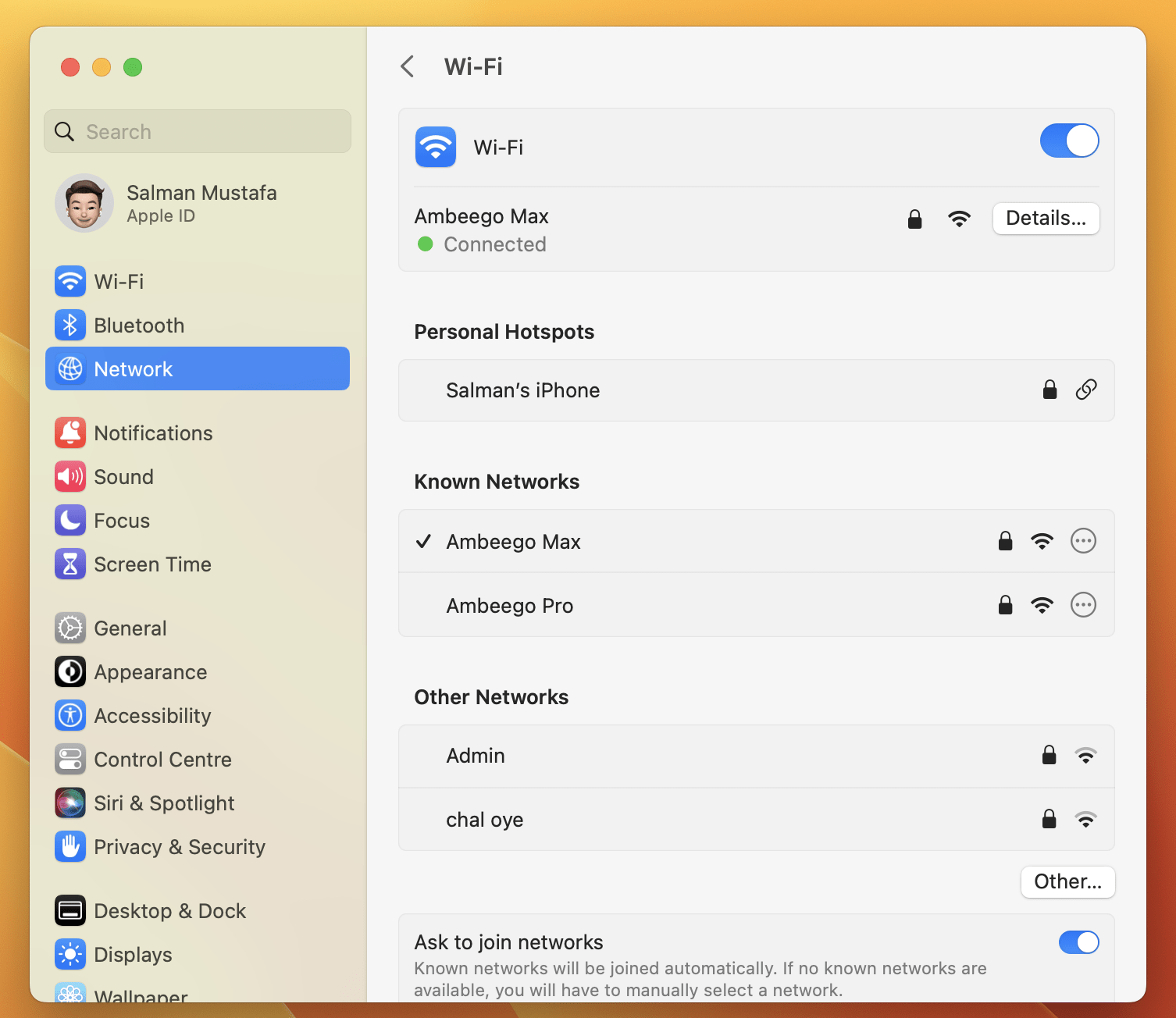
- Select Network from the left sidebar, and select the Details button of the current network you are connected to
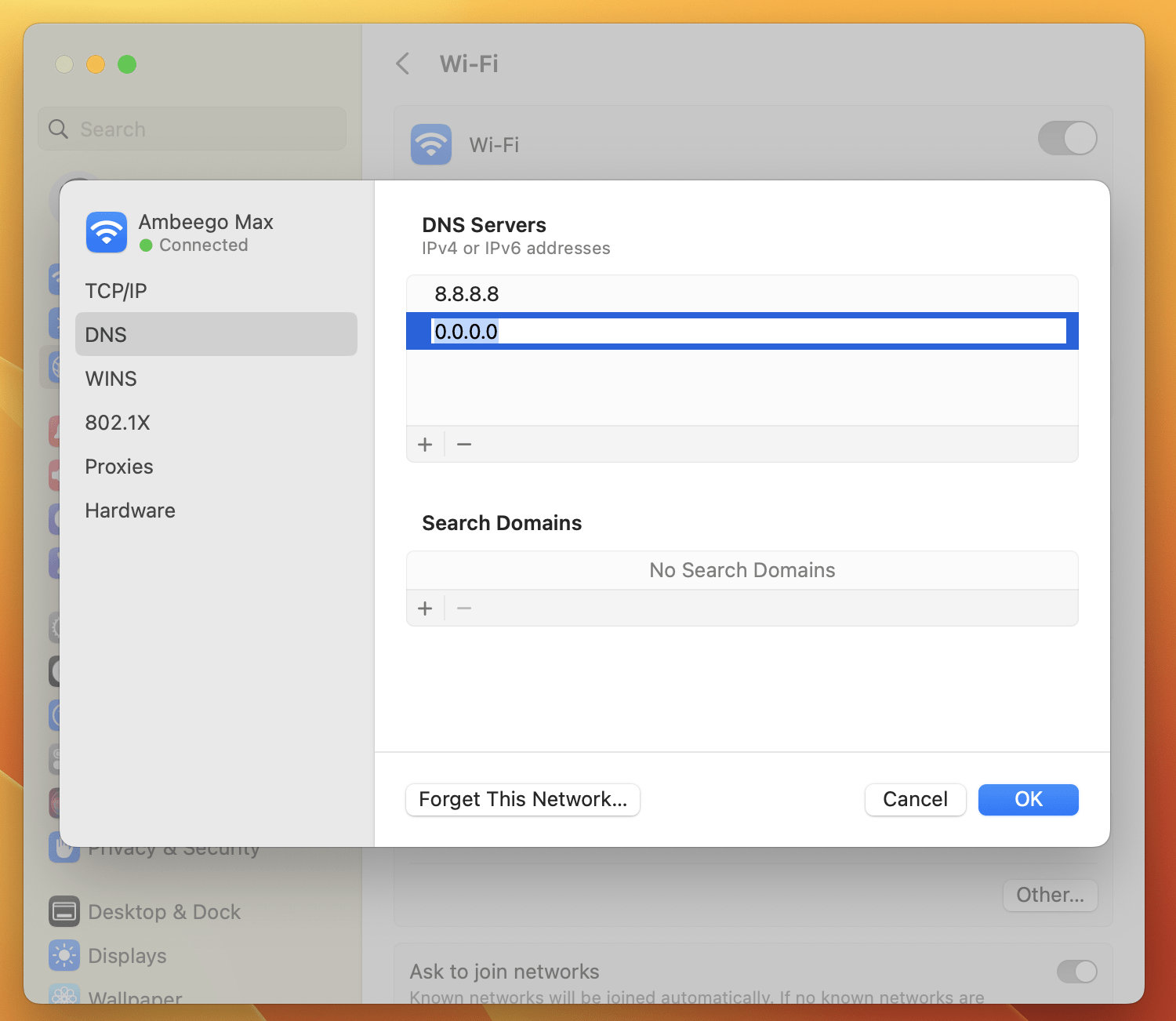
- Select DNS from the left sidebar, and use the Plus button under DNS Servers to add the following DNS server options:
- 8.8.8.8
- 8.8.4.4
- 2001:4860:4860::8888
- 2001:4860:4860::8844
- Click OK, and try relaunching Discord.
If this doesn’t work, you can try renewing your Mac’s IP address:
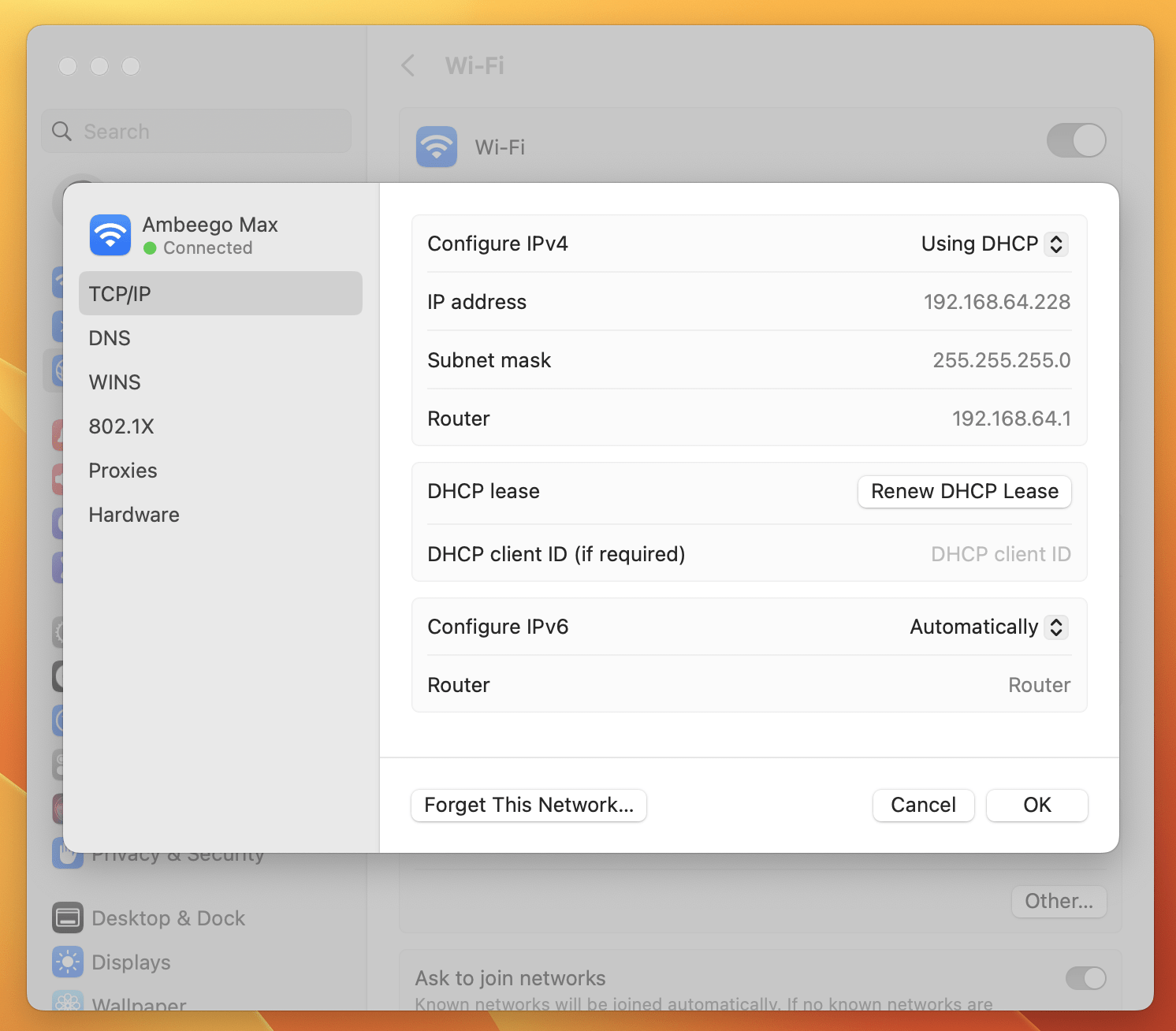
- From the same menu, go to the TCP/IP option in the left sidebar.
- Click Renew DHCP Lease button.
- Select OK, close System Preferences, then try relaunching Discord once more.
These steps may help to resolve any network configuration issues that are preventing Discord from updating on your Mac.
How do I fix Discord Update Failed Loop? [Windows 11/10/7]
Solution 1B: Run Discord As Administrator to Fix Downloading Update 1 of 1 Discord
For some users, this method worked perfectly allowing the app to Run as an Administrator. It also helps when you encounter JavaScript errors.
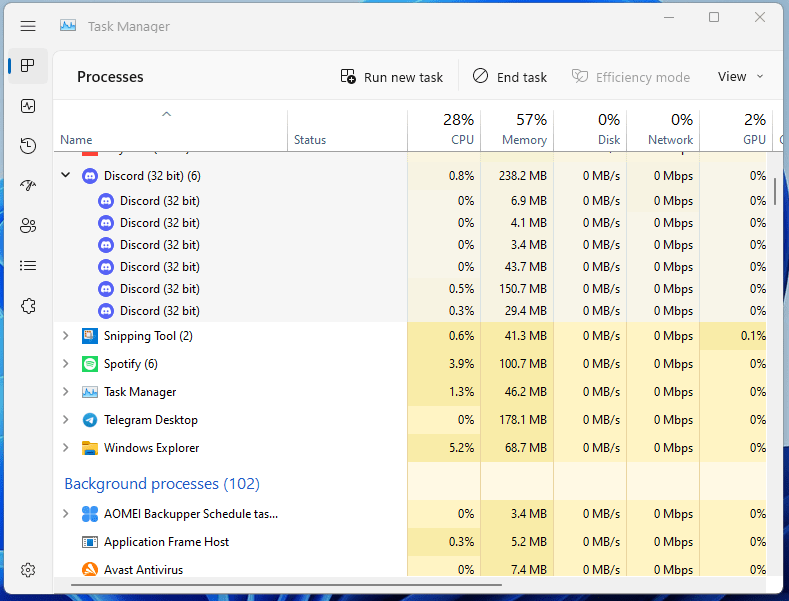
- Go to the Task Manager and End all tasks related to Discord
- Go to your Desktop and look for the Discord shortcut
- Right-click on the Discord icon and you will see “Run as administrator“
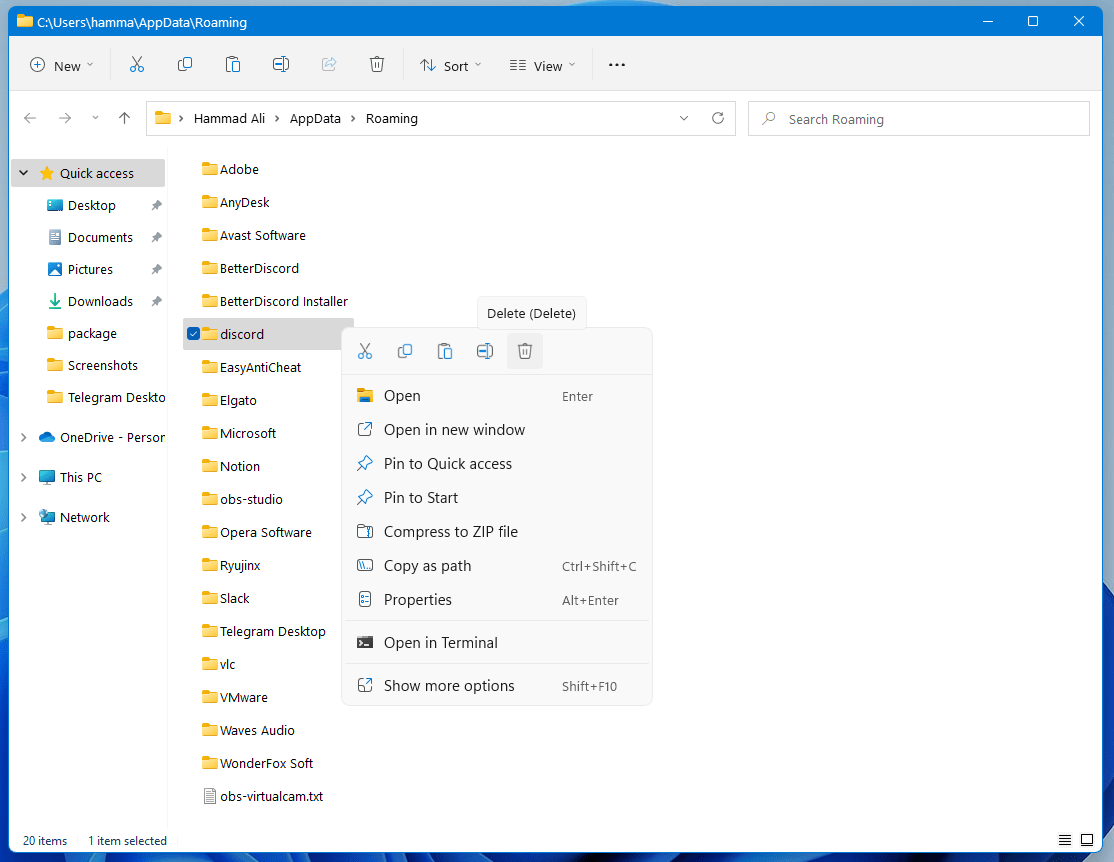
- Click on Run as administrator and after giving the permission
- Discord will launch and the update will begin without any discord update loop issue
Solution 2B: Rename the Update.exe file
- Press the Windows + R keys on your keyboard and paste in “C:\Users\Username\AppData”without quotation marks. Make sure to replace your Username with your local account username.
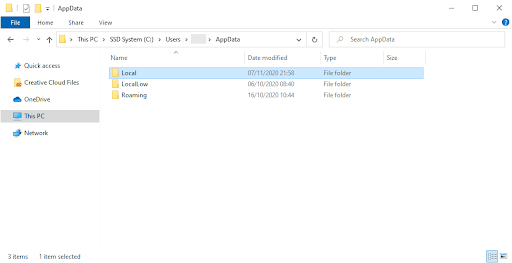
- Open File Explorer > Local folder > Discord folder
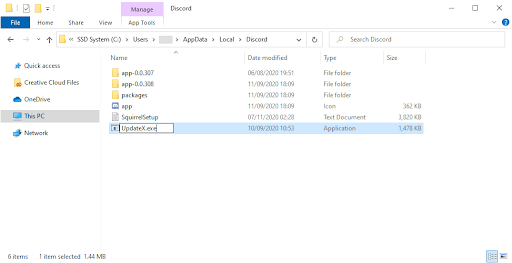
- Right-click on the Update.exe file, and choose Rename.
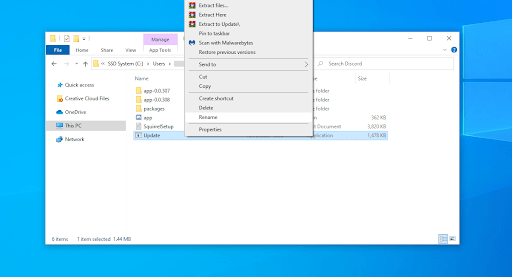
- Type in UpdateX.exe (keep in mind that this is case-sensitive) and hit Enter. You may proceed to try running Discord again, preferably as an administrator following the guide above.
Solution 3B: Reinstall Discord by deleting AppData contents as well on Windows 11
Complete Guide To Discord – Everything you need to know!
Most users reported this method has been solved by fixing Discord Not Updating.
Sometimes the solution lies in the app as many features update regularly so why not uninstall Discord and update it by downloading a new version.
- Go to the Task Manager and End all tasks related to Discord
- Press Windows+R and a Run command box will appear
- Type “appwiz.cpl” in the command box and press Enter
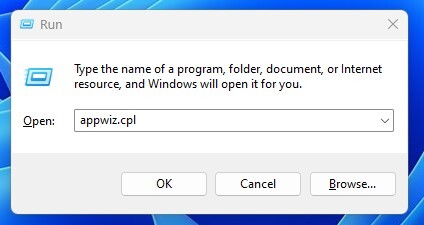
- A Control Panel/Program/Programs and Feature window will appear and look for Discord in it
- After finding it Right-click on Discord and select uninstall
- Hold Windows Key + R
- Type “%appdata% “and press Enter which will show you all the app folder that contains their Contents such as cache
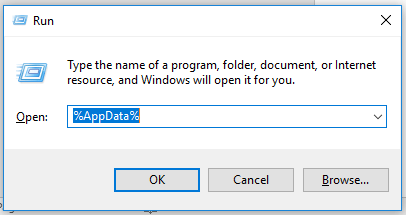
- Locate the Discord folder and delete it. If you can’t find a discord folder, it can be possibly hidden. Select View from the top bar and check the Hidden Items option
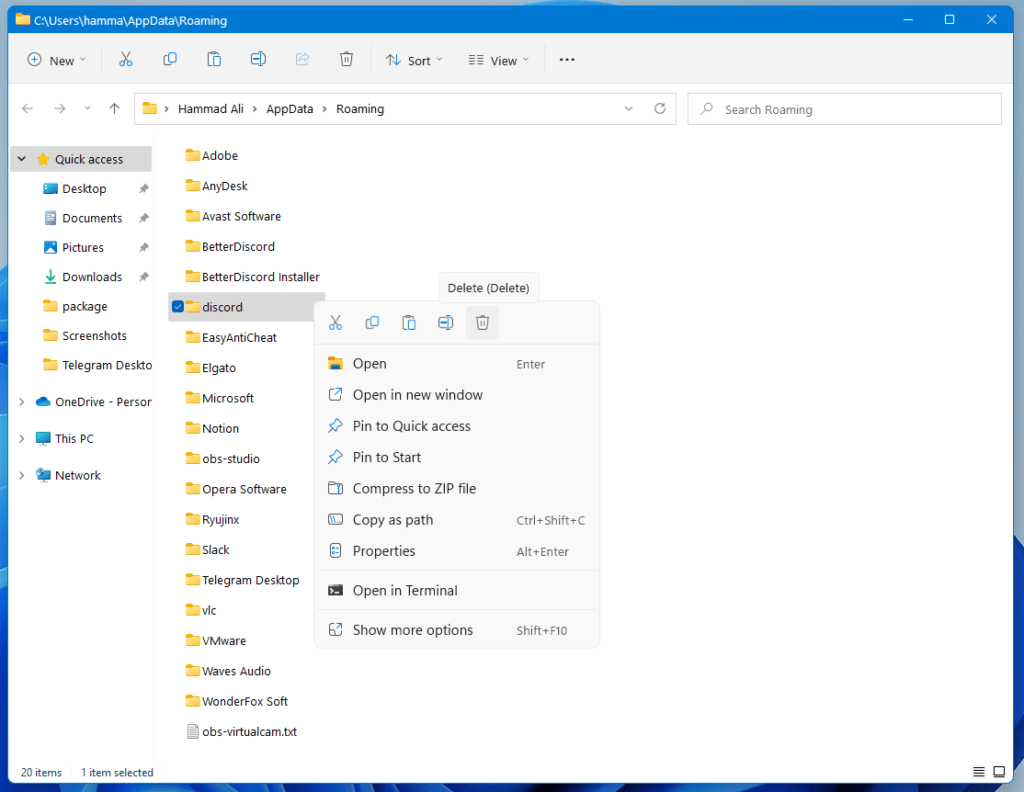
- Now install the latest version of Discord and restart your PC again
If this doesn’t fix your update loop then try to disable your Windows defender.
Solution 4B: Disable Windows Defender
So, if you are a Windows 11 user then disabling Windows Defender will fix your Discord downloading update 1 of 1 stuck.
Its purpose is to keep your PC virus free which can replace files that are a threat.
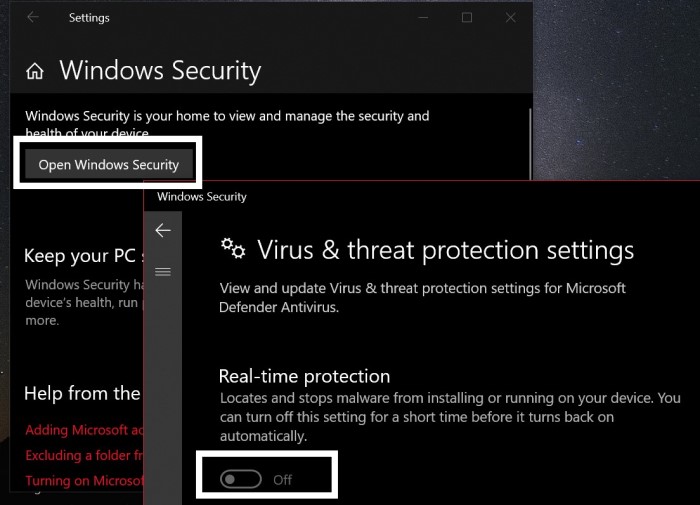
- Press the Windows key and type Settings and run it.
- Go to Update and Security.
- Now click Windows Security > Virus & threat protection > Manage Settings.
- Toggle off Real-time protection.
- Save and Exit
- Install Discord again.
Solution 5B: Temporarily Disable your Antivirus
Sometimes the third-party antivirus you installed is preventing you from launching Discord.
So, you need to disable the antivirus for a few minutes to check if the antivirus is leading to the Discord update loop.
- Select the arrow button on the taskbar a Small menu will open.
- Then click left on the Avast antivirus icon.
- The setting menu will open select ” Avast shield control “
- In a further menu, you will select the “ Disable 10 minutes option“
- Now restart Discord.
Solution 6B: Reinstall Discord
This is an alternative to Solution 4 as simply downloading a fresh installer might solve fixing discord not updating/stuck in the update loop issue.
- Visit the Discord website to download the installer.
- Run the Discord installer and follow the given on-screen instructions.
Solution 6B: Get a VPN
You can get blocked or your country’s server can face issues where VPNs can save you. VPNs route your internet connection through a secure server in a different location, which can help to bypass any network restrictions or blocks that might be preventing the Discord update from completing.
It’s always a good idea to use a credible VPN and here we have listed down some. We have added DISCOUNTED VPNS FOR TCG READERS




Solution 7B: Contact Discord Support
The above-mentioned fixes have been reported to fix most of the user’s issues, but if you are still unable to update Discord on Windows 11/10, and if none of the above solutions worked, then contact Discord support.
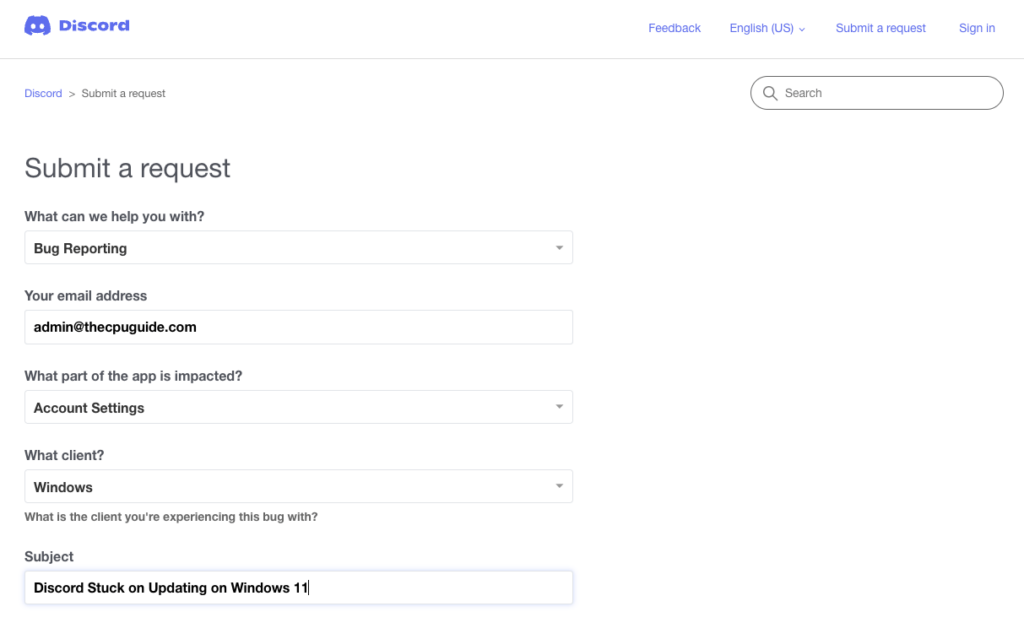
Submit a Ticket to Fix Discord Update Failed Error
One of these 9 fixes must be able to make your discord back on track.
Do leave a comment and let me know which solution best suits you in fixing the Discord update failed loop.
How do I force Discord update?
To force Discord to Update, you need to Press Ctrl+R on your keyboard. This would result in Discord’s user interface reloading and refresh. Any new updates should be detected. Discord shall install them automatically.
Why is Discord 502 Bad Gateway?
502 Bad Gateway error on Discord means that you simply won’t be able to access discord and is due to one of the servers you are connected to. As it is a server-based error, you can do nothing but wait for the Discord team to solve it. Usually, the Discord team is very speedy in this and should be resolved soon.
Why is Discord not updating on Windows PC?
Discord might not be able to update on a PC as a Discord cache on your Windows be potentially causing a problem where it glitches with the new version. Try deleting your AppData and then updating discord.
How do I update Discord on my Mac?
If discord automatically updates on Mac and if for some reason, it doesn’t? Then, you might need to clear the cache of Discord or try reinstalling it.