How to Download Discord Emojis

Did you recently see an emoji on a Discord server that you like?
If you did, you might be looking to download it.
Discord allows server owners and users who have the “manage emoji” permission to upload emojis.
Most servers have their own custom emojis, so you can use them while you’re typing a message.
However, some servers have grayed out emojis, which means that you can’t use them globally.
To use them globally, you need to subscribe to Discord Nitro.
Alternatively, you can download the emoji on your computer and upload it to your own server.
In this guide, you’ll learn how to download Discord emojis.
How to download Discord emojis
To download Discord emojis, you need to open the emoji’s link, right-click the emoji, click on “Save image as”, name the file, and save it.
Once you’ve saved the emoji, you can open and view it on your computer.
You can also upload the emoji to your own Discord server.
On Discord, you can save both animated and non-animated emojis.
When you open an animated emoji’s link, you can save it as a GIF by right-clicking it and clicking on “Save image as”.
Then, click on “Save”, and the emoji will automatically be saved as a GIF.
On the other hand, if you’re saving a non-animated emoji, it’ll automatically be saved as a picture.
Here is a step-by-step guide on how you can download Discord emojis/emotes:
1. Open the emoji’s link

The first step is to open the emoji’s link.
Firstly, open Discord on a desktop and log into your account if you haven’t already.
Do not open Discord on mobile because you won’t be able to open an emoji’s link there.
Then, navigate to the Discord server that you found the emoji from.
Next, navigate to the emoji on the server.
Once you’ve found the emoji, you need to open its link.
Right-click on the emoji that you want to download.
This will open a navigation menu with several options including “Add Reaction”, “Reply”, “Mark Unread”, and more.
At the bottom of the navigation menu, you’ll see an option that says “Open Link”.
Click on “Open Link” to open the emoji’s link.
If you’re on Discord mobile, you won’t be able to see the “Open Link” option as it is not available on mobile.
Proceed to the next couple of steps to learn how to download the emoji.
2. Right-click the emoji & click on “Save image as”

After you’ve clicked on “Open Link”, the link to the emoji will be opened.
You’ll be directed to a webpage with the emoji.
The emoji will be located at the center of the webpage.
If the emoji is animated, you’ll be able to see its animation.
Right-click the emoji to open a navigation menu.
On the navigation menu, you’ll see multiple options including “Open image in a new tab”, “Save image as”, “Copy image”, and more.
Since you’re looking to download the image, you need to save it.
Click on “Save image as” to save the emoji on your computer.
Move on to the final step to learn how to properly save the emoji.
3. Name the file and save it

After you’ve clicked on “Save image as”, you need to save it in a folder.
To begin with, you need to create a folder that you want to save the emoji in.
If you don’t want to create a folder, you can save it in your “Downloads” or “Pictures” folder instead.
However, it’s highly recommended that you create a dedicated folder for Discord emojis.
That way, you can easily find Discord emojis that you’ve saved in one place.
Once you’ve created a dedicated folder for Discord emojis, double-click to open it.
Then, you need to name the file.
Give the file a name on the “File name” field.
For example, if the emoji is a GIF of pepe the frog sneezing, you can name the file “pepe-sneezing”.
Naming your file in dashes will make the name more readable.
If the emoji is an animation, you’ll see that its file type is “GIF”.
On the other hand, if the emoji is not animated, its file type will be either “PNG” or “JPG”.
Lastly, click on “Save” to save the emoji in your folder.
Congrats, you’ve successfully learned how to download emojis on Discord!
Can you download Discord emojis on mobile?
No, you cannot download Discord emojis on mobile.
This is because the downloading of Discord emojis are not supported on mobile.
If you want to download or save Discord emojis, you need to use Discord on a desktop instead.
This is because the “Open Link” function is only available on the desktop version of Discord.
If you’re using Discord mobile, tapping and holding on an emoji will not contain the “Open Link” function.
How do you get Discord emotes?
To get Discord emotes, you can either upload your own emotes on your server or use another server’s emotes.
Discord allows server owners to upload custom emojis to their server.
If you’re the owner of a server, you can upload emojis by navigating to your server settings and clicking on the “Emoji” tab.
If you don’t want to upload custom emojis, you can join servers that have them instead.
However, keep in mind that you won’t be able to use some server’s emotes.
This is because you don’t have access to posting them on other servers.
To bypass this, you need to subscribe to Discord Nitro.
Conclusion
Custom emojis are one of the many features that Discord has.
You can add emojis to your messages by selecting the smiley face icon.
If you see an emoji that you like on a Discord server, you’re given the ability to download it as well.
To download emojis, you can use the guide above.
Make sure to use Discord on a desktop for this as the mobile version does not support it.
Further Reading
You may also like

Furtopia Discord Server

Diablo 4 Discord Server

How to Fix “No valid QR code detected” on WhatsApp
About the author
Lim How Wei
Lim How Wei is the founder of followchain.org, with 8+ years of experience in Social Media Marketing and 4+ years of experience as an active investor in stocks and cryptocurrencies. He has researched, tested, and written hundreds of articles ranging from social media platforms to messaging apps.
Lim has been quoted and referenced by major publications and media companies like WikiHow, Fast Company, HuffPost, Vice, New York Post, The Conversation, and many others. One of his articles about the gig economy was quoted by Joe Rogan who hosts The Joe Rogan Experience (arguably the most popular podcast in the world), in the This Past Weekend podcast by Theo Von.
In his free time, Lim plays multiple games like Genshin Impact, League of Legends, Counter-Strike, Hearthstone, RuneScape, and many others. He creates guides, walkthroughs, solutions, and more on games that he plays to help other players with their progression.
Name already in use
Work fast with our official CLI. Learn more about the CLI.
Sign In Required
Please sign in to use Codespaces.
Launching GitHub Desktop
If nothing happens, download GitHub Desktop and try again.
Launching GitHub Desktop
If nothing happens, download GitHub Desktop and try again.
Launching Xcode
If nothing happens, download Xcode and try again.
Launching Visual Studio Code
Your codespace will open once ready.
There was a problem preparing your codespace, please try again.
Latest commit
Git stats
Files
Failed to load latest commit information.
README.md
Discord Emoji Downloader
This little tool will allow you to download a ZIP archive with all emojis from a Discord server.
About
Get all emojis from a server in a ZIP file.
Resources
Stars
Watchers
Forks
Releases
Packages 0
Contributors 4
- ThaTiemsz Tiemen
- traviscibot Travis CI
- patrickteivas Patrick Teivas
- dependabot[bot]
Languages
Footer
© 2023 GitHub, Inc.
You can’t perform that action at this time.
You signed in with another tab or window. Reload to refresh your session. You signed out in another tab or window. Reload to refresh your session.
How to Download Discord Emojis
Nowadays, the Discord application is used all over the world, which allows its users to communicate with each other and have fun. Like many chatting applications such as Facebook, WhatsApp, and Snapchat, the Discord application also permits its users to express their feelings using emojis and for entertainment purposes.
This post will illustrate the procedure for downloading Discord Emojis. So, let’s get started!
How to Download Discord Emojis?
Discord emojis are images or icons that are used to express feelings. To download the Discord custom emojis, the below-provided steps are good enough.
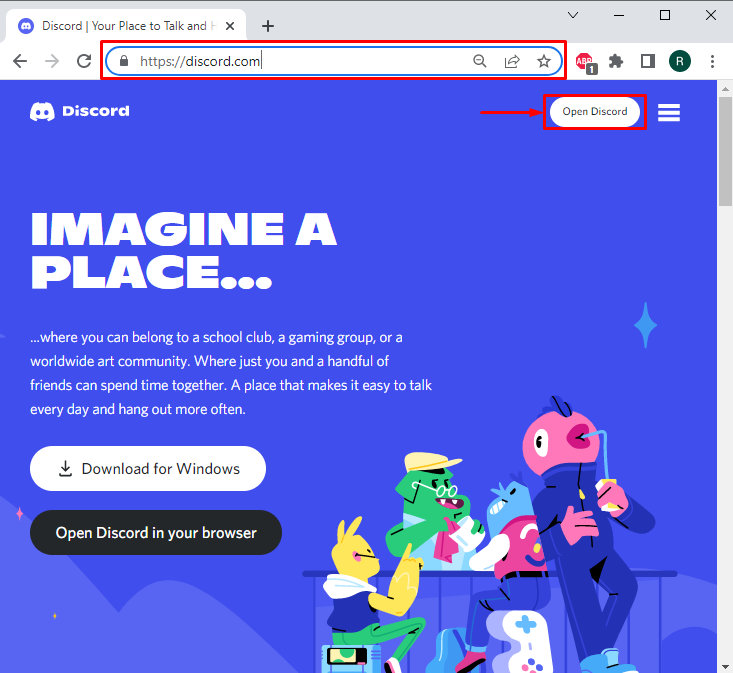
Step 1: Open Discord in Browser
Open Discord website and press the “Open Discord” button to use Discord web app:
Step 2: Open Discord Server
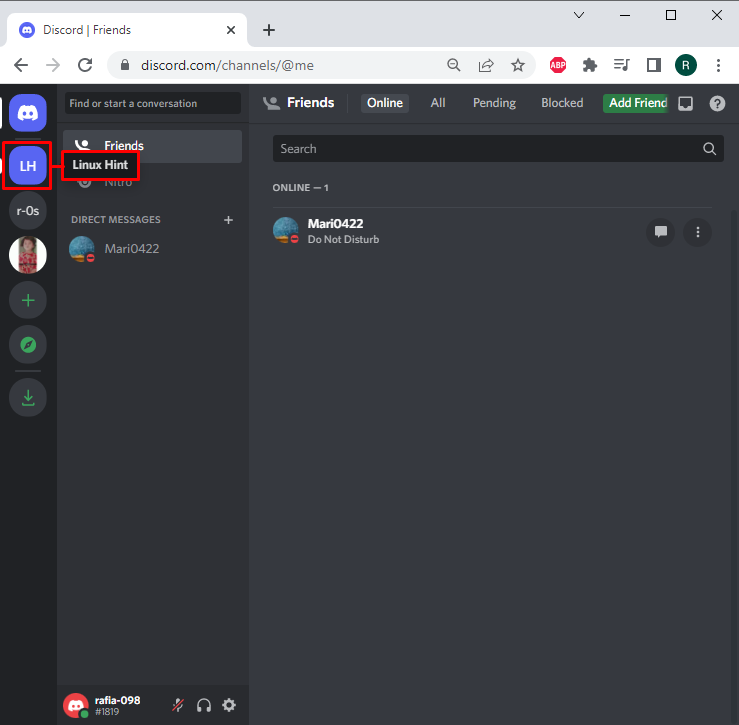
Next, open up the Discord server from the side menu bar. For instance, we have navigated toward the “Linux Hint” server:
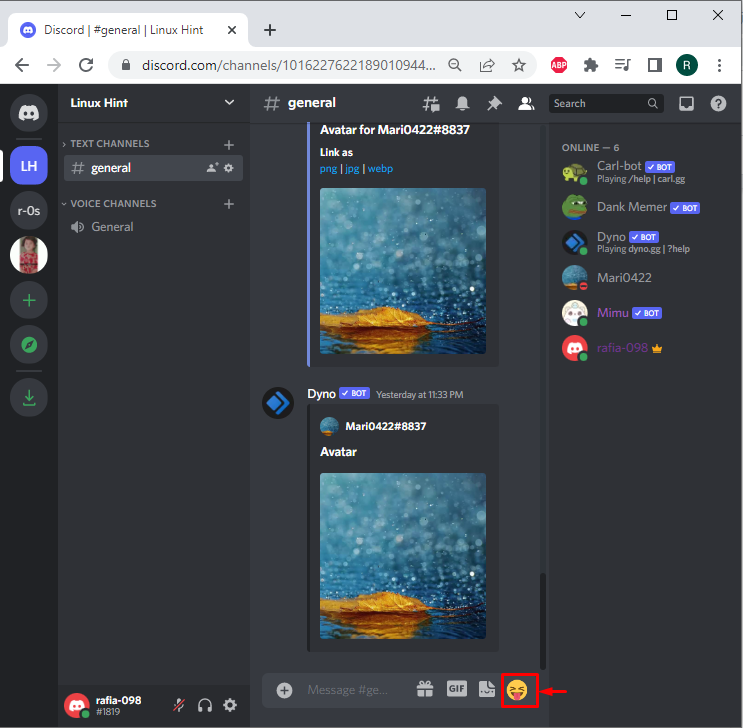
Step 3: Open Emoji List
Open the list of available emojis on Discord by clicking on the below highlighted “Emoji” icon:
Step 4: Select Desired Emoji
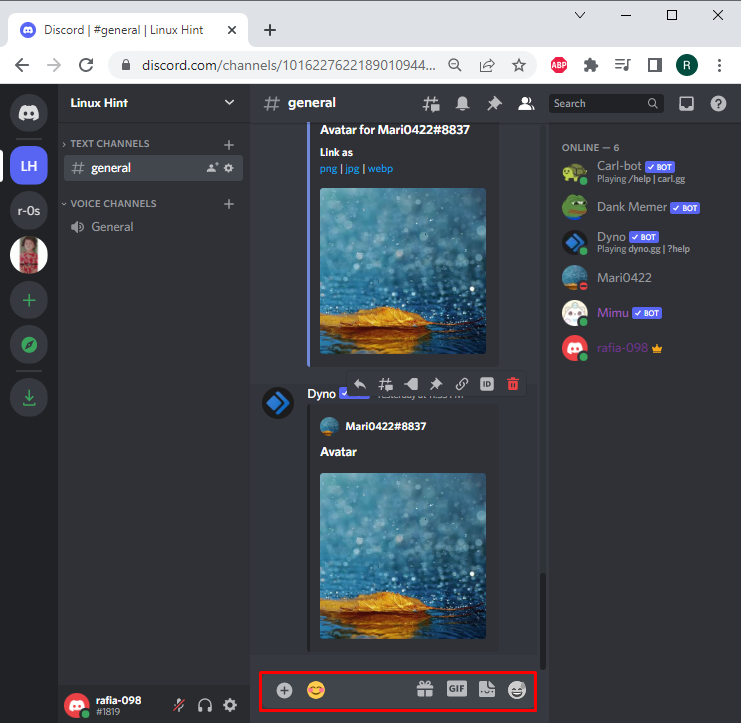
Upon doing so, different emojis will be shown on the screen. Click on the emoji you are required to download. For instance, we have selected the “Blush” emoji:
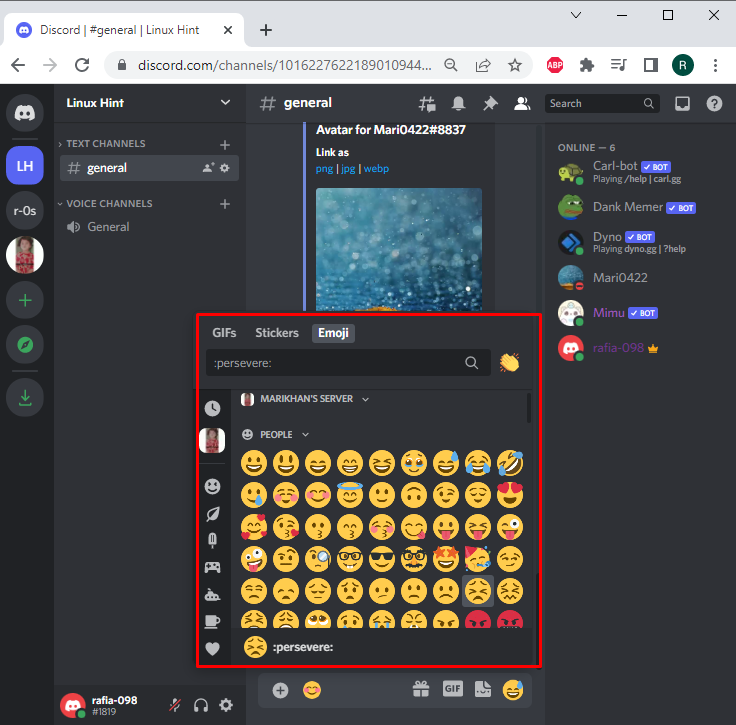
You can see that the selected emoji is now displayed in the message area:
Step 5: Open Emoji in New Tab
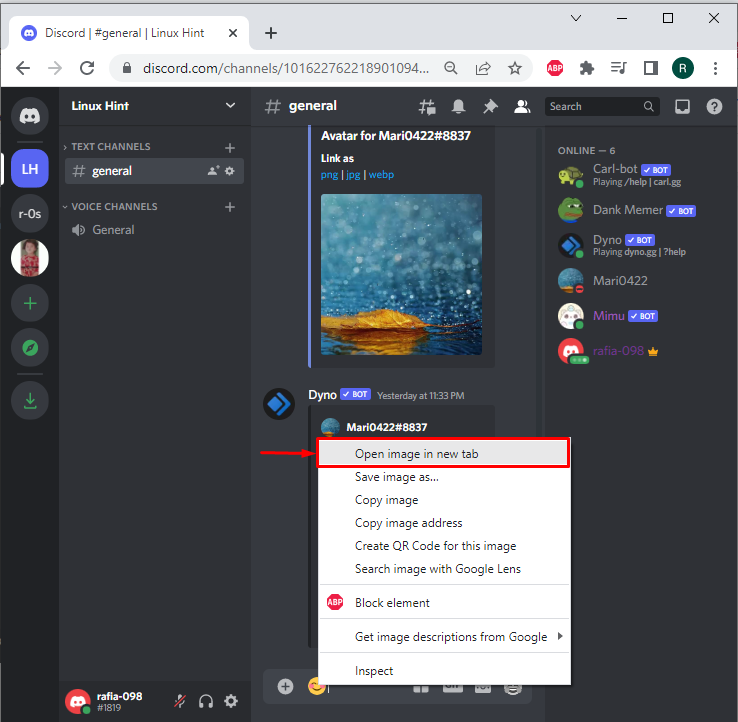
Right-click on the selected emoji and choose the “Open image in new tab” option to open it in a new tab:
Step 6: Download Emoji
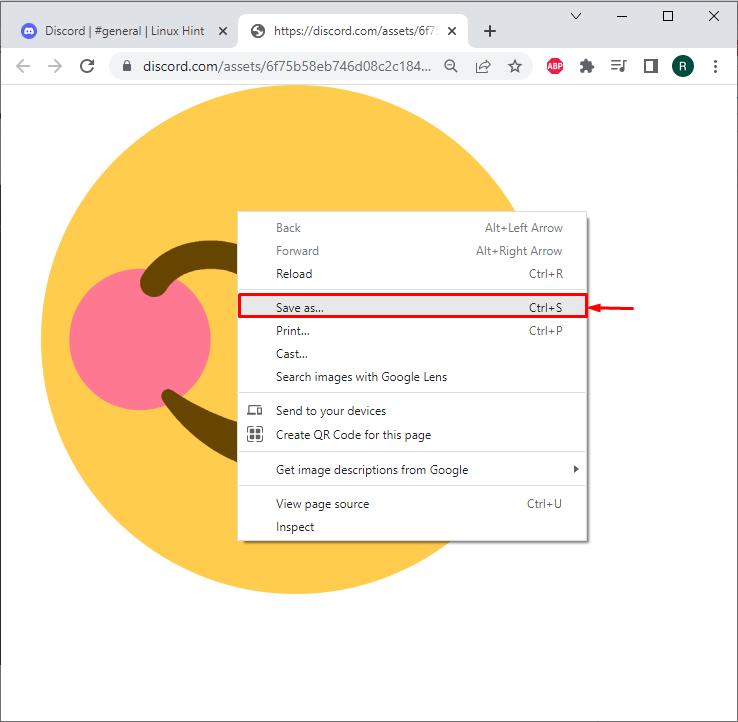
Next, right-click on the image and hit the “Save as” option to download the selected emoji:
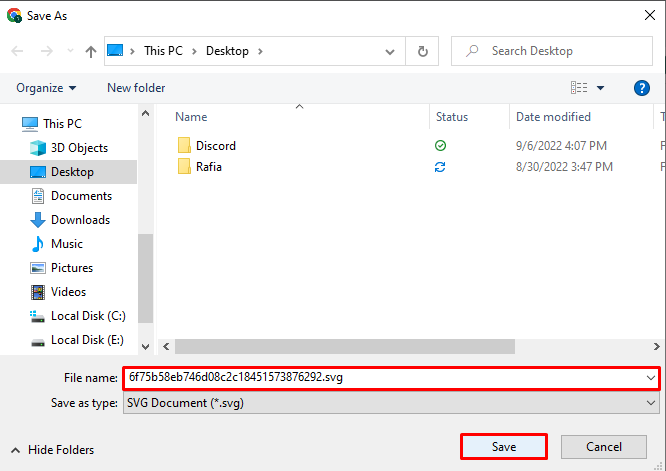
Click the “Save” button to save the emoji on the system:
You have learned the simplest method to download Discord emojis.
Conclusion
To download the Discord emojis, first, open Discord on your favorite browser. Next, open the server from where you want to download the emoji, move to the emoji container, and select the emoji you want to download. Then, open the Emoji image in a new tab, and choose the “Save as” option to download or save the emoji. This manual guided you related to downloading Discord Emojis.
About the author

Rafia Zafar
I am graduated in computer science. I am a junior technical author here and passionate about Programming and learning new technologies. I have worked in JAVA, HTML 5, CSS3, Bootstrap, and PHP.
Как скачать эмодзи с сервера дискорд
Reddit and its partners use cookies and similar technologies to provide you with a better experience.
By accepting all cookies, you agree to our use of cookies to deliver and maintain our services and site, improve the quality of Reddit, personalize Reddit content and advertising, and measure the effectiveness of advertising.
By rejecting non-essential cookies, Reddit may still use certain cookies to ensure the proper functionality of our platform.
For more information, please see our Cookie Notice and our Privacy Policy .