Как включить/отключить двухфакторную аутентификацию в Discord

Двухфакторная аутентификация, также известная как многофакторная аутентификация, представляет собой систему, которая добавляет дополнительный уровень безопасности поверх ваших сетевых учетных записей. Большинство популярных социальных сетей, которые вы используете сегодня, предлагают вам возможность включить функцию безопасности двухфакторной аутентификации.
Когда вы включаете эту функцию, вместо того, чтобы вводить только пароль для входа в свои учетные записи, вам будет предложено ввести код, отправленный на ваш номер телефона. Этот дополнительный шаг ограничивает доступ злоумышленников к вашей учетной записи, даже если они знают ваш пароль.
Если вы используете Discord на настольном или мобильном устройстве, вы можете включить двухфакторную аутентификацию в игровом сервисе. Итак, если вы хотите включить двухфакторную аутентификацию в своей учетной записи Discord, вы читаете правильное руководство.
Действия по включению/отключению двухфакторной аутентификации в Discord
В этой статье вы найдете пошаговое руководство о том, как включить или отключить двухфакторную аутентификацию в мобильном приложении Discord и в настольной версии. Давайте проверим.
1) Включите двухфакторную аутентификацию Discord (на рабочем столе и в Интернете)
Если вы используете игровой сервис со своего компьютера/ноутбука, вам необходимо выполнить следующие шаги, чтобы включить двухфакторную аутентификацию. Вот несколько простых шагов, которые необходимо выполнить.
1. Прежде всего, откройте Discord на рабочем столе и щелкните значок настройки шестеренки под своим именем.

2. На странице настроек щелкните раздел Моя учетная запись, как показано ниже.

3. Справа найдите раздел Двухфакторная аутентификация и нажмите кнопку Включить двухфакторную аутентификацию.

4. Теперь вам будет предложено ввести пароль учетной записи. Просто введите пароль и нажмите кнопку Продолжить.

5. Теперь вам нужно открыть приложение аутентификации на своем телефоне и отсканировать QR-код, отображаемый в настольном приложении Discord. Вы можете использовать любое приложение Authenticator по вашему выбору, но мы рекомендуем Google Authenticator.

6. После включения вы получите возможность включить аутентификацию по SMS. Кроме того, вы также можете загрузить резервные коды для доступа к своей учетной записи, если вы потеряете доступ к своему приложению для проверки подлинности.
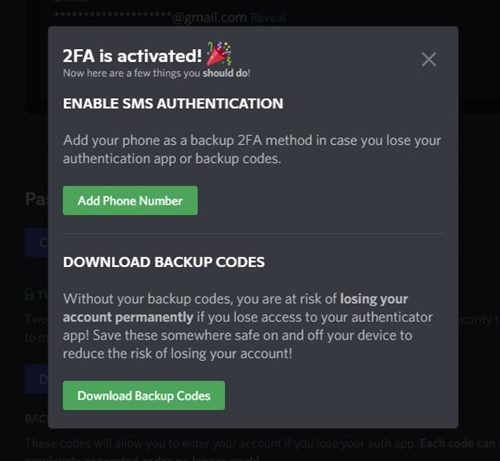
7. Чтобы отключить двухфакторную аутентификацию, вам нужно перейти в раздел Настройки > Мои учетные записи > Пароль и аутентификация.
8. В разделе двухфакторной аутентификации нажмите кнопку Удалить 2FA, как показано ниже.
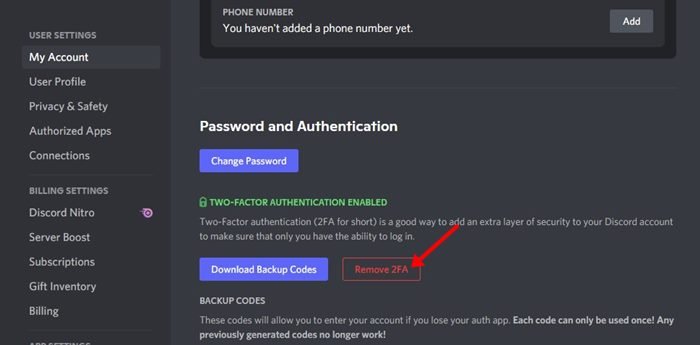
9. В запросе подтверждения введите код из приложения для проверки подлинности и нажмите кнопку «Удалить 2FA».
Вот и все! Вы сделали. Вот как вы можете включить или отключить двухфакторную аутентификацию в Discord для ПК.
2) Включить двухфакторную аутентификацию в Discord (Android/iOS)
Вы даже можете использовать мобильное приложение Discord, чтобы включить двухфакторную аутентификацию в своей учетной записи. Вот несколько простых шагов, которые необходимо выполнить.
1. Прежде всего, откройте приложение Discord на Android/iOS и нажмите на изображение своего профиля.

2. В списке параметров нажмите Моя учетная запись.
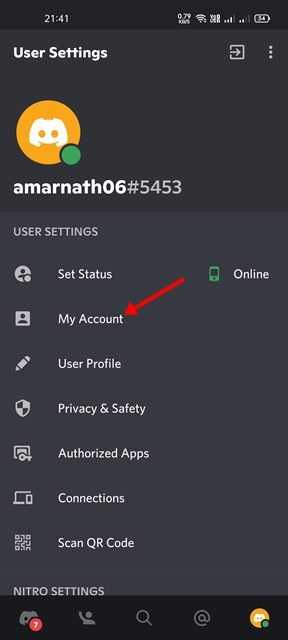
3. На странице «Моя учетная запись» прокрутите вниз и нажмите кнопку Включить двухфакторную аутентификацию , как показано ниже.
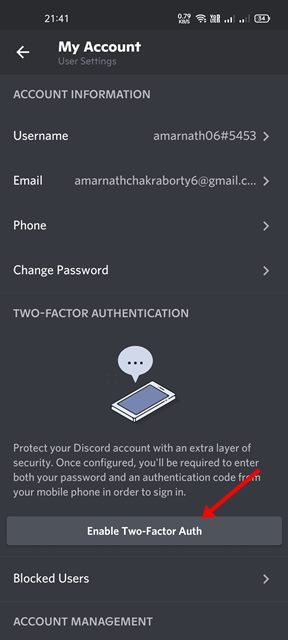
4. Теперь вас попросят ввести пароль. Просто введите пароль и нажмите кнопку подтверждения.

5. Теперь вам будет предложено загрузить приложение для аутентификации, чтобы включить 2FA. Загрузите Google Authenticator и нажмите кнопку Далее, как показано ниже.

6. Просто откройте приложение Google Authenticator и скопируйте и вставьте код 2FA в приложение Discord. После этого нажмите кнопку «Далее».
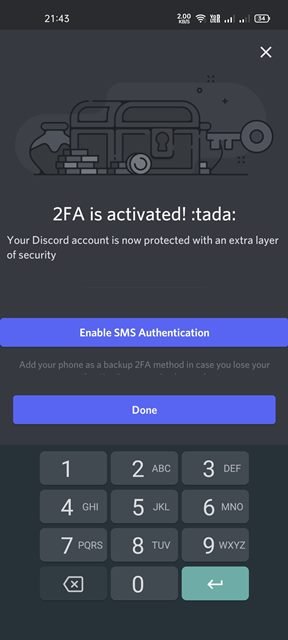
7. После включения вы получите возможность включить аутентификацию по SMS. После этого нажмите кнопку «Готово».
8. Если вы хотите отключить 2FA, откройте страницу «Моя учетная запись» и коснитесь параметра «Удалить 2FA».
9. Теперь откройте приложение для аутентификации и введите код. После этого нажмите кнопку «Подтвердить».
Готово! Вы сделали. Вот как вы можете включить или отключить двухфакторную аутентификацию на Android или iOS.
Вы можете использовать эти два метода, чтобы включить или отключить двухфакторную аутентификацию в своей учетной записи Discord. Я надеюсь, что эта статья помогла вам! Пожалуйста, поделитесь им и с друзьями. Если у вас есть какие-либо сомнения по этому поводу, сообщите нам об этом в поле для комментариев ниже.
How to Turn On or Off 2FA on Discord
Discord already comes with impressive security features, but we should also try to do more for account protection as users. Passwords are hackable, and these malicious people can gain access to private conversations. Thus, Discord implemented the two-factor authentication system, also called 2FA.

Activating 2FA is a relatively simple process, and doing so secures your account better than a single password alone. Not only that, but 2FA is also required for some Discord servers or using admin privileges.
If you want a quick guide to turn this essential feature on (and off), you’re in the right place. Keep reading to find out how to enable and disable 2FA on different devices.
How to Turn On or Off 2FA in Discord on the iPhone App
Discord for mobile devices works about the same as the desktop client or browser version. You’ll need to download one of two third-party apps as well. Both are found in the App Store for free.
For those who wish to turn on 2FA on an iPhone, take a look at these steps:
- Launch Discord on your iPhone.

- Find the gear icon near the bottom of the screen and tap on it.

- You’re now in the settings menu; tap on “My Account” to access the proper settings.

- Tap on “Enable Two-Factor Auth.”

- Download either Authy or Google Authenticator on your iPhone.

- Enter the code you received in the authentication app or scan the QR code from Discord.

- Once the codes are accepted, 2FA will become active.

- Tap on “Done” to continue using Discord.
However, there are times when turning off 2FA is necessary. Follow these instructions to get started:
- Launch Discord on your iPhone.
- Look for and tap on the gear icon.
- In the settings menu, tap on “My Account.”
- Find the “Remove 2FA” option beside “View Backup Codes.”

- Type in your Discord Auth code or backup code.

You can always follow the same steps to turn on 2FA again.
How to Turn On or Off 2FA in Discord on the Android App
Compared to the iOS version, Discord on Android devices isn’t too different. The user interface is the same as well. As a result, you can follow similar steps to the instructions on iPhone.
Here’s how you’d enable 2FA on your Android device:
- Go to the Discord app on your Android phone or tablet.

- At the bottom left of the screen, find the gear icon and tap it.

- In the Settings menu, tap on “My Account” to access the right area.

- Find the large button with “Two-Factor Authentication” on it.
- Tap on “Enable Two-Factor Auth.”

- Download Authy or Google Authenticator on your phone.

- You’ll receive a code, which you can enter into the authentication app.

- After the codes are accepted, your Discord account is now protected by 2FA until you disable it.
- Tap on “Done” to continue chatting to friends.

Alternatively, you can also use the authenticator app to scan the QR code Discord provides you. Doing so will link the accounts.
As for turning it off, here’s what you must do:
- Go to your Discord app.
- Tap on the settings icon.
- Go to “My Account” for the option to enable or disable 2FA.
- Tap on “Remove 2FA” under “Two-Factor Authentication Enabled.”

- Enter either your Discord Auth code or backup code into the field.

- Tap on “Remove 2FA.”

- Your account will now have no 2FA protection until you reenable it.
It may be faster to log in without 2FA, but you’re considerably less safe. However, you may find that you need to disable this feature for some situations.
One thing to note is that on Android, Google Authenticator requires you to use ZXing Barcode Scanner if you intend to use barcodes. If you want to save time or simply don’t want to download another app, you can manually enter the code instead of downloading the scanner.
How to Turn On or Off 2FA in Discord From a PC
Even though you’re using Discord on a PC, you still need a mobile device to use Authy or Google Authenticator. Thus, we recommend you keep your mobile phone nearby for easy use. Regardless, the process remains similar to the steps for the other devices listed above.
For PC users, try these instructions to enable 2FA:
- Open Discord on your browser or use the desktop client.

- Click on the cog icon to enter the settings menu.

- Click on “My Account.”

- Select the larger button with “Enable Two-Factor Auth” on it.

- Download your authenticator app of choice, as mentioned above.

- Get the barcode or key from Discord.
- Enter the provided key or use the barcode scanner in the authenticator app.

- Once you enter the required codes, your account will now have 2FA enabled.

As for those who wish to disable it, here’s how:
- Launch Discord for PC.

- Go to the Settings menu.
- Click on “My Account.”
- Click on “Remove 2FA.”

- Enter the required Discord Auth code or backup code.

- Once that’s done, your account is no longer 2FA-protected.

Why Enable Two-Factor Authentication?
With 2FA, hackers will have a much more difficult time trying to get into your account. Unlike a single password, the 2FA service requires codes that are only accessible by you. The codes also work once per login.
These codes reach you via SMS or specific apps like Authy or Google Authenticator. While 2FA isn’t perfect, the method is simple and effective.
Sometimes, you also have to disable 2FA. Some users do so because they lose access to their phones and can’t log into their accounts.
With the help of backup codes, you can disable 2FA and log into your account again. After getting a new phone, you can follow the steps above and enable 2FA again.
However, keep in mind that you’ll have to create a new account if you don’t have your backup codes. The reason is that Discord doesn’t have access to your codes, and they also can’t give you new ones. Thus, it’s a good idea to keep your codes somewhere accessible.
Additional FAQs
Can I Disable 2FA Without Logging In?
No, you can’t do that. If you wish to disable 2FA, you have to use a backup code after logging into your Discord account. There’s no other way to disable the feature in the app.
Can You Enable 2FA With PC?
Yes, even though you still need a phone and authenticator app, you can still enable 2FA via PC.
Extra Security Means Extra Assurance
Having 2FA to protect Discord accounts is a brilliant way to ensure your privacy isn’t breached. While the process requires a third-party app, you only need a few minutes of setup. After that, you don’t have to worry about 2FA anymore.
Do you think 2FA is an excellent idea? What do you think about 2FA-required servers? Let us know in the comments section below.
Пошаговая инструкция: Как отключить 2FA в Discord

Некоторым пользователям Discord со временем надоедает чрезмерная защита, как в приложении так и web версии дискорда. Поэтому люди задаются вопросом как отключать 2FA в Discord. В этом гайде мы пошагово разберем каждое действие и поможем как удалить двухфакторную аутентификацию.
Для того чтобы отключить 2FA в Discord необходимо выполнить несколько простых действий.
Для начала авторизуйтесь в своей учетной записи дискорда. И нажмите на иконку шестеренки в левом нижнем углу экрана.

В разделе “Моя учетная запись” найдите подраздел “Пароль и аутентификация” и нажмите на кнопку “Отключить 2FA”.

Далее для того, чтобы отключить двухфакторную аутентификацию вам потребуется ввести код, который пришёл вам в приложении или использовать резервный код, который вы могли получить, когда включали 2FA в Discord.

После ввода кода нажмите на кнопку “Отключить 2FA”.

Готово. Теперь вы знаете как отключать 2FA в Discord и дополнительный способ защиты вас больше не побеспокоит.
How to Enable or Disable Two-Factor Authentication (2FA) on Discord
Setting up two-factor authentication is one of the easiest measures you can take to level up your account’s security on any platform. Like many social media platforms, Discord also has an option that lets users securely enable and use two-factor authentication. In this article, we will walk you through the steps for how to enable or disable two-factor authentication (2FA) on Discord.
Turn On or Off Two-Factor Authentication on Discord (2022)
Enable Discord Two-Factor Authentication (Desktop/ Web)
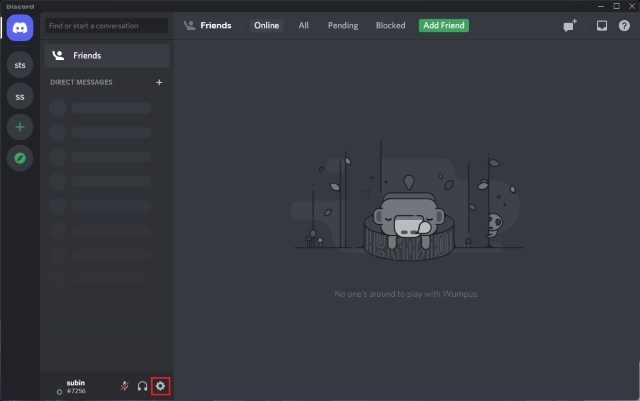
1. Open Discord and click on the Settings gear icon at the bottom-left corner of the screen.
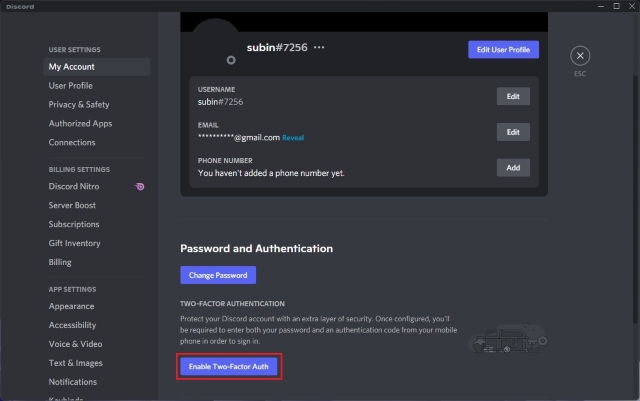
2. When the settings page appears, click on the “Enable Two-Factor Auth’ button to start the setup process.
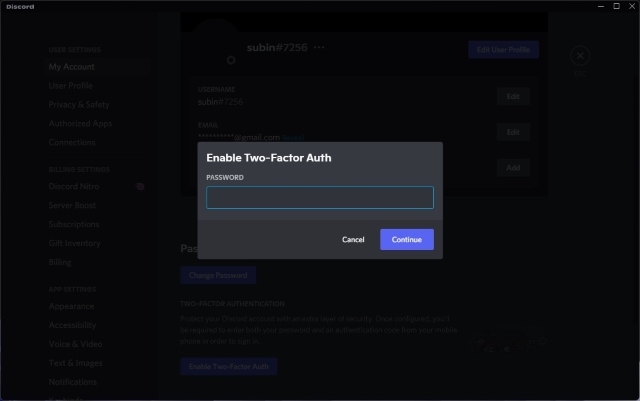
3. Discord will now prompt you to confirm your account’s password. Enter your password and click on “Continue” to proceed further.
4. You will now see a pop-up window with a QR code and a 2FA key. Next, open your authenticator app of choice and scan the QR code to add your Discord account’s 2FA key. You can also choose to manually add the key to the authenticator app. Once done, you need to enter the 6-digit verification code generated by the authenticator app in this pop-up on Discord. Then, click on “Activate”.
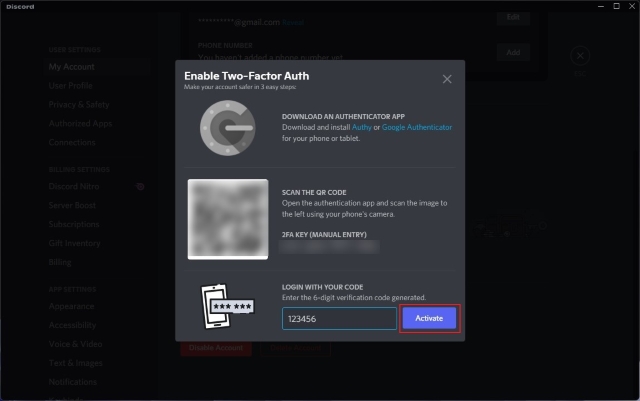
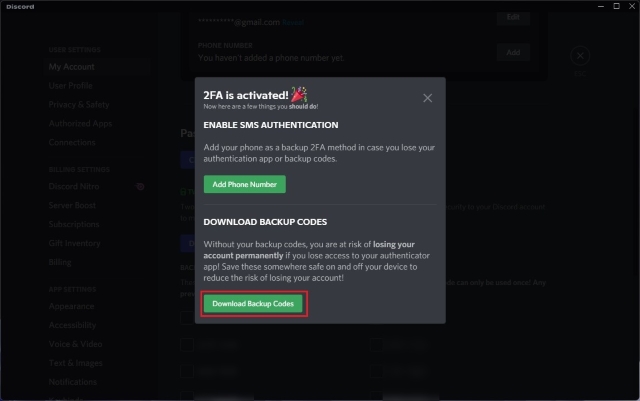
5. And that’s it. You have successfully enabled two-factor authentication (2FA) on your Discord account. You can now choose to enable SMS authentication as a backup method in case you lose access to your authenticator app. Plus, you should also consider downloading backup codes to access your account if you get locked out of your authenticator app.
Disable Discord Two-Factor Authentication (Desktop/ Web)
1. Click on the Settings gear icon at the bottom-left corner of the screen after opening the Discord app or website on your PC.
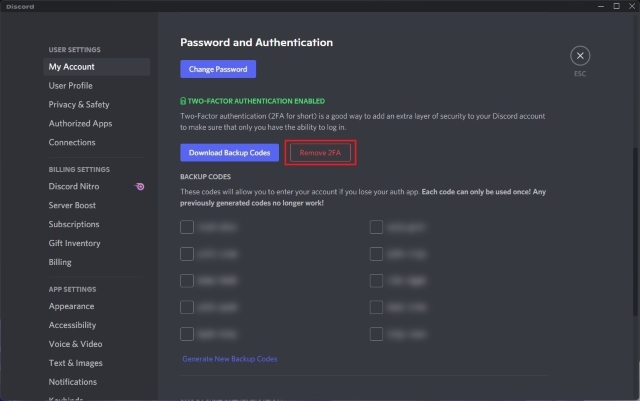
2. Under the “Password and Authentication” section of the “My Account” tab, click on “Remove 2FA” to turn off 2FA authentication on Discord. Do note that you will make your account more vulnerable to security risks if you choose to stop using two-factor authentication.
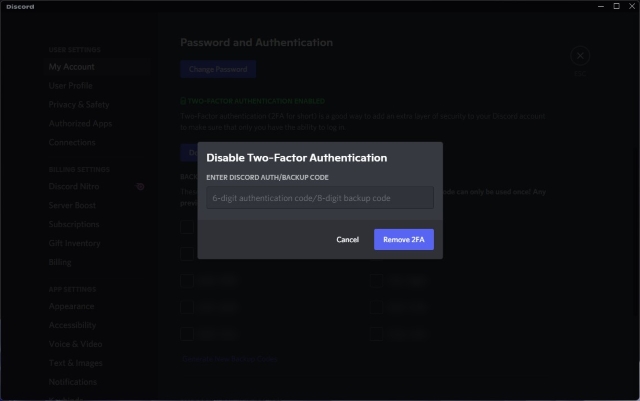
3. If you are sure about disabling 2FA, enter the 6-digit code from the authenticator app or use one of your backup codes. And then, click on “Remove 2FA”.
Turn On 2FA on Discord (Android and iOS)
1. Open the Discord app and tap on your profile picture from the bottom navigation bar. Then, select “My Account” and tap “Enable Two-Factor Auth” to set up two-factor authentication for your Discord account from your phone.

2. Enter your account password and make sure you have installed an authenticator app. Press “Next” to continue the setup process.
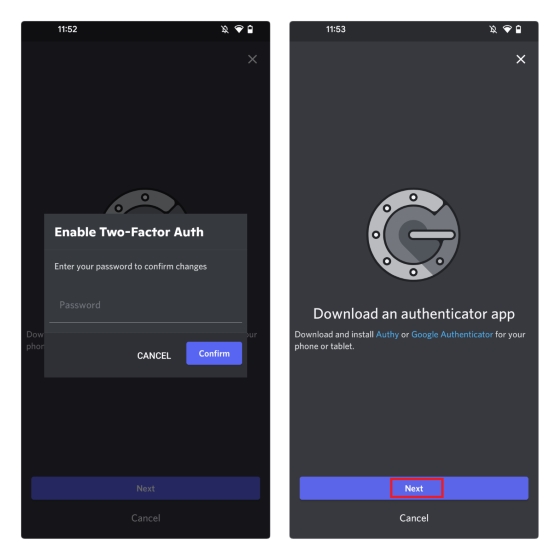
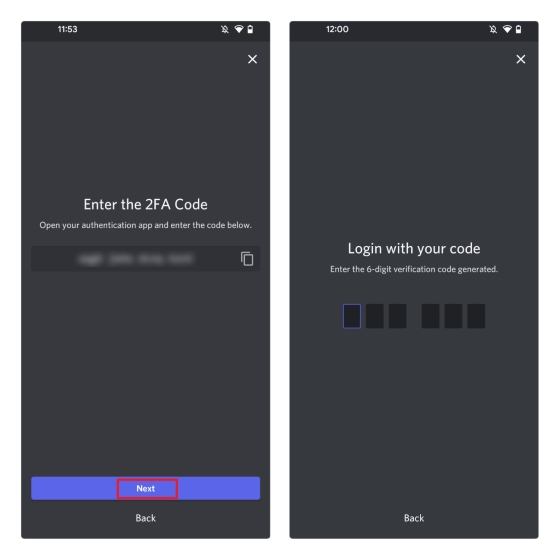
3. You will now see the 2FA code on the screen. Press the Copy button to copy the key to your clipboard and paste it into your authenticator app. Up next, enter the 6-digit verification code generated by your 2FA app in the chat app to link your Discord account to the authenticator app.
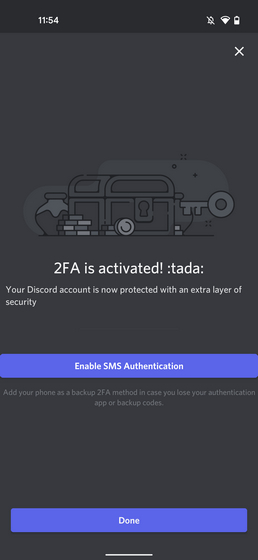
4. You have now enabled two-factor authentication on your Discord account. Alongside this, you will now see the option to enable SMS authentication as a backup if you lose access to your authenticator app.
Turn Off 2FA on Discord (Android and iOS)
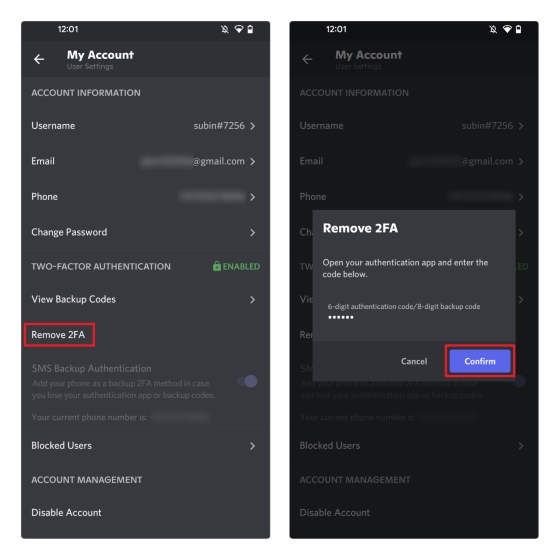
Unlike Discord’s desktop app, it is mandatory to set up SMS authentication to disable 2FA. If you haven’t yet set up SMS authentication on your account, the “Remove 2FA” option will appear grayed out in the mobile app.
After setting up SMS authentication, tap the “Remove 2FA” option from the “My Account” page. Then, enter the authentication code or your backup code to remove two-factor authentication from your Discord account.
Frequently Asked Questions
Q: How do I find my 6 digit authentication code on Discord?
You can find your Discord account’s authentication code in the authenticator app you used for setting up 2FA on Discord.
Q: Where do I find my Discord backup code?
You can find your Discord backup code from User Settings -> Password and Authentication -> Backup Codes on web/desktop. As for the Android and iOS mobile apps, head to My Account ->View Backup Codes.
Q: Why are my Discord backup codes not working?
If you still have access to your Discord account and are not able to use your existing backup codes, generate new ones from the “Password and Authentication” section of Discord settings.
Q: How do you get rid of 2FA on Discord without the code?
You can’t disable two-factor authentication without a code. You will either need the 6-digit authentication code from the authenticator app or the 8-digit backup code to disable 2FA on Discord.
Q. Can I disable 2FA on Discord without logging in?
No, that’s not possible. You can only disable two-factor authentication (2FA) by logging into your Discord account and entering the 6-digit authentication code or backup code. Check out the step-by-step instructions on how to do that on desktop or mobile in this guide.
Enhance Account Security with Discord Two-Factor Authentication
So that’s how you can enable two-factor authentication on your Discord account. Now that you know how to turn on or off 2FA on Discord, do not forget to enable the feature on other apps as well. To help you out in the process, we have a dedicated guide with instructions to set up two-factor authentication on Facebook, Instagram, and Twitter. And if you run into any problems, let us know your queries down in the comments section, and we will help you out.