Что такое ACM в мониторе и зачем нужна эта опция
ACM (Adaptive Contrast Management) – адаптивная система управления контрастностью. Опция в динамическом режиме подстраивает контрастность для текущего изображения. Улучшает качество картинки, снижает нагрузку на глаза при длительном пребывании у монитора.
В каких мониторах есть ACM
Программная настройка ACM – фирменная технология компании Acer. Разработана для достижения максимально возможной контрастности изображения и, соответственно, высокого качества.
Справка! Первый в мире ЖК-монитор Acer G24 c невероятными показателями контрастности 50000:1 появился 6 июля 2008 года.
Опция ACM позволяет получить:
- лучшее качество цвета;
- высокий уровень градации и детализации, особенно – для тусклых и ярких изображений;
- четкость;
- экономию электроэнергии за счет пониженного потребления монитором.
Режим универсален, но все же, в большей степени предназначен для геймеров, поскольку поддерживает графику высокой четкости.
Как работает режим ACM в мониторе
Принцип работы системы заключается в динамической регулировке уровня контрастности. ACM выполняет ее таким образом:
- Анализирует сцену на мониторе.
- Проводит раскадровку.
- Регулирует контрастность, обеспечивая самый высокий уровень белого и черного для каждого кадра. Яркие и светлые объекты затемняет, темные делает ярче.
Параметры корректируются в реальном времени, индивидуально для каждой текущей сцены.
Как настроить ACM в мониторе
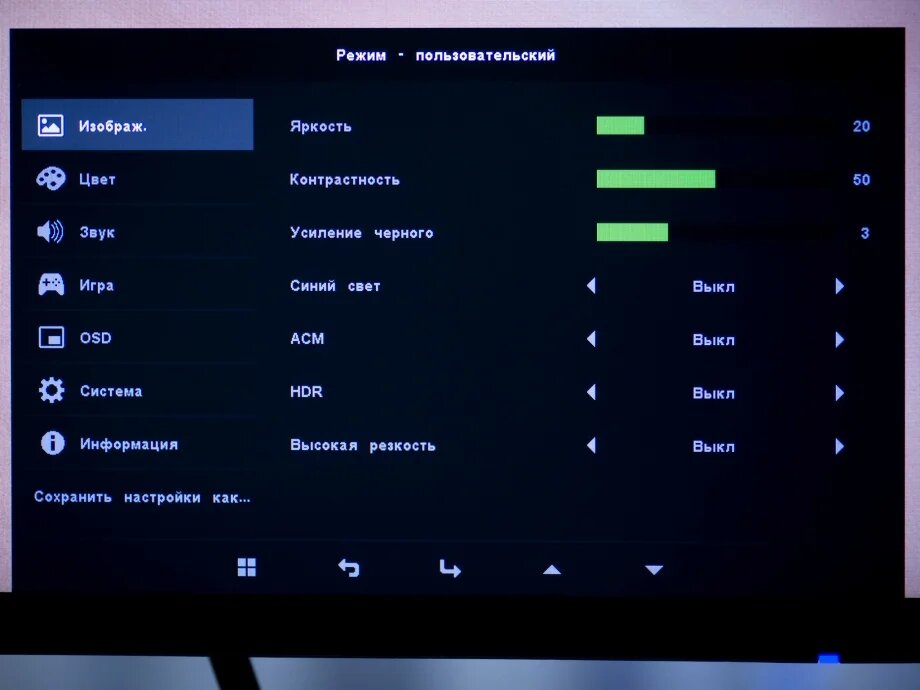
Чтобы настроить опцию ACM на мониторе Acer, следует:
- Нажать на панели управления на мониторе панель Меню.
- В открывшемся меню с помощью кнопок </> найти пункт Изображение и выбрать, нажав ОК на мониторе.
- Пользуясь клавишами </>, отыскать параметр АСМ.
- Включить параметр кнопками </>, подтвердить выбор ОК.
У функции только два положения: включение или выключение. По умолчанию она отключена, что указано в руководстве пользователя.
Подводим итоги
Технологии все больше ориентируются на комфорт пользователя. Фирма Acer в этом отношении преуспела – заботясь о качестве изображения, инженеры компании разработали для своих мониторов режим ACM. «Умная» опция в реальном времени регулирует контрастность изображения, улучшая показатели четкости, детализации и цветопередачи.
Acer ACM Monitor: What does it mean? (For Gaming and Movies)
Adaptive Contrast Management (ACM) is a technology present on certain Acer and Aopen monitors with the aim of improving image quality (contrast and colors in particular) while limiting energy consumption.
The principle of ACM setting is to continuously adjust the screen’s brightness according to the content. As a result, the screen’s brightness is constantly changing, even in office-type applications, which can be annoying to users who are sensitive to this phenomenon.
The operation of this technology is based on a series of algorithms that calculate the average brightness of the contents of the screen from one frame to another.
This type of technology is also used by other manufacturers under different names: Dynamic Contrast Ratio for Samsung or Smart View for IIyama for example.
In the case of video sequences, for example, each individual scene is analyzed using ACM and more intensive color reproduction is made possible by adjusting the individual frames. Part of the Acer Adaptive Contrast Management is the DCR technology (Dynamic Contrast Ratio). This results in better black levels when viewing dark scenes and shaded/dark sequences of images.
A positive effect of the new ACM technology, in addition to the significantly improved image quality, is the reduced power consumption.
However, this type of technology is often criticized because it can create an overly artificial contrast effect, with dark areas that are much too dark and light areas that are much too light.
ACM on or off for gaming?
If you prefer very sharp images during gaming leave the setting enabled. This may help in some situations, especially when playing first person shooters because the ACM feature forces the monitor to adapt to the intensity of the image it’s displaying.
ACM on or off for movies?
Our suggestion is to disable ACM for movies. When turned off the monitor deliver a much better movie experience. Constant contrast changes do not play well with fast paced movies.
Is ACM the same as Super Sharpness monitor setting?
No, Acer ACM and Super Sharpness are two different things. While Acer Super Sharpness sharpens the image to create a crisper, more defined picture, the ACM continuously adjusts the screen’s brightness based on the displayed content.
Basically what Super Sharpness is doing is this: on LCD monitors, the display resolution is set by the number of dots or pixels on the screen. Each dot or pixel is made up of three sub-pixels — one red, one blue, and one green – that are too small for human eyes to see individually at normal viewing distances. Acer Super Sharpness technology adjusts each individual sub-pixel to sharpen text and edges to provide a clearer on-screen image.
What Is ACM Monitor? Explaining Adaptive Monitor Technology
What is ACM monitor is a question you’re bound to ask if you use an Acer monitor. The ACM feature embedded in Acer monitors can be useful in some scenarios and less so in others.

In this post, we’ll be taking a deep dive into what monitors with ACM technology are, what the feature is all about, as well as how to enable and disable the ACM feature. Without further ado, let’s get right to it!
What Is ACM Monitor?
ACM Monitors are displays that are designed with Adaptive Contrast Management technology, which are often made by Acer and Aopen and designed to provide users with the best image quality. The ACM technology makes the color and contrast of the monitor better while reducing the amount of energy consumed.
In other words, your display’s brightness, contrast, and color will be automatically adjusted depending on the kind of content you have on the screen. Thanks to this principle, your monitor’s display will continue to change as long as the setting is on.
Whether you’re playing games, working in Microsoft Office, or just using your calculator, you’ll have an ever-changing display . The constant changes can be disadvantageous if you’re a gamer and can cause health issues if you’re sensitive to color and light.
– How It Works
The ACM technology decides when to change the contrast, brightness, and color of a monitor, depending on a series of algorithms. The algorithms calculate the amount of color, brightness, and contrast that’s good for a particular scene or frame and try to adjust the monitor to suit their calculations.
For instance, when you play a video sequence, the ACM technology analyzes the video sequences and adjusts the individual frames of the video, thereby providing more intensive color reproduction.
Many other brands, such as Samsung and iiyama utilize similar technologies , such as the Smart View on iiyama and Dynamic Contrast Ratio on Samsung.
The Dynamic Contrast Ratio technology used by Samsung is a part of Acer’s Adaptive Contrast Management technology. This is the reason why ACM provides excellent black levels when producing dark or shaded sequences of images or when viewing dark scenes in videos.
Another positive effect of ACM technology is that it reduces the monitor’s power consumption. However, many people may not find this technology to their liking as it can sometimes create a substantially artificial contrast effect that would make dark areas look too dark or shine more brightness on light areas, making them too light.
– Usefulness of Monitors With ACM Technology
Monitors with the ACM feature are quite useful for content that requires dynamic colors and vividness.
Not only does this setting dynamically change the contrast and color of the images shown on your screen, but it will also make them easy to enjoy while ensuring a sharper display .
Also, the ACM setting is the best energy-saving setting available on a monitor and it’s ideal for different eco-friendly devices. Its eco-friendliness makes it a great option for some games as you’ll be using less power to get better and sharper images.
It can come in handy when you play games like first-person shooter action games. With the ACM setting on, your monitor will try to adjust the intensity of the gaming content, allowing for a more immersive gaming experience.
On the other hand, you want to deactivate the ACM setting when you’re watching movies or working. Constant contrast and color adjustment wouldn’t do well for movies , especially fast-paced movies, and the same goes for when you’re typing, copying and pasting, or reading on your computer.
– Activating and Deactivating ACM Setting
If you have an Acer laptop or monitor, you can easily turn on the ACM setting by following the steps outlined below.

- If your monitor has a menu button behind or on the monitor, press the button to open the monitor settings.
- If you use a laptop or your monitor doesn’t have any buttons, then the monitor or display settings should be available in your taskbar.
- Simply select the “arrow up” icon on your taskbar and select the display menu option.
- Once you’re in the monitor settings menu, navigate to the “User” mode.
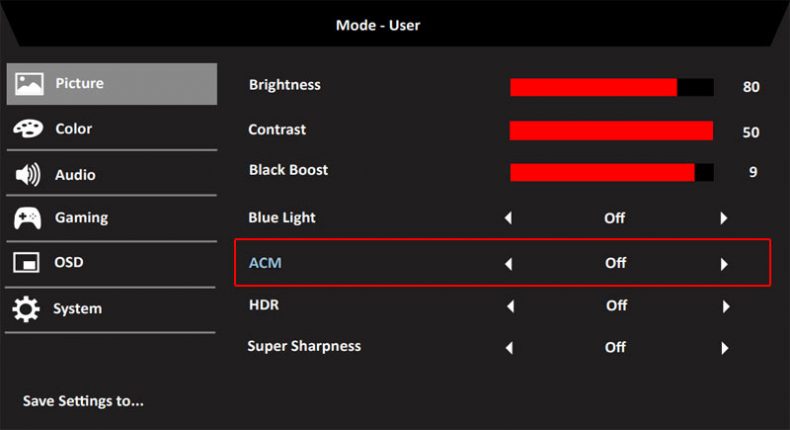
- Select “Picture” from the left navigation menu.
- Go to the right panel and navigate to “ACM.”
- Toggle the button on or off depending on if you want to activate the setting or deactivate it.
– Changing Contrast After Deactivating ACM
While ACM might be a useful feature that helps you save power , it doesn’t offer consistent contrast, which is why many people prefer to deactivate it. However, if you deactivate ACM while the contrast is too low or too high, you’ll definitely want to adjust it to suit your preference.
Here’s how to change the contrast on your Acer monitor:
- Click on the search icon beside your Windows Start menu and search for “Control Panel.”
- Select the first option on the search results list.
- Now, click on the “Display” icon, navigate to the “Settings” tab, and adjust the “Color Quality” by changing it to high from medium.
- Note that while high color settings provide the best quality, the medium setting provides good quality but saves battery.
- Once that’s done, you want to press the “e” button or the “Menu” button on your monitor to bring up your on-screen display settings.
- Choose “Picture” from the list of options and scroll to the “Contrast” setting.
- Now, adjust the contrast to your preference using your monitor’s side arrow buttons.
– Readjusting Brightness After Deactivating ACM
You can also readjust the brightness of your Acer monitor after deactivating the ACM feature. All you have to do is:
- Hold down the function or “Fn” button and the right arrow button at the same time to increase your screen’s brightness and hold down the left arrow button and the function key to reduce the brightness.
- Also, you can just press the “e” key or the “Menu” button on your monitor to activate its on-screen display.
- Choose “Picture” from the list of options and scroll to the “Brightness” setting.
- Lastly, use your monitor’s side arrow keys to adjust the brightness level to your desired preference.
– Gaming With ACM
Many gamers wonder whether or not they should leave the ACM setting on or off for gaming. Well, the right answer solely depends on your preferences .
If you’re sensitive to color or light and you prefer to adjust the brightness, color, and contrast of your display manually, then you may want to turn off the setting.
However, if your goal is to get the best contrast possible during gameplay, then leaving the setting on may prove to be beneficial.
The reason is that the ACM feature will force the monitor to adjust to the sharpness of the content being displayed. Note that while the color and contrast will change consistently, some situations, especially first-shooter games can benefit from the ACM feature.
– Watching Movies With ACM
We recommend that you turn off the ACM feature for movies . The constant picture adjustment may not allow you to get the best movie experience. It’ll be even worse if you’re watching fast-paced movies as constant contrast changes can make you experience artifacts, blur, and more.

– Adaptive Contrast Management vs. Super Sharpness
If ACM technology fine tunes Acer monitors’ brightness, color, and contrast, what is super sharpness monitor? The ACM technology and Super Sharpness technology are both utilized by Acer monitors and many people confuse them to mean the same thing.
These two features are indeed different from each other. While ACM technology deals with adjusting your display’s brightness, contrast, and color, depending on the displayed content, the Super Sharpness feature is all about making your pictures sharper, crispier, and more defined .
Most LCD monitors come with preset resolutions, which are often determined by the number of pixels or dots on the screen.
Each of these pixels or dots is designed with three sub- pixels, including one green, one red, and one blue. These sub-pixels are naturally too tiny for the human eyes to see when you look at them from a normal viewing distance.
The goal of Acer’s Super Sharpness feature is to adjust each of the individual sub-pixels, which, in turn, makes the text and edges displayed on the monitor to become clearer and sharper.
– Adaptive Contrast Managment vs. Visual Response Boost
Now, you know the difference between ACM and Super Sharpness, but what is VRB monitor? Visual Response Boost, otherwise known as VRB, is another technology utilized by Acer monitors. Unlike ACM that deals with color, contrast, and brightness, VRB aims to reduce motion blur so you can have a better gaming experience.
It’s essentially a tool that helps you reduce blur so you don’t get ghosting during gameplay. On the flipside, VRB adds black images between frames , which means that you are likely to get reduced brightness when you activate this feature.
Conclusion
That’s all on what is super sharpness on Acer monitor, what a monitor with ACM is, how to activate and deactivate ACM, as well as how to readjust your settings after deactivating ACM.
Here is a quick summary to make sure you have all you need to use an ACM Acer monitor:
- The ACM technology constantly and automatically adjusts the monitor’s brightness, colors, and contrast.
- ACM can be good for some games, especially fps games.
- Acer’s Super Sharpness technology tries to make your display sharper while ACM tries to increase the brightness and contrast instead.
- Acer VRB focuses on reducing motion blur.
Using a monitor with ACM technology for work and watching movies can be frustrating as your screen will constantly get contrast, color, and brightness refreshes for as long as the feature is on.
We recommend that you deactivate the ACM feature if you’ll be using your monitor to watch fast-paced movies or if you’re sensitive to light and colors.
ACM в мониторе — что это?
У вас тоже устают глаза после дня сидения перед монитором? Почему перед одним можно не напрягаясь сидеть сутками, а от другого через полчаса появляется ощущения «песка» в глазах? Ответим на эти вопросы, разберем что в мониторе так влияет на наши глаза.
Немного физиологии
Как диафрагма в фототехнике, отверстие зрачка изменяется в зависимости от степени освещённости. Это делают две группы мышц, отвечающие за расширение, расположенные радиально, сужающие, располагающиеся по окружности. Осуществляется это без нашего участия, на уровне рефлекса.
Напряжённые долгое время мышечные волокна быстро утомляются. Особенно это происходит при сильном свете, когда зрачок сужен. В темноте человек отдыхает, расслабляются глазные волокна. Но не стоит заставлять их работать в таких условиях – произойдёт быстрое утомление. При излишке или недостатке света рефлекторно происходит выделение слезы, учащается или замедляется частота моргания, напрягаются веки – это тоже влияет на быструю утомляемость.
Причины
Первая причина дискомфорта глаз зависит от неправильной организации рабочего места. Помните, как в школе, свет должен падать слева. Но реальные условия отличаются – так уж спланированы офисы.
Чтобы комфортно проводить время за компьютером, беречь глаза от излишних нагрузок, необходимо правильно настроить монитор. При производстве сильно завышаются параметры яркости и контраста, а пользователи, как правило, сразу кидаются в бой, не настраивают под себя. А настроить монитор просто.
Аппаратная настройка
ВАЖНО. Изучите рабочие кнопки. Не используйте метод «научного тыка», возьмите инструкцию. Это быстрее и эффективнее.
- Качествоизображения. С помощью картинок, расположенных ниже, оценим качество настройки – чем больше цифр различается, тем лучше. Запомните количество цифр, вы поймёте качество корректировки этого параметра.

- Яркость. Смотрим на картинку ниже. Настройка до тех пор, пока не станут различимы костюм, рубашка, крест на заднем плане.
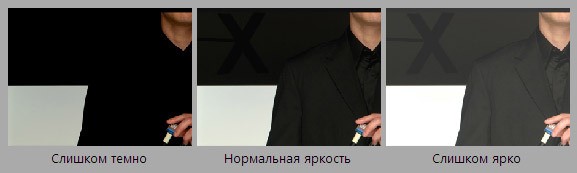
- Контрастность. Опять изображение. Должны различаться пуговицы и складки на рубашке. Установите параметр в ноль, постепенно увеличивайте бегунок, пока этого не добьётесь.
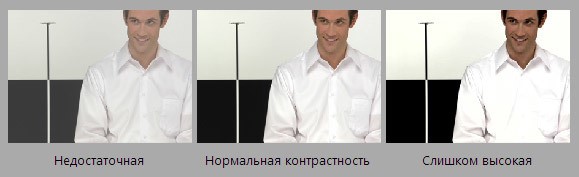
- Гамма. Идеально настроить, скорее всего, не получится, но под себя настроить стоит. После настройки в центре картинки должны исчезнуть светлые и тёмные пятна.

- Настраиваемсерый. С помощью настройки избавляемся от оттенков, искажающих картинку. Добиваемся регулировкой трёх основных цветов – красного, зелёного, синего. В результате должны быть только оттенки серого, ничего лишнего.

Программная настройка
Особо выделяется пункт меню — ACM (Адаптивная система управления контрастностью). «Фишка» компании Acer. С помощью неё улучшается детализация изображения. Происходит динамическая регулировка контрастности – для ярких объектов он темнее, чем тёмные – ярче. Изображение в любом случае получается наиболее чётким. Происходит анализ каждого кадра и настройка чёткости картинки. За счёт этого обеспечивается высокий уровень белого / чёрного. С помощью системы происходит экономия энергии, т. к. снижается потребление энергии самим монитором.
Итак, программная калибровка. Нажимаем кнопку «Пуск», в поиске забиваем «калибровка». Ищем, запускаем. Проходим ряд тестов по настройке.
РЕЗУЛЬТАТ. Возвращаемся к изображению с цифрами. После всех действий вы должны видеть, как минимум, на одну больше.