How to play DVD Video_TS folder files in Windows

Summary: Have you downloaded a movie but cannot play the DVD video_TS files on PC? No worries, in this post, learn how to play Video_TS on Windows 10 /11 and enjoy your movies on PC or laptop without any delay.
The movies downloaded from a website and DVD are saved in the video_TS folder, which contains the movie data and playback information. However, sometimes video_TS folder files don’t open, and you cannot watch the saved movie on your PC or laptop. If you’re facing a problem in playing DVD video_TS folder files, read this post further. It shares how to play video_TS folder files on Windows 11, Windows 10, or below using different methods.
Stellar Data Recovery
What does Video_TS mean?
Video_TS (Video Transport Stream) is terminology for a DVD folder that stores DVD movie data. When you insert a DVD to your PC to copy it on the system, the files are saved in the root folder of video_TS format. Besides, the video_TS folder is also created on your computer when you download a movie online on PC.
The video_TS folders contain 3 kinds of files,
- Video_TS.VOB, which holds video and audio data
- Video_TS.IFO, which contains video menus, subtitles, and chapters
- Video_TS.BUP is the backup of all the IFO files in the folder
Methods to play DVD Video_TS folder files on Windows — Best 4 methods
Only a few video players, such as VLC Media Player or Premier Pro, support the Video_TS folder format. Alternatively, you can convert video_TS files to popular MP4, WMV, AVI, MOV, or other formats to open in any other Windows media player.
Another solution to play the video_TS folder is to burn it onto a DVD, which you can connect and play on a laptop or DVD player.
Method 1: Use VLC Media Player to open Video_TS folder files on Windows
The widely used VLC Media Player supports DVD video file playback. If you don’t have it on your system yet, download the free open-source media player for Windows. Next, follow the below steps to play the DVD Video_TS folder files in VLC:
- Open VLC Media Player on Windows.
- Navigate to Media > Open Folder.
- Select the Video_TS folder and click on the Select Folder button.
- Click on the Play button to play the video.
Method 2: Use WinX DVD Ripper to convert and play video_TS folder files
Play DVD video_TS folder files on Windows by using WinX DVD Ripper software. The free DVD ripper lets you convert DVD video_TS folder files to MP4 (H.264/HEVC), AVI, WMV, MPEG, MOV, and other video formats. The converted video file is playable on Windows computers, Mac, HDTVs, smartphones, etc. You can also convert and play the video_TS files in Windows Media Player, QuickTime Media Player, and others. Besides, the DVD ripper also offers DVD backup, archive, sharing, and editing features.
WinX DVD Ripper is compatible with VIDEO_TS folder files from all types of DVDs, including 99-title protected DVDs, and old, unplayable, and new DVDs.
Here’s how you can play DVD video_TS folder files using WinX DVD Ripper:
-
on Windows 10 or below PC.
- Open WinX DVD.
- Click on +Folder on the home screen.
- Select to load the video_TS folder in the software. Choose the output profile (MP4, MPEG, or other) from the list to open the video_TS folder. Click OK. You may also select language, subtitle, and set video/audio parameters.
- Click Browse to add the destination folder to save the converted video file.
- Next, click on RUN button to start the DVD conversion.
- After the DVD ripping process finishes, you can play the converted DVD video_TS files in Windows media player, VLC, or other players on your computer.
Method 3: Use Adobe Premiere Pro to play DVD files on Windows
Adobe Premiere Pro is not just a video editing application, but you can use it to convert and play video files. The editing software supports the VOB container format used in DVD media.
Connect your Windows PC to the Internet to install Adobe Premiere Pro if you don’t have it. Before installing, make sure your PC meets the minimum system requirement to run Premier Pro. Next, launch the editing application. Then sign in and follow the on-screen instructions. If you are a new user, avail the 7-day free trial, which offers the full updated version of the app.
To open DVD Video_TS files in Adobe Premiere Pro:
- From the Premiere Pro toolbar, go to File > Import.
- From the File Explorer window, browse to DVD Video_TS folder files, click to open it.
You can open and play the DVD movie or video files without any interruption. Besides, with Premiere Pro, you can also easily convert DVD video files to MPEG, MP4, or other native video formats supported by any Windows player.
Method 4: Burn the Video_TS folder file to a new DVD
Use a DVD-burning software that supports DVD video writing. Burning the video_TS folder files to a blank disc helps to open and play its videos on Windows or macOS computers. Besides, it is also a quick option to archive or back up your valuable videos, as hard drives are not 100% reliable for the purpose.
You can download any secure DVD burning software online to burn the video_TS folder. You may try are WinX Ripper DVD, DVDFab DVD Creator, BurnAware Free, CDBurnerXP, DVDStyler, Wondershare DVD Creator, and others for this purpose.
Here are the general steps to burn video_TS folder on a blank DVD and play it on the computer:
- Insert the blank DVD-RW disc into your PC.
- Download and launch the DVD video burner tool on your Windows.
- Browse to load the DVD video_TS folder through the software interface. Some DVD burner tools allow you to drag and drop the files for burning.
- Select the ‘Burn’ option to copy video_TS folder files to DVD.
- After the burning process completes, eject the DVD and play it on any Windows PC or TV.
FAQ
1. How to play Video_TS files on Windows Media Player on Windows 10?
Windows Media Player doesn’t support video_TS files playback in Windows 10. You can convert video_TS files to MP4, WMV, or other supporting formats to play them in Windows Media Player on Windows 10 or 11.
2. How do I get Windows Media Player to play a DVD?
To play DVD in Windows Media Player, you should have a DVD drive and a compatible DVD decoder on your PC. When you insert the DVD to the computer’s DVD drive, it starts playing automatically. However, if it doesn’t play, open Windows Media Player. Then, go to the Library and click on the DVD name from the navigation pane to play the video.
3. Does Windows 11 have DVD-burning software?
Yes, the default Windows Media Player (WMP) of Windows 11 has a built-in DVD burning feature. You can burn DVD and CD by following the below steps on Windows 11:
- Open Windows Media Player.
- Click the Burn tab at the top-right corner.
- Select the Burn options button.
- Choose Data CD or DVD.
- Insert a blank DVD into your laptop DVD burner.
- Select the drive letter of the DVD burner under the connected drives’ folder.
- Open the video_TS folder files. Drag and drop the files to the Burn list in WMP.
- Click Start burn. The DVD burning process begins.
4. Which is the free DVD video_TS folder player software to open video_TS files?
Some of the top free DVD Video_TS folder player for Windows are VLC Media Player, Leawo Free Blu-ray Player, WinX DVD Ripper, KM Player, DVD Player-free, 5K Player, and others.
About The Author
Nishat Paiker is an expert technical writer and editor with over 8 years of experience. She has deep knowledge about data recovery and loves to explore new technology and DIY tools. Nishat has keen interest in photography. You will often find her giving photography tips and hacks.
Video ts чем открыть в windows 10
Sometimes, you can download one of the three types of files from the internet: VIDEO_TS.IFO, VIDEO_TS.BUP, and VIDEO_TS.VOB. Maybe you just know it is a kind of form but don’t know what kind of format it is and your media player is unable to play it on your PC. If so, you’re definitely being the right place. This article explains what the VIDEO_TS files are in detail and patiently guides you on how to play VIDEO_TS files on your Windows-powered computer smoothly.
What’s VIDEO_TS?
A VIDEO_TS file is a DVD folder file, mainly containing all data for the DVD movies. It totally contains three kinds of files inside: VIDEO_TS.IFO, VIDEO_TS.BUP, and VIDEO_TS.VOB.
VIDEO_TS.IFO — the configuration files with information like menus, subtitles, aspect ratio, languages etc.
VIDEO_TS.BUP — the backup copies of configuration files
VIDEO_TS.VOB — actual video and audio data for DVD content
How to Play VIDEO_TS on Windows PCs
It’s quite annoying to search for the solutions in either the communities or forums just to be painfully returned with results that’s not so useful. Fortunately, there are always solutions out there. To play VIDEO_TS files on your computer, you can choose to convert VIDEO_TS to a more common video files, or use third-party players that enables the playback of VIDEO_TS files. In this article, you’ll learn how to play VIDEO_TS on Windows using either of these two methods.
Solution 1: Convert VIDEO_TS to other formats
If you want to play VIDEO_TS files on any player or any device, you’d better convert VIDEO_TS to other video formats. To do that, you can adopt EaseFab Video Converter Ultimate for help. With it, you can your Video_TS files to almost all popular formats like WMV, MOV, MKV, AVI, MP4, FLV, MPG, WebM, etc. with excellent output quality. The program also provides many optimized presets for mobile devices, game consoles and more. After conversion, you can effortlessly play your Video_TS files on Windows PCs and anywhere else. Now let’s see how to use it.
※ For macOS 10.14 or lower, you can also download 32-bit installer here ↓
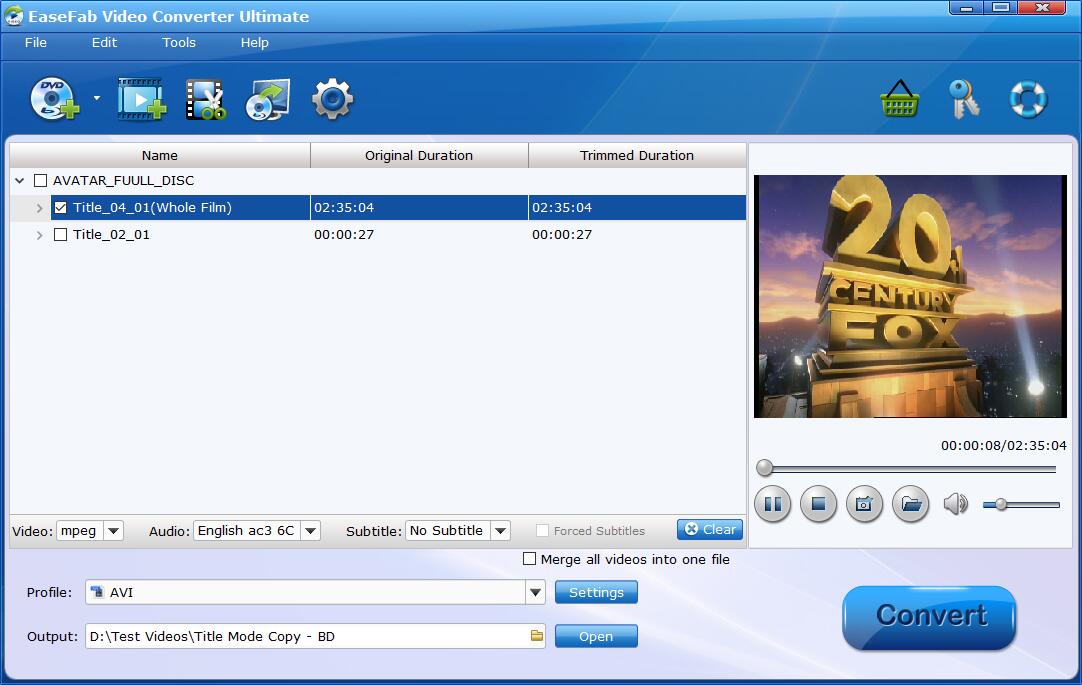
Step 1: Run the program and click «Load Disc» button to select and load the Video_TS folder to the program. As you can see, added files will be displayed on the left source pane and can be previewed on the right preview window. Though there are many titles in one Video_TS folder, usually you just need to choose the main title to rip.
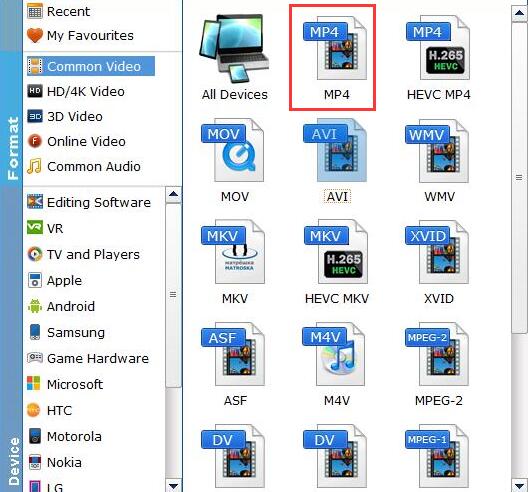
Step 2: Click «Profile» box and move mouse cursor to «Common Video» or «HD Video» category, select WMV, MP4, MKV, etc.
Step 3: Convert VIDEO_TS files by hitting the Convert button in the lower-right corner of this app.
Solution 2: Use VIDEO_TS Player
You can easily playback your VIDEO_TS file if you have a right VIDEO_TS player installed. VideoLAN (VLC Player) will be the best choices. This is one of the standard players for various people and there’s not a bought about it, VLC really brings some of the best video playback as it provides seamless support for multiple file types, including the VIDEO_TS format. With it, you can play all the media files in only one powerful media player. Now download this player and follow the steps below to play your VIDEO_TS file.

Step 1: Install the VideoLAN (VLC Player)
Step 2: Start VideoLAN (click Start -> Programs -> VideoLAN -> VLC Media Player)
Step 3: Click File -> Open Directory. Find the VIDEO_TS folder, select it and click OK.
Best Ways to Play Video_TS Files on Windows
Video_TS files are one of the main folders in a DVD’s contents, it contains main movies (.vob) and lots of system files (.ifo and .bup). If you have a Video_TS folder stored on your Windows computer’s hard drive, do you know how to play Video_TS on Windows? Just follow this article to find out the best solution.
As we know, the Video_TS folder contains all the video and data files ripped from a DVD, some regular video player apps can’t read and play it well. In order to view or play VIDEO_TS files On Windows(including Windows 10), one way is to have the best video player software that supports VIDEO_TS files playback, the other way is to convert VIDEO_TS files to playable format for media players. Now we will introduce top 2 ways to view VIDEO_TS files on your Windows computer without any hassle:
Solution 1: Convert VIDEO_TS to a common video format
To open and view play VIDEO_TS on Windows, you’d better convert your VIDEO_TS file to a compatible format for playback on your current player. Since Video_TS are actually DVD videos, to convert DVD Video_TS folder, you need to get a DVD file converter. Here we highly recommend Brorsoft Blu-ray Video Converter Ultimate, an all-in-one package tool for you.
With it, you can effortlessly get your work done in just a few clicks. It can help you convert VIDEO_TS to all popular video formats .wmv, .avi, .mp4, .mpg, .flv, .mkv, .mpg, .mov, etc. Besides converting DVD Video_TS files, it can also help you convert videos, DVD disc, Blu-ray disc, ISO/IFO files to a decent format you want. Now download the program and check out the steps below.
Read More:
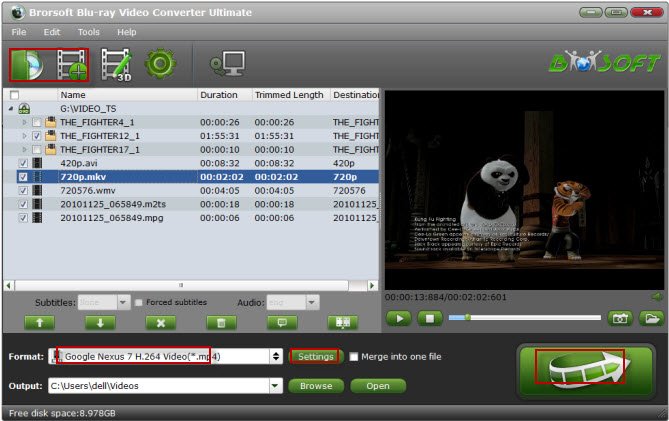
Step 1. Load VIDEO_TS files
Run the VIDEO_TS Converter and click «Load DVD» to import the VIDEO_TS files you want to convert.
Step 2. Choose output format
For playing Video_TS with Windows Media Player, Windows computer’s default video player, just convert the VIDEO_TS to WMV. Of course, you can choose to encode VIDEO_TS to avi, mp4, mkv, flv, etc
Step 3. Start VIDEO_TS video conversion
Hit the «Convert» button to start encoding VIDEO_TS files. After the conversion, you can play your VIDEO_TS files in your native player easily and smoothly.
Solution 2: Use VIDEO_TS Player
You can easily playback your VIDEO_TS files if you have a VIDEO_TS player installed. VideoLAN (VLC Player) will be one of your alternatives. Download this player and follow the below steps to player your VIDEO_TS files.
1. To play a copied/ripped DVD(VIDEO_TS files) from hard disk you can use VideoLAN (VLC Player).
2. Install it. Start VideoLAN (click Start -> Programs -> VideoLAN -> VLC Media Player)
3. Click File -> Open Directory. Find the VIDEO_TS folder, select it and click OK.
Please note, you have to copy all the ripped data to the right place. Create a VIDEO_TS folder and copy all the ripped files there.
Чем открыть файл TS
Привет друзья! В данной статье речь пойдет о формате файла TS и чем его открыть.
Файл с расширением .ts — это видео файл Video Transport Stream File. Данный формат используют для потокового видео, которое хранят на DVD дисках и сжимают при помощи кодека MEPG-2.
На диске, файлы в этом формате представляют набор отдельных компонентов: «moviename x.TS», где x — это порядковое числовое значение.
Чем открыть файл video формата с расширением TS?
На самом деле с этим форматом работает большинство современных медиапроигрывателей и редакторов видео.Нет смысла детально описывать каждый из них. Вот лишь небольшой список программ, которые работают на базе операционных систем Windows, Apple OS X, Linux. Также в список включены мультиплатформенные утилиты:
- GomPlayer;
- KMPayer;
- FFmpeg;
- AllPlayer;
- VideoLAN VLC media player;
- DAUM PotPlayer;
- PS3Muxer;
- Kodi.
Отдельно хотелось бы выделить новый медиацентр Kodi. Он обладает широчайшим функционалом и объединяет в себе проигрыватель, рекордер и конвертер.
Проигрыватель поддерживает практически все существующие форматы видео файлов и обладает всеми стандартными функциями, которые присутствуют в каждом плеере.
Конвертер также поддерживает большинство существующих форматов, что необычайно выгодно для преобразования видеофайлов с целью модификации и дальнейшего просмотра в смартфонах, планшетах и других переносных устройствах.
Рекордер служит для записи видео и звуковых файлов с вашего ноутбука или компьютера.
Еще один плеер, заслуживающий вашего внимания — ALLPlayer. Главная его особенность, которая также является основным преимуществом — воспроизведение аудио и видео, без непосредственной установки кодеков в систему управления — проигрыватель изначально оснащен ими.
Также нет необходимости распаковывать архивированные файлы — ALLPlayer демонстрирует информацию внутри архива. И еще одно преимущество, которое понравится любителям создавать подборки фильмов — плеер автоматически сохраняет обложки, дополнительную информацию и субтитры. Согласитесь, это невероятно удобно.