Google Таблицы и Python – подробное руководство с примерами.
В этом руководстве мы будем использовать пакет gspread из Python для чтения, записи и удаления данных из электронной таблицы Google с помощью всего нескольких строк кода.
Настройка подключения в Google Api Console.
Если вы уже сделали это, можете пролистать. Код на Python будет сразу после инструкции по подключению.
- Зайдите в Google API Console.
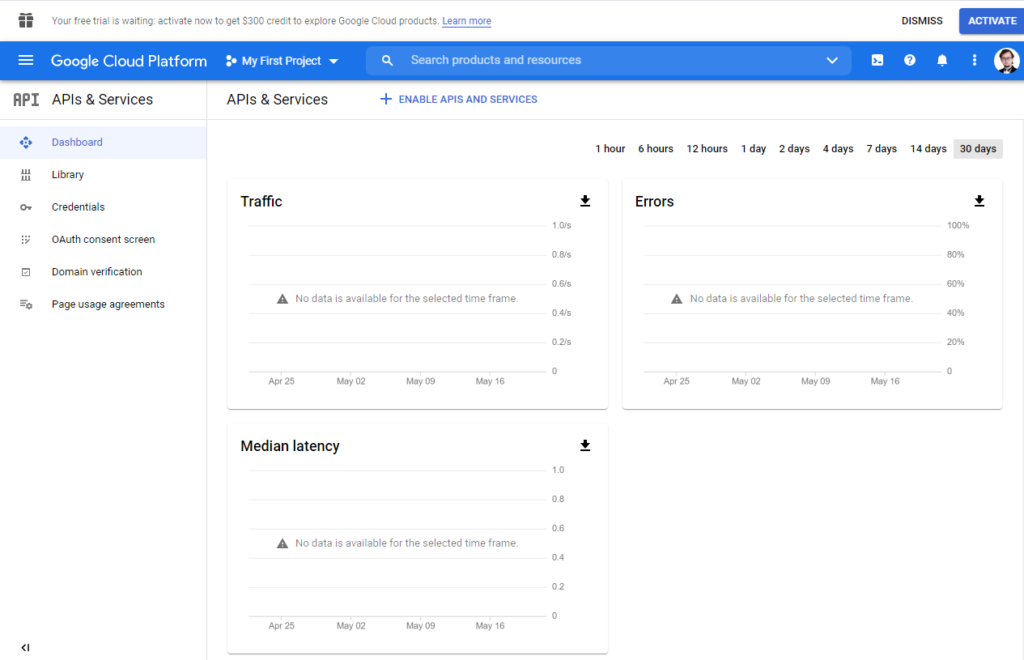
2. Создайте новый проект.
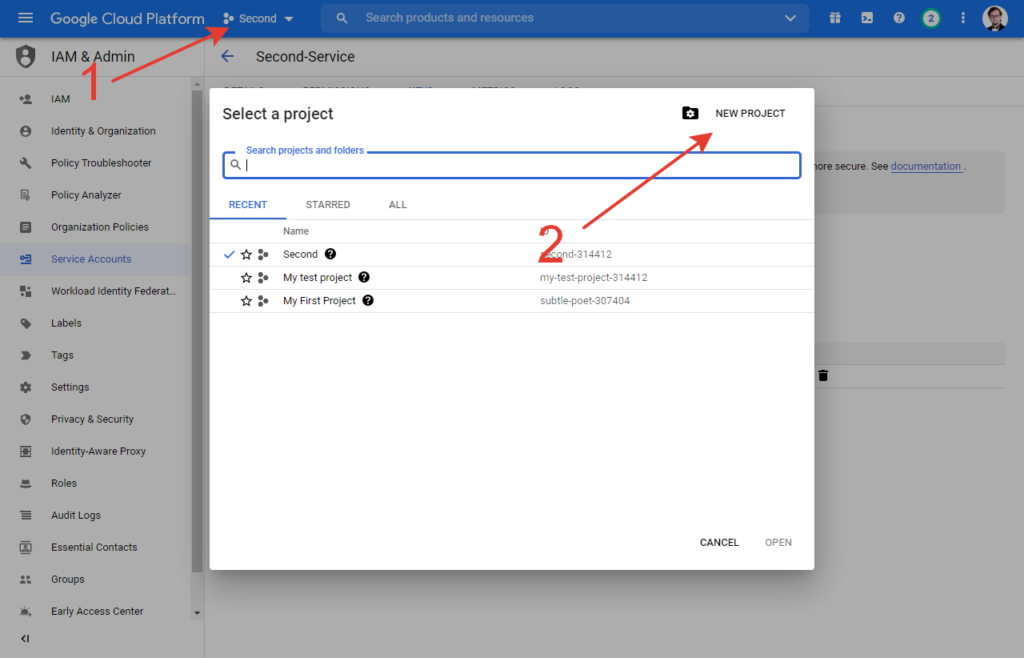 Нажмите на список проектов, затем NEW PROJECT
Введите имя проекта.
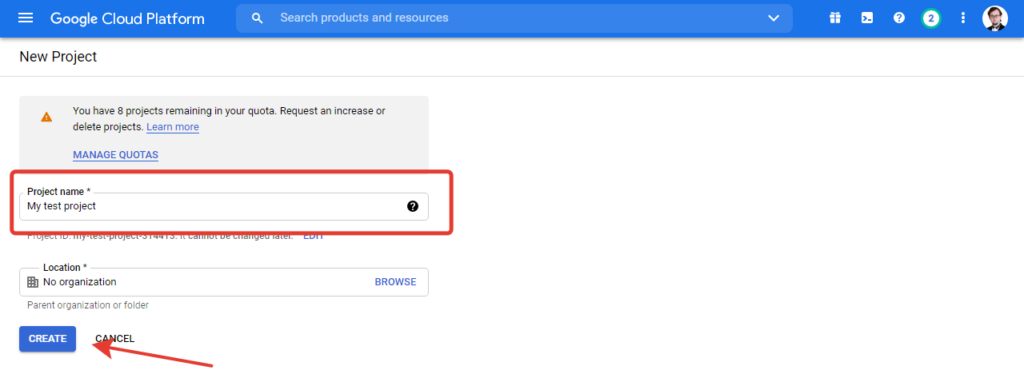 После ввода имени нажмите “Create”
Если у вас уже есть проекты, выберите только что созданный.
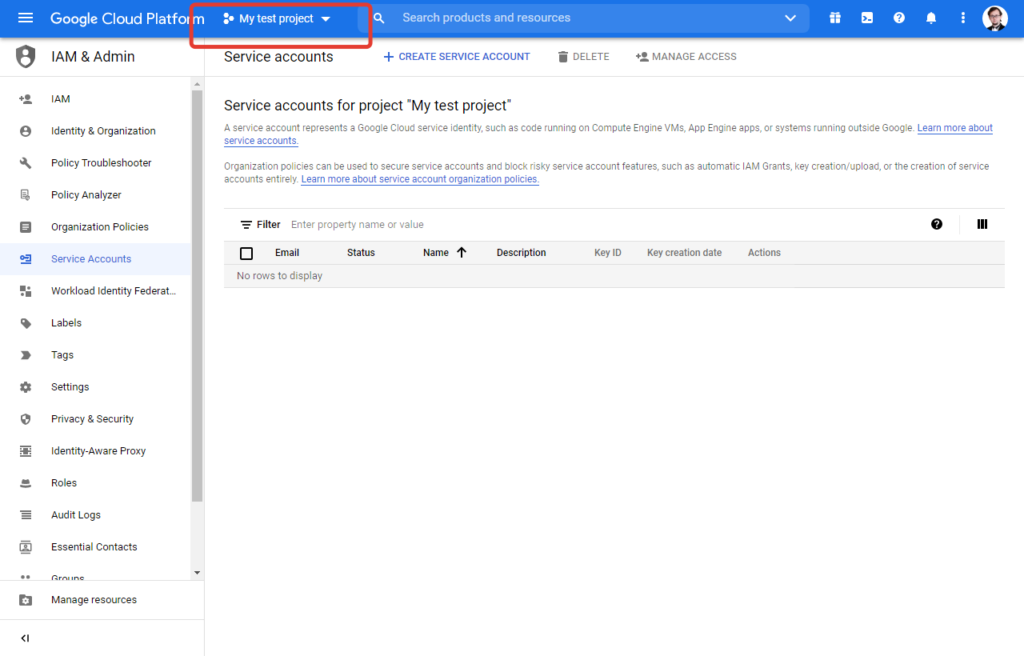 Для выбор кликните на названия проектов и из списка выберите нужный.
В меню слева выберите “Marketplace”
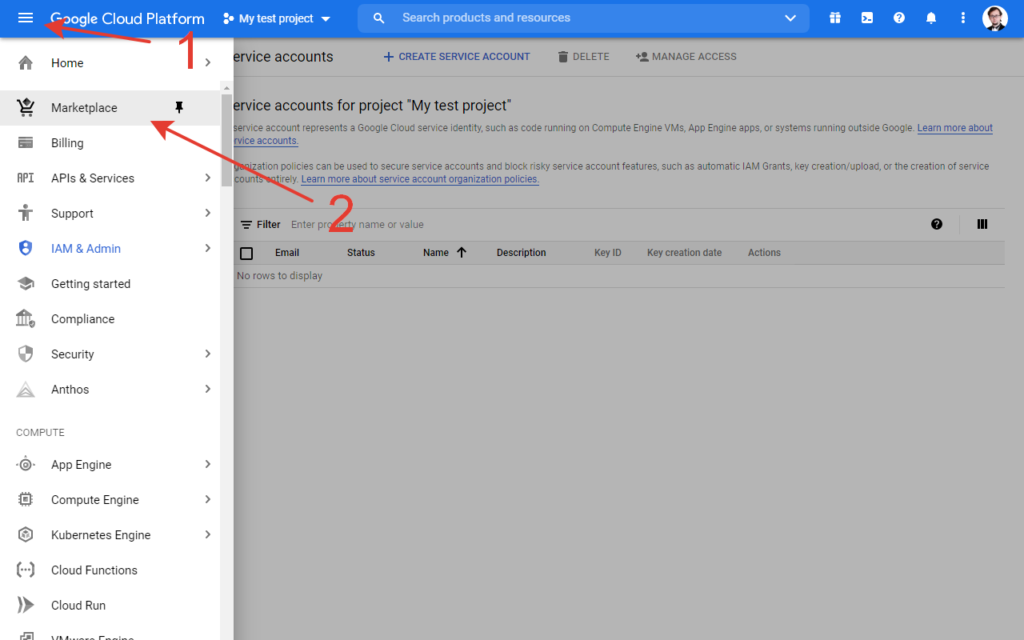
В поле поиска введите “Google Drive api” и нажмите на Enter.
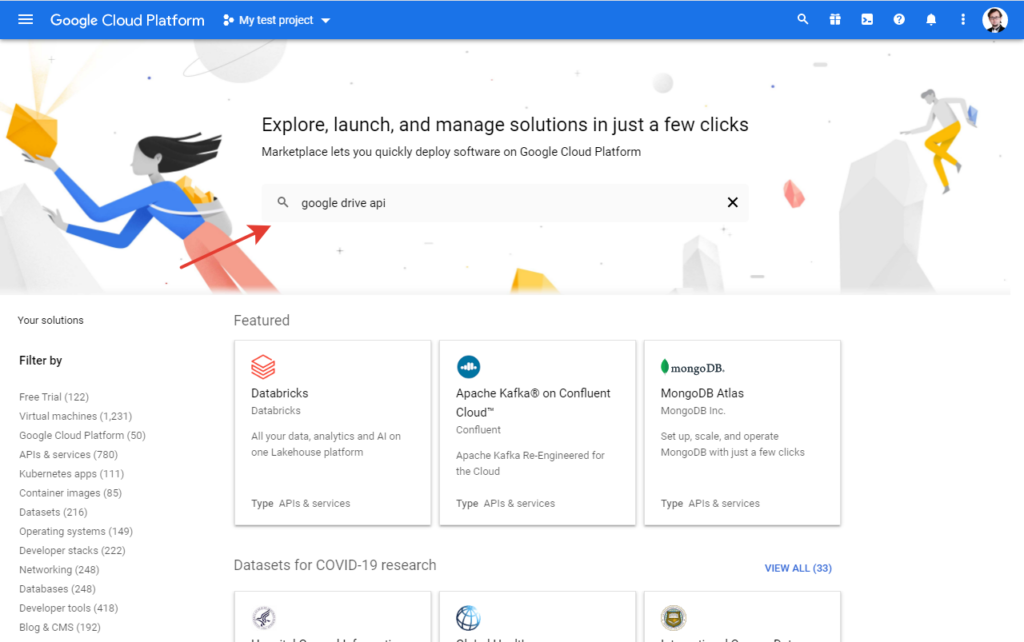
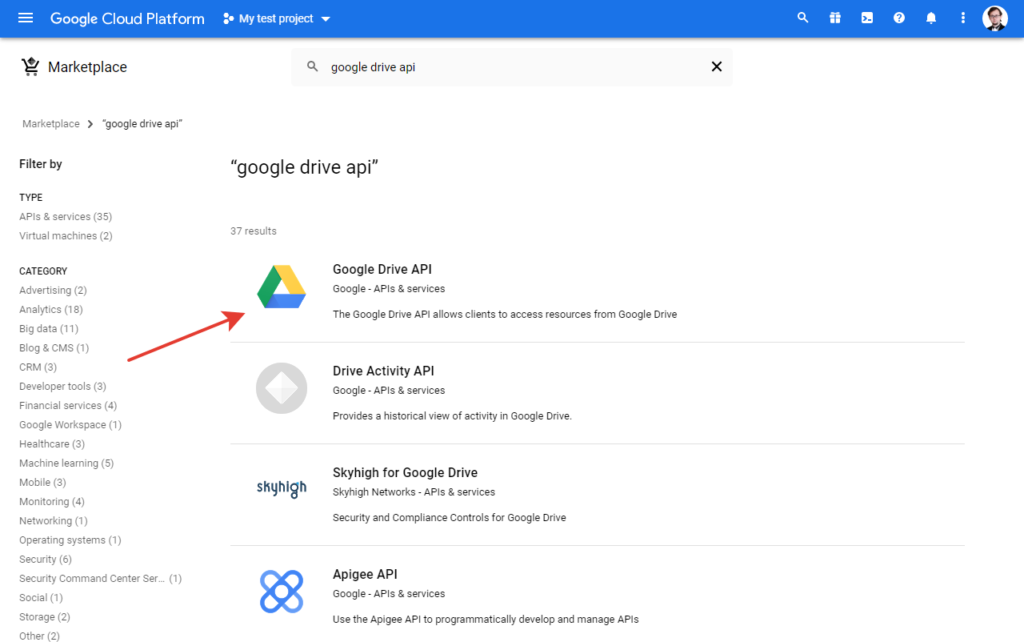
Кликните на Google Drive API
На открывшейся странице нажмите “Enable”.
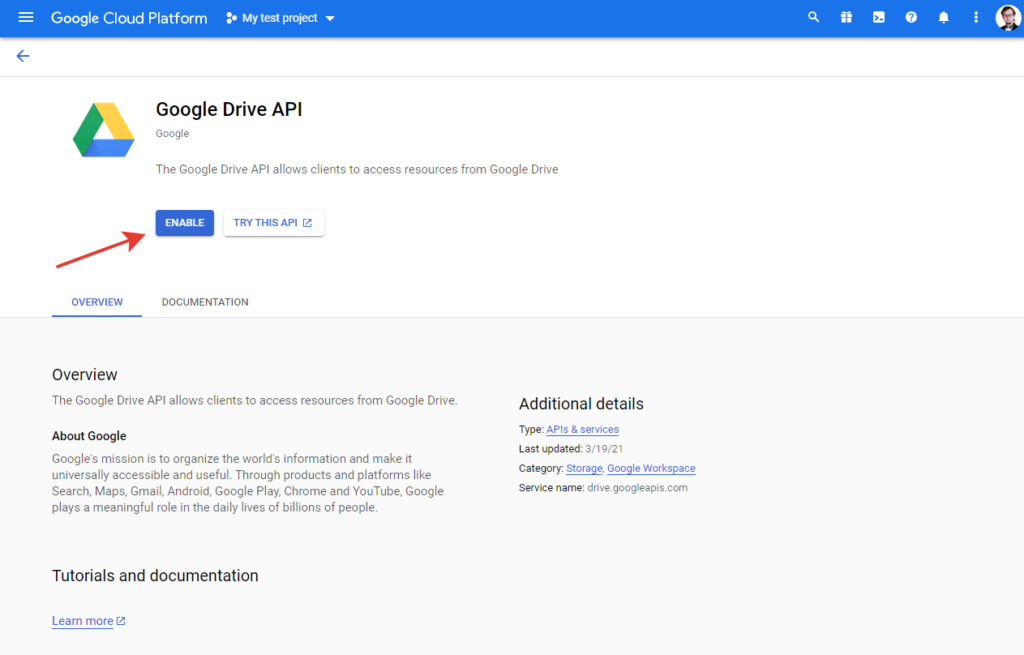
Повторите эти же шаги (начиная с момента, когда вы заходите в marketplace) но в поиске введите Google Sheets API, перейдите в него и нажмите Enable.
Затем зайдите в пункт меню “APIs & Services”.
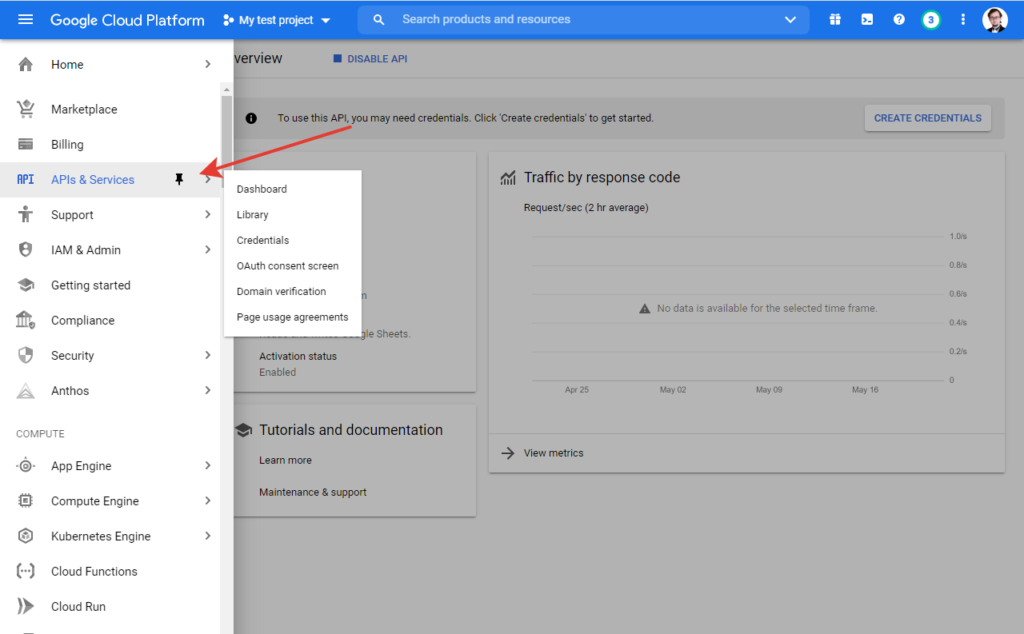
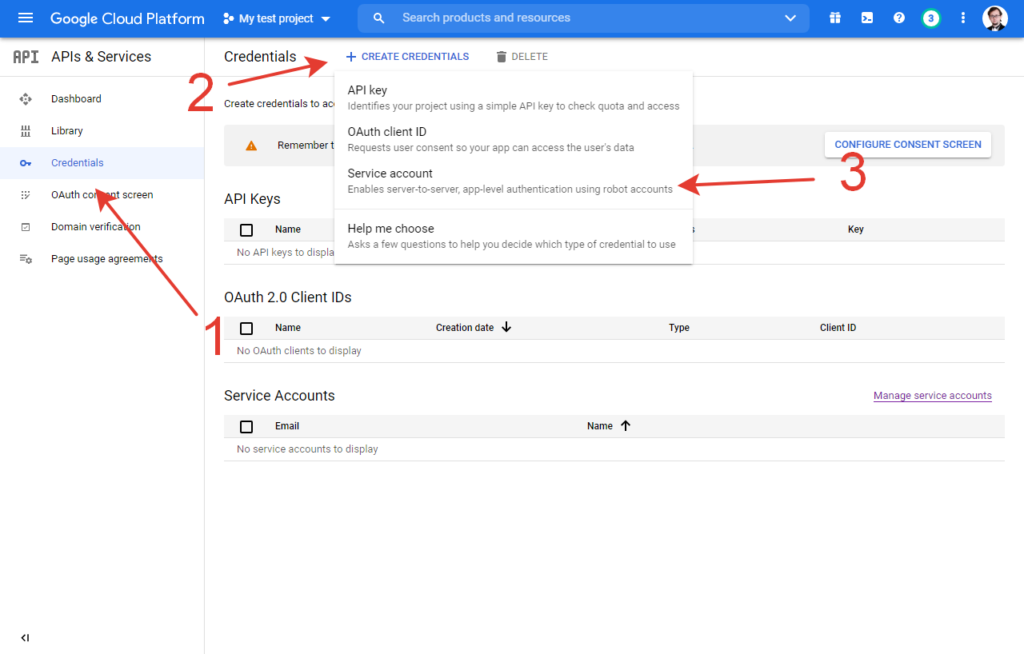
Слева в меню перейдите в “Credentials”. Нажмите на “Create Credentials”, в открывшемся меню выберите пункт Service account.
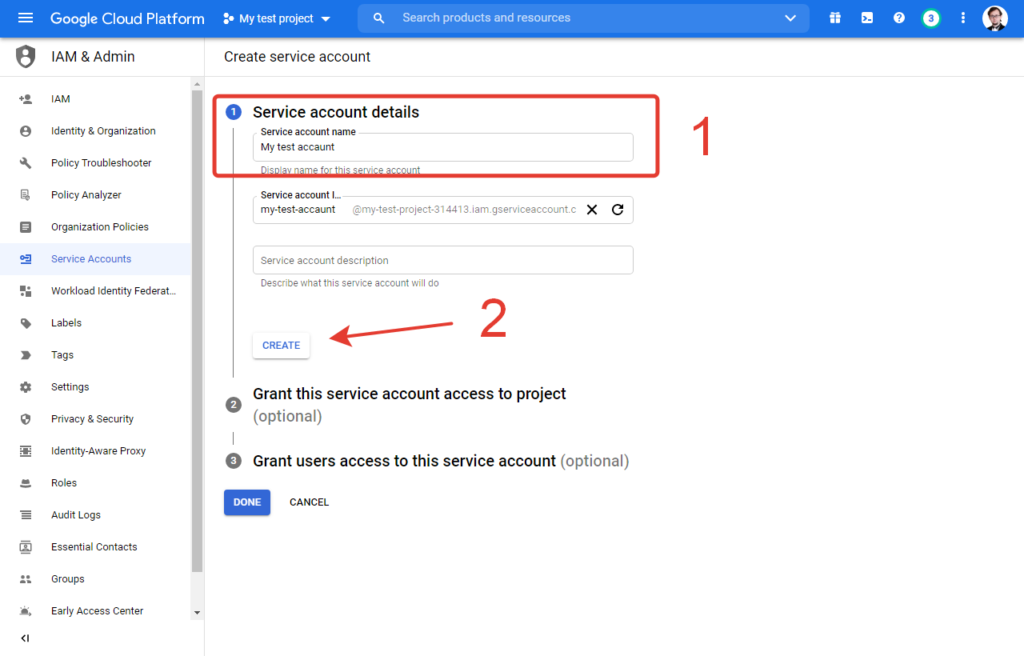
Откроется страница создания аккаунта. Введите имя и нажмите “Create”
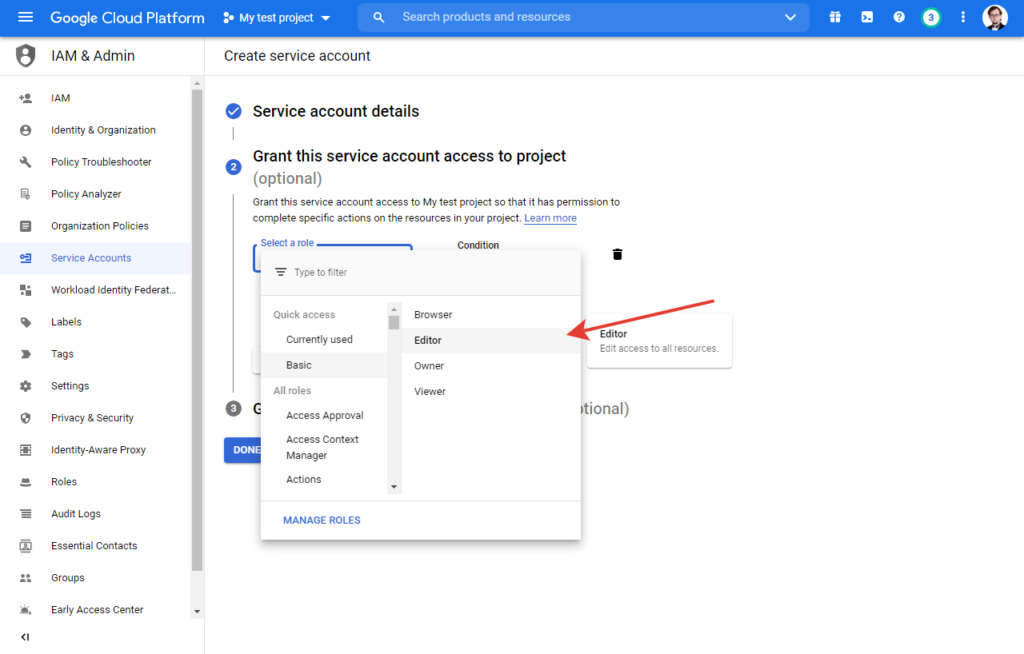
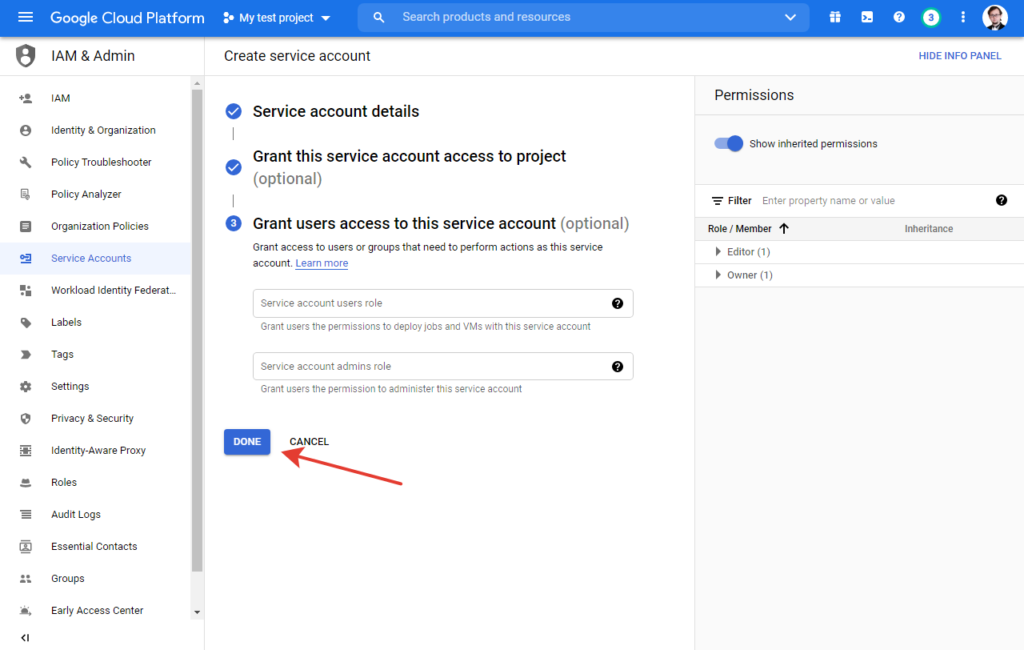
В поле “Select Role” выберите “Editor”. Затем нажмите Continue.
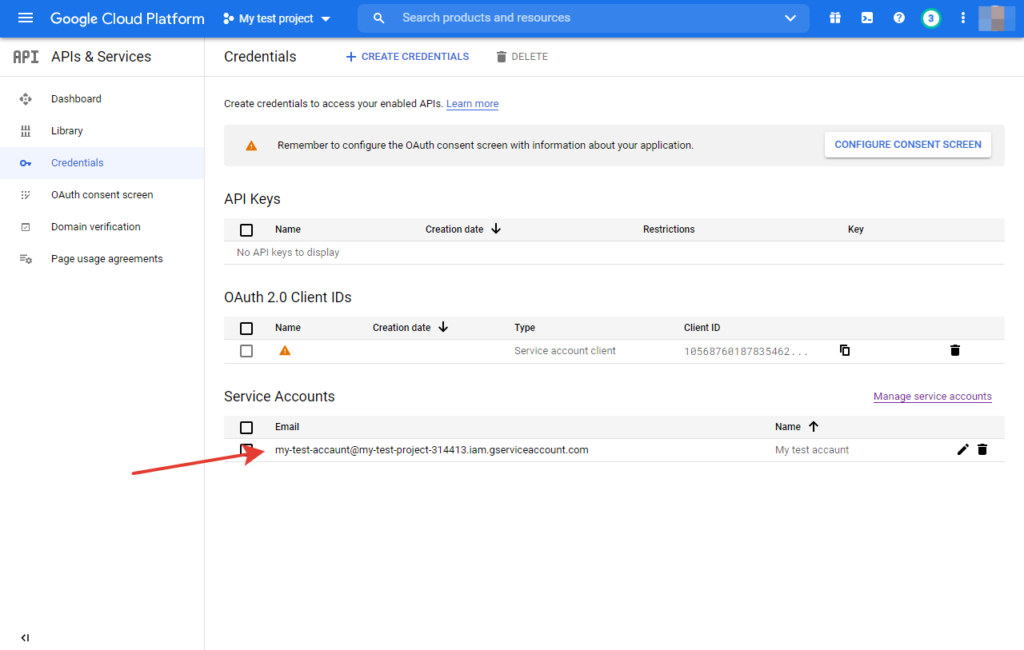
Кликаем на только что созданный аккаунт.
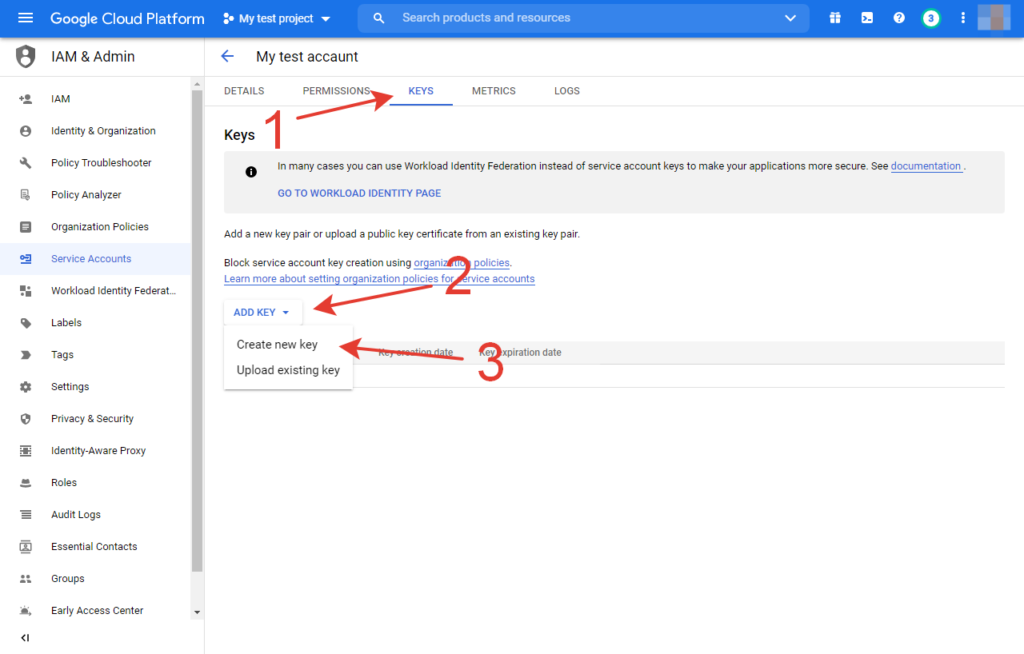
Переходим во вкладку KEYS. Жмем на ADD KEY. В появившемся меню выбираем Create new key.
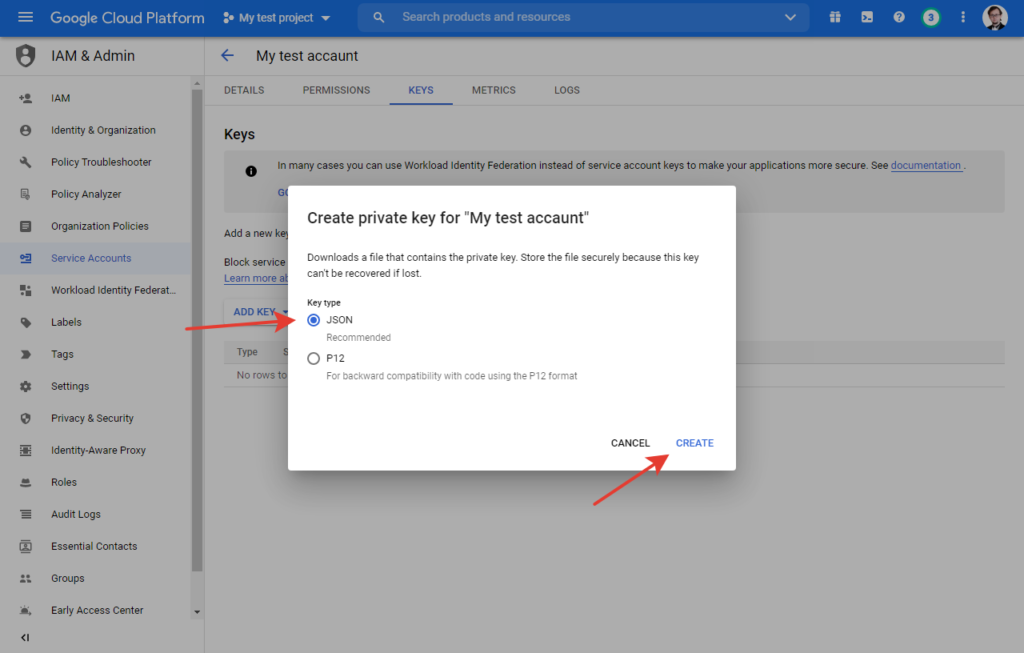
Выбираем JSON и жмем CREATE.
Скачиваем json файл на свой компьютер.
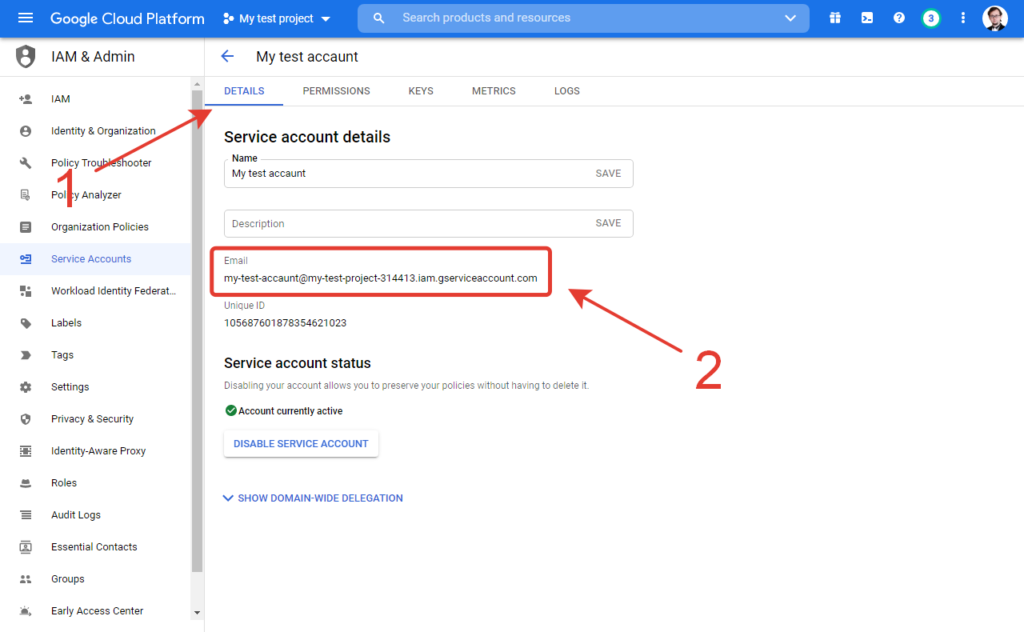
Переходим во вкладку Details, копируем Email.
Переходим в таблицу, к которой у вас будет доступ. Жмем “Настройки доступа”, вводим скопированный Email и жмем “Готово”.
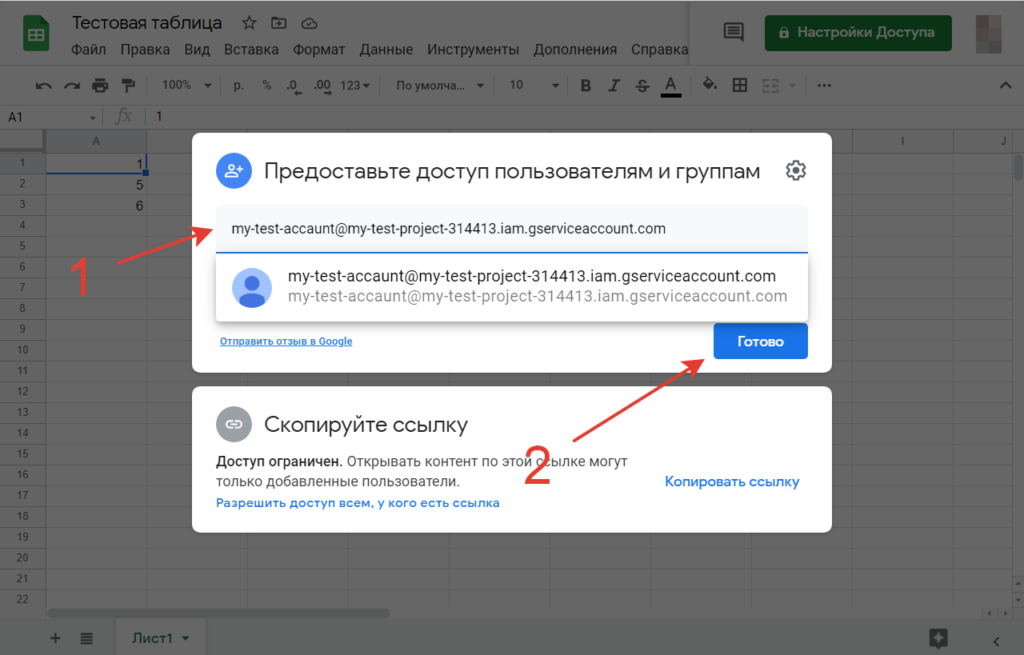
После этого вам будет предложено выбрать роль, выберите “Редактор”.
Файл json вы можете загрузить в любую папку, доступ к нему можно будет прописать в коде.
Подключение gspread в Python
Сначала вам нужно установить gspread. Это можно сделать командой:
Импортируем библиотеку, получим и выведем ячейку из “Тестовой таблицы”.
Далее рассмотрим методы для работы с таблицами.
Методы работы с google таблицами в Python с использованием gspread
Открытие электронной таблицы
Вы можете открыть электронную таблицу по ее названию, как она отображается в Документах Google:
Если вы хотите точно определить, используйте ключ (который можно извлечь из url электронной таблицы):
Или, если вам лень извлекать этот ключ, вставьте url всей электронной таблицы
Создание электронной таблицы
Используйте create() для создания новой пустой таблицы:
Если вы используете служебный аккаунт, новая электронная таблица будет видна только этому аккаунту. Чтобы получить доступ к только что созданной электронной таблице из Google Sheets с помощью собственного аккаунта Google, вы должны поделиться ею со своей электронной почтой.
Совместное использование электронной таблицы
Если ваша электронная почта ivan@site.com, вы можете поделиться созданной электронной таблицей с самим собой:
Выбор рабочего листа
Выбор рабочего листа по индексу. Индексы рабочих листов начинаются с нуля:
Или по названию:
Или самый распространенный случай: Sheet1:
Чтобы получить список всех рабочих листов:
Создание рабочего листа
Удаление рабочего листа
Получение значения ячейки
Используя формат A1:
Или координаты строк и столбцов:
Если вы хотите получить формулу ячейки:
Получение всех значений из строки или столбца
Получить все значения из первой строки:
Получить все значения из первого столбца:
Получение всех значений из рабочего листа в виде списка списков
Получение всех значений из рабочего листа в виде списка словарей
Поиск ячейки
Найти ячейку, соответствующую строке:
Найти ячейку, соответствующую регулярному выражению
Поиск всех совпадающих ячеек
Найти все ячейки, соответствующие строке:
Найти все ячейки, соответствующие регулярному выражению:
Объект ячейки
Каждая ячейка имеет значение и свойства координат:
Обновление ячеек
Используя формат A1:
Или координаты строк и столбцов:
Форматирование
Вот пример базового форматирования.
Установим для текста A1:B1 полужирный формат:
Окрасим фон диапазона ячеек A2:B2 в черный цвет, изменим горизонтальное выравнивание, цвет текста и размер шрифта:
Второй аргумент format() – это словарь, содержащий поля для обновления.
gspread
Please make sure to take a moment and read the Code of Conduct.
Ask Questions
The best way to get an answer to a question is to ask on Stack Overflow with a gspread tag.
Report Issues
Please report bugs and suggest features via the GitHub Issues.
Before opening an issue, search the tracker for possible duplicates. If you find a duplicate, please add a comment saying that you encountered the problem as well.
Contribute code
Please make sure to read the Contributing Guide before making a pull request.
Python quickstart
Quickstarts explain how to set up and run an app that calls a Google Workspace API.
Google Workspace quickstarts use the API client libraries to handle some details of the authentication and authorization flow. We recommend that you use the client libraries for your own apps. This quickstart uses a simplified authentication approach that is appropriate for a testing environment. For a production environment, we recommend learning about authentication and authorization before choosing the access credentials that are appropriate for your app.
Create a Python command-line application that makes requests to the Google Sheets API.
Objectives
- Set up your environment.
- Install the client library.
- Set up the sample.
- Run the sample.
Prerequisites
To run this quickstart, you need the following prerequisites:
- Python 3.10.7 or greater
- The pip package management tool .
- A Google Account.
Set up your environment
To complete this quickstart, set up your environment.
Enable the API
In the Google Cloud console, enable the Google Sheets API.
Authorize credentials for a desktop application
- In the Google Cloud console, go to Menu menu >APIs & Services >Credentials.
Install the Google client library
Install the Google client library for Python:
Configure the sample
-
In your working directory, create a file named quickstart.py .
Include the following code in quickstart.py :
Run the sample
In your working directory, build and run the sample:
The first time you run the sample, it prompts you to authorize access:
- If you're not already signed in to your Google Account, you're prompted to sign in. If you're signed in to multiple accounts, select one account to use for authorization.
- Click Accept.
Authorization information is stored in the file system, so the next time you run the sample code, you aren't prompted for authorization.
You have successfully created your first Python application that makes requests to the Google Sheets API.
Next steps
Except as otherwise noted, the content of this page is licensed under the Creative Commons Attribution 4.0 License, and code samples are licensed under the Apache 2.0 License. For details, see the Google Developers Site Policies. Java is a registered trademark of Oracle and/or its affiliates.
How to Connect Python to Google Sheets
Depending on your skillset, you can spend hours every day trying to extract data from multiple sources and then copying and pasting it into Google Sheets before even beginning to analyze the data. It would be nice if you could run a simple script that would automate the process of extracting the data, uploading it to Google Sheets. This will allow you to focus on using the data for decision making, thereby saving time and reducing the risk of introducing errors into your data.
Aside from interacting with Google Sheets via the web and mobile interface, Google provides an API for performing most of the operations that can be done using the web and mobile interfaces. In this post, we have laid out a step-by-step approach of how to use Python with Google sheets.
The motivation for using Python to write to Google Sheets
Python is a general purpose programming language that can be used for developing both desktop and web applications. It is designed with features that support data analysis and visualization, which is the reason why it is often the de facto language for data science and machine learning applications.
If you use Python with Google Sheets, it is easy to integrate your data with data analysis libraries, such as NumPy or Pandas, or with data visualization libraries, such as Matplotlib or Seaborn.
The no-code alternative to using Python for exporting data to Google Sheets
In today’s business world, speed plays a key role in being successful. Speed entails automation of everything including entering data into a spreadsheet. When you automate repetitive tasks, such as reading and writing to Google Sheets, you can reach functional and operational efficiency. If your business uses Google Sheets and you rely on data from various sources, consider using Python to automate your data transfer. However, this will require coding skills.
If you are not tech-savvy enough to use Python, you can go with a no-code solution, such as Coupler.io. It lets you import data into Google Sheets, Excel, or BigQuery from multiple sources including Pipedrive, Jira, BigQuery, Airtable, and many more. Besides, you can use Coupler.io to pull data via REST API, as well as from online published CSV and Excel files, for example, from Google Drive to Excel.
The best part is that you can schedule your data imports whenever your want.

Check out more about the Google Sheets integrations available with Coupler.io.
Is there a way to upload Python data into Google Sheets?
There are a number of ways to get Python code to output to Google Sheets.
- Using the Python Google API client
- Or using pip packages such as:
- Gsheets
- Pygsheets
- Ezsheets
- Gspread
For the purpose of this post, we will be using the Python Google API client to interact with Google Sheets. Check out the following guide to learn the steps to complete.
Connect Python to Google Sheets
In order to read from and write data to Google Sheets in Python, we will have to create a Service Account.
A service account is a special kind of account used by an application or a virtual machine (VM) instance, not a person. Applications use service accounts to make authorized API calls, authorized as either the service account itself or as Google Workspace or Cloud Identity users through domain-wide delegation.
– Google Cloud Docs
Creating a service account
- Head over to Google developer console and click on “Create Project”.
- Fill in the required fields and click on “Create”. You will be redirected to the project home page once the project is created.
- Click on “Enable API and Services”.
- Search for Google Drive API and click on “Enable”. Do the same for the Google Sheets API.
- Click on “Create Credentials”
- Select “Google Drive API” as the API and “Web server” (e.g. Node.js, Tomcat, etc.) as where you will be calling the API from. Follow the image below to fill in the other options.
- Name the service account, then grant it a “Project” role with “Editor” access and click on “Continue”.
- The credentials will be created and downloaded as a JSON file. If everything is successful, you will see a screen similar to the image below.
- Copy the JSON file to your code directory and rename it to credentials.json
How to enable Python access to Google Sheets
Armed with the credentials from the developer console, you can use it to enable Python access to Google Sheets.
Prerequisite:
This tutorial requires you to have Python 3 and Pip3 installed on your local computer. To install Python, you can follow this excellent guide on the Real Python blog.
Create a new project directory using your system’s terminal or command line application using the command mkdir python-to-google-sheets . Navigate to the new project directory using cd python-to-google-sheets

Create a virtual Python environment for the project using the venv module.
venv is an inbuilt Python module that creates isolated Python environments for each of your Python projects.
Each virtual environment has its own Python binary (which matches the version of the binary that was used to create this environment) and can have its own independent set of installed Python packages. The two commands below will create and activate a new virtual environment in a folder called env .

Next, install Google client libraries. Create a requirement.txt file and add the following dependencies to it.
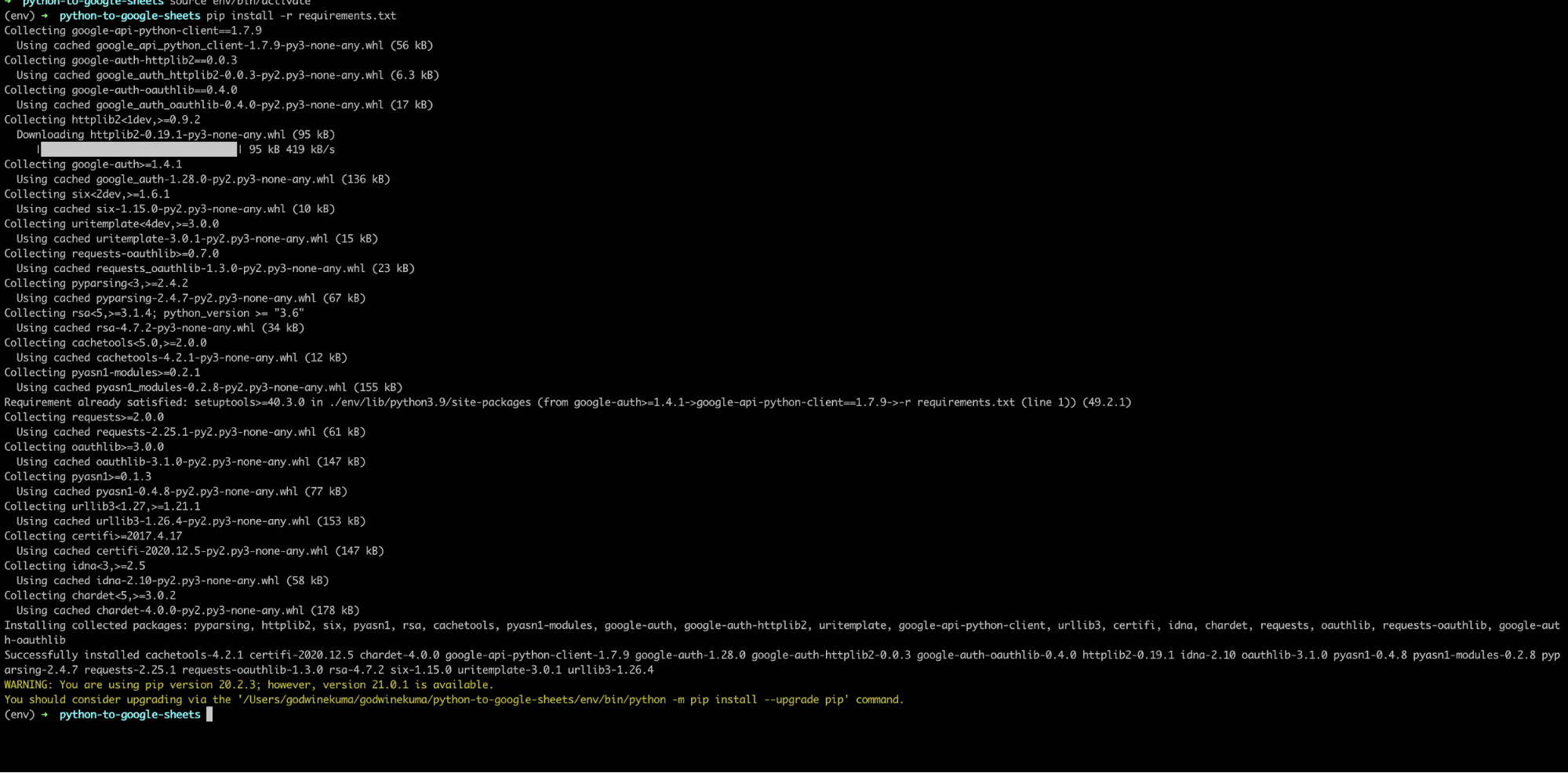
Run pip install -r requirements.txt to install the packages.
Create an auth.py file and add the code below to the file.
The code above will handle all authentication to Google Sheets and Google Drive. While the sheets API will be useful for creating and manipulating spreadsheets, the Google Drive API is required for sharing the spreadsheet file with other Google accounts.
How to use Python with Google Sheets
Python to Google Sheets – create a spreadsheet
To create a new spreadsheet, use the create() method of the Google Sheets API, as shown in the following code sample. It will create a blank spreadsheet with the specified title python-google-sheets-demo.
You have just created your first Google Sheets file with Python using a service account and shared it with your Google account.
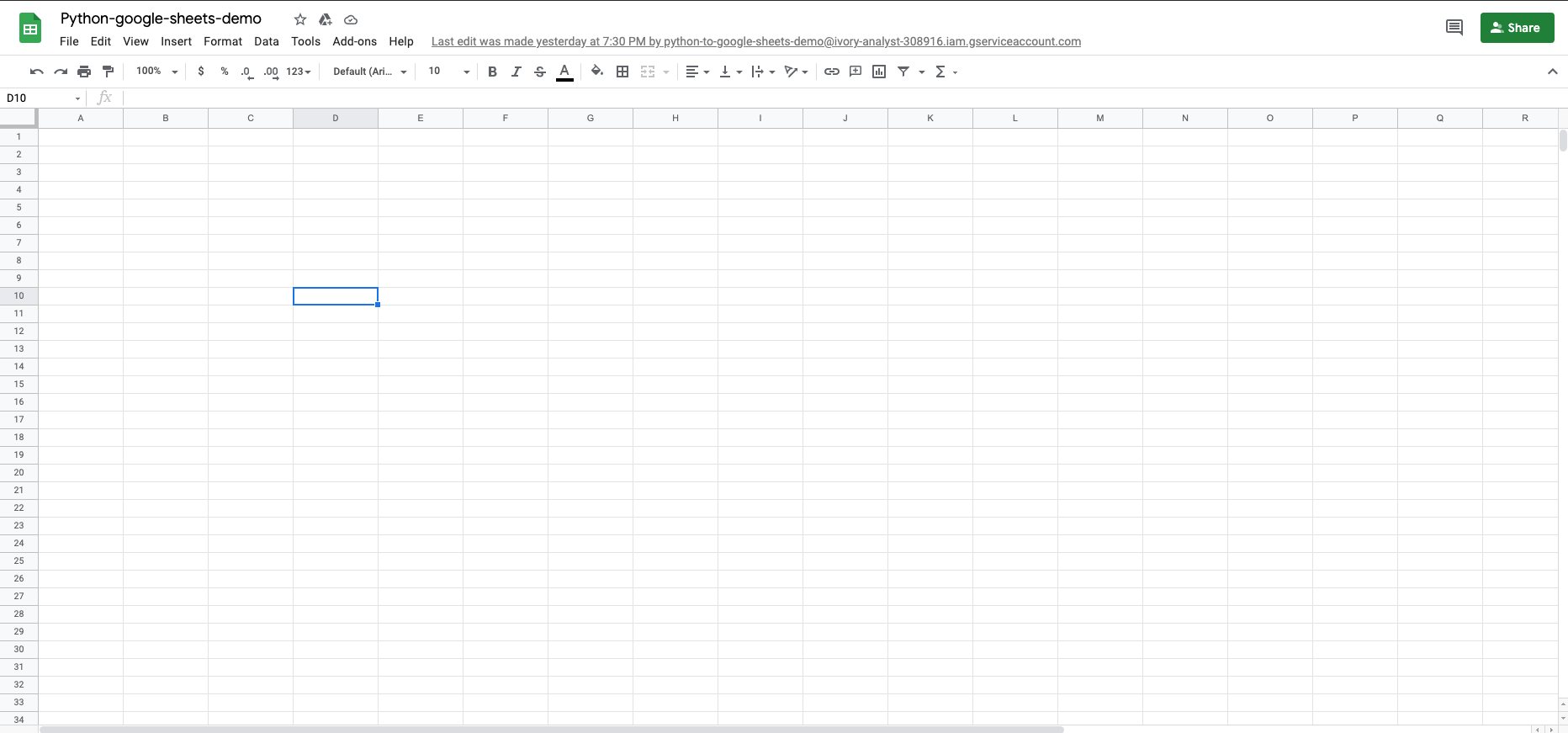
The service account is different from your own Google account, so when a spreadsheet is created by the service account, the file is created in the Google Drive of the service account and cannot be seen in your own Google Drive. The Drive’s permission API has been used to grant access to your Google account or any other account that you want to view the sheet with.
How to write to Google Sheets using Python
You have created a new spreadsheet, but it does not have any data in it yet. The Google Sheets API provides the spreadsheets.values collection to enable the simple reading and writing of values. To write data to a sheet, the data will have to be retrieved from a source, database, existing spreadsheet, etc. For the purpose of this post, you will be reading data from an existing spreadsheet Sample Data for Modeling Google Spreadsheet Budget and then outputting it to the python-google-sheets-demo spreadsheet that we created in the previous step.
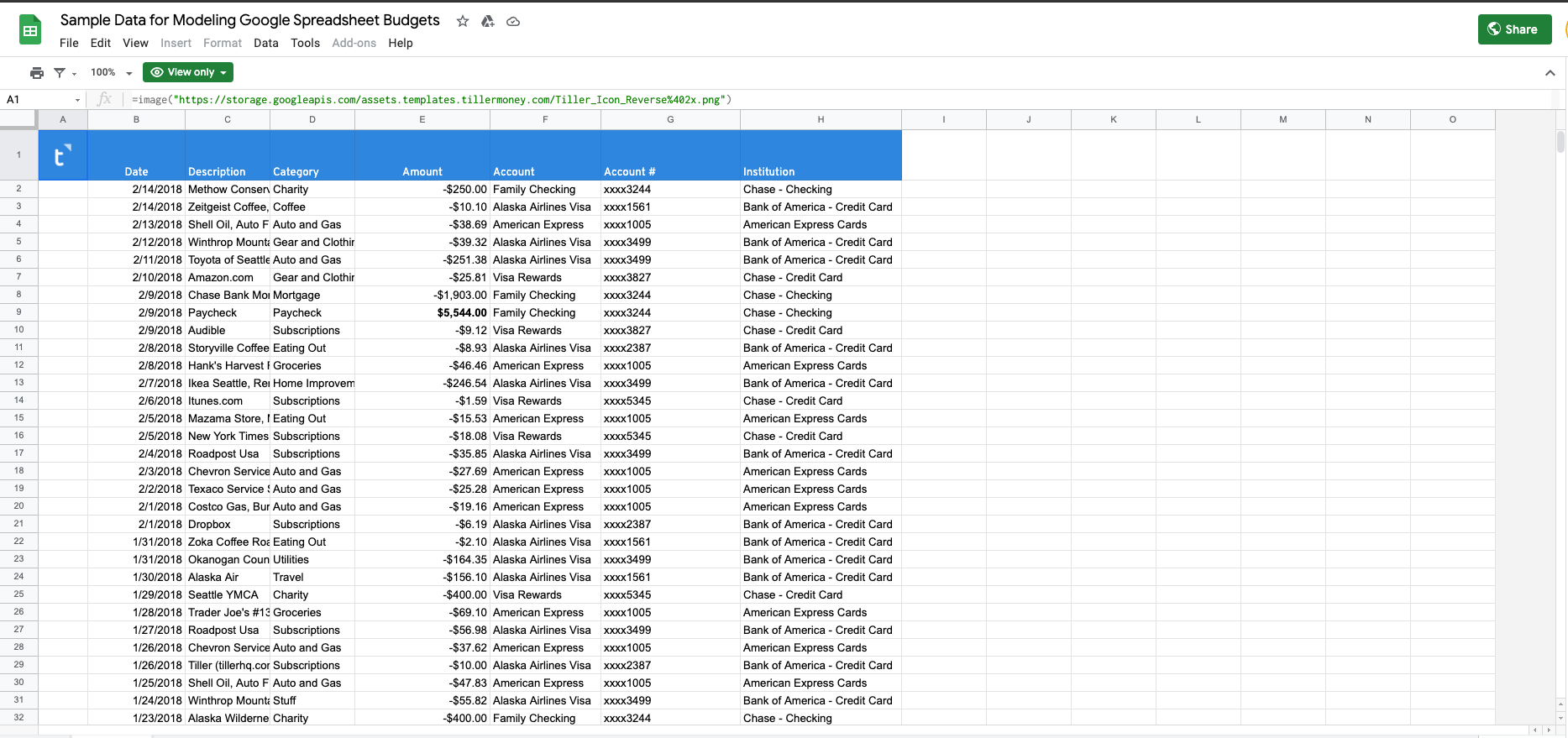
How to publish a range of data to Google Sheets with Python
The spreadsheets.values collection has a get() method for reading a single range and an update() method for updating a single range. The get() accepts the spreadsheet ID and a range (A1 Notation) while the update() accepts additional required body and valueInputOption arguments:
- body is the data you wish to write to Google Sheets
- valueInputOption describes how you want the data to be formatted (for example, whether or not a string is converted into a date).
Send Python data to Google Sheets script
This code reads the first row ( Sheet1!A1:H1 ) of the sample spreadsheet and writes it to the python-google-sheets-demo spreadsheet.

Export multiple ranges to Google Sheets with Python
You previously updated only the first row of the demo sheet. To fill in the other cells, the code below will read multiple discontinuous ranges from the sample expense spreadsheet using the spreadsheets.values.batchGet method and then write those ranges to the demo sheet.

Append list to Google Sheets with Python
You can also append data after a table of data in a sheet using the spreadsheets.values.append method. It does not require specifying a range as the data will be added to the sheet beginning from the first empty row after the row with data.
Python script to export Excel to Google Sheets
Already have an Excel sheet whose data you want to send to Google Sheets? That is also possible with Python. Here is the sample Excel worksheet we have:
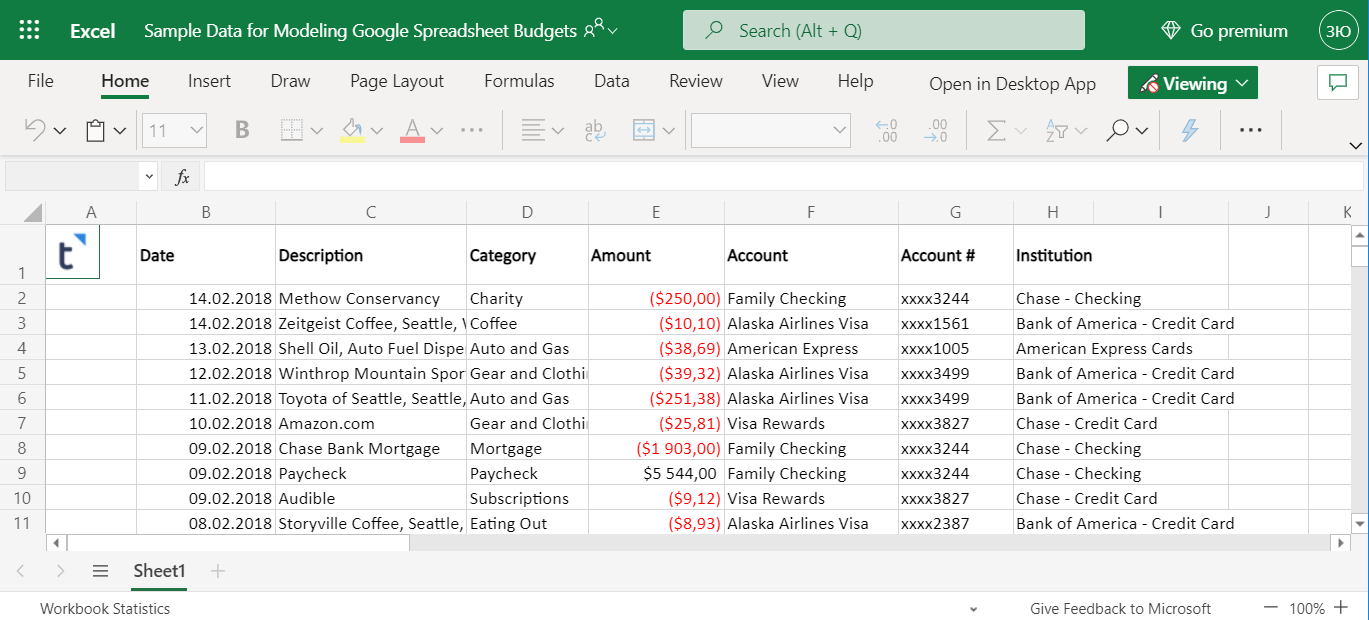
You can read some of the data there and add it to the existing Google Sheets document.
First, add pandas==1.2.3 and openpyxl==3.0.7 as new dependencies in your requirement.txt and re-run pip install -r requirements.txt to install the packages.
Now add the code below into the sheets.py file.
This will extract the data from the Excel sheet beginning from row 63 and then add it to the Google Sheets file.
Push Pandas dataframe to Google Sheets with Python
Exporting Pandas dataframe to Google Sheets is as easy as converting the data to a list and then appending it to a sheet. The code below sends a Pandas dataframe to Google Sheets.
How fast can Python load data to Google Sheets?
With automation, your data can be in Google Sheets in a matter of 2-5 seconds! Of course, you will have to spend time writing the initial code, but after that, everything will be on auto pilot.