Что такое Smart App Control в Windows 11 и почему вы должны его включить

Мы хорошо осведомлены о вредоносных программах и проблемах безопасности в Windows, как и Microsoft. Чтобы решить давнюю проблему, Microsoft придумала нечто, называемое Smart App Control (SAC). Если вам интересно, что такое Smart App Control в Windows 11, то это функция безопасности на основе искусственного интеллекта, которая интеллектуально блокирует ненадежные и неизвестные приложения. Это также предотвращает запуск нежелательных программ и рекламного ПО на вашем ПК, которые вызывают замедление работы или отображают слишком много рекламы. Итак, если вы хотите включить Smart App Control в Windows 11, давайте пройдемся по нашему подробному руководству.
Интеллектуальное управление приложениями в Windows 11 (2022 г.)
В этом руководстве мы объяснили Smart App Control в Windows 11 и добавили шаги для включения SAC. Вы можете развернуть таблицу ниже и перейти в нужный раздел.
Что такое Smart App Control (SAC) в Windows 11?
Smart App Control — это новая функция безопасности в Windows 11, которая стала частью обновления Windows 11 2022 (сборка 22H2). Он предназначен для блокировки ненадежных и нежелательных приложений в Windows 11, даже если ваш сторонний антивирус или система безопасности Windows отключены. Если вам интересно, как это работает, на этот раз Microsoft использует свою интеллектуальную облачную службу безопасности, чтобы предсказать, безопасно ли запускать приложение на вашем ПК или нет.
Во-первых, он проверяет приложение с помощью ИИ (облачной службы) на наличие вредоносного поведения. Если служба обнаружит, что приложение безопасно для запуска, она разрешит выполнение программы. Если облачная служба не сможет принять конкретное решение или обнаружит красный флажок, Smart App Control проверит наличие действительной подписи. Если приложение подписано и подпись окажется достоверной, SAC разрешит ему работать, в противном случае программа будет заблокирована. Это основная предпосылка Smart App Control в Windows 11.
Кроме того, в Smart App Control есть режим оценки. Первоначально SAC работает в режиме оценки, чтобы определить, подходите ли вы для того, чтобы всегда включать SAC. Если вы являетесь разработчиком или работаете в корпорации, и если SAC слишком сильно вам мешает, режим оценки отключит SAC, чтобы вы могли работать без каких-либо помех. Однако в течение периода оценки, если обнаружится, что вы, вероятно, запускаете вредоносное ПО и вирусы, SAC будет оставаться включенным.
Как включить интеллектуальное управление приложениями в Windows 11
1. На ПК с Windows 11, на котором запущена сборка 22H2, нажмите клавишу Windows и найдите «умное приложение». Теперь откройте «Smart App Control» из результатов поиска.
2. Откроются настройки SAC в разделе «Безопасность Windows». Здесь нажмите «Настройки Smart App Control».
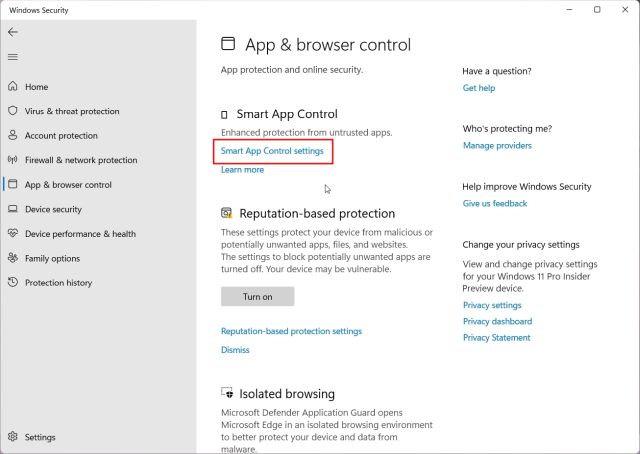
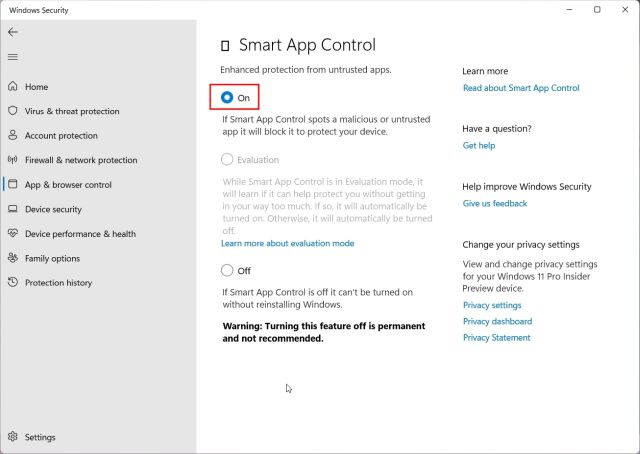
3. Теперь вы можете включить Smart App Control, но я предлагаю использовать режим «Оценка». Это будет учиться на вашем использовании и включать Smart App Control, не беспокоя вас слишком много о каждом ненадежном приложении. В моем тестировании SAC очень агрессивен при постоянном включении.
Примечание. Если параметр SAC выделен серым цветом и недоступен на вашем ПК с Windows 11, перейдите к шагу № 5.
Как отключить Smart App Control в Windows 11
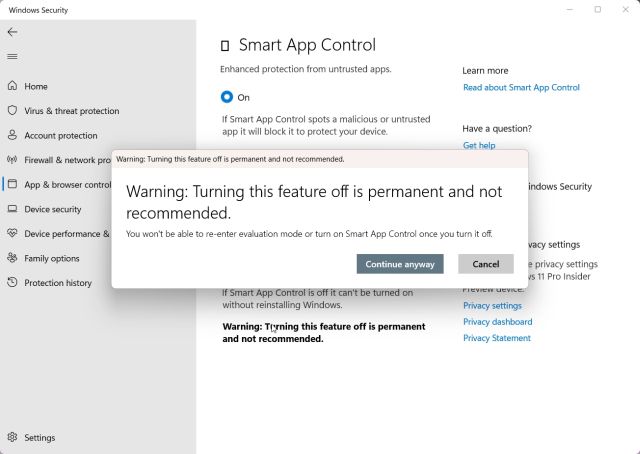
4. Если вы хотите отключить Smart App Control в Windows 11, вы можете сделать это, но помните, что после его отключения вы не сможете снова включить эту функцию, если не выполните новую переустановку обновления Windows 11 22H2. . Поэтому рекомендуется оставить SAC включенным на вашем ПК. То же самое относится и к режиму оценки.
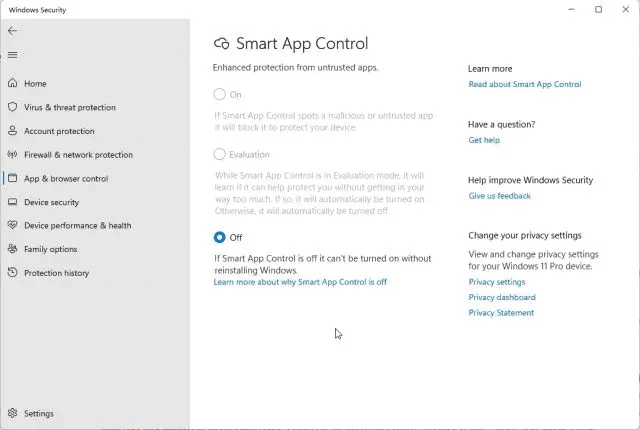
5. Если SAC отключен и вы не можете его включить, это связано с тем, что для этой функции требуется новая установка. Более того, те, кто обновился до сборки Windows 11 22H2 через Центр обновления Windows, также не могут включить SAC. Да, это большая просьба выполнить новую установку сборки Windows 11 22H2, чтобы включить функцию безопасности, но если вам нужна всесторонняя защита на вашем ПК, вы можете сбросить Windows 11 через облако, чтобы получить последнюю сборку. После этого SAC будет включен по умолчанию.
Часто задаваемые вопросы
Могу ли я обойти Smart App Control для отдельных приложений?
Microsoft подтверждает, что нет возможности обойти Smart App Control для отдельных приложений. И вы не сможете установить это приложение до тех пор, пока не отключите SAC на своем ПК с Windows 11. Кроме того, лучшим решением было бы связаться с разработчиком и предложить ему использовать действительную подпись для своих приложений.
Заменяет ли Smart App Control ваше антивирусное программное обеспечение в Windows?
Нет, Smart App Control не заменяет ваше антивирусное программное обеспечение. SAC работает вместе с другим вашим программным обеспечением для обеспечения безопасности, таким как Microsoft Defender, чтобы обеспечить дополнительную защиту на ваших устройствах с Windows 11.
Блокируйте угрозы и ненадежные приложения с помощью SAC в Windows 11
Вот и все, что вам нужно знать о Smart App Control и о том, как его использовать на компьютере с Windows 11. Как я упоминал выше, функция безопасности весьма полезна и избавит многих пользователей от запуска вредоносных программ на их ПК. Впрочем, это все от нас. Пока мы этим занимаемся, ознакомьтесь с лучшим бесплатным антивирусом для Windows 11, чтобы обеспечить безопасность и защиту ваших компьютеров от всевозможных угроз. Кроме того, вы можете найти лучшие настройки конфиденциальности для Windows 11 в нашей связанной статье. И если у вас есть какие-либо вопросы, сообщите нам об этом в разделе комментариев ниже.
How to use Smart App Control on Windows 11 2022 Update
Windows 11 gets a new feature to protect your computer against unwanted apps, and here’s how to set it up.
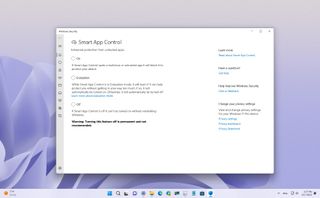
- Enable SAC
- Disable SAC
The Windows 11 2022 Update (version 22H2) comes with Start App Control (SAC). This new security feature has been designed to lock down the computer to allow only programs signed with a valid certificate or known to be trusted.
Smart App Control aims to block malicious and untrusted applications that may cause unwanted behaviors, such as showing advertisements, slowing down computer performance, or installing unsolicited software.
When you enable the feature, as you run an application, Smart App Control will check the digital certificate to verify the developer’s identity and confirm that the app hasn’t been tampered with by someone else. Also, it will use the Microsoft cloud-powered technology service to predict if the app is safe or not based on many signals.
If, after checking the app, the security feature can’t make a prediction or the signature is not valid, it’ll be considered untrusted and will be blocked.
This guide will walk you through the steps to enable and disable Smart App Control on your Windows 11 (version 22H2) computer.
How to enable Smart App Control on Windows 11
Smart App Control is only available on new devices or clean installations of Windows 11 version 22H2 because, according to Microsoft, it’s the only way to guarantee that the computer is not using any untrusted application.
If you want to check whether the feature is available, you can use the Windows Security app. If SAC isn’t available, you will have to reinstall Windows 11 by doing a clean install or using the recovery settings to reset the system to the factory defaults.
Check whether the feature is available
To determine if Smart App Control is available on your computer, use these steps:
- Open Start.
- Search for Smart App Control and click the top result to open the app.
- Confirm the Smart App Control status.
If none of the options are greyed out, then you may be able to enable the feature. However, if you can’t select any of the options or the feature is off by default and the other options are greyed out, you will need to go through the reinstallation process.
In the case that the feature is already in «Evaluation» mode, allow the system to continue to run the monitoring and determine if your computer is a good candidate to use Smart App Control.
Reset the computer to default settings
Before proceeding, it’s important to note that even though this process will preserve your files, it’s still a good idea to back them up. Also, the reset process will remove your settings and delete your apps.
To reinstall Windows 11 to make Smart App Control available, use these steps:
- Open Settings.
- Click on System.
- Click the Recovery page on the right side.
- Under the «Recovery options» section, click the Reset PC button.
- Select the Keep my files option.
- Select the Local reinstall option.
- Click the Next button.
- Click the Reset button.
After you complete the steps, the system will reinstall Windows 11 (version 22H2), keeping your files. Once on the desktop again, don’t install any applications. Instead, proceed to enable Smart App Control with the steps below.
Enable Smart App Control
To enable Smart App Control on Windows 11 version 22H2, use these steps:
- Open Start.
- Search for Smart App Control and click the top result to open the app.
- Select the Evaluation option.
After you complete the steps, Smart App Control will run automatically without blocking anything to monitor and learn to determine if the feature will work on your computer.
The system will turn on the feature automatically if the device can use it, meaning if the Smart App Control determines that it won’t break your workflow often.
On the other hand, if the evaluation doesn’t return favorably, meaning if the feature detects that it will generate a lot of interruptions, negatively affecting the experience, then the system automatically turns off Smart App Control.
Also note that sometimes developers, advanced users, and other types of users may perform tasks with legitime apps that will trigger Smart App Control very often. If this is the case during the evaluation, the feature won’t turn on.
After the evaluation, if the feature turns on automatically, you won’t be able to run the evaluation mode unless you reinstall Windows 11 again. Also, if the feature then blocks an application, you won’t be able to get around the block unless you turn off the feature, in which case, to enable it again, you will need to reinstall the operating system.
If you don’t want to run the evaluation mode, you can enable «Smart App Control» directly. However, it’s not a good idea since the feature may not work as expected, causing a lot of interruptions that can negatively affect the experience.
How to disable Smart App Control on Windows 11
If you plan to disable Smart App Control, consider that you won’t be able to re-enable it. This is to ensure a secure experience. Otherwise, the system won’t be able to tell if the device already has an untrusted application. In the future, you will need to reinstall the operating system to enable it again.
To disable Smart App Control on Windows 11, use these steps:
- Open Start.
- Search for Smart App Control and click the top result to open the app.
- Select the Off option.
Once you complete the steps, the feature will turn off on the device. Again, you won’t be able to enable Smart App Control until you reinstall the operating system.
Although Smart App Control is a convenient feature, it’s not for everyone. If you’re a developer or an advanced user, you will probably be doing actions and running apps that the feature will be considered untrusted. If this is your case, SAC may not be for you. On the other hand, if you are an average Joe or you’re on a business computer, you may benefit from the extra layer of protection using this feature.
Also, the feature is not an antivirus replacement. Instead, Smart App Control runs alongside Microsoft Defender Antivirus to add an extra layer of protection.
Finally, if you can’t find this feature, you are not running the version of Windows 11 that supports it or are not using your device in a supported region since Smart App Control is currently only available in North American and European regions.
More resources
For more helpful articles, coverage, and answers to common questions about Windows 10 and Windows 11, visit the following resources:
Get the Windows Central Newsletter
All the latest news, reviews, and guides for Windows and Xbox diehards.
By submitting your information you agree to the Terms & Conditions and Privacy Policy and are aged 16 or over.
Turn On Or Off Smart App Control In Windows 11
If you are a student, then this post is especially for you. In this article, we will be discussing steps to enable or disable Smart App Control in Windows 11.
Content
- What is Smart App Control?
- How does it work?
- How to enable or disable SAC?
- What is the need?
- Conclusion
Smart App Control
Smart App Control is a new feature being rolled out to PCs enrolled in Microsoft Insider Program that also protects users from malware, and new and emerging threats, including blocking apps that are malicious or untrusted.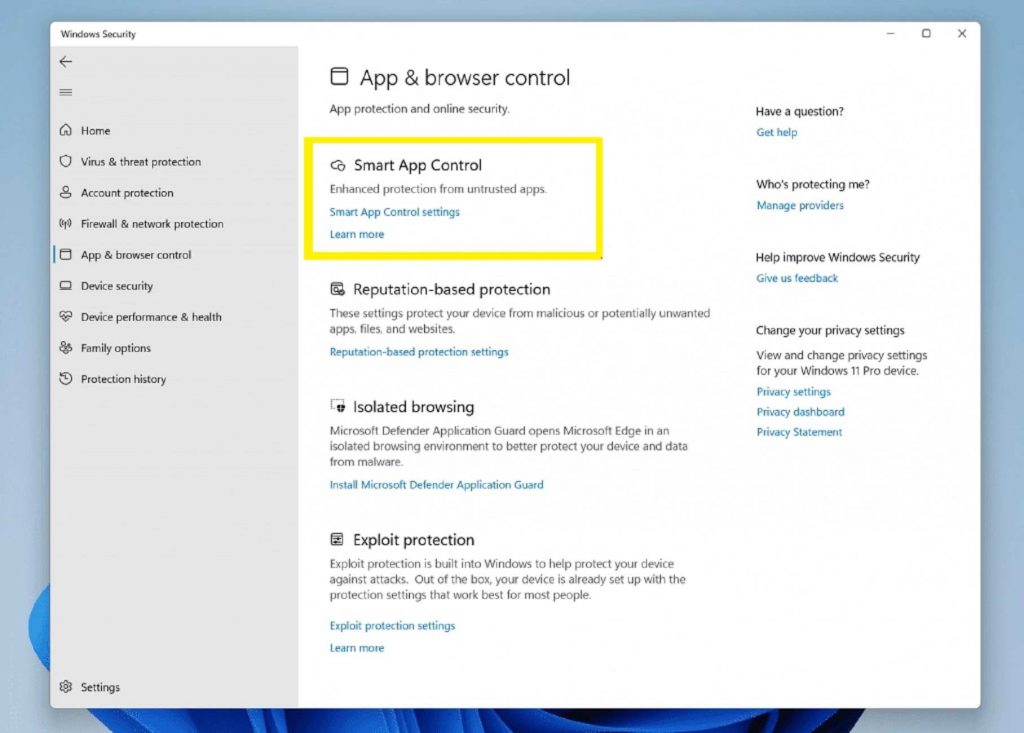
Microsoft describes it as a security feature for Windows 11 “that blocks untrusted or potentially dangerous applications”. Smart App Control runs in evaluation mode at first according to Microsoft, but it may turn itself on automatically.
SAC is first configured in evaluation mode. While SAC is in evaluation mode, it will learn if it can help protect you without getting in your way too much. If so, it will automatically be turned on. Otherwise, it will automatically be turned off. While in evaluation mode, a user can manually turn on SAC in the Windows Security app under the App & Browser Control section.
2. How does Windows 11 Smart App Control work?
When you try to run an app on Windows, Smart App Control will check to see if our intelligent cloud-powered security service can make a confident prediction about its safety. If the service believes the app to be safe, Smart App Control will let it run. Or If the app is believed to be malicious or potentially unwanted, then Smart App Control will block it.
If the security service is unable to make a confident prediction about the app, then Smart App Control checks to see if the app has a valid signature. Smart App Control will let it run if the app has a valid signature. If the app is unsigned, or the signature is invalid, Smart App Control will consider it untrusted and block it for your protection.
3. How to enable or disable Smart App Control in Windows 11?
As mentioned above, Smart App Control protects users from malware, and new and emerging threats, including blocking apps that are malicious or untrusted.
- In the search box on the task, type Windows security and then select Windows Security in the lists of results.

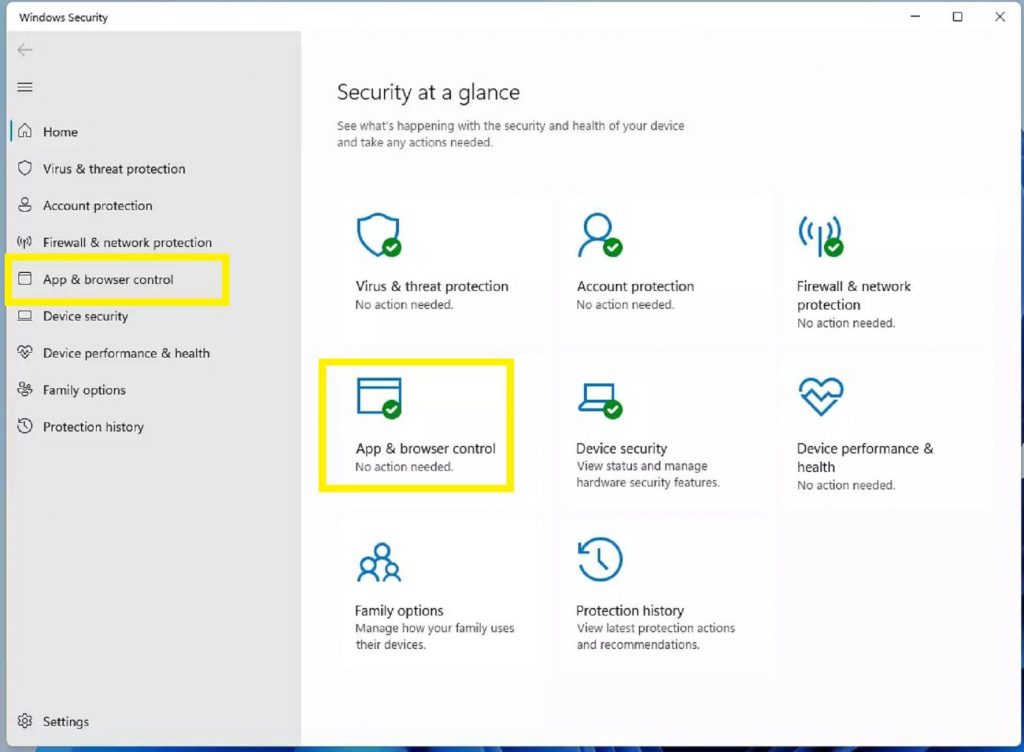
- In Windows Security, select App & browser control tile as highlighted in the image below.
- On the App & browser control page, click on the Smart App Control settings link to open it.

- Then change the Periodic scanning setting to On or Off.
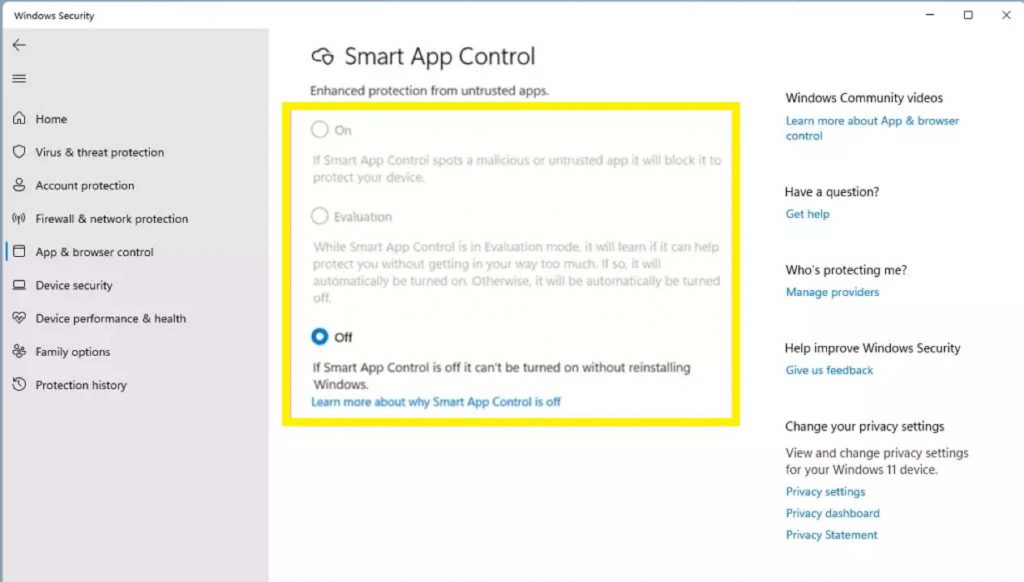
- Smart App Control starts in evaluation mode. This is a period during which Windows tries to determine if you’re a good candidate for Smart App Control. If you are a good candidate for Smart App Control, it will automatically be turned on. If not, it’ll be turned off.It won’t block anything while it’s in evaluation mode.
- Smart App Control is only available on clean installs of Windows 11. Also, there are two other reasons why Smart App Control could be turned off.6.1 During evaluation mode, determined that you weren’t a good candidate for Smart App Control.
6.2 It was turned off manually by you or another user signed into your machine. - Smart App Control is only available on clean installs of Windows 11.
Note: Devices running previous versions of Windows 11 will have to be reset and have a clean installation of Windows 11 to take advantage of this feature.
4. Need?
SAC works as a phishing protection. Hackers have recently targeted streaming services, parking meters, and those paying taxes, proving that phishing is still a concern. With this in mind, one of Windows 11’s newest security features is meant to fight against such attacks. As well as other new security enhancements will be available later this year.
When enabled, Windows 11’s enhanced phishing protection will alert users if they enter Microsoft account information into websites or programs known for phishing scams. It also safeguards against misleading advertising.
Conclusion:
In this article, we discussed Smart App Control and how to turn on/off Smart App Control? If you face any problems related to this, then please let us know in the comments section.