Обновление BIOS на ноутбуках Lenovo

BIOS представляет собой набор программ, которые хранятся в памяти системной платы. Служат они для корректного взаимодействия всех комплектующих и подключеных устройств. От версии БИОС зависит то, насколько правильно будет функционировать оборудование. Периодически разработчики материнских плат выпускают обновления, исправляя неполадки или добавляя нововведения. Далее мы поговорим о том, как инсталлировать последнюю версию BIOS для ноутбуков Lenovo.
Обновляем BIOS на ноутбуках Lenovo
Практически на всех актуальных моделях лэптопов от компании Леново обновление происходит одинаково. Условно всю процедуру можно разделить на три шага. Сегодня мы детально рассмотрим каждое действие.
Перед началом процесса убедитесь в том, что портативный компьютер подключен к хорошему источнику электроэнергии, а его батарея полностью заряжена. Любое даже незначительное колебание напряжения может провоцировать сбои во время инсталляции компонентов.
Шаг 1: Подготовка
Обязательно нужно подготовиться к обновлению. От вас требуется выполнить следующие действия:
- Узнайте актуальную версию вашего BIOS, чтобы сравнить его с той, которая находится на официальном сайте. Методов определения существует несколько. Развернуто о каждом из них читайте в другой нашей статье по ссылке ниже.
Шаг 2: Загрузка программы обновления
Теперь приступим непосредственно к обновлению. Сначала нужно загрузить и подготовить необходимые файлы. Осуществляются все действия в специальном вспомогательном софте от Lenovo. Скачать на компьютер его можно так:
- По ссылке выше или через любой удобный браузер перейдите на страницу поддержки Lenovo.
- Опуститесь немного вниз, где найдите раздел «Драйверы и программное обеспечение». Далее нажмите на кнопку «Получить загрузки».
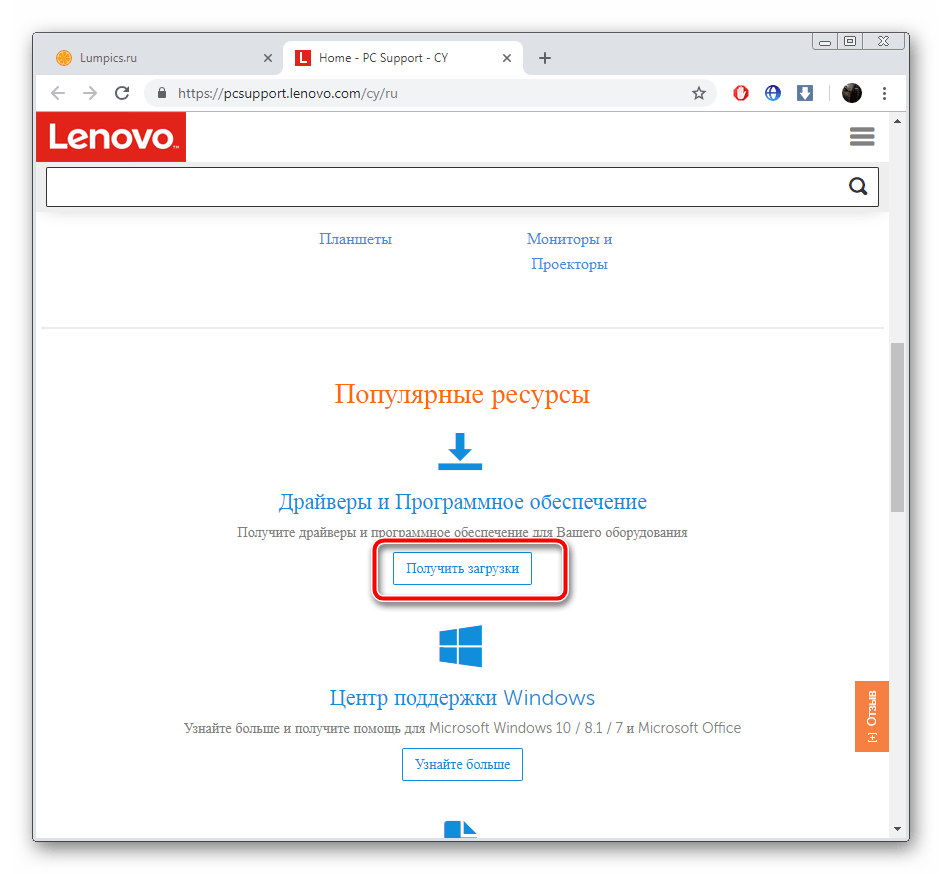
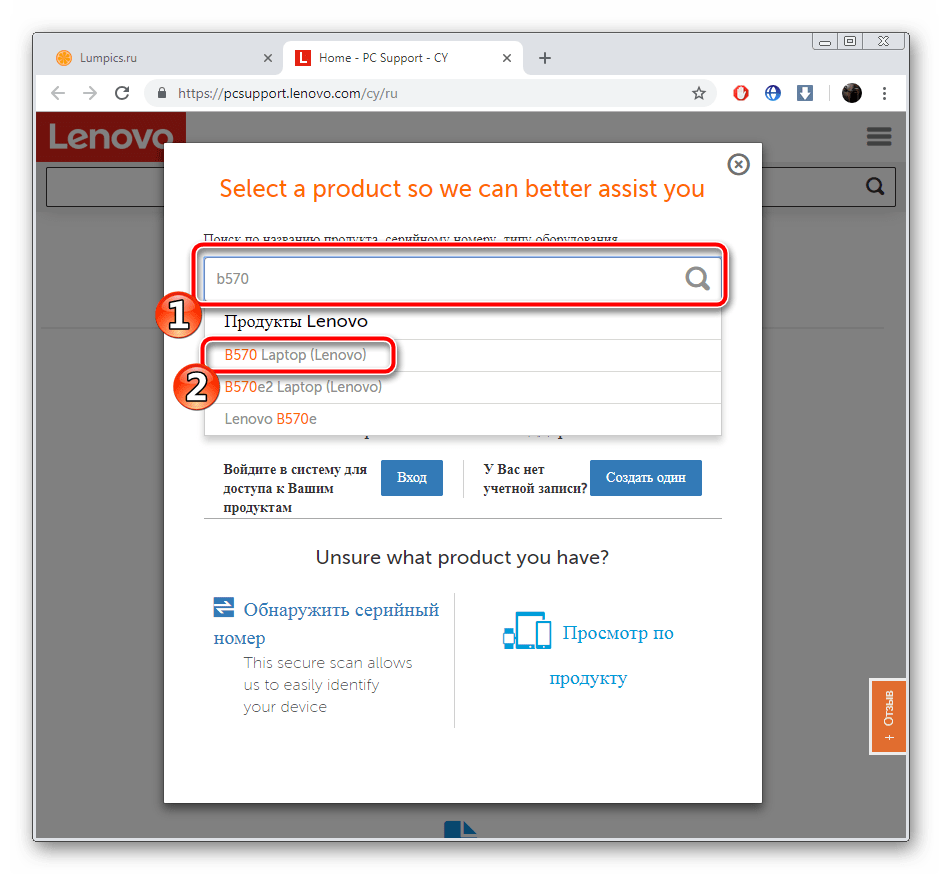
- В отобразившейся строке введите название вашей модели ноутбука. Если вам она неизвестна, обратите внимание на наклейку, что находится на задней крышке. Если она стерта или не удается разобрать надпись, используйте одну из специальных программ, которые помогают узнать основную информацию об устройстве. Ознакомьтесь с лучшими представителями такого софта в другой нашей статье по ссылке ниже.
Запуск и дальнейшие действия лучше производить под учетной записью администратора, поэтому мы настоятельно рекомендуем войти в систему под этим профилем, а уже потом переходить к следующему шагу.
Шаг 3: Настройка и инсталляция
Теперь у вас на компьютере имеется загруженная официальная утилита, которая автоматически обновит БИОС. Вам же нужно только удостовериться в том, что все параметры указаны правильно и, собственно, запустить сам процесс инсталляции файлов. Выполните следующие манипуляции:
- После запуска дождитесь окончания анализа и подготовки компонентов.

- Убедитесь в том, что маркером отмечен пункт «Flash BIOS only» и спецификация нового файла сохранена в системном разделе жесткого диска.
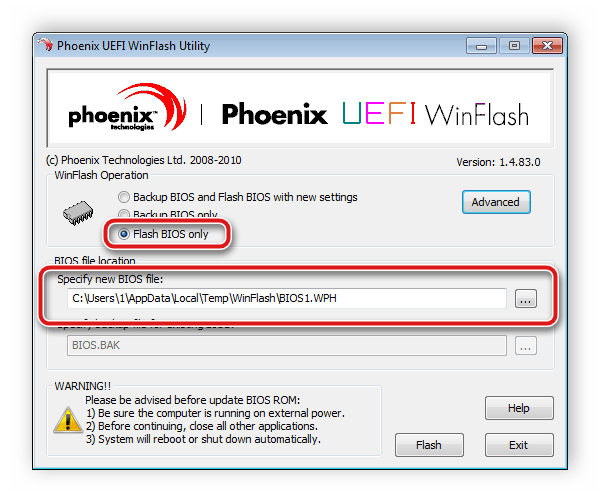
- Нажмите на кнопку «Flash».

- Во время обновления не производите никаких других процедур на компьютере. Ожидайте появления уведомления об успешном завершении.
- Теперь перезагрузите ноутбук и войдите в BIOS.
Дождитесь перезапуска лэптопа. На этом процедура обновления завершена. Уже потом вы можете снова вернуться в БИОС, чтобы выставить там все параметры под себя. Детальнее читайте в статье от другого нашего автора по следующей ссылке:
Как видите, ничего нет сложного в инсталляции новой версии BIOS. Нужно лишь убедиться в правильности выбранных параметров и следовать простому руководству. Сам процесс не займет много времени, а справится с ним даже не обладающий специальными знаниями или навыками пользователь.
What Is Lenovo Bios Update Utility?
BIOS Update Utility. This package updates the UEFI BIOS (including system program and Embedded Controller program) stored in the ThinkPad computer to fix problems, add new functions, or expand functions.
Is Lenovo BIOS update necessary?
Re:Update BIOS, should I do or not? please help. In general, you shouldn’t need to update your BIOS that often. Installing (or “flashing”) a new BIOS is more dangerous than updating a simple Windows program, and if something goes wrong during the process, you could end up bricking your computer.
Is it safe to update Lenovo BIOS?
Yes, it’s safe providing you follow the instructions and don’t interrupt the process. After all millions of Lenovo products get BIOS updates that apply without issues.
Is Lenovo BIOS update utility setup wizard safe?
Don’t trust the BIOS Update. The BIOS update is fake. The authors of the BIOS update are some random persons, not Lenovo.
What is a BIOS update on Lenovo?
Lenovo System Update is used to update, and install Lenovo drivers, BIOS and applications. Lenovo System Update is supported on the following systems: ThinkPad, ThinkCentre, ThinkStation, and Lenovo V, B, K, E-Series. Visit our support home page, select the product > click Drivers & software > select System Update.
What will happen after BIOS update?
Hardware updates—Newer BIOS updates will enable the motherboard to correctly identify new hardware such as processors, RAM, and so on.Increased stability—As bugs and other issues are found with motherboards, the manufacturer will release BIOS updates to address and fix those bugs.
Why did my computer do a BIOS update?
Hardware Support: Some motherboard manufacturers add support for new CPUs, and potentially other hardware, in BIOS updates. If you want to upgrade your computer’s CPU to a new CPU—possibly one that wasn’t yet released when you purchased your motherboard—you may need to update the BIOS.
How long does a BIOS update take Lenovo?
apparently it takes no longer than 10-15 minutes. read through some more forums, found out bios was resettable.
Should you do Lenovo updates?
Lenovo System Update should be used to update your system after a new setup or re-image. It is recommended that you do not install BIOS updates along with other updates. Lenovo System Update may need to be run multiple times to ensure all updates have been downloaded and installed successfully.
Is Lenovo system update a virus?
These tests apply to Lenovo System Update 5.07. 0117 which is the latest version last time we checked. According to our test on Feb 12, 2021, this program *is* a clean download and virus-free; it should be safe to run.
Is a BIOS update critical?
A BIOS update is no trivial thing. If it goes wrong for some reasons, you could very well end up with a motherboard that won’t turn on, in which case you either have to buy a new one or send it for a BIOS chip replacement.
What is a BIOS update?
BIOS update contains feature enhancements or changes that help keep the system software current and compatible with other computer modules (hardware, firmware, drivers, and software). BIOS update also provides security updates and increased stability.
Does updating BIOS delete data?
The BIOS updates don’t write anything to the disk at all. So unless the disk is encrypted with a key you didn’t backup and you’re using the TPM (TPM verification will fail due to changed firmware) you will not lose any user data. BIOS updates can however cause other forms of trouble if they go wrong.
What are the disadvantages of BIOS?
Limitations of BIOS (Basic Input Output System)
- It boots in 16-bit real mode (Legacy Mode) and hence is slower than UEFI.
- End Users may destroy Basic I/O System Memory while updating it.
- It cannot boot from large storage drives.
How long can a BIOS update take?
Sometimes it’s long and drawn out, but it won’t accept any other way. But normally it takes about a minute or two and usually under a minute. If the update really took place then the BIOS version will be a new version number, and hopefully all of the computer works.
Does a BIOS update change settings?
When you update you BIOS all of the settings are reset to default. So you gotta go through all the settings again.
What does BIOS stand for?
Basic Input/Output System
BIOS, in full Basic Input/Output System, computer program that is typically stored in EPROM and used by the CPU to perform start-up procedures when the computer is turned on.
How long does a Lenovo update take?
The first section covers installing the updates related to problems with audio, video and using projectors and takes about 20 minutes to complete. The second section covers installing the full set of recommended updates and takes about an hour to complete.
What is Lenovo utility software?
Lenovo Utility is a program for managing the devices in your Lenovo laptop. You can manage your WiFi adapter, Bluetooth, microphone, webcam, audio output, Dolby settings, etc. You can also change the power usage, view system information, and even customize the function keys.
How do I uninstall Lenovo BIOS update?
Press the F1 key while the system is restarted or powered on. Enter the BIOS setup. Change the “Windows UEFI firmware update” to disable. Press F10 to save and exit.
How do I stop Lenovo from updating?
If you need to disable System Update scheduled updates on a single machine, you can easily do this manually. Open System Update and then click Schedule updates under the “Advanced” section. Uncheck the box “Enable monthly check for updates”. Congratulations!
Lenovo System Update


О программе
Что нового
Новое в Lenovo System Update 5.07.0140 (10.02.2023):
- Исправлено: не создавался TempLocalPath TVSU-614
Системные требования
Операционные системы:
- Windows 11 / 10 / 7 (32-bit и 64-bit)
- Требуется Microsoft .NET Framework версии 4.5.2 или выше
Поддерживаемые устройства:
- Lenovo ThinkPad (все модели)
- Lenovo ThinkCentre (все модели)
- Lenovo ThinkStation (все модели)
- Lenovo V/B/K/E Series
- Lenovo 3000 C100, C200, N100, N200, V100, V200
- Lenovo 3000 J100, J105, J110, J115, J200, J200p, J205, S200, S200p, S205
Полезные ссылки
Подробное описание
Lenovo System Update — официальная программа для установки и обновления драйверов, BIOS и технического программного обеспечения ноутбуков и компьютеров Lenovo. Программу можно использовать как для настройки новых устройств, так и для поддержания в актуальном состоянии программного обеспечения вашего ноутбука Lenovo.
С помощью Lenovo System Update вы сможете обновить драйвера и BIOS до новейших версий, что позволяет обеспечивать безопасность и стабильность системы. Также, новые версии могут включать исправления ошибок, улучшения совместимости оборудования и другие полезные исправления.
Программа имеет простой интерфейс и она не сложна в использовании. После запуска, программа проверяет конфигурацию вашего ноутбука и подключается к серверам Lenova для проверки на наличие обновления или неустановленных программ и драйверов. Далее, вы можете установить все рекомендуемые обновления или вручную отметить что нужно установить.
Встроенный планировщик автоматически проверяет наличие обновлений, что поможет не пропустить важные обновления безопасности, исправления ошибок и добавление новых функции. Программа Lenovo System Update поддерживает большинство моделей ноутбуков и компьютеров Lenovo и регулярно обновляется для поддержки новых моделей.
Другие программы
DriverPack Solution
Сборник драйверов для Windows с автоматическим определением оборудования и установкой
Lenovo Rescue and Smart Assistant
Программа для синхронизации смартфонов Lenovo и Motorola Moto с компьютером.
Lenovo BIOS Update How-To: Step-by-Step Guide
A Lenovo BIOS update is important to keep your computer running smoothly. Sometimes they are released to fix bugs or improve performance, and other times they are released in response to a security issue.
Whatever the reason for the update, it’s important that you install it as soon as possible.
In this blog post, we will walk you through the process of performing a Lenovo BIOS update so that you can do it yourself quickly and easily.
Please enable JavaScript

Lenovo BIOS Update
Note: Be careful with any BIOS update, if the process is interrupted your computer could become frozen and corrupted.
There are a few ways to upgrade your Lenovo BIOS:
Lenovo BIOS Download
This method has you download the BIOS update file from Lenovo support to your computer and then run the file to apply the update.
- Go to the Lenovo Support website.
- Type in the name or model of your computer. This will take you to the downloads page for your device.
- Select ‘Drivers & Software’, then ‘Manual Update.’
- Click on ‘BIOS/UEFI’ to see the available downloads.
- Click on ‘BIOS Update Utility’ to download the file. Also, download the ‘Readme’ file for full details about the BIOS update.
- Double-click the downloaded file and follow the instructions to perform the BIOS update.
Note: You should use an administrator account to run the update file, and the machine will reboot to apply the update.
The BIOS Update Utility is simply a compressed file of all the BIOS update files needed to perform the update.
If you have a BIOS password set, you may need to clear or reset it if it has been forgotten.
Lenovo Vantage Utility
Lenovo Vantage is a utility that comes pre-installed on many Lenovo computers. It provides a quick way to access support, view system information, and perform maintenance tasks.
- From Windows search for and select ‘Lenovo Vantage.’
- Click on the ‘System Update’ tab.
- Click the ‘Check For Updates’ button.
- Install all the updates shown or only the BIOS update.
- A prompt will inform you of a system reboot.
If needed, you can download Lenovo Vantage for your machine.
System Update Lenovo
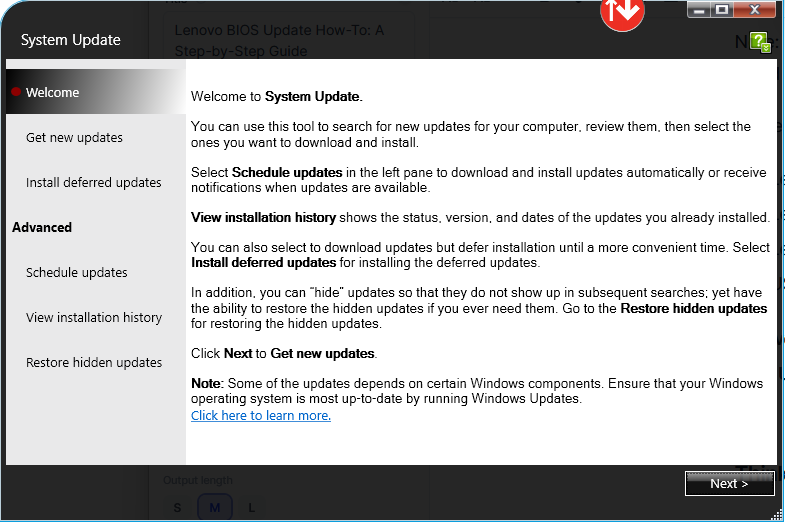
System Update is a utility on your Lenovo computer designed to search for and install updates specifically for your machine. You can download and install any new updates including a BIOS update immediately or schedule a time to apply the updates.
- From Windows, search for and select ‘System Update’.
- Select ‘Next’ to allow the utility to search for new updates.
- Either apply the updates right away or schedule a time to do so.
Some updates including a BIOS update will require your computer to reboot.
System Update Lenovo
Also, see the Steps To Fix New SSD Drive Not Showing Up in the BIOS.
USB Flash Drive
- Go to the Lenovo Support website.
- Type in the name or model of your computer. This will take you to the downloads page for your device.
- Select ‘Drivers & Software’, then ‘Manual Update.’
- Click on ‘BIOS/UEFI’ to see the available downloads.
- Click on ‘BIOS Update Utility’ to download the file. Also, download the ‘Readme’ file for full details about the BIOS update.
- Double-click the downloaded file and select ‘Extract Only’ to your desired folder.
- Navigate to that folder and open the file titled “Instructions US – BIOS Flash USB Memory Key” for instructions on creating a USB flash drive.
- Insert a formatted USB flash drive to your computer.
- Open a command prompt with administrative rights and run ‘mkusbkey.bat’ as described in the file.
Computer won’t boot after a BIOS update
- Unplug the power cord or AC adapter and any battery from the computer.
- On a laptop, press either the ‘reset’ button or the ‘NOVO’ button.
- Press and hold the power button for at least 10 seconds to attempt to drain any remaining power.
- Re-install the battery and power, then boot up the machine.
If the above steps did not fix your issue, try the BIOS initialization procedure.
- Press the power button to power on your computer and press ‘F1’ to boot into the BIOS/UEFI.
- Press the ‘F9’ key to load the default configuration on the computer.
- Confirm it and press ‘F10’ to save and reboot.
Lenovo Legion Memory Enhance BIOS
The Memory Enhance option in the BIOS of some Legion laptops can either be enabled or disabled. It is intended to improve or increase memory stability by adjusting the memory timings. It will improve the memory latency of your RAM for better performance.
Many users have noticed their memory speed decreased from 3200Mhz down to 2933Mhz when enabling the ‘memory enhance’ feature. This is most likely due to the use of XMP RAM which is not yet supported by Legion laptops.
You should run a couple of tests with this option enabled and disabled to find out which setting gives you the best performance.
ThinkPad BIOS Update
If you have a ThinkPad, the process is similar to the Lenovo BIOS update process above. The main difference is that you’ll need to download the ThinkPad BIOS update utility.
- Go to the Lenovo Support website.
- Type in the name or model of your Lenovo ThinkPad computer. This will take you to the downloads page for your device.
- Select ‘Drivers & Software’, then ‘Manual Update.’
- Click on ‘BIOS’ to see the available downloads.
- Download the ThinkPad BIOS update utility. Also, download the ‘Readme’ file for full details about the BIOS update.
- Run the utility to update the ThinkPad BIOS.
Lenovo BIOS Update Virus
Many users have seen a BIOS update prompt pop-up on their Lenovo computers and are wondering if it is a virus. If for any reason you are unsure of the authenticity of an update program, do not run it.
To be safe, visit the Lenovo support page to download a new BIOS update or use the Lenovo Vantage tool for all your updates. This will ensure you have a valid and safe BIOS update to apply to your system.