Меню startup, Меню startup” на странице 112 – Инструкция по эксплуатации Lenovo IdeaPad U300e

продолжит загружать операционную систему. Во избежание несанкционированного доступа
подключите функцию аутентификации пользователя в операционной системе.
Меню Startup
Иногда бывает необходимо изменить последовательность загрузки компьютера. Например, если на
разных устройствах установлены разные операционные системы, можно запускать любую из них.
Внимание: После изменения последовательности загрузки необходимо уделять особое внимание
операциям копирования, сохранения данных и форматирования дисков, чтобы не указать
неправильное устройство. В противном случае можно удалить или перезаписать нужные данные и
программы.
Внимание: Если используется средство шифрования дисков BitLocker, не меняйте
последовательность загрузки. BitLocker обнаруживает изменения последовательности и блокирует
загрузку компьютера.
Изменение последовательности загрузки
Выберите пункт Startup, чтобы открыть вложенное меню Boot.
Чтобы изменить последовательность загрузки, выполните указанные ниже действия.
1. Выберите Boot и нажмите клавишу Enter.
• Во вложенном меню Boot можно задать последовательность загрузки компьютера при его
• С помощью параметра Network Boot можно указать приоритетное загрузочное устройство
для функции Wake on LAN, которая часто используется администраторами локальных
корпоративных сетей для удаленного доступа к компьютерам. Смотрите раздел “Network
Boot” на странице 113.
2. Выберите первое загрузочное устройство.
Задать порядок, который будет использоваться системой UEFI BIOS для загрузки операционной
системы, можно с помощью клавиш “–” и “+”, перемещающих устройства вверх и вниз по списку.
3. Клавиша F10 сохраняет изменения и перезапускает систему.
Если необходимо временно изменить последовательность загрузки таким образом, чтобы система
загрузилась с другого диска, выполните указанные ниже действия.
1. Выключите компьютер.
2. Включите компьютер и нажмите клавишу F12, пока в левом нижнем углу экрана присутствует
сообщение “To interrupt normal startup, press the blue ThinkVantage button”.
3. Выберите первое загрузочное устройство в меню Boot.
Примечание: Меню Boot также отображается в ситуации, когда не удается загрузить
операционную систему ни с одного из устройств либо система не найдена.
Вложенное меню Boot
В этом меню отображается приведенный ниже список, в котором устройства перечислены в порядке
загрузки. В нем указаны даже устройства, не подсоединенные к компьютеру и не установленные в
нем. Для каждого подсоединенного или установленного устройства отображается соответствующая
информация после двоеточия.
Lenovo ThinkPad T430 to Boot GNU/Linux in Legacy and UEFI Modes
This article shows how to boot a T430 laptop in BIOS (Legacy) and UEFI mode with Ubuntu operating systems. Thus, you will be able to boot either a hard disk, a solid state drive, or a USB flash to install such OS. Setups mentioned in this article are useful to help you install Ubuntu in modern standard UEFI-boot, GPT-partitioned, even in a 16GB USB mass storage. Now, let’s learn!
- F1 = enter BIOS.
- Enter = execute command.
- Esc = cancel selection / command.
- Arrows = switch selection.
- F10 = save and exit BIOS.
- F12 = enter Boot Options.
- Ctrl+Alt+Del = restart.
ThinkPad Boot Screen
When initialized, a ThinkPad laptop normally shows screen like below while saying you can press a certain key, Enter here, to access more options including BIOS. On T430, the wording is «To interrupt normal startup, press Enter«. This boot screen always appears every time you start your laptop. If you do not see this boot screen, or if there is a delay by an unusual long time, then it is a sign that there is something wrong with your laptop.
Press F1 key to enter ThinkPad’s BIOS. Unlike some other brands / models, with ThinkPad you can start BIOS by doing press hold F1 and then pressing power button without repeatedly pressing that key. Below is picture of a BIOS that displays basic information of a Lenovo ThinkPad T430. To read the information, for example, this laptop is using CPU: Intel Core i5, memory: 4 GB, and BIOS version: G1ETxxxx released by 2012.
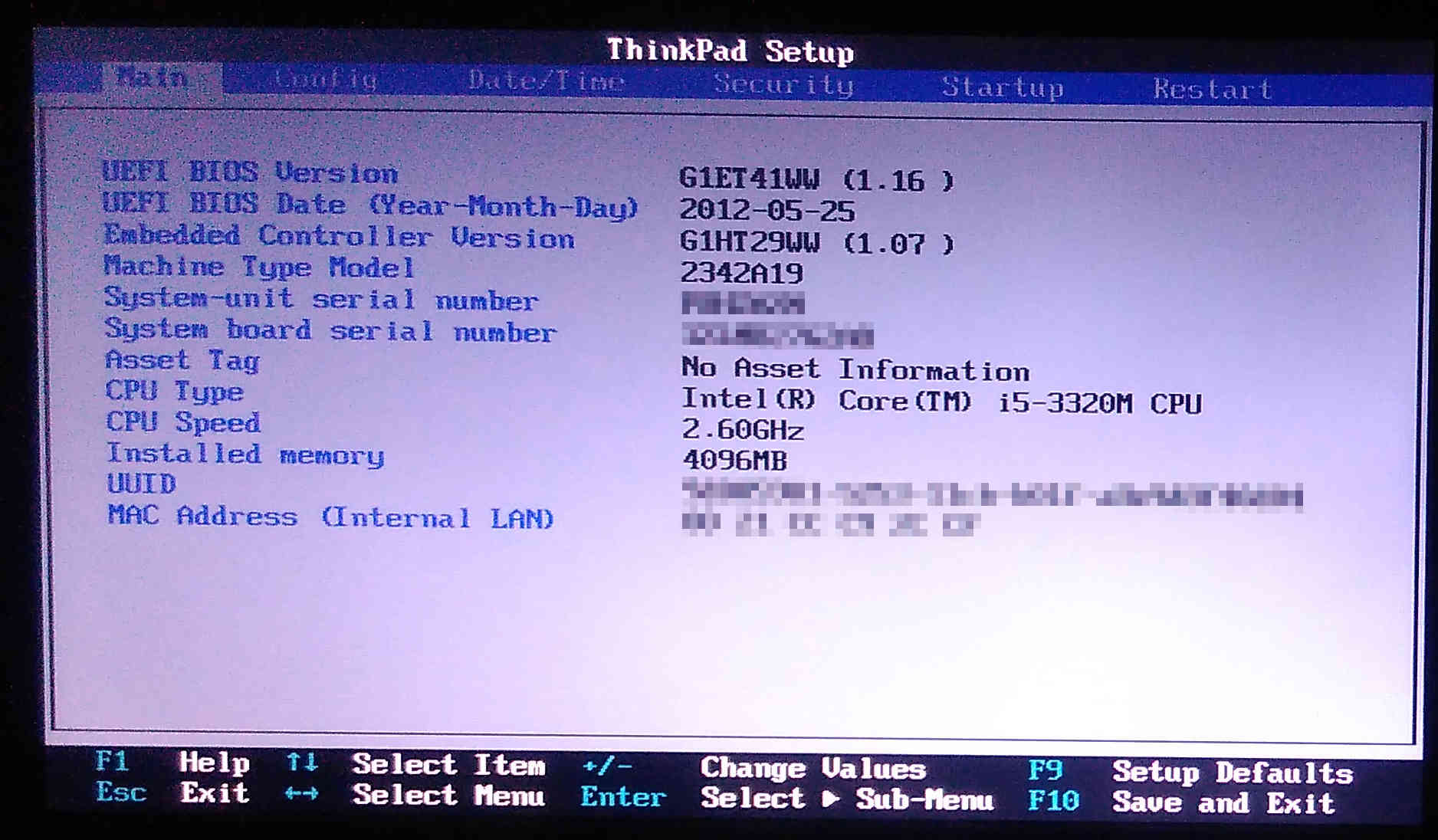
Press left-down-right-up (arrow) keys to move selection. Press Enter key to choose or execute a selection. Press plus / minus key to change value, for example, to move a hard disk down and a USB up in the boot priority. Press TAB to change between tabs in the Boot Options (the F12) when booting without entering BIOS.

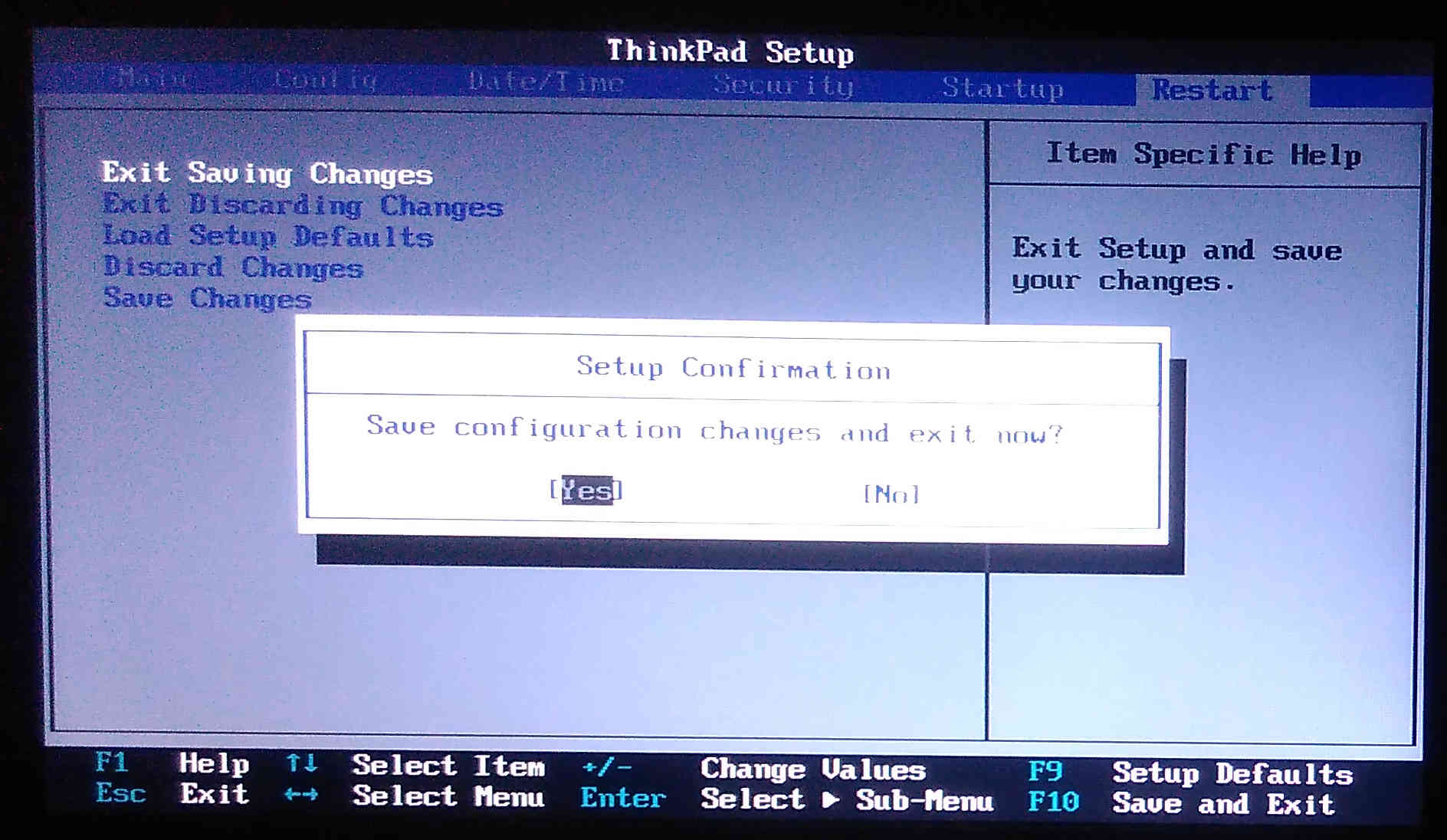
Save and Restart
Press F10 key to save all changes made in BIOS and restart automatically after that. You will do this often.
Boot Device Selection
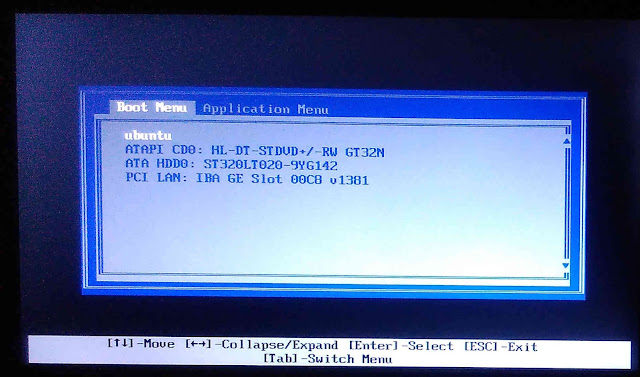
Press F12 keys when startup to enter Boot Options menu instead of BIOS. This displays list of boot devices which you can select and boot. This is the quick access to boot either a CD, USB, an external HDD, a secondary disk drive in the same laptop, or anything else as long as it is recognized already by the BIOS. Picture below shows a T430 showing a «ubuntu» boot option (1st), DVDROM (2nd), HDD (3rd), and LAN (4th).
Enable BIOS Legacy Mode
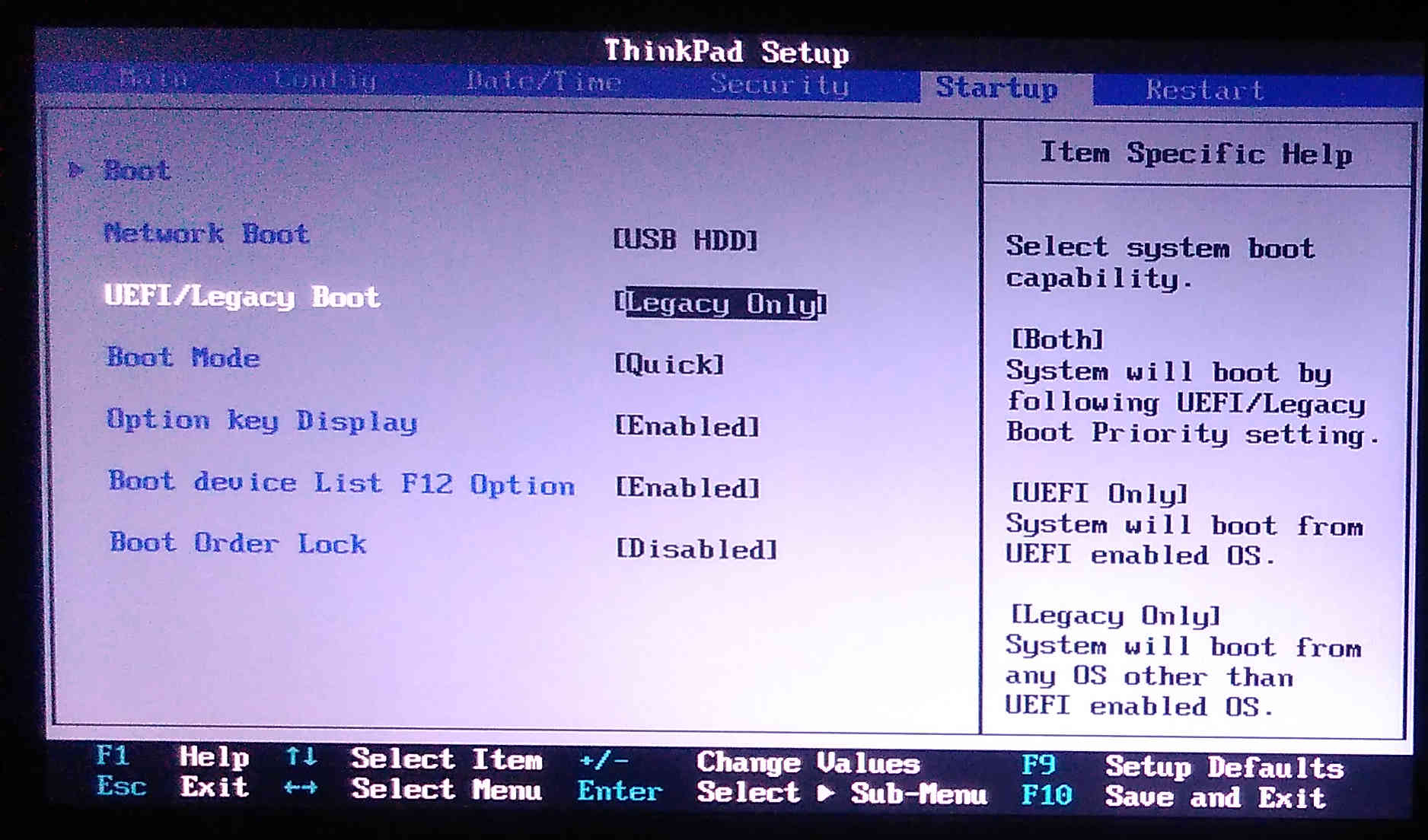
Set UEFI/Legacy Boot to [UEFI Only] in the same place of above if you want to install or livecd in UEFI mode instead. This is what you need mostly when you want a dualboot install with Windows 8 up to 10, or when your hard disk drive is GPT-partitioned.
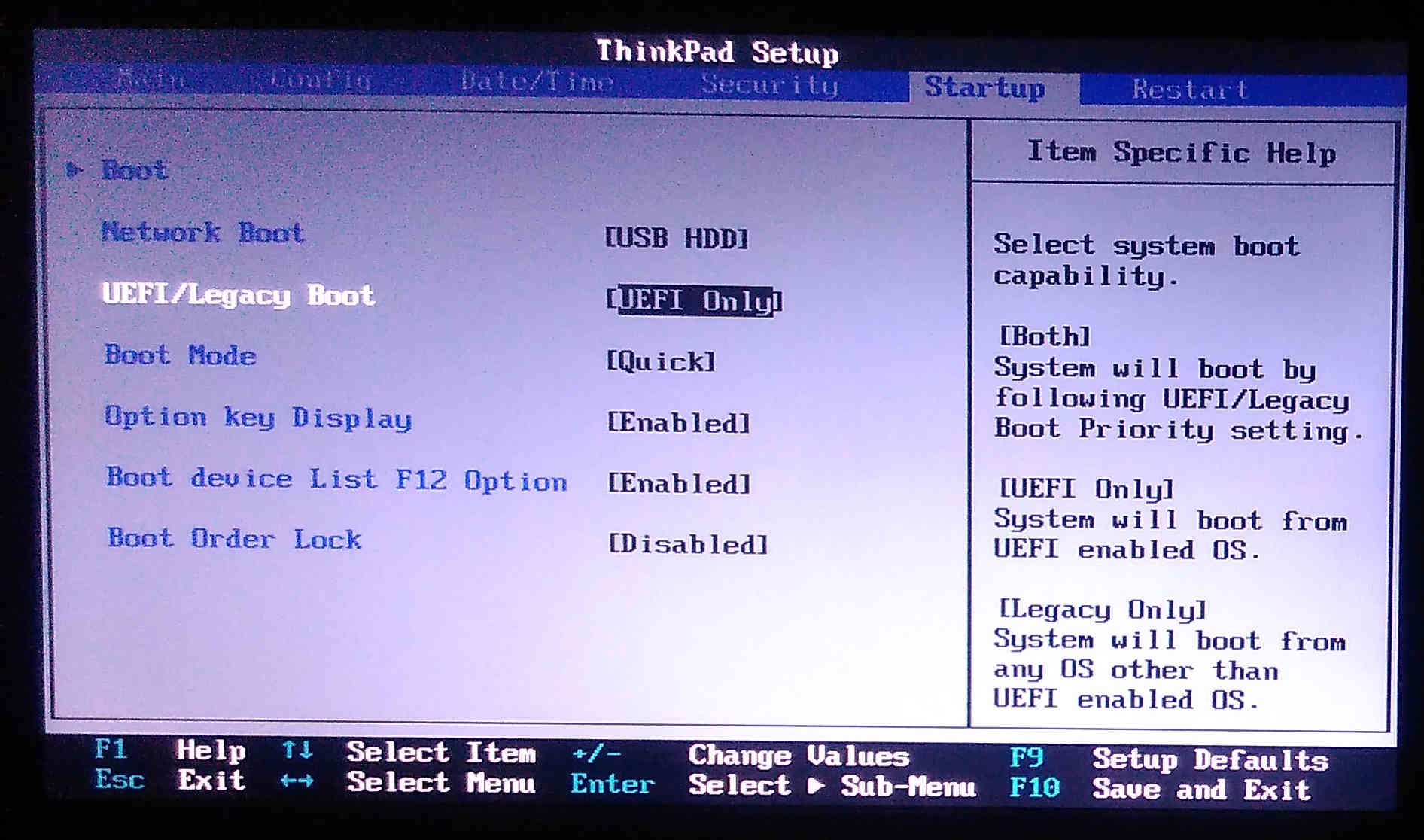
Enable BIOS-UEFI Mode
Set UEFI/Legacy Boot to [Both] to enable double mode BIOS-UEFI so you will never worry to use any device you have anywhere anytime. You can set Legacy First (UEFI later), or set UEFI First (Legacy later) after UEFI/Legacy Boot Priority right below it. The recommended choice is Legacy First to be the most compatible with most devices. This setup is a solution if you want to avoid frequent BIOS setup so you can boot your Legacy-based as well as UEFI-based Ubuntu operating system disks.
Resolve Lenovo Fan Error With Professional Solutions
Lenovo is a common brand for laptops, especially used in small businesses. However, when you turn on your laptop and encounter Lenovo fan error instead of the Home screen, it can be very annoying.
A message can also appear that says: To interrupt normal startup, press Enter. If this is the case after every restart, your Lenovo ThinkPad might be in serious trouble.
So, after tapping down the Enter key, if you are seeing the “Fan Error” on a black screen, keep reading the post. This article has all the essential information to fix the matter.
The Lenovo fan error arises if there is a temperature issue on the laptop. Also, it can occur due to excessive dust accumulation on your device.
If this error is bothering you, try the solutions discussed in this article to get it resolved. A BIOS glitch can also be the culprit responsible for the fan error on your Lenovo laptop.
Table of Contents
Solutions to Fix the “Lenovo Thinkpad Fan Error” Issue
There are a few methods that you can apply to resolve the issue. So, without worrying much, try them all until the issue of fan error gets fixed.
Solution 1: Power Cycle your Laptop
To troubleshoot the Lenovo laptop fan error , run a power cycle on your laptop. This is the simplest and effective solution if the error occurs due to a high-temperature issue.
The overheating issue can arise if you use your laptop for a long time without a cooling fan. So, try this solution with the steps explained below:
First of all, shut down your laptop forcefully by pressing down the Power button for near about 30 seconds. After that, turn off the power supply, if your laptop is attached to the electrical outlet.
Next, detach the power adapter. Press and hold the Power button of your laptop to discharge the remaining battery power on it. You need to wait until the laptop temperature drops down to normal.
When your laptop’s temperature drops significantly, put it back on charging mode. After that, restart the device and check whether the matter gets resolved. If not, then follow the remaining solution to deal with the fan issue.
Solution 2: Clear Dust from Fan
If your laptop’s fan gets heavy because of the dust particles, it will restrict your system to cool down. This is when you get the Lenovo fan error , which can be resolved by following the steps below:
Ensure that your computer is turned off before continuing this task of solving the error. No power should be stored on your computer as well.
Open the battery cover of your laptop, which is present at the rare portion. Take a screwdriver to open the screws without damaging the neighboring parts.
Next, using a tong, open the keyboard section of the laptop. Carefully, place the wire connections of your device to open the Touchpad section. After that, unscrew the left-hand sidebar and remove it to access the laptop’s fan.
Now, detach the fan from your device by removing the required fittings. Use a soft cloth and dip it into ethyl alcohol. The alcohol-dapped cloth can clean the dirt from the laptop and the fan unit. Also, use a brush to remove the remaining dust particles stuck to the laptop fan.
After removing dust, reassemble the laptop properly. Turn on your device and check whether the fan starts working or not. Hopefully, this time you will not face the fan error on the Lenovo laptop.
Otherwise, you need to update BIOS of your laptop to fix the glitch.
Solution 3: Perform a BIOS Update
After trying all the above solutions, if the Lenovo fan error persists, perform a BIOS update on your laptop. The steps to perform this solution is very simple and are as follows:
Warning: Updating a BIOS is a professional task and can damage your laptop if not performed correctly. So, follow the instructions below if you want to perform it on your own.
First, access Lenovo’s official website and select your device under the window of Product type. Then enter the product series in the “Select Series” field.
Follow the instructions to install the BIOS update on your laptop. Most probably, after doing this task you will get the issue resolved.
These are the best instructions to fix the Lenovo fan error efficiently. Try them all, until you get rid of the problem and operate the device without this error notification.
Lenovo computer boot appears To interrupt normal startup press enter
+4Votes 

The system switch machine index file is missing or damaged. It is better to use Lenovo’s original system disk to repair the system.
Question: It doesn’t matter if it is similar to the crash but there is no crash. Any key on the keyboard is just a drop but not responding
Question: Do not read the U disk
Answer: Can I enter the BIOS? Install with the system disk
Question: can not enter the bios CD-ROM does not work
Answer: If you can not enter the BIOS is the computer hardware has a problem, such a fault can only be actually disassembled Judging, this can not be solved, it is recommended to go to the computer store or understand friends to help you,
 Janet Hughes— May 3, 2019 |
+4Votes
You are probably a problem with the keyboard.
Try for a keyboard.
It is quite possible to change a keyboard.
 Edward— May 3, 2019 |
+7Votes
Turn off the startup self-test
To cancel the power-on self-test:
Press the delete key to enter the BIOS, go to the Advanced Setup Page and find Quick. Boot item, set to Enabled. will skip the self-test.
Question: Knocking del doesn’t work. Just screaming
Jessica Edwards— May 3, 2019 |
+7Votes
The machine doesn’t start, try to reinstall the system.
Question: You can’t enter the U disk and knock that button.
Answer: The English prompt means interrupting normal startup and pressing Enter.
 Ruth Mitchell— May 3, 2019 |
+6Votes
Board discharge test
 Donna Smith— May 3, 2019 |