How to draw vertical and diagonal lines with HTML and CSS

As someone just starting out with HTML and CSS there are a few things (to say the least) that can immediately perplex. For me it was vertical lines. Wanna make a horizontal line? Cool. Throw in an <hr> tag and you're good to go. Wanna make a vertical line? Logic would dictate you throw in a <vr> tag and you're good to go. Wait, no?
Now we have to get a little creative. I'll share three methods for making vertical lines (and diagonal too just for fun ☺).
Rotating a Horizontal line
The first method is to take a horizontal line and use the transform property to rotate it. For a vertical line you would rotate it 90 degrees.
Slightly confusingly, in order to change the height of the line, you'll need to change the width property because after all, this is just a horizontal line turned on it’s side.
The fun thing though, is that you can turn it into a diagonal just by changing the degree of rotation!
To move the line around the page you can add the parameters translateX and translateY to the transform property. This will move the line along the X and Y axis respectively.
A <div> with a width of 1px
The next method is to create a <div> that has the width of 1px (or more depending on how thick you’d like the line). For this method you'll have to specify a class on the <div> so as not to confuse the styling with other <div>s on your page
This may seem a little less intuitive that just rotating a horizontal line, but the benefit is that in order to change the height, you change the height property and don’t have to bend your mind every time you want to modify it a little. Another benefit is that you can make the line as thick as you would like by adjusting the width property.
But don't forget to add a background colour or border-left or border-right colour or you'll be wondering why you can't see the line ;).
The transform property works the same way as in the previous method to make diagonal lines as well.
Border-Left/Right on an existing <div>
One way to make your life a little easier is to use what’s already there. For instance, if you like to put vertical lines between text and you already have some paragraphs floating next to each other, you could just put a border-right property and voila! a vertical line separating the text. This saves you making extra <div>s for each line.
The above code will result in the following vertical lines.
You might be thinking “but I only wanted lines between the text, this method isn't going to work for me”. But wait, there’s more!
By simply adding a <div> around the paragraphs and adding a last:child pseudo selector with no border you’re problems are solved.
How to Style a Horizontal Line
A horizontal rule is commonly used as content or section divider. As a horizontal rule the <hr> element is used. Originally the <hr> element was styled using attributes. Nowadays, in HTML5, the <hr> element tells the browser that there is a paragraph-level thematic break. Let’s see how to style the <hr> element with CSS below.
Change the size and position of a horizontal rule
The <hr> element is styled with CSS rules instead of attributes. Change the width of the horizontal line by setting the width property and then center it using the margin property.
Example of changing the width and position of a horizontal rule:
Result
Center Horizontal Line
If you want to change the thickness, or height of your horizontal line, add the height property to your <hr> style. In this case, you can also set the background-color property for the thick horizontal line.
Example of changing the height and background color of the horizontal rule:
Set the border property to «none» to remove the border of your thick horizontal line.
Example of adding a horizontal rule without a border:
You can change the color of the horizontal line by setting the border-top property and defining the color. Follow the example to see an illustration of it.
Example of adding a horizontal line with the border-top property:
Additional style for horizontal lines
Go further with horizontal lines by giving different styles to your <hr> element’s border. Check the example code to see what stunning horizontal lines are presented.
Example of adding different styles to horizontal lines:
Use a background image as a horizontal rule
If you want to set an ornament or image as a horizontal rule for your website, you can add a background image to your horizontal rule with the help of the CSS background property. Also, set the height equal to the height of your image (or how much part you want from the image), and border: none, so as your image will look like as a horizontal line.
Example of adding a background image as a horizontal line:
How to add attributes to a horizontal line across the page?
You can add attributes to a horizontal line in HTML by using the <hr> tag and adding the desired attribute(s) as HTML attributes within the opening tag. Here is an example:
In this example, we have added three attributes to the <hr> element:
style: This attribute sets the inline style of the element. In this case, we have set the border property to create a solid black line. You can use any CSS property here to style the line as desired.
id: This attribute sets the unique identifier for the element. This can be used to target the element with JavaScript or CSS.
class: This attribute sets the CSS class(es) for the element. This can be used to apply common styles to multiple elements with the same class.
aria-label: This attribute is used to provide an accessible label for the element. It is read out loud by screen readers and is helpful for users who are visually impaired.
How display a colored line in html?
I’m unable to use the style-color for tag «hr». Could someone help me me to display a colored line on the my jsp page using html?

8 Answers 8
<hr> doesnt use color, it uses border-color
You can apply border-color instead of color

That should do it.

<HR COLOR=»green» WIDTH=»60%»> works in IE, firefox, and chrome according to my own tests and htmlgoodies
If you want to add color using CSS then use border-color as can be shown here
If you want good arguments for one over the other read this dated but similar stackoverflow question.
Как сделать линию с помощью HTML и CSS
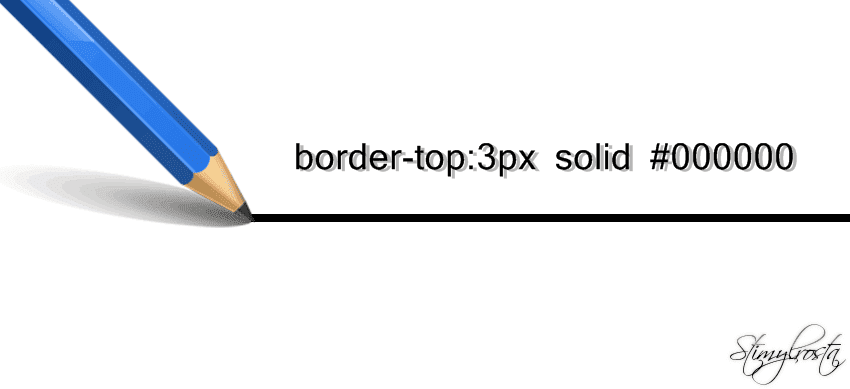
Для подчеркивания некоторых особенно важных элементов сайта, не помешало бы использовать всевозможные и предусмотренные для этого CSS стили и свойства. Конечно же, с текстом можно особо не заморачиваться и выделить его, к примеру, жирным или курсивом, изменить задний фон или сделать рамку вокруг текста. Но не всегда один из представленных способов является подходящим. Допустим, у вас есть текст, который нуждается в разделении из-за специфики его смысловой нагрузки. Вот тут-то и приходят на помощь HTML и СSS свойства.
Как сделать в тексте линию средствами CSS
Для реализации задуманного нам понадобится обратиться к файлу style.css, прописав в нем соответственное свойство border. Тем самым над, под или с определенной стороны текста появится линия. В свою очередь предусмотрено несколько свойств, отвечающих за отображение линии, а именно:
- border-top — горизонтальная линия, расположенная над текстом;
- border-right — вертикальная линия, расположенная справа от текста;
- border-bottom — горизонтальная линия, расположенная под текстом;
- border-left — вертикальная линия находящаяся слева.
Как сделать линию в html
Используя свойства CSS можно прописать все необходимые значения редактируя HTML код. Для этого нужно перейти в административную часть сайта. Выбрать один из опубликованных материалов, переключить текстовый редактор в режим правки HTML кода и внести свойства CSS. Образец можно лицезреть ниже.
Как сделать пунктирную или прямую линию?
Краткая расшифровка команд
- width — длина линии;
- solid — сплошная линия;
- dotted — точечная линия.
Для более глубокого ознакомления со стилями рекомендую почитать эту статью.
Нужно уяснить, что в процессе внесения изменений в код сайта, свойства, определяющие тип линии, ее толщину и цвет перечисляются через пробел.
Приведенный способ имеет несколько достоинств:
- Обширный ассортимент возможностей, с помощью которых можно сделать практически любую линию.
- Легкость внесения всех необходимых изменений непосредственно в HTML код. Это во многом упрощает задачу для неопытных сайтостроителей.
Как сделать прямую горизонтальную линию с помощью тега HTML <hr>
Первое на что хотелось бы обратить ваше внимание, это то, что у данного тега, несмотря на все тонкости и принципы html, нет закрывающегося тега. Он может быть использован в любом месте html кода, между тегами <body> и </body>.
Атрибуты тега <hr>
- width — отвечает за длину линии. Может указываться как в процентах, так и пикселях.
- size — толщина линии. Указывается в пикселях.
- color — определяет цвет линии.
- align — атрибут, отвечающий за выравнивание линии.
К атрибуту align относятся следующие команды:
- right — выравнивание справа;
- left — выравнивание слева;
- center — центральное выравнивание.
Образец html кода с использованием тега <hr>
Надеюсь, у вас все получилось и теперь вы знаете, как сделать линию у себя на сайте. Назревшие вопросы оставляйте в комментариях, и мы обязательно их обсудим.

Обнаружили в тексте грамматическую ошибку? Пожалуйста, сообщите об этом администратору: выделите текст и нажмите сочетание горячих клавиш Ctrl+Enter